Display setting
Set up Widget Content that defines how your upsell looks and behaves on the Thank You Page.
The final step in creating a Thank You Page upsell is customizing the widget content. This is what your customers will actually see: the text, style, and display settings. A well-set widget makes your offer more attractive and easier to accept.
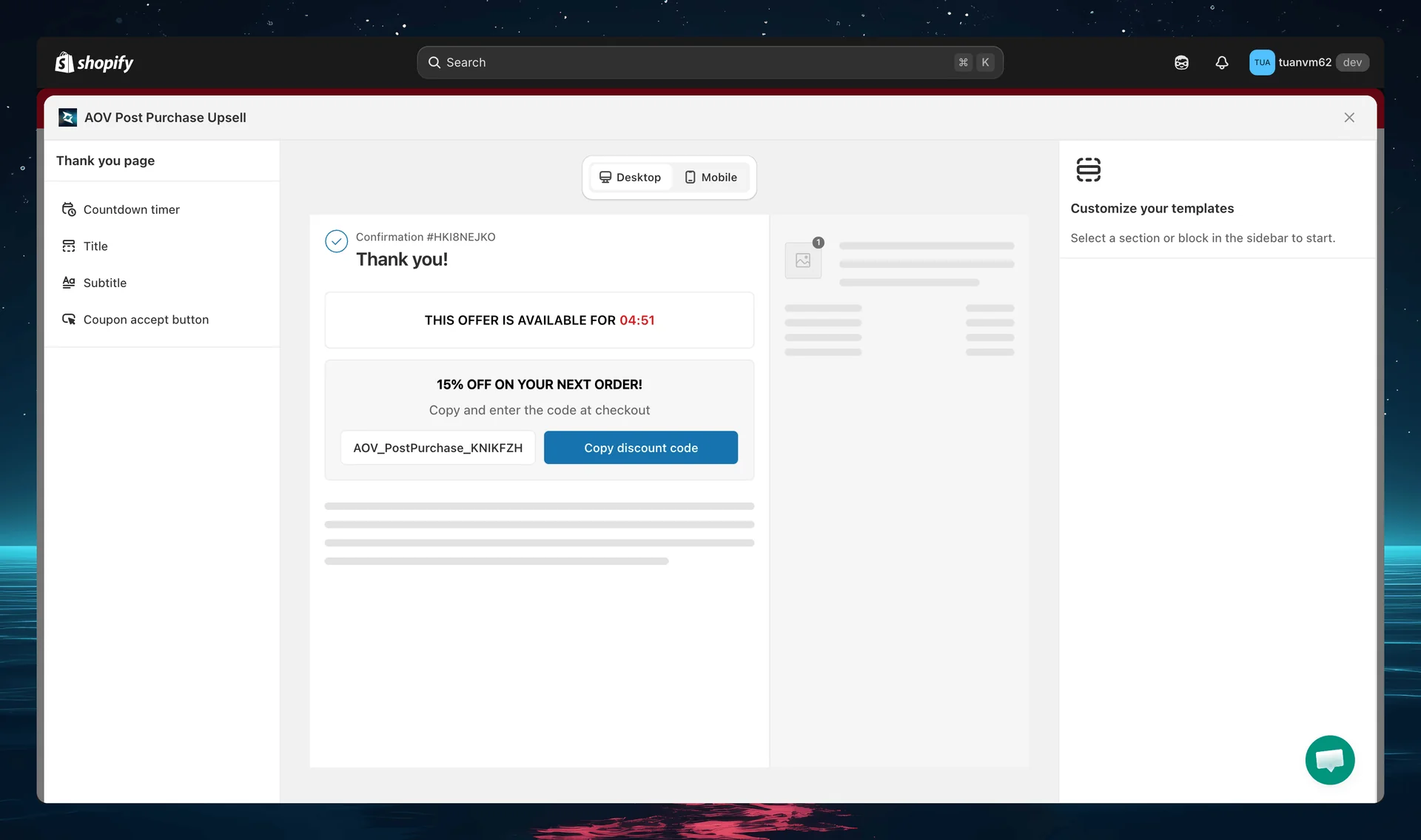
Access the Widget editor page directly from the campaign editor. If you've translated this offer, use the language button next to the Desktop/Mobile toggle to preview each translation. See Preview translations in the editor.
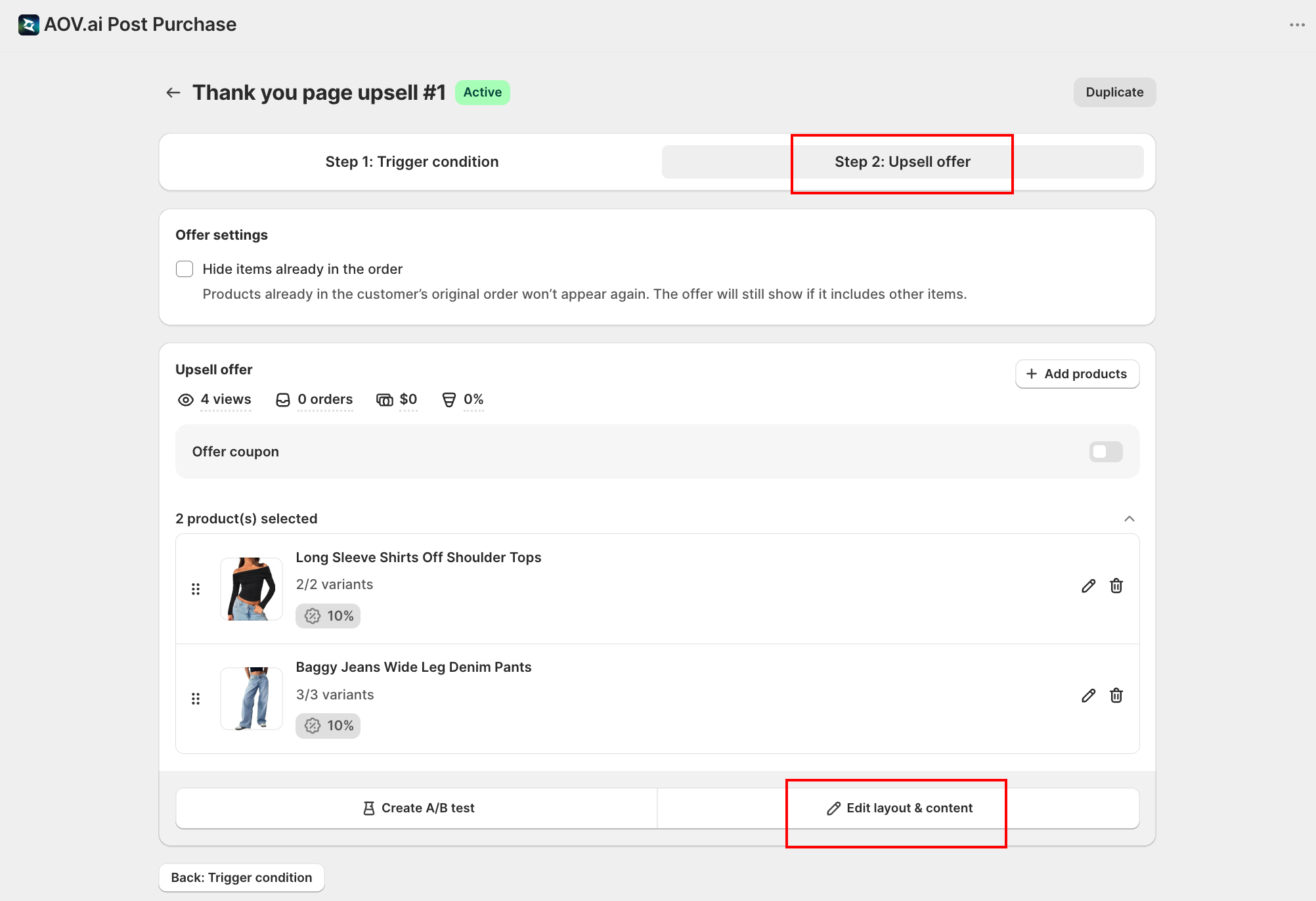
How to set up
Step 1: Add app block placement
Refer to How to set up Thank you page upsell for instructions on adding the app block.
Step 2: Set up upsell details
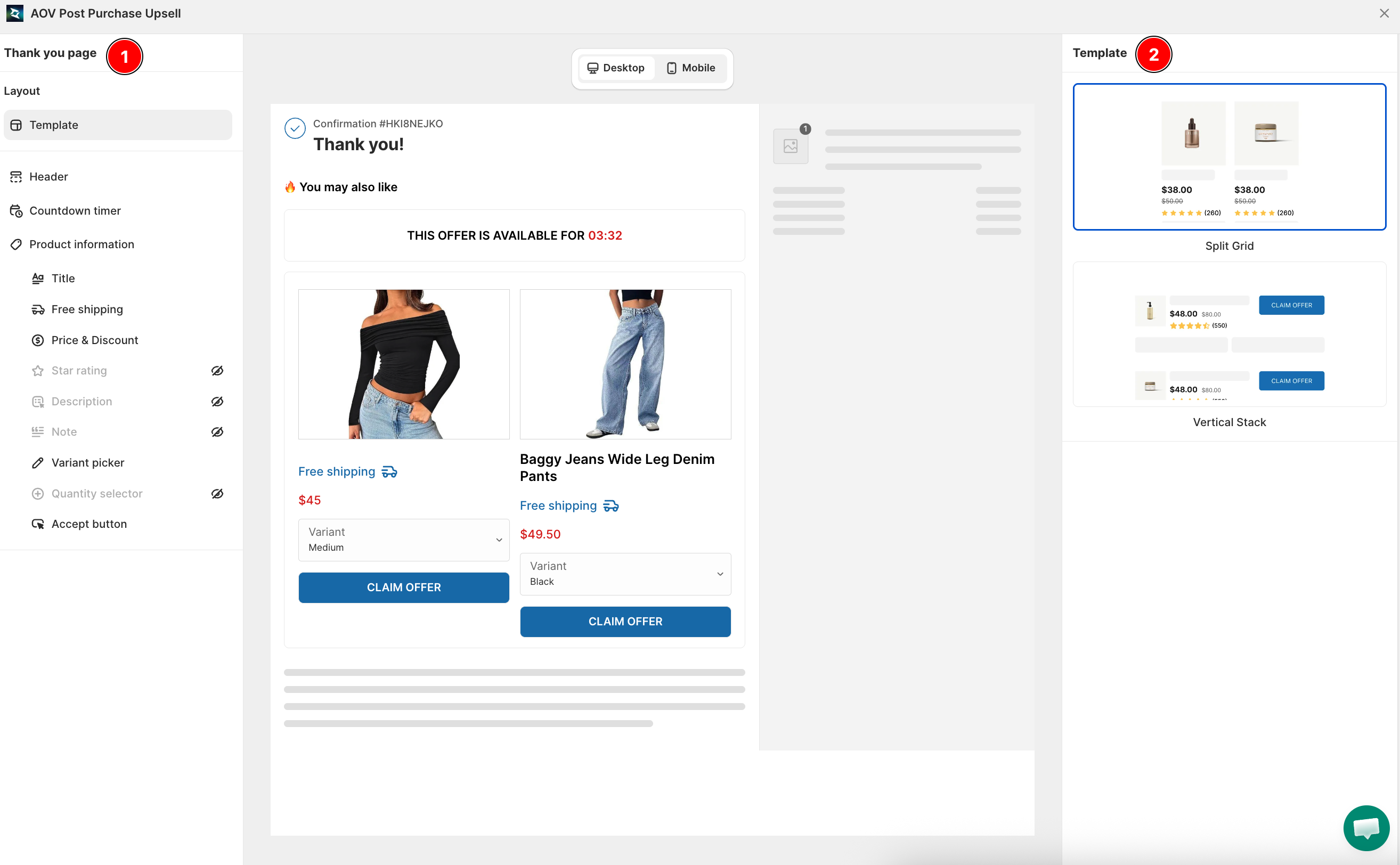
The editor panel for each feature appears on the right side after you open it. The preview screen displays in the middle.
Templates
Thank You Page upsell offers three layout templates:
- Split Grid: Two-column layout with product image on one side and offer text on the other. Best for single-product upsells.
- Vertical Stack: All elements stacked in a single column. Clean and compact, ideal when width is limited.
- Offer Coupon: For coupon-based offers. Shows a discount code block instead of a product.
Core Widgets
- Header: Main offer headline. Supports text size, color, style, and alignment. Use Add variable to insert
{{first_name}},{{last_name}}, or{{discount_value}}. - Countdown Timer: Live countdown to drive urgency. Set expiration time in minutes (recommended: 5 min). Customize the label above the timer.
- Product Information: Displays product image and details pulled automatically from Shopify. Includes the following sub-widgets:
- Title: Shows product name with full text formatting options.
- Free Shipping: Displays a "Free Shipping" badge. Toggle visibility.
- Price & Discount: Shows original price crossed out next to the discounted price. Toggle exact price display and customize compare-at label.
- Star Rating: Social proof star display. Toggle visibility, choose color (Yellow, Blue, Pink, Black) and size (Small, Medium).
- Description: Shows product description. Toggle visibility. Use metafield
aov_ppu.product_descriptionto override with a custom description. - Note: Text input for customers to leave a gift message or special instructions.
- Variant Picker: Let customers pick variants. Choose Single dropdown or Multiple dropdowns. Option to hide unavailable variants.
- Single dropdown stays selectable even when a product has a lot of variants, it's not removed. If a product was added using Select all and has more than 100 variants, that product renders with Multiple dropdowns on the storefront regardless of the Appearance setting, so buyers can still reach every variant. The editor shows an info banner titled "Some products can't use a single dropdown automatically", with body text: "Due to Shopify metafield limitations and technical constraints, products with more than 100 variants will use multiple dropdowns when all variants are selected automatically. You can still use a single dropdown by manually selecting specific variants, up to 2,048 variants are supported."
- To keep a single dropdown for a large product, tick its variants individually instead of using Select all, up to 2,048 manually selected variants still support Single dropdown.
- The banner only lists products added via Select all with more than 100 variants, it does not affect products you selected manually.
- See Selecting variants for a product in the setup guide for how variant selection and pagination work.
- Quantity Selector: Let customers choose quantity. Set minimum quantity.
- Accept Button: Primary CTA button. Choose from preset text options and button style (Primary / Secondary).