Custom Discount
Custom Discount is a campaign type where you assemble your own discount rule instead of picking a pre-built template. It answers three questions in order: which cart qualifies, what item gets discounted, and how much discount to give.
Every other campaign type is built around one fixed shape (spend a set amount, buy X get Y, hit a milestone, and so on). Custom Discount removes that limit. A request like "buy at least 2 items from Collection A, get 10% off, capped at $5, only on the most expensive item" previously could not be built in a single campaign, so merchants had to split it across several campaigns or skip it entirely. With Custom Discount, unusual rule combinations like that collapse into one campaign.
This is a new, additional campaign type. Existing campaigns are untouched and no action is needed on your end.
How it works
The setup screen has three cards, evaluated in the exact order shown below, plus a Discount combinations, Usage limit, Customer eligibility, and Schedule section under Advanced settings. If a cart fails any step, nothing is discounted for that cart. Together the full evaluation order is:
- Cart conditions: does the cart qualify (amount, quantity, product, collection)? Leave it blank and every cart qualifies.
- Customer eligibility (Advanced settings): does the shopper belong to a targeted group (segment, location, or a dedicated link)? This is always combined with cart conditions using AND, it is never optional to satisfy.
- Discounted items: which items actually get the discount, plus an optional limit on how many. Leave it blank and every item in the cart gets discounted.
- Reward: how much comes off (Free, Percentage, Fixed amount, or Fixed price), with an optional cap on the whole order or on each item.
Items the app adds to the cart automatically as a free gift (from this or any other Free Gift campaign) are excluded from all four steps above. They never count toward a threshold and are never discounted themselves.
A Summary panel on the right side of the screen translates your whole configuration into plain-language sentences (for example "Cart subtotal is at least $100" or "Discounted items are 10% off") so you can self-check the campaign before saving. Custom Discount has no storefront widget to preview, so this Summary panel replaces the usual device preview.
Step 1: Create the campaign
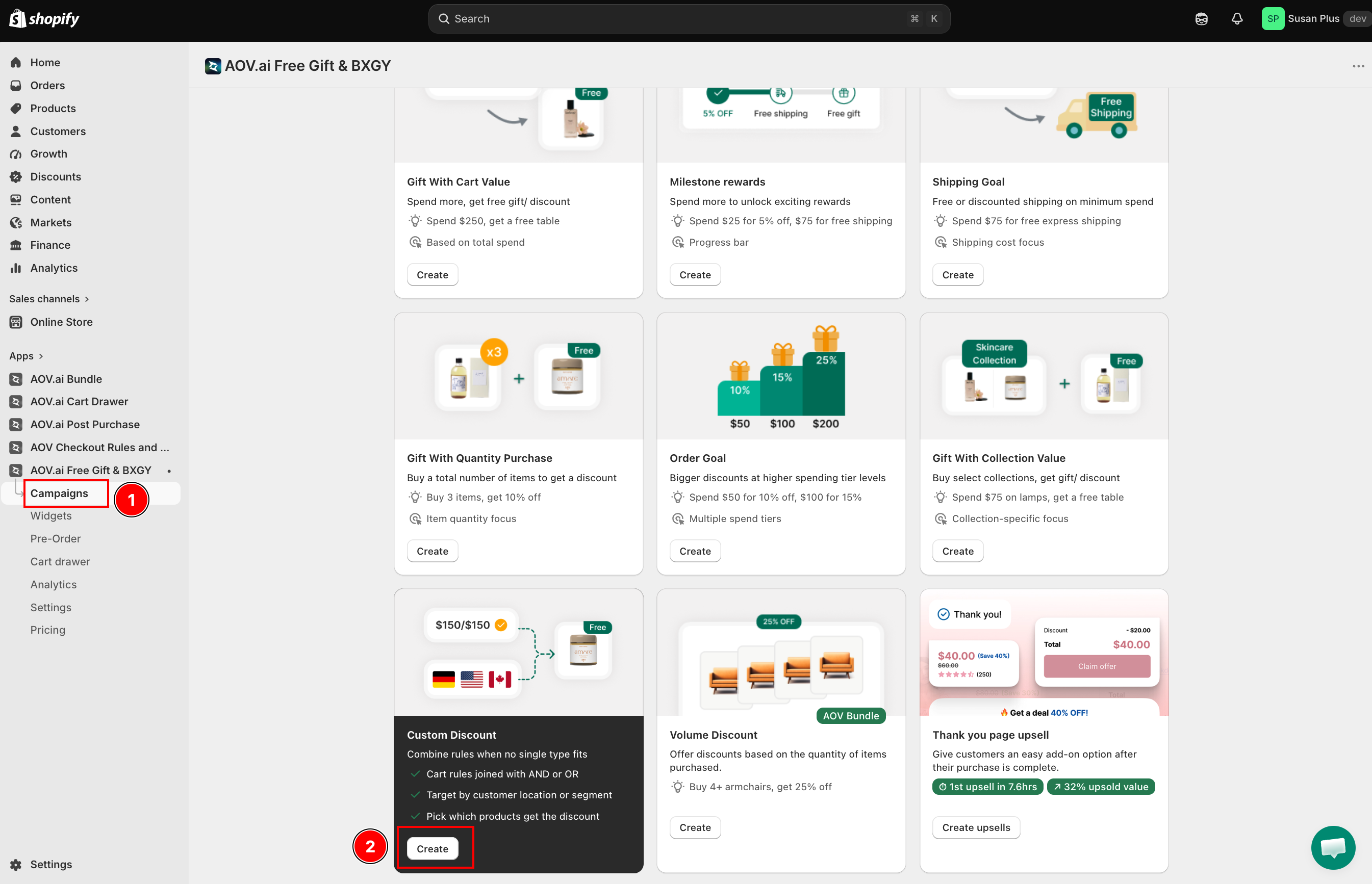
Go to Free Gift > Campaigns, click Create campaign, then choose the Custom Discount card. Its card is labeled "Combine rules when no single type fits" and lists what it can do:
- Cart rules joined with AND or OR
- Target by customer location or segment
- Pick which products get the discount
Step 2: Cart conditions
The Cart conditions card decides which carts qualify for the discount. By default it shows "No rules yet. Every cart qualifies."
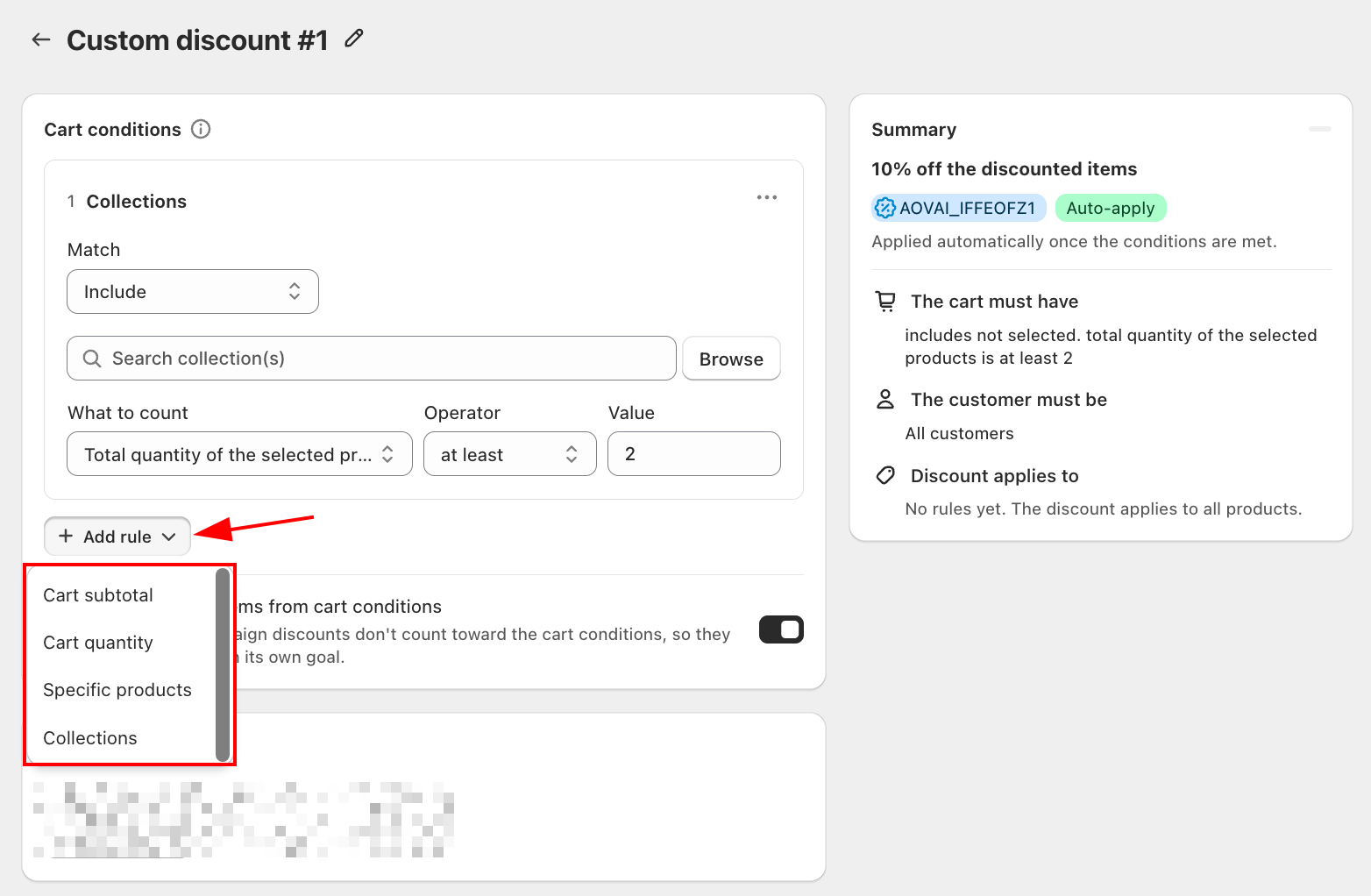
Click Add rule and pick a rule type:
- Cart subtotal: the cart's total value.
- Cart quantity: the number of items in the cart.
- Specific products: one or more chosen products (with variants).
- Collections: one or more chosen collections.
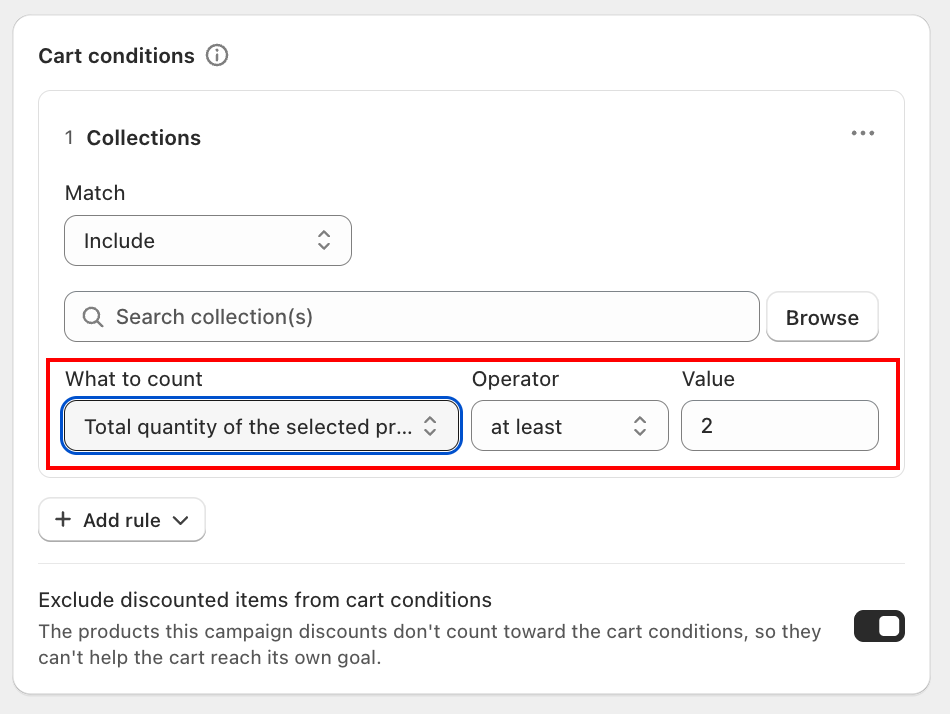
For each rule, set:
- What to count: for Cart subtotal or Cart quantity, this is the cart total, the amount/quantity of every product, or the amount/quantity of any one product. For Specific products or Collections, it is the total quantity of the selected items, their subtotal, or the quantity of every selected product.
- Operator: at least, at most, or exactly.
- Value: a currency amount or a whole number.
- Match (Specific products and Collections only): Include (the cart must contain these items) or Exclude (the cart must not).
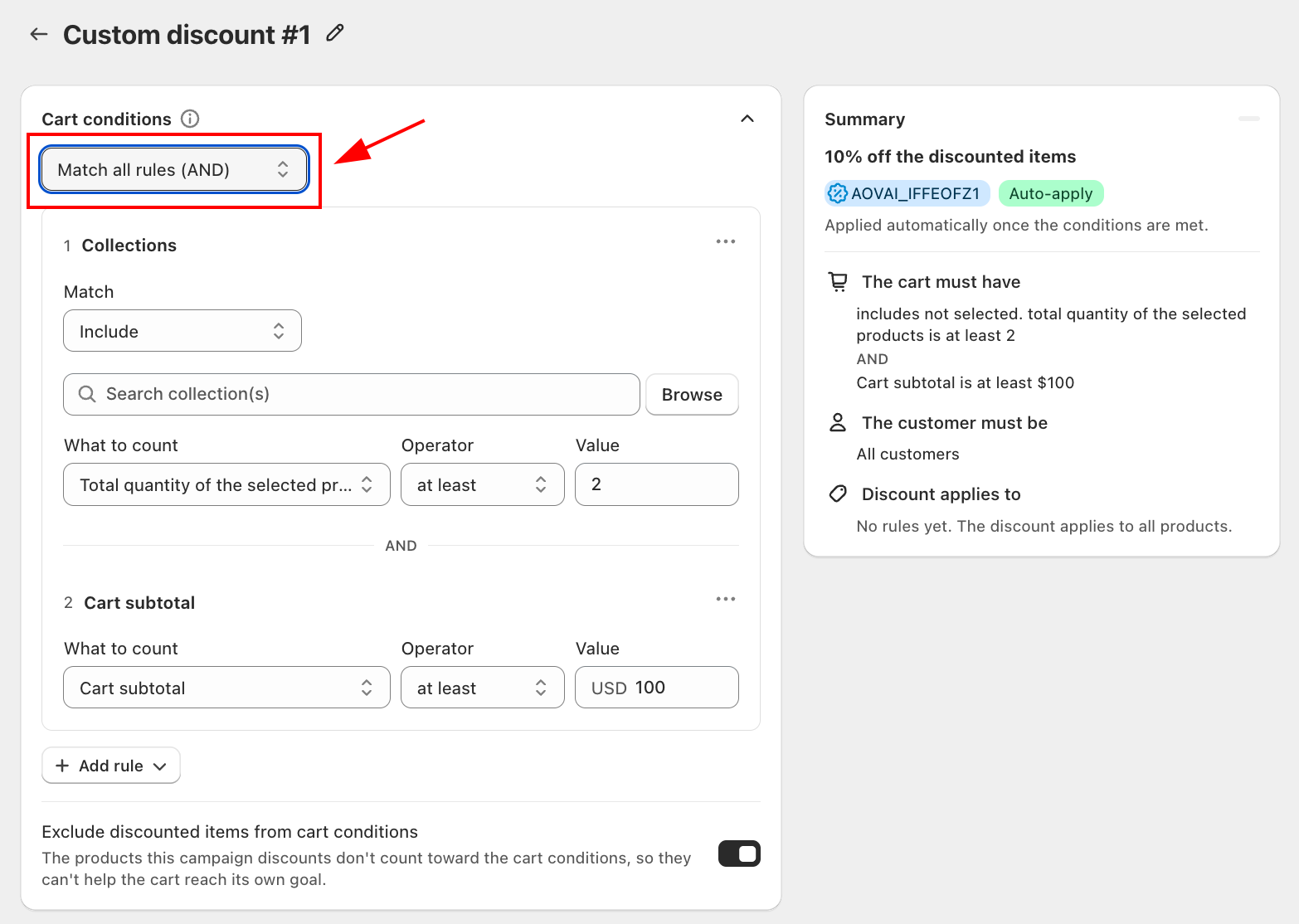
Add a second rule and a logic selector appears: Match all rules (AND) or Match any rule (OR).
Below the rule list, a toggle labeled Exclude discounted items from cart conditions is on by default. Its help text: "The products this campaign discounts don't count toward the cart conditions, so they can't help the cart reach its own goal." Turn it off only if you deliberately want the discounted items themselves to be able to satisfy the cart conditions.
Step 3: Discounted items
The Discounted items card decides which items the discount actually comes off. By default it shows "No rules yet. The discount applies to all products."
Click Add rule and pick a rule type:
- All products: every item in the cart.
- Specific products: one or more chosen products (with variants).
- Collections: one or more chosen collections.
- Line item property: matches cart lines by a property key (and, optionally, a value). Useful when another app tags the items it adds, for example a third-party widget that adds a
_giftproperty to every free item it inserts, so only those tagged lines get this discount. Enter a Property name (required) and, optionally, a Property value ("Leave empty to match any value, the line only has to carry the property"). This rule can only be used once per campaign.
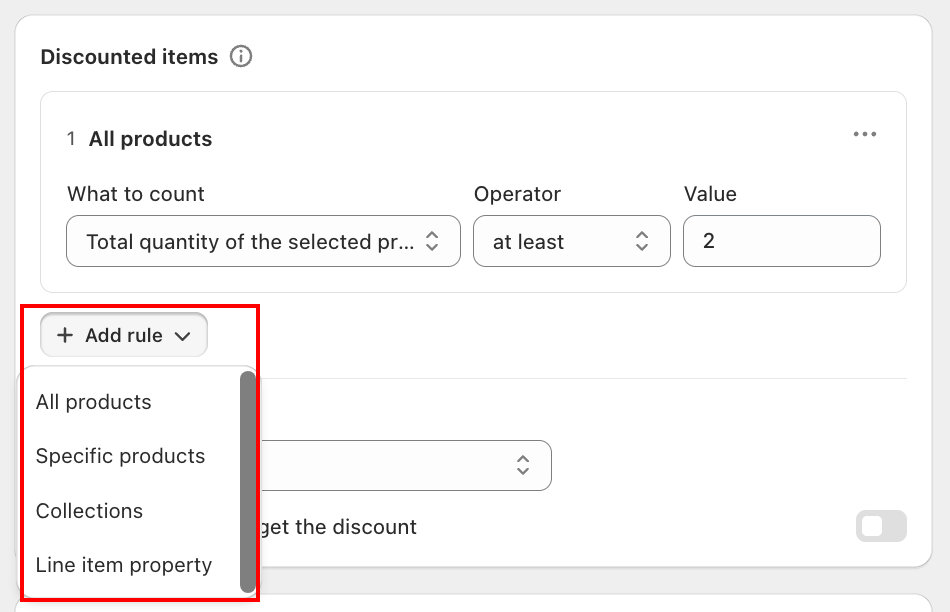
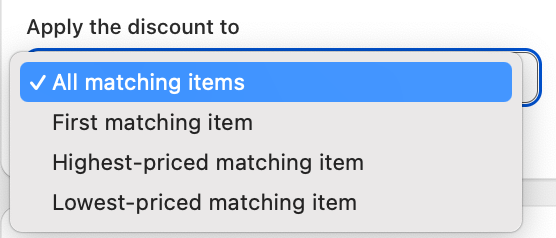
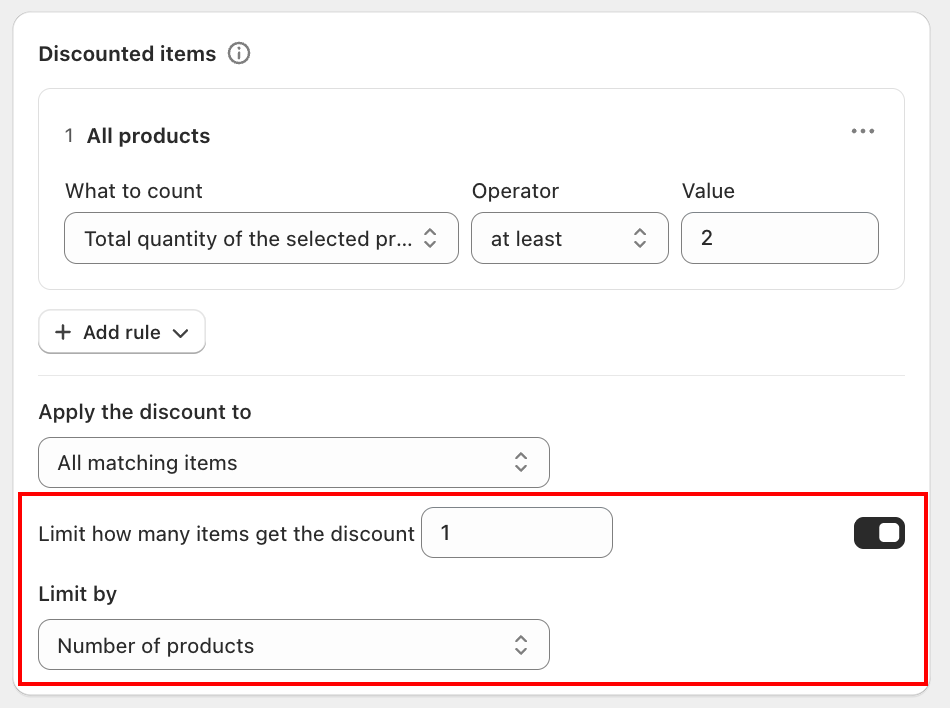
Once at least one rule is added, two more controls appear:
- Apply the discount to: All matching items, First matching item, Highest-priced matching item, or Lowest-priced matching item. This is how you build a rule like "only discount the most expensive item".
- Limit how many items get the discount: an optional toggle plus a count, with Limit by set to Number of products (whole matching lines) or Total quantity of items (only the first N units get the discount, the rest of that line stays full price).
Step 4: Discount method
The Discount method card covers both how the shopper gets the discount and how much it is.
Choose a mode:
- Apply automatically (default): the code appears in the cart and the discount applies as soon as conditions are met.
- Customer enters the code: the shopper goes to checkout, types in the code, and the discount applies.
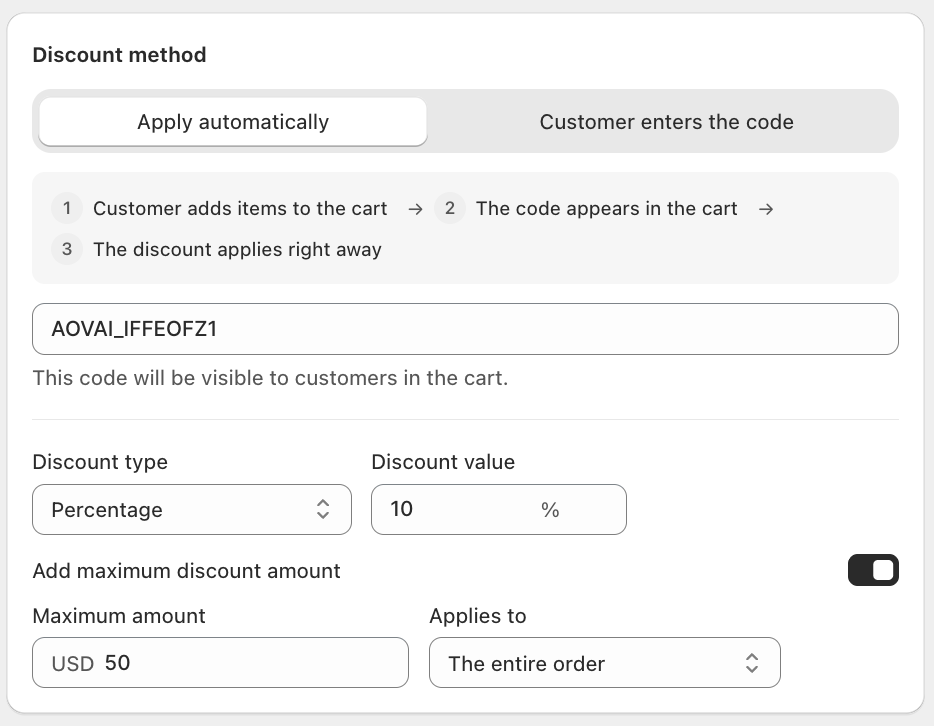
Below a divider, set the reward:
- Discount type: Free, Percentage, Fixed amount, or Fixed price.
- Discount value: not shown for Free, since there is nothing to enter.
- For Percentage only: a toggle labeled Add maximum discount amount, which reveals a Maximum amount field and an Applies to choice of The entire order or Each product.
- For Fixed amount only: a toggle labeled Amount off applies to each item. Its help text: "On, the amount comes off every unit. Off, it comes off the total."
Advanced settings
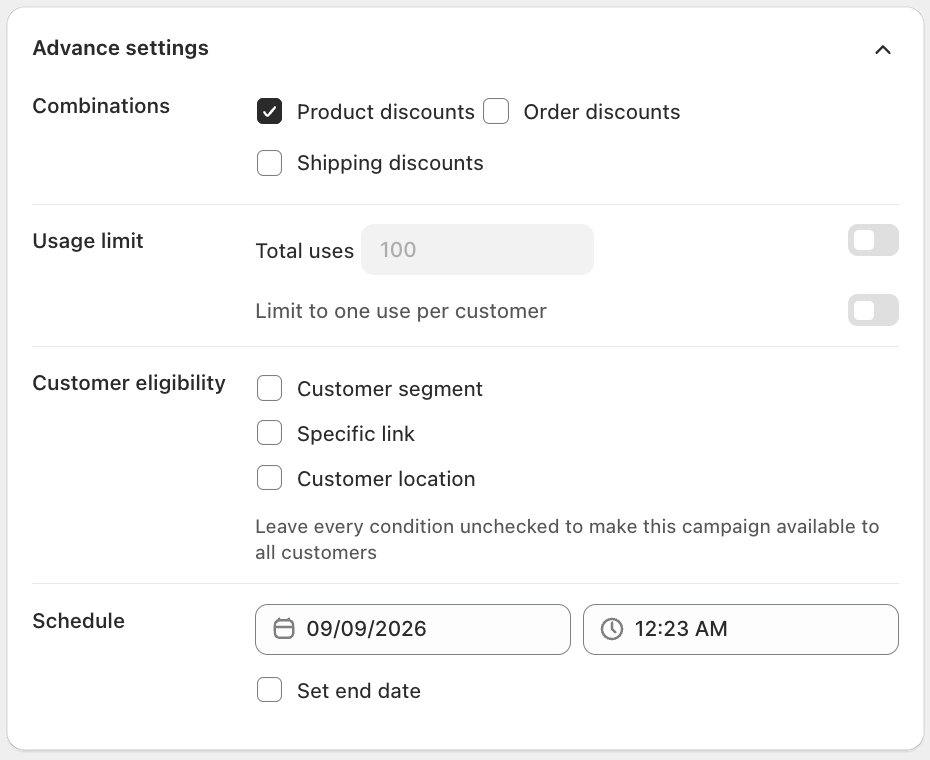
Custom Discount keeps a shorter Advanced settings section than other campaign types: Discount combinations, Usage limit, Customer eligibility, and Schedule. This is where you set who qualifies as a shopper (step 2 of the evaluation order above):
- All customers: no restriction.
- Specific customer segment: paid-plan feature, uses the segments already defined in your Shopify admin (Customers > Segments).
- Specific link: only shoppers who arrive through a unique campaign link qualify.
- Customer location: restrict to specific countries or regions.
The Summary panel
The panel on the right reads your saved configuration back as plain sentences, grouped into four sections that match the evaluation order:
- The cart must have: your Cart conditions rules, or the empty-state text if none are set.
- The customer must be: your Customer eligibility choice from Advanced settings.
- Discount applies to: your Discounted items rules, or the empty-state text if none are set.
- Reward limits: the "Apply the discount to" setting, the item limit if enabled, and the maximum discount cap if enabled.
A headline line above the sections states the core reward in one sentence, for example "10% off the discounted items" or "Discounted items are free." When a discount code exists, a badge shows Auto-apply or Manual next to it.
Save the campaign
Once the Summary panel matches what you intended, click Save. Custom Discount campaigns support multi-currency and, unlike most other campaign types, this campaign is a single-step configuration screen: there is no separate widget appearance step, since Custom Discount has no storefront display of its own beyond the discount applying (or the code being enterable) in the cart and at checkout.
Need help!!
- Live chat support: Get real-time help directly inside the app. Click the chat icon in the bottom-right corner of your dashboard. Our support is on standby 24/7, feel free to reach out to us whenever you want.
- Email us: For in-depth questions or technical issues, email us at: [email protected] Response time: within 24 hours on business days.