Checkout Upsell
Show upsell product suggestions at checkout to increase Average Order Value. Offer targeted product recommendations with discounts directly on the checkout page.
Checkout Upsell is only available for Shopify Plus merchants.
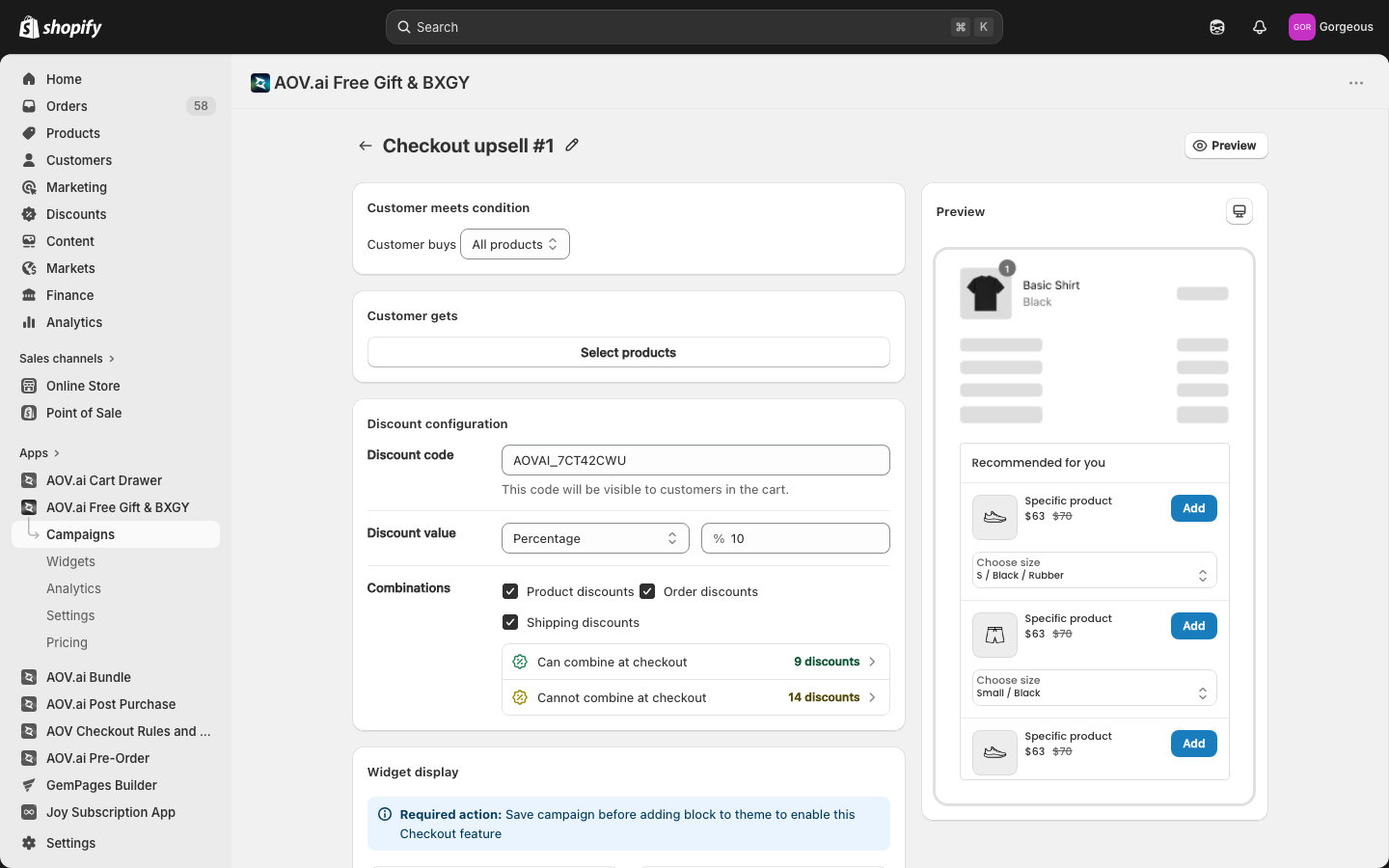
How to set up
Step 1: Create the campaign
Go to AOV.ai Free Gift app > Campaigns > Create Campaign, then select Checkout Upsell and click Create.
Step 2: Set trigger conditions
Choose which products trigger the upsell block to appear on the checkout page:
- All products: The upsell block shows for any product in the cart.
- Specific products: Only shows when selected products are in the cart.
- Specific collections: Only shows when products from selected collections are in the cart.
Step 3: Choose the upsell product and discount
Click Browse to select 1 product to recommend as the upsell.
Then configure the discount:
- Discount type: Percentage (% off) or Fixed amount ($ off).
- Discount value: Set the discount amount.
- Discount combinations: Choose which other discounts can be combined with this offer.
Step 4: Save the campaign
Click Save to confirm. The campaign must be saved before you can add the checkout block to your theme. Once saved, the "AOV Checkout Upsell" block will appear in your Shopify theme settings.
Step 5: Add the block to your checkout theme
Click Go to theme inside the app. In your Shopify theme editor, add the AOV Checkout Upsell block to your checkout page, then click Save.
Step 6: Customize the widget
In the widget settings, you can customize:
- Upsell message: The headline shown above the product (e.g., "You may also like").
- Colors: Button color, text color, and price color.
- Button style: Choose Base, Critical, or Monochrome to match your checkout theme.
How it looks to customers
When a customer reaches checkout with a qualifying product in their cart, the upsell widget appears automatically showing the suggested product with the discount applied. The customer can click Add to include the upsell item in their order. The discount is applied instantly and the product appears in the order summary before payment.
FAQ
Q: The upsell widget is not visible.
- Make sure you added the "AOV Checkout Upsell" block in your Checkout theme.
- Confirm the trigger condition matches the products in the customer's cart.
Q: The discount is not applying.
- Check that the discount type and value are set correctly.
- Make sure the upsell product is published and in stock.
Q: I cannot see the AOV block in Shopify theme settings.
- You must save the campaign first before the block appears in theme settings.
Need help?
- Live chat: Click the chat icon in the bottom-right corner of the app.
- Email: [email protected] - Response time: within 24 hours on business days.