Checkout - Progress bar
Show a progress bar at checkout to motivate customers to spend more. Once they reach a defined threshold, they unlock free shipping.
- Unlocks free shipping at checkout when conditions are met
- Only available to Shopify Plus merchants
- Only supports free shipping
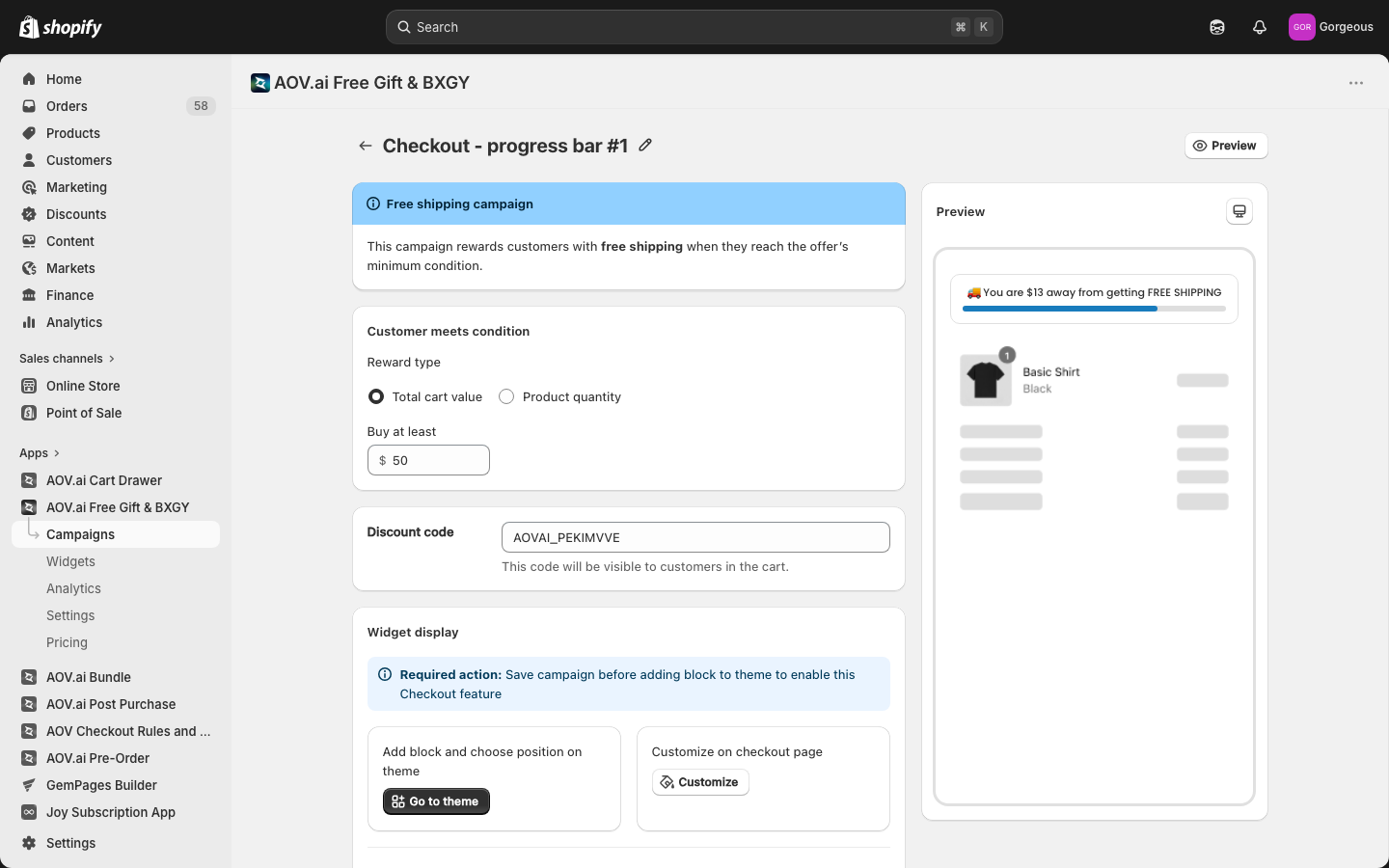
1. Where to find it in the app
- Go to Campaign list → Create new campaign
- Click Create under Checkout – Progress Bar
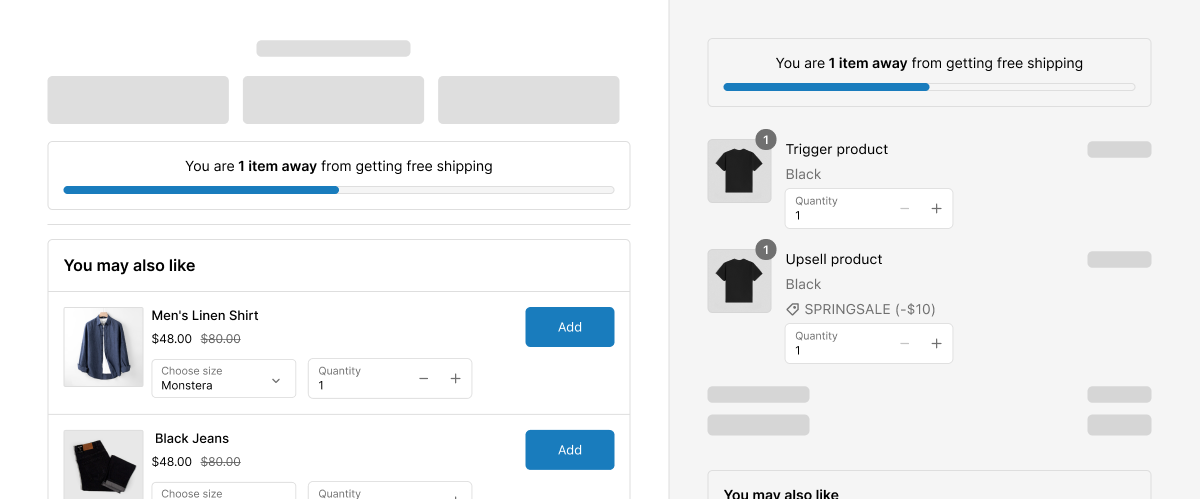
2. How to set up in Admin
-
Step 1: Start a new campaign
Click Create campaign, choose Checkout – Progress Bar
-
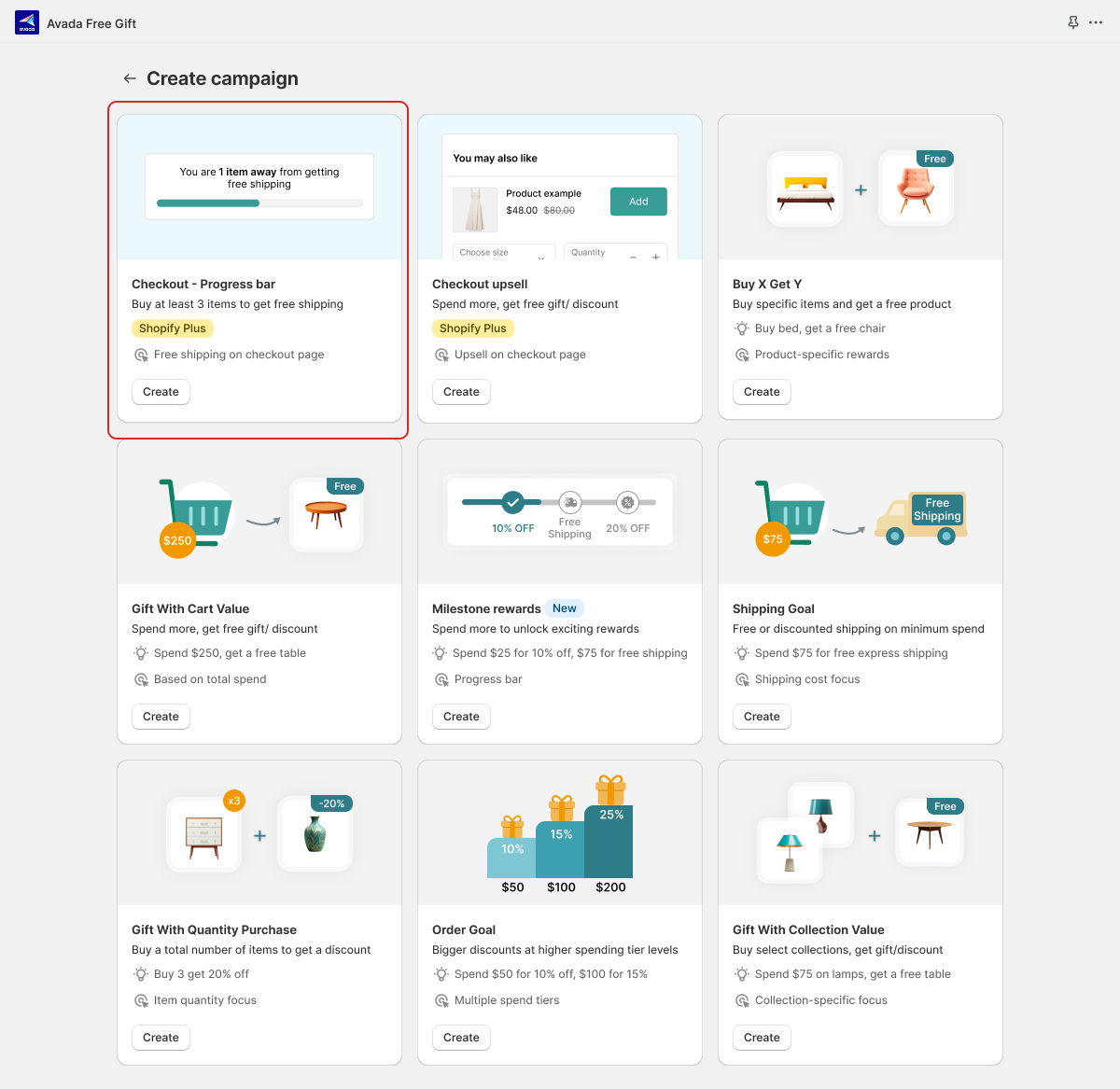
Step 2: Set condition
Choose either:
- Total Cart Value
- Product Quantity
Input threshold (e.g., $100 or 3 items)
-
Step 3: Save campaign
→ Click to Save
Make sure saving campaign before you go to next step "Add block to theme". Because once you save campaign successfully, the checkout block would appear on Shopify theme settings for you to add
-
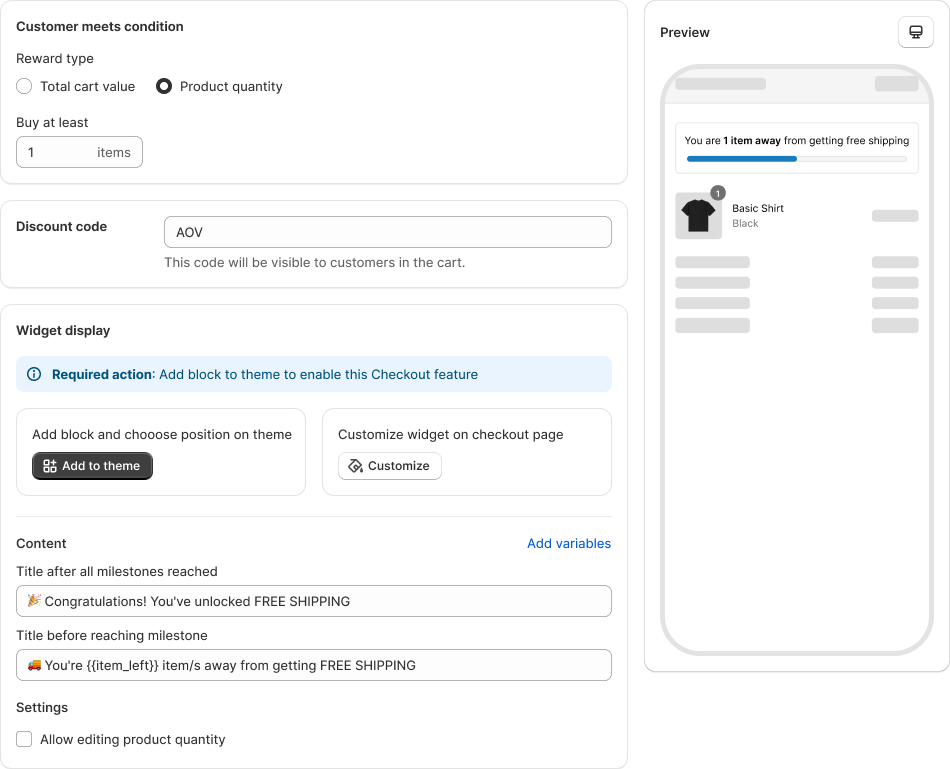
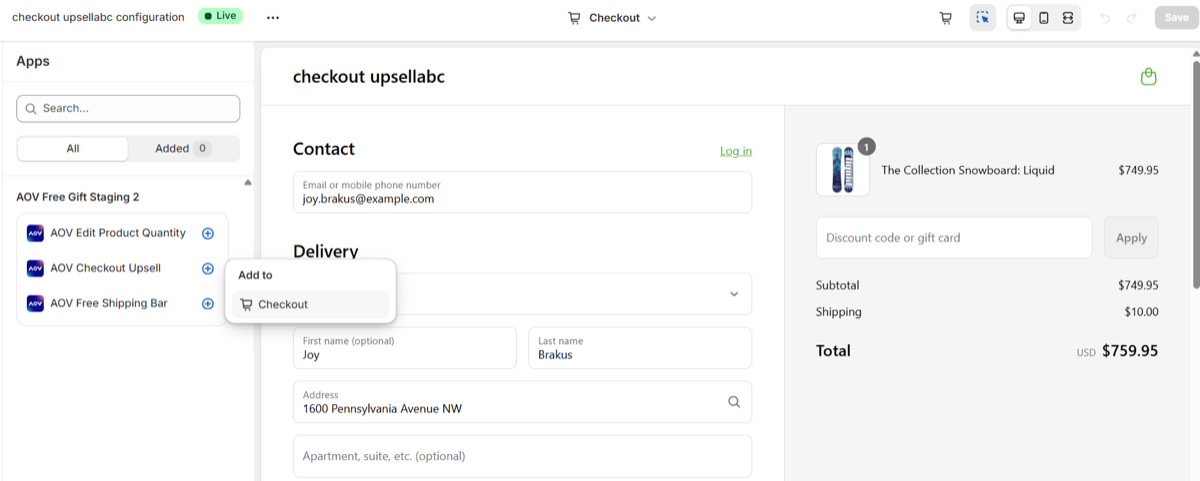
Step 4: Add Checkout block to theme (Required*)
To use this feature, adding block to your theme is quired,
- Click Add to theme in campaign settings
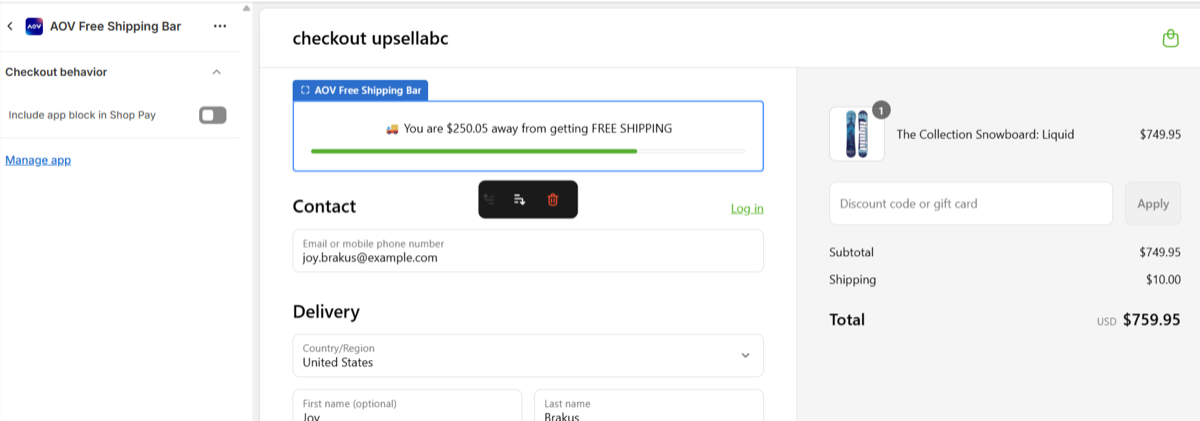
- Click "+" button of block "AOV Free Shipping Bar" and choose Add to Checkout
- Save on your theme
-
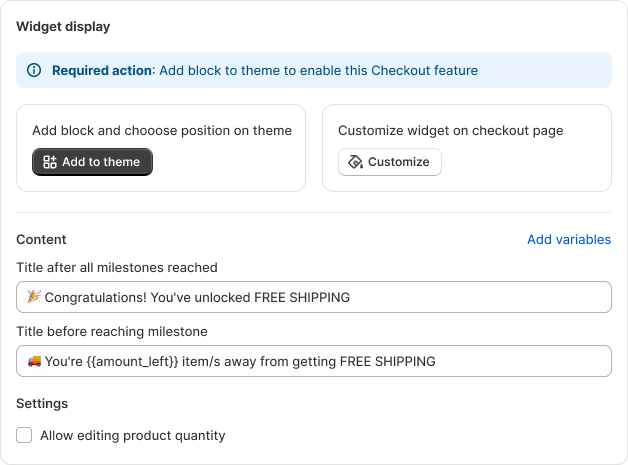
Step 5: Customize progress bar content
Set messages:
- Before milestone:
&#xNAN;“You’re{{item_left}}items away from getting FREE SHIPPING” - After milestone:
&#xNAN;“🎉 Congratulations! You’ve unlocked FREE SHIPPING”
Available placeholders:
{{item_left}}: items remaining to reach the goal (use for quantity-based triggers).{{amount_left}}: amount remaining to reach the goal (use for cart-value triggers).{{nearest_reward}}: name of the nearest reward tier (multi-tier campaigns only).
- Before milestone:
-
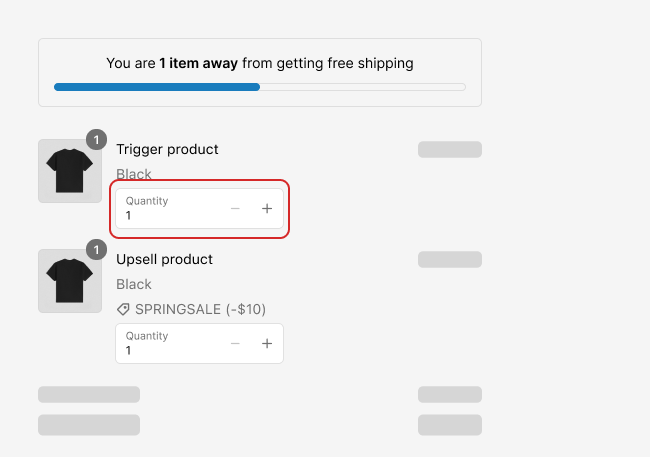
Step 6: Enable quantity editing (optional)
If you want customer can increase/decrease the quantity off items on checkout, Click checbox Allow editing product quantity\
5. How it works on Storefront
How it looks and behaves for your customers.
-
Step 1: Progress bar shows at checkout
Progress bar appears automatically
Real-time updates as shopper adds items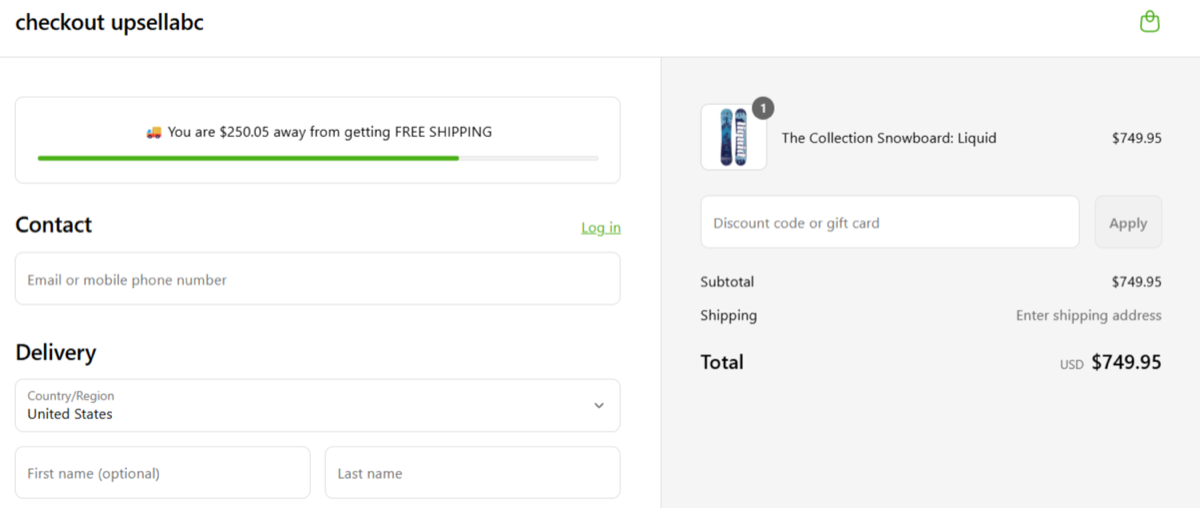
-
Step 2: Free shipping unlocked
When customer reaches the milestone, a success message appears
Shopify applies free shipping automatically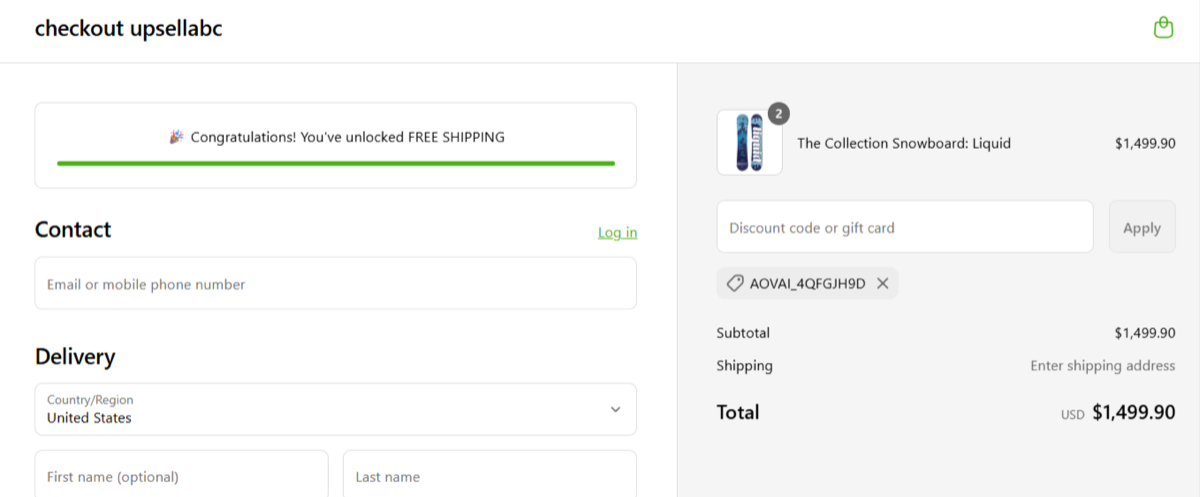
-
Step 3: Cart drops below threshold
→ If the customer removes products and no longer qualifies:
- Free shipping is removed automatically
- Progress bar returns to previous state
6. FAQs & Troubleshooting
Q1. Why isn’t the progress bar showing on the checkout page?
- Ensure you're on a Shopify Plus plan
- Make sure the AOV Checkout Block has been added in theme customization
Q2. Can I offer a gift product or discount instead of free shipping?
- No, this feature currently supports free shipping
Q3. Why can’t shoppers edit item quantities in checkout?
- You must add the ‘AOV Edit Product Quantity’ block in the checkout theme
Q4. Why don't I can see the AOV block to add to Shopify theme settings
- You must save campaign successfully to see and add AOV block to theme
7. Need help?
- Live chat support: Click the chat icon inside the app
- Email: [email protected]
Response time: within 24 hours on business days