Gifts on Slide Cart
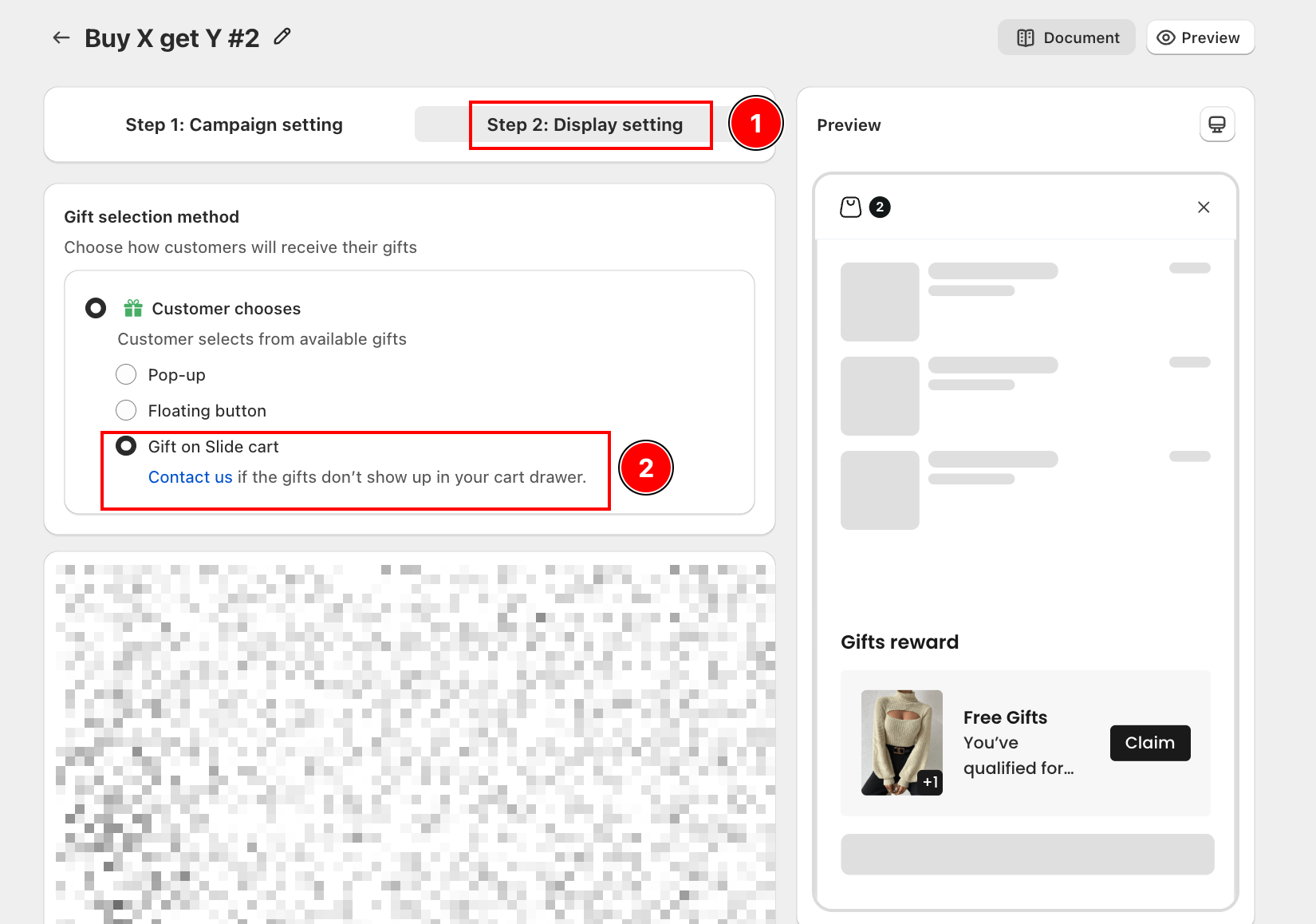
Display a gift claim section directly inside the cart drawer when customers qualify for a free gift or discount from any active campaign.
This widget requires the AOV.ai Cart Drawer app to be installed and active on your store.
What is Gifts on Slide Cart?
Gifts on Slide Cart is a widget in the AOV.ai Free Gift app that shows a Gifts reward section inside your cart drawer whenever a customer qualifies for a gift or discount from an active campaign. Customers see a list of rewards they have unlocked with a Claim button for each one.
The widget applies globally across your store and connects automatically to all active campaigns that use the cart drawer as a display target.
How to set up
Step 1: Navigate to the widget
In the AOV.ai Free Gift app, go to Widgets in the left sidebar.
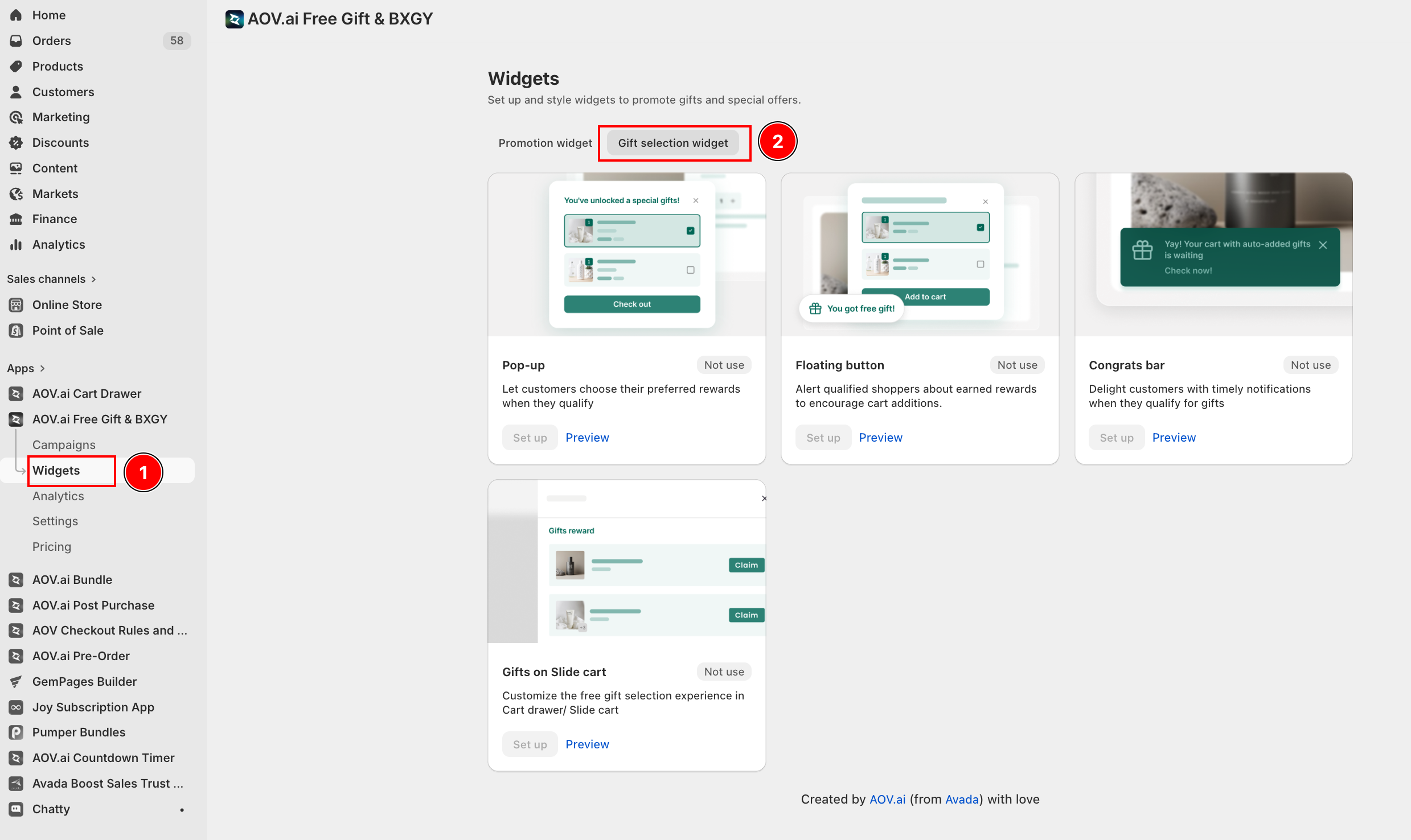
Click Set up under Gifts on Slide cart to open the widget editor.
Step 2: Customize the Style
In the Style tab, configure how the widget looks inside the cart drawer.
Display style
Choose how the gift item thumbnail is shown:
- Image: Displays the product image for each qualifying gift.
- Icon: Displays a generic gift icon instead of the product image.
Color style
- Auto-fit with your theme: Automatically syncs the widget colors with your store's active theme. Click Apply to fit to apply it. Each click cycles through different brand color sets.
- Basic: Manually set a Primary color and a Secondary color. The app applies them consistently across the widget.
- Advanced: Fine-tune individual color values for each element of the widget.
Step 3: Customize the Content
Switch to the Content tab to edit the text shown inside the widget. You can customize:
- Widget title: The header shown above the rewards list (e.g., "Gifts reward").
- Deal message per campaign type: Each campaign type (Buy X Get Y, Gift with Cart Value, etc.) has its own message template. Use dynamic variables like
{{min_cart_value}}or{{trigger_quantity}}to personalize them.
Step 4: Connect to campaigns
The Connected campaign panel on the right shows all active campaigns currently using this widget. Any campaign with the cart drawer display enabled will appear here automatically. Click Edit to adjust which campaigns are linked.
Step 5: Preview and save
Use the Desktop / Mobile toggle at the top to preview how the widget looks in the cart drawer on different devices. Once satisfied, click Save to apply your changes across the store.