Translation
Translate your campaign and widget text into any of your store's published languages so each customer sees promotions in their own language.
Paid plan required. Translation is available on the Basic plan and above. On the Free plan, the Translation page shows an upgrade prompt instead of the language editor.
Supported languages: AOV.ai Free Gift only shows languages that are already published in your Shopify Markets settings. To add a language not in the list, go to Shopify Admin > Settings > Markets, open the relevant market, and publish the language there first.
AI Translate auto-fills all empty translation fields in one click. See Step 3 below.
How to set up
Step 1: Open the Translation settings
From the app sidebar, go to Settings > Translations. This is where you manage all languages and translate widget and campaign text.
Step 2: Add a language and translate content
Click Add new language. A pop-up lists all languages published in your store's Shopify Markets. Select the language you want to add.
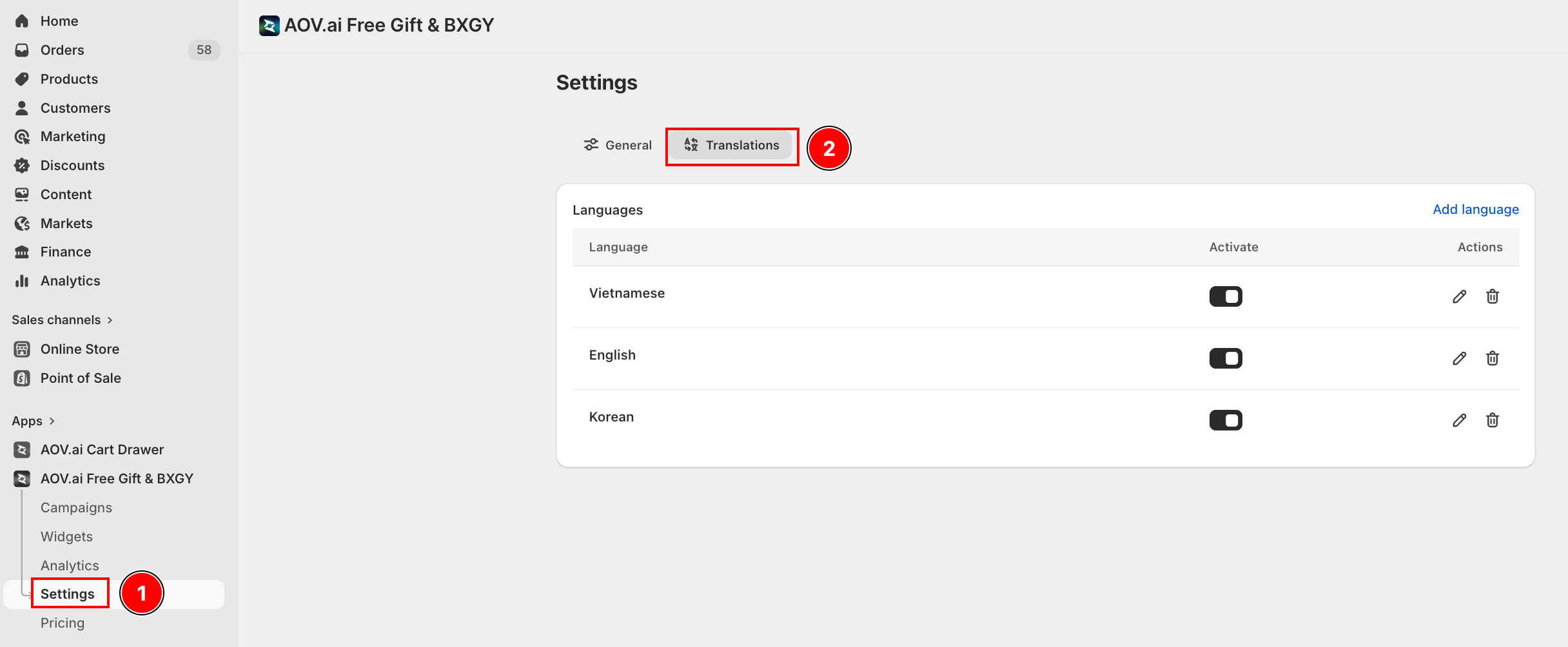
Once added, click the language row and choose what to translate:
- Campaign content — titles, descriptions, badges, congrats messages, and pop-up CTAs for each gift campaign.
- Widget content — strings inside each widget (Pop-up, Floating button, Tiered Reward Box, Deal of the Day, Slide Cart Offer, Promotion Card, Gifts on Slide Cart, Progress bar).
Fill in the translation for each field manually. Any field left empty will fall back to the default text automatically.
Step 3: Use AI Translate (optional)
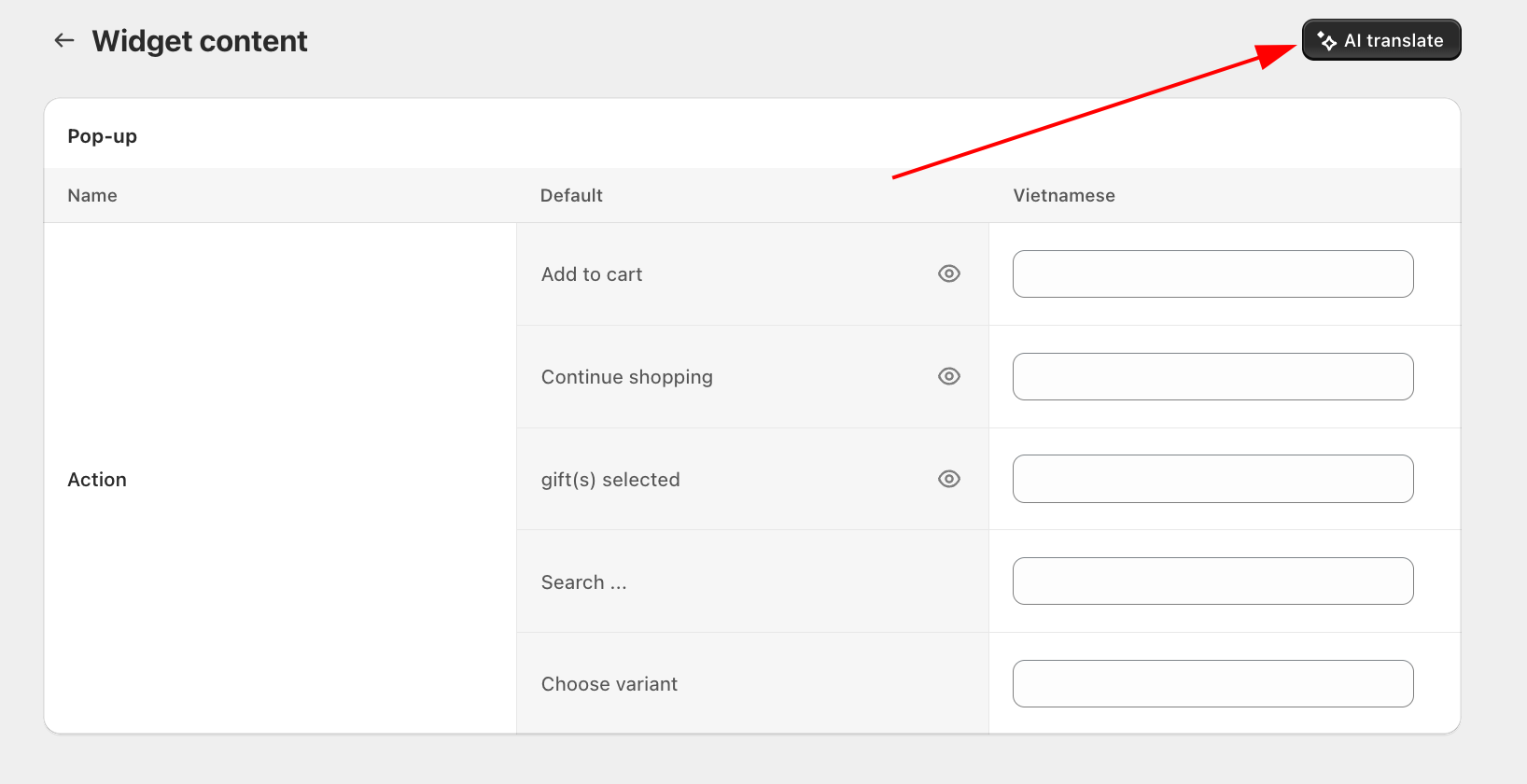
In the top-right corner of the translation editor, click the AI translate button to auto-fill all empty fields at once.
AI Translate is a premium feature. If your plan does not include it, clicking the button opens an upgrade prompt.
How it works:
- Collects every field that has a default value but no existing translation.
- Fills all empty fields with AI-generated translations in one batch.
- Fields you have already edited manually are left untouched.
- Variables like
{{trigger_amount}}or{{collection_name}}are preserved as-is.
After AI Translate runs, review the auto-filled fields — especially brand names, product names, and punctuation in CJK languages — and edit any cell inline if needed.
Translate without leaving the editor
You do not have to come to Settings > Translations every time. Two shortcuts let you translate directly from where you are already working.
AI Translate in Campaign Editor
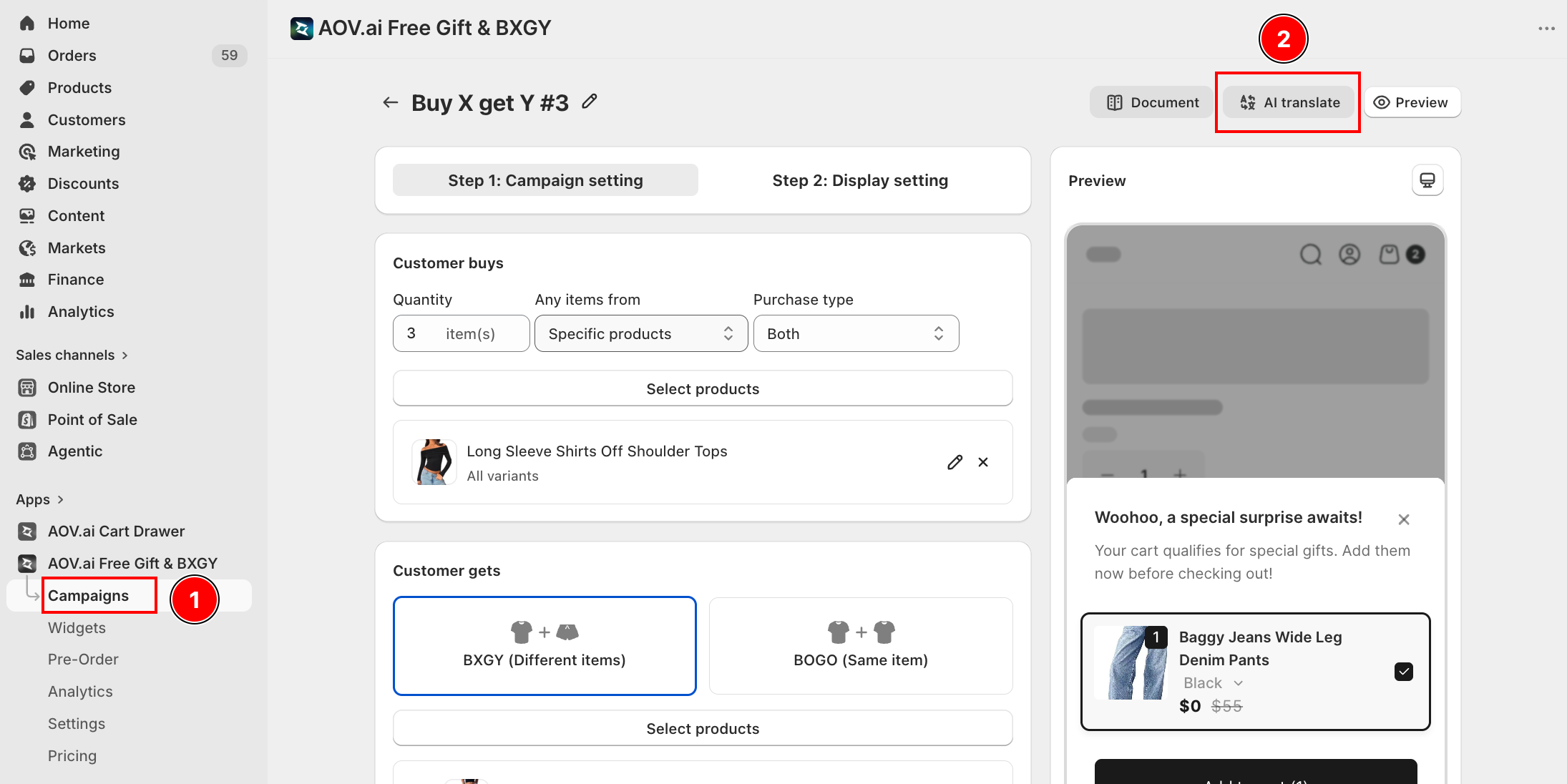
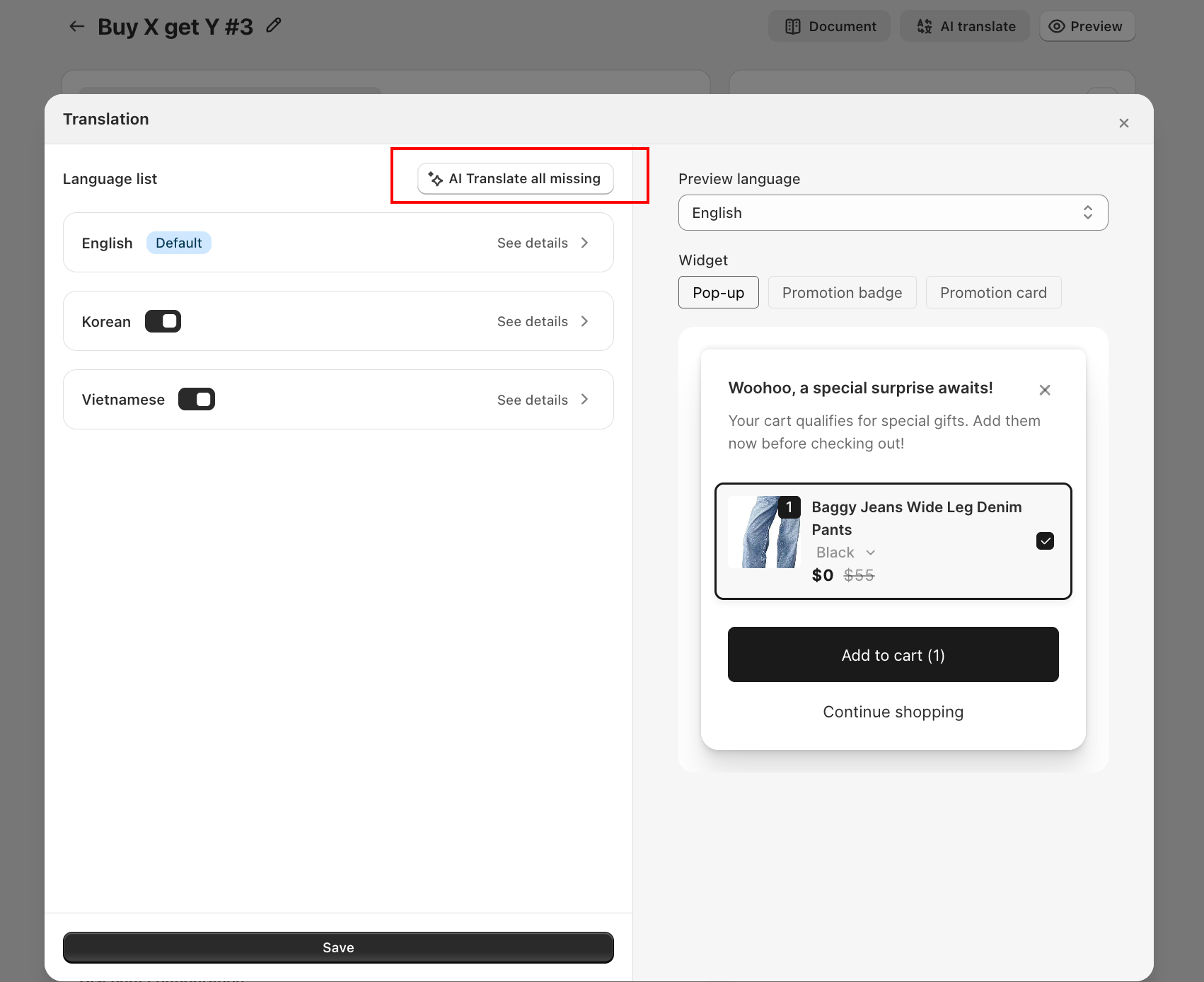
Open any campaign and click ✨ AI Translate in the header menu (next to Documents and Preview). A full-screen Translation Modal opens:
- The left column lists all your active languages.
- The right column shows a live widget preview that updates as you switch languages and widget types.
- Click AI Translate all missing to fill every empty field across all languages at once. Fields you have already edited manually are not touched.
- Click See details next to any language to open a field-by-field editor with a preview that updates in real time as you type.
AI Translation section in Widget Editor
Inside any widget editor, open the Content tab and scroll to the AI Translation section. Click translate to fill fields for that widget without leaving the editor.
Supported widgets:
- Deal of the Day, Popup, Promotion Card, Floating Button
- Gift Box, Gift on Cart, Slide Cart Offer, Gift Selection, Progress Bar
Promotion Badge and Congrats Bar are translated at the campaign level instead.
AI Translate all missing
Click this button to fill every empty field across all active languages in one go.
- Fields you have already edited are untouched.
- Shared strings already translated in a previous campaign are skipped.
- After it runs, use See details on any language to review and edit inline.
Step 4: Save
Click Save. Translations go live immediately for visitors whose Shopify locale matches the target language.
What gets translated
| Set | Coverage |
|---|---|
| Campaign content | Per-campaign editable strings: titles, descriptions, badges, congrats messages, pop-up CTAs. |
| Widget content | Per-widget strings: headers, button labels, progress messages, deal description templates. |
Fields not exposed in the translation editor (system status text, Shopify-side product titles) are not affected. Product names and variants follow Shopify's own translation flow.
Notes
- If a language is inactive or not added to the translation list, the app displays the default text.
- AI Translate only fills empty fields. To re-translate a stale field, clear it first then click AI translate again.
- Tone and style are AI-default. For specific brand voice, plan a manual review pass after running AI Translate.