Offer on Slide Cart
Promote your active AOV.ai Free Gift campaigns directly inside the AOV Cart Drawer slide-out, so shoppers see today's offers without leaving the cart.
Prerequisite: the AOV Cart Drawer (opens in a new tab) app must be installed and enabled on the active theme. Without it the slide cart does not exist, and this widget has nothing to render into.
How to set up
Step 1: Install AOV Cart Drawer
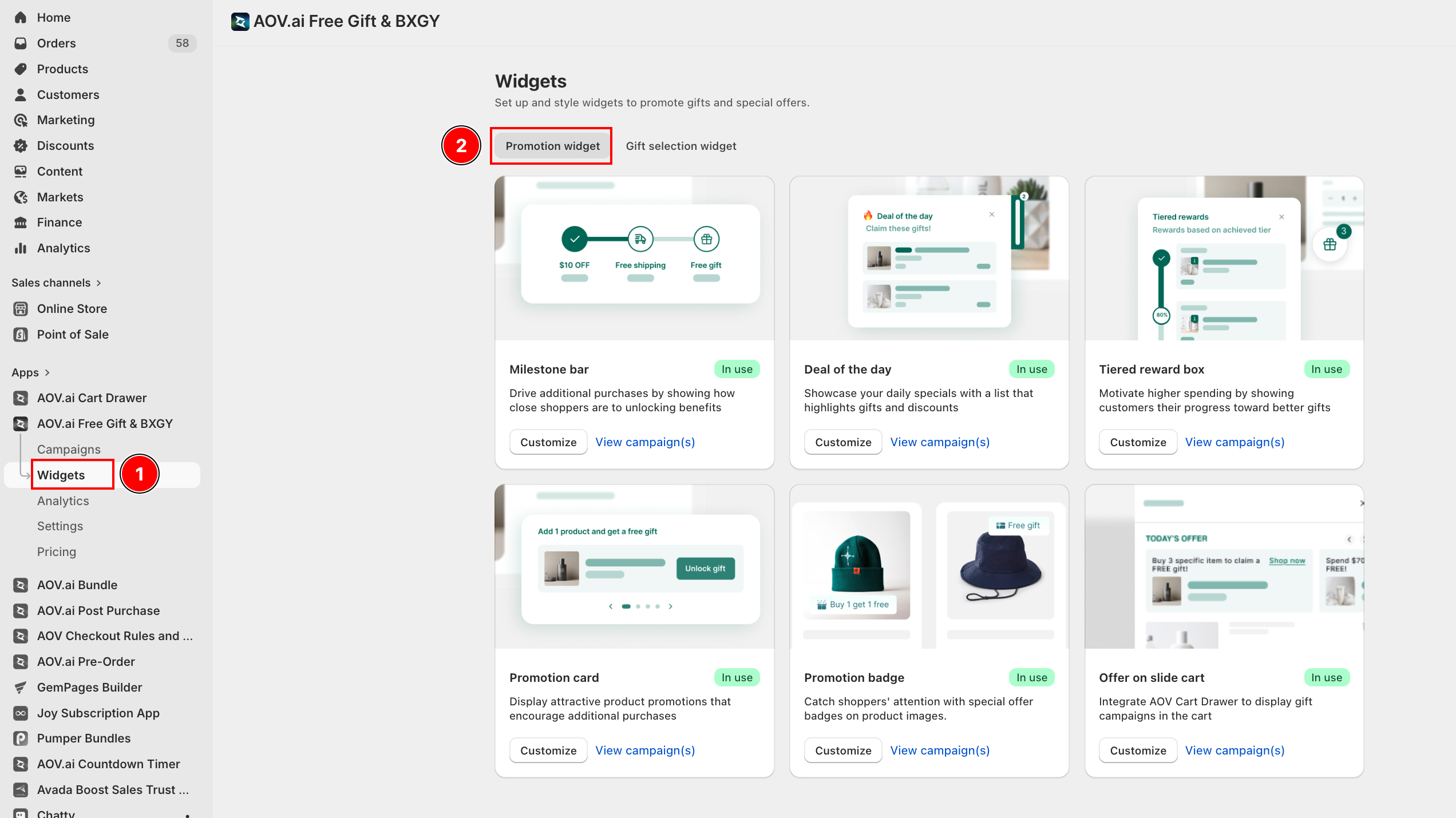
If you have not installed AOV Cart Drawer yet, open the Widgets page in AOV.ai Free Gift, scroll to the Offer on slide cart card, and click Install AOV Cart Drawer. This opens the App Store install flow. Once installed, return to the widget card.
Step 2: Configure the Settings tab
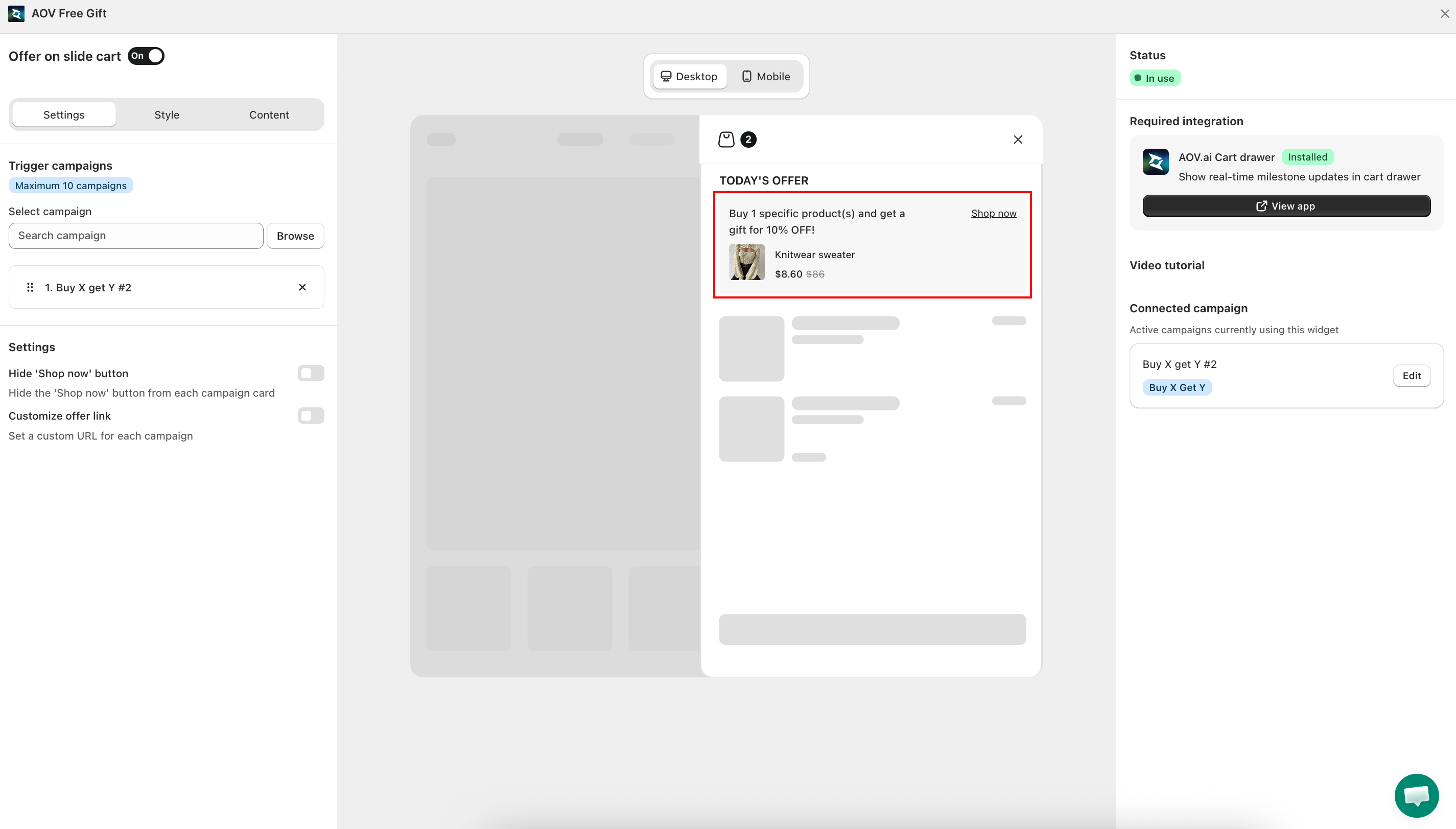
Click Customize on the Offer on slide cart card. Toggle the widget on at the top, then configure the Settings tab:
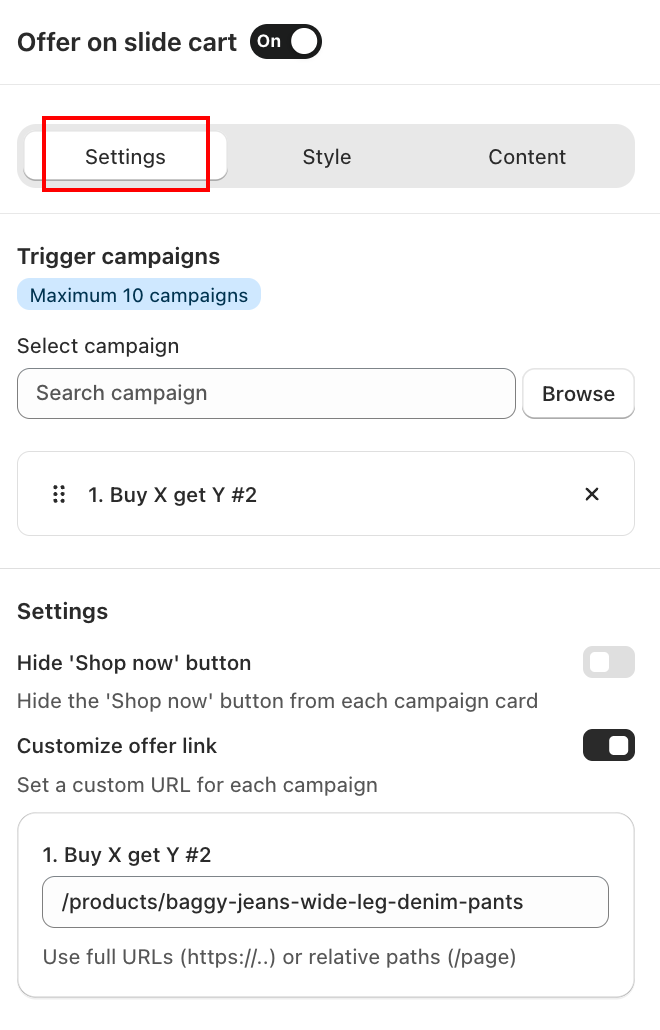
Trigger campaigns
Click Browse and select the campaigns to feature in the slider. You can add up to 10 campaigns at a time.
Settings
- Hide 'Shop now' button — removes the per-deal CTA button. The deal card itself remains tappable.
- Customize offer link — redirect the deal card tap to a custom URL instead of the default product page.
Step 3: Style
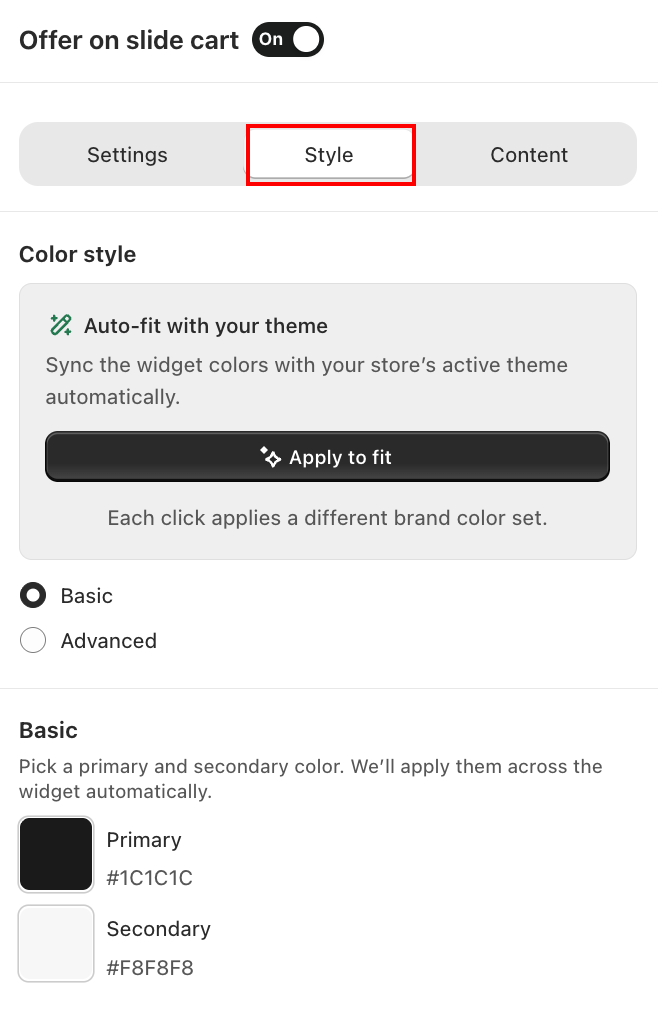
In the Style tab, choose how colors are applied:
- Auto-fit with your theme — automatically syncs colors with your store's active theme. Click Apply to fit to apply. Each click cycles through a different brand color set.
- Basic — manually set a Primary and Secondary color applied consistently across the widget.
- Advanced — fine-tune individual color values for each element.
Step 4: Content
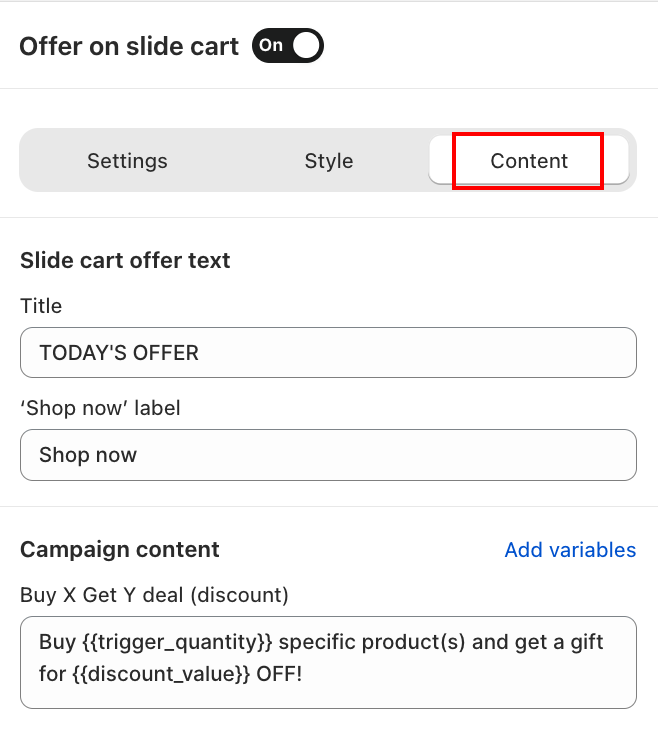
In the Content tab, customize the text displayed in the widget:
Slide cart offer text
- Title — the heading shown above the slider, for example "TODAY'S OFFER".
- 'Shop now' label — the CTA button label on each deal card, for example "Shop now".
Campaign content
Customize the deal description template for each campaign type. Use Add variables to insert dynamic values like {{trigger_quantity}}, {{min_cart_value}}, {{discount_value}}, {{collection_name}}.
Step 5: Preview and save
The right-hand preview shows how the slider renders inside the cart drawer. When happy, click Save.
What customers see in the drawer
When a shopper opens the AOV Cart Drawer, an "Offer on Slide Cart" block appears (typically above the line items or at the top of the drawer, depending on AOV Cart Drawer's slot configuration). Each deal card shows:
- The configured deal description.
- A CTA to view the offer or jump to a relevant product.
- Left/right arrows to swipe through additional deals.
If only one deal is loaded, the slider collapses into a single static card.
Behavior notes
- The widget only displays active campaigns. Paused or scheduled-future campaigns are skipped.
- If a customer is not eligible for a campaign (for example, customer segment, location, or device restrictions), the deal card is hidden for that visitor.
- Variants like
{{collection_name}}resolve per-campaign at render time, so the same template works for every campaign of that type.
Related
- Deal of the Day: same multi-deal concept rendered as a full-page pop-up instead of inside the cart drawer.