Tiered Reward Box
A floating "Gift Box" widget that shows real-time progress toward multiple gift tiers, encouraging shoppers to add more to unlock the next reward.
Paid plan only. The Tiered Reward Box is a premium widget. You need to upgrade your plan to enable it. It supports these campaign types: Gift With Cart Value, Gift With Collection Value, Gift With Quantity Purchase, and Order Goal.
How to set up
Step 1: Open the widget editor
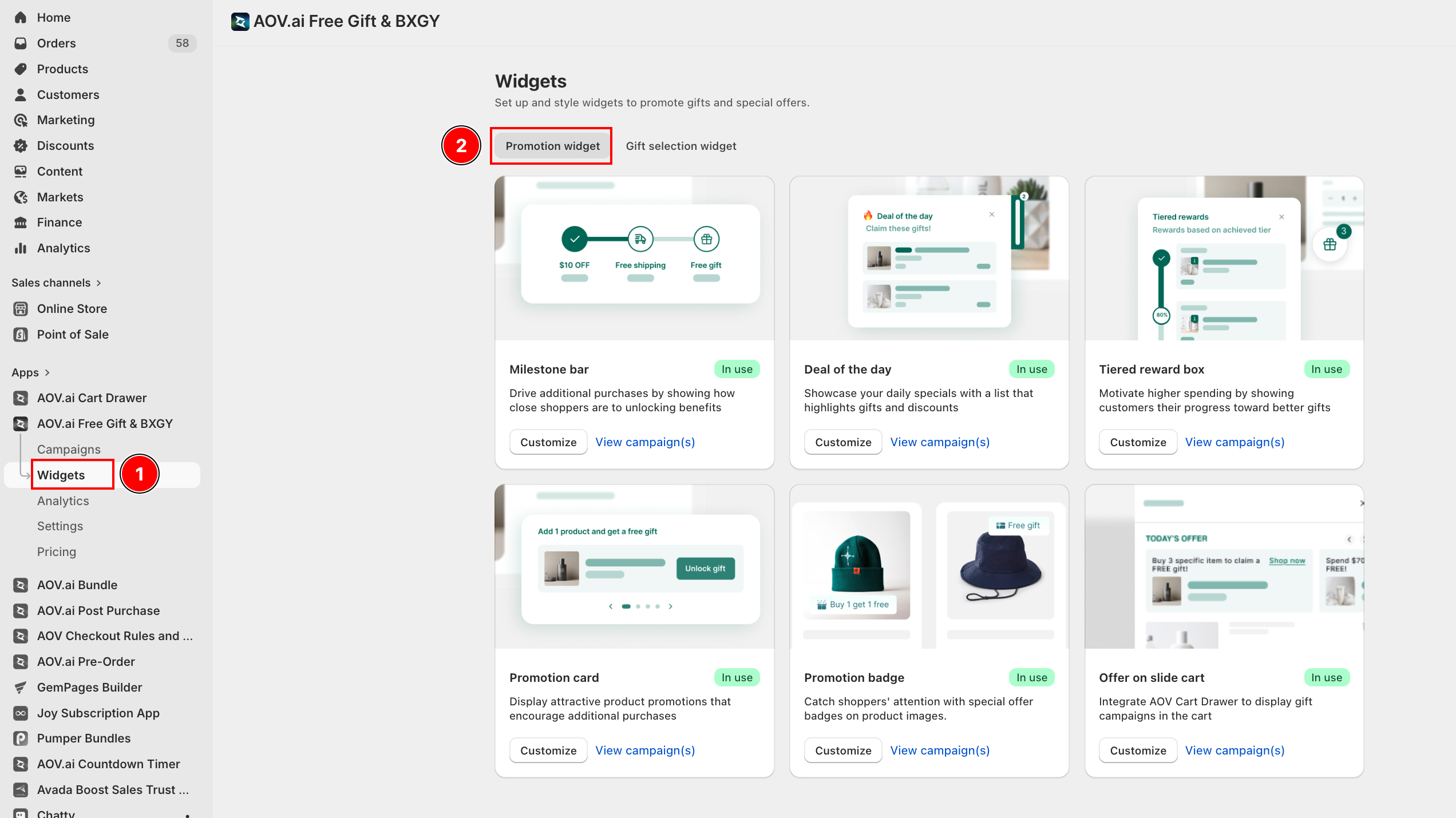
From the app sidebar go to Widgets and click Customize on the Tiered reward box card.
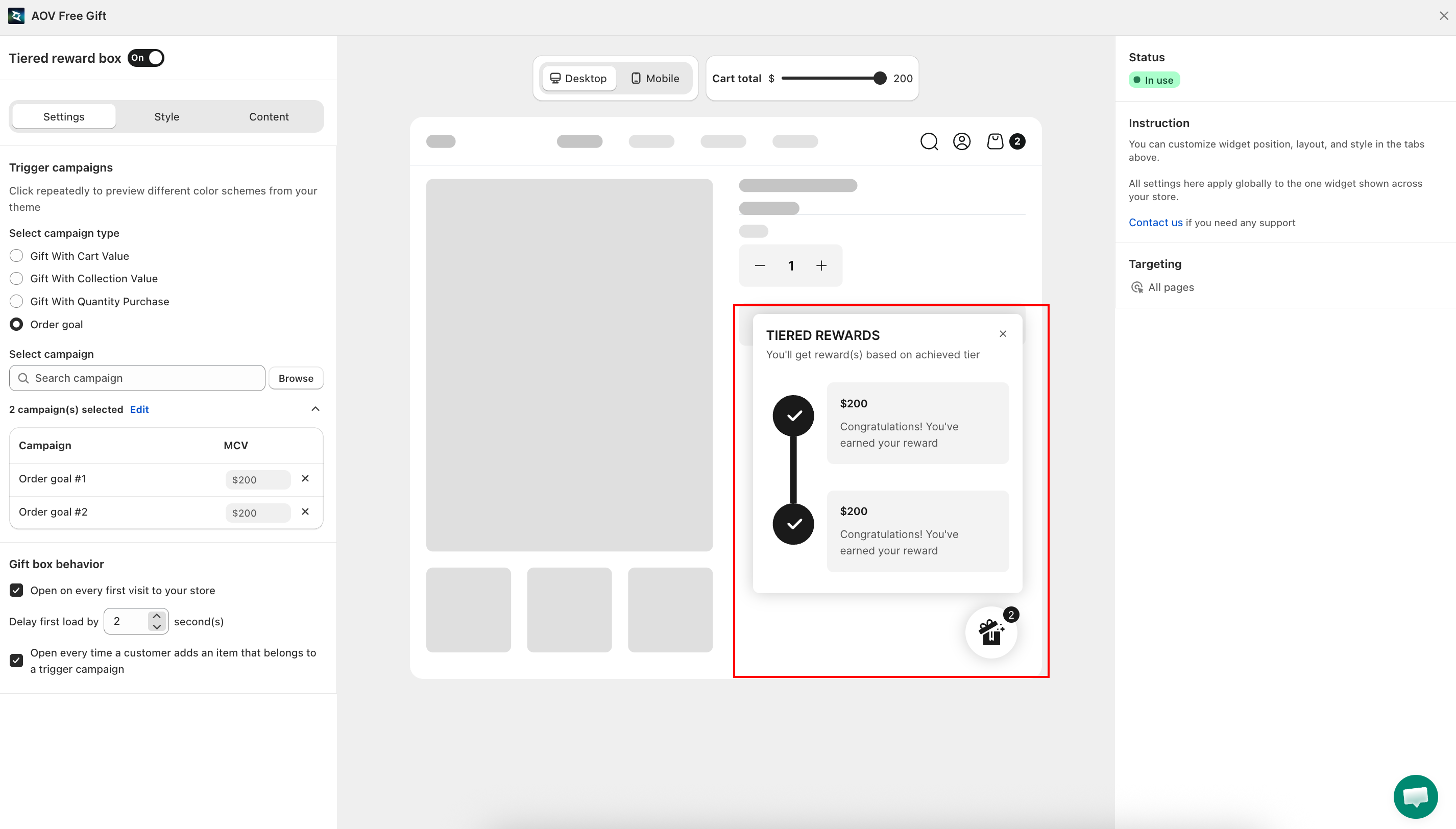
Toggle the widget on at the top of the editor to enable it on the storefront.
Step 2: Pick the trigger campaigns
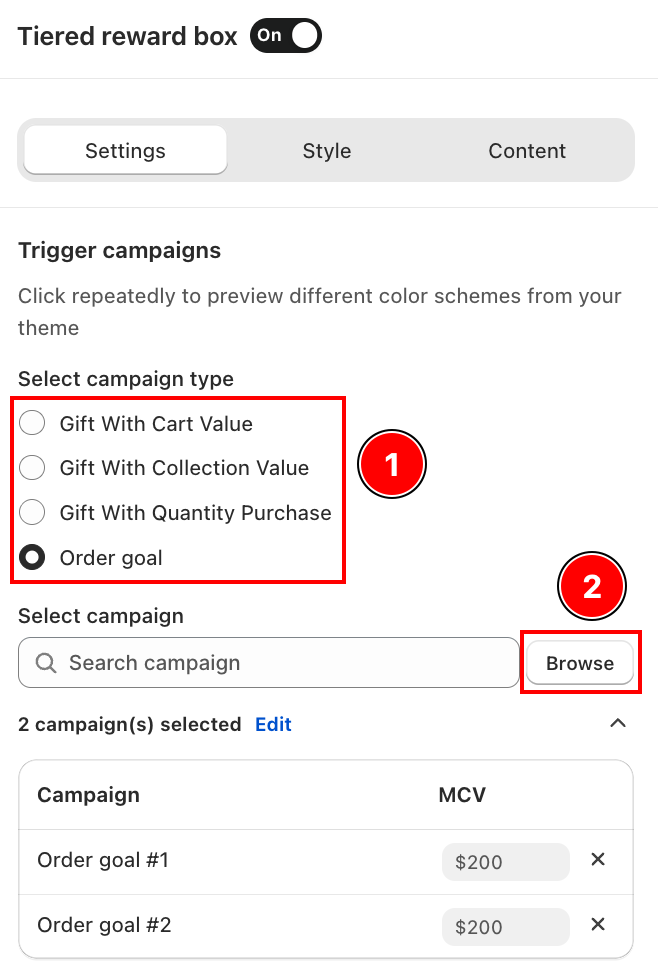
In Trigger campaigns, first select the campaign type (Gift With Cart Value, Gift With Collection Value, Gift With Quantity Purchase, or Order goal), then click Browse to pick the specific campaigns whose tiers should appear in the box.
- Each selected campaign becomes one tier rung.
- For the best effect, pick at least three campaigns with ascending thresholds so customers always see a "next" reward.
Step 3: Layout
Choose a layout option to control where the floating launcher anchors on the page (bottom-right is the default). On mobile the launcher always docks to the bottom edge.
Step 4: Box behavior
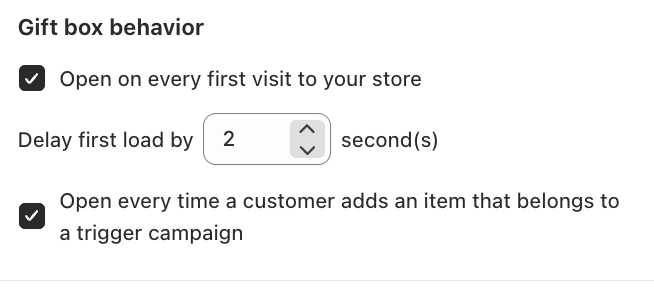
The Gift box behavior block controls when the box opens automatically.
| Option | Effect |
|---|---|
| Open on every first visit to your store | Pops open the first time the visitor lands on any page during a session. |
Delay first load by N second(s) | Waits N seconds (1 to 60) after the page is ready before opening. |
| Open every time a customer adds an item that belongs to a trigger campaign | Re-opens the box each time a qualifying product is added to the cart. |
You can combine the delay with either open trigger. If none are enabled, the box stays collapsed until the shopper clicks the launcher.
Step 5: Style
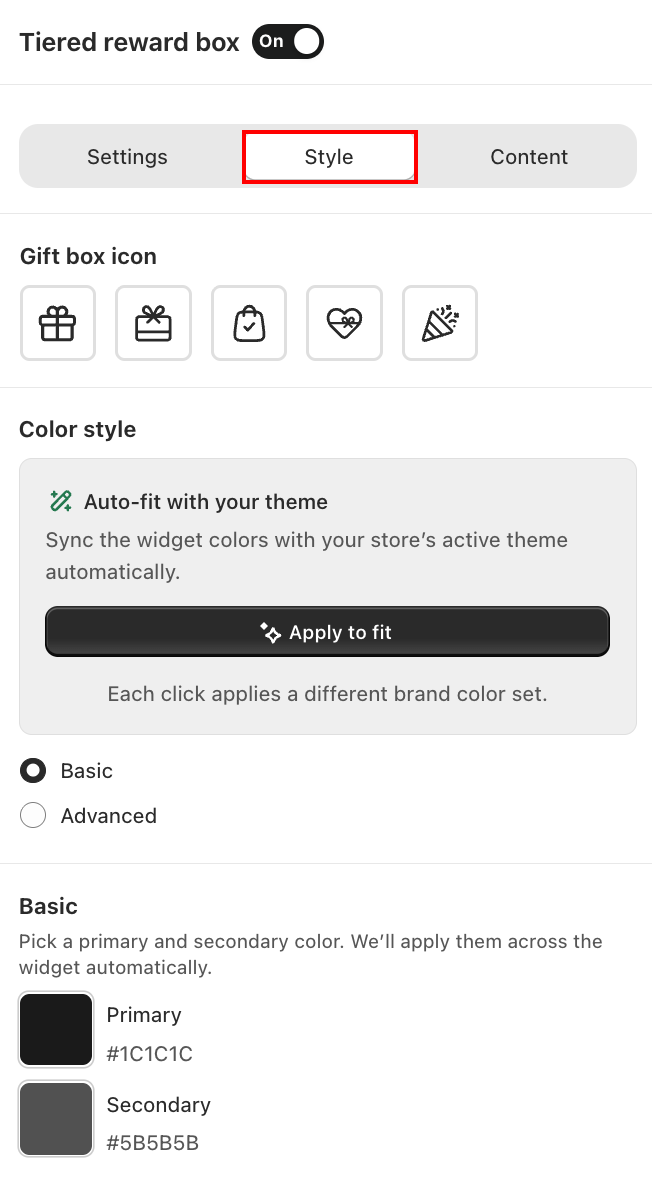
In the Style tab, customize the widget's visual appearance:
Gift box icon
Choose one of the five icon styles displayed on the floating launcher button.
Color style
- Auto-fit with your theme — automatically syncs colors with your store's active theme. Click Apply to fit to apply. Each click cycles through a different brand color set.
- Basic — manually set a Primary and Secondary color applied consistently across the widget.
- Advanced — fine-tune individual color values for each element.
Step 6: Content
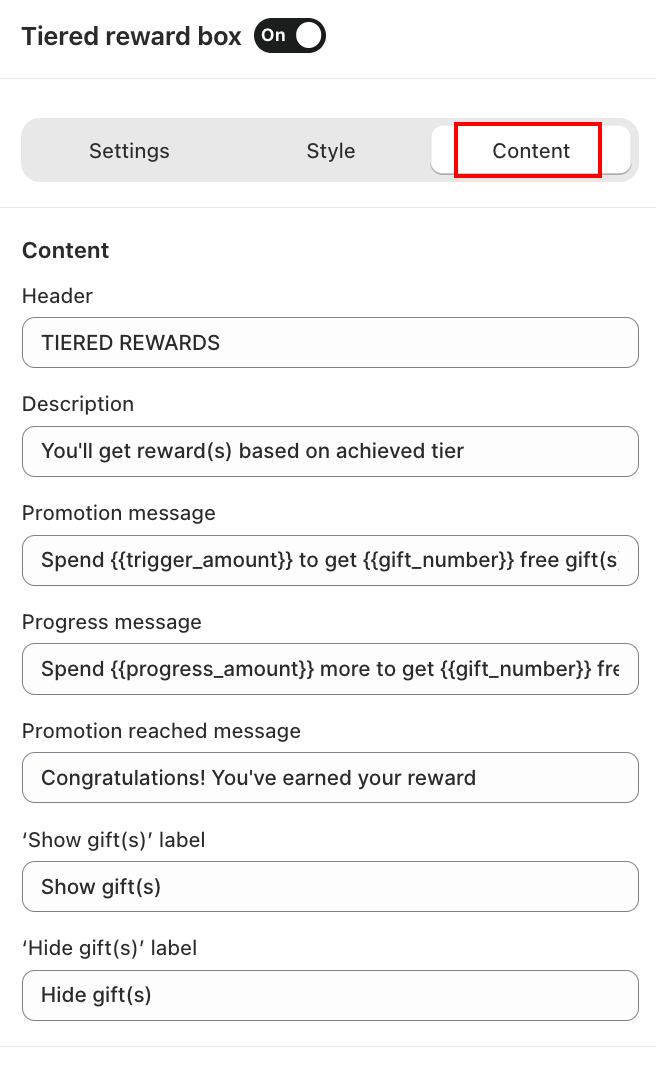
In the Content tab, customize the text displayed inside the box:
- Header — the title shown at the top of the box, for example "TIERED REWARDS".
- Description — a supporting subline, for example "You'll get reward(s) based on achieved tier".
- Promotion message — describes the offer condition, for example
Spend {{trigger_amount}} to get {{gift_number}} free gift(s). - Progress message — shown while the customer is working toward a tier, for example
Spend {{progress_amount}} more to get {{gift_number}} free gift(s). - Promotion reached message — shown when a tier is unlocked, for example "Congratulations! You've earned your reward".
- 'Show gift(s)' label — the button label to expand gift details, for example "Show gift(s)".
- 'Hide gift(s)' label — the button label to collapse gift details, for example "Hide gift(s)".
Step 7: Preview and save
The live preview on the right reflects every change. When it looks right, click Save. Make sure the AOV.ai Free Gift theme embed is enabled in Online Store > Themes > Customize > App embeds so the widget renders on the storefront.
Translation
Box content can be localized per language: see Translation (opens in a new tab) for bulk translation.
Related
- How the Tiered Reward Box helps boost AOV
- Milestone bar: linear progress bar for a single threshold.
- Deal of the Day: pop-up list of running deals.