Congrats Bar - Auto add gift
The Congrats Bar is a crucial tool for notifying your customers when gifts are automatically added to their carts as part of your promotion campaigns. Follow these steps to customize the Congrats Bar to align with your store’s branding and enhance customer engagement.
These settings will apply to the Congrats Bar for all campaigns
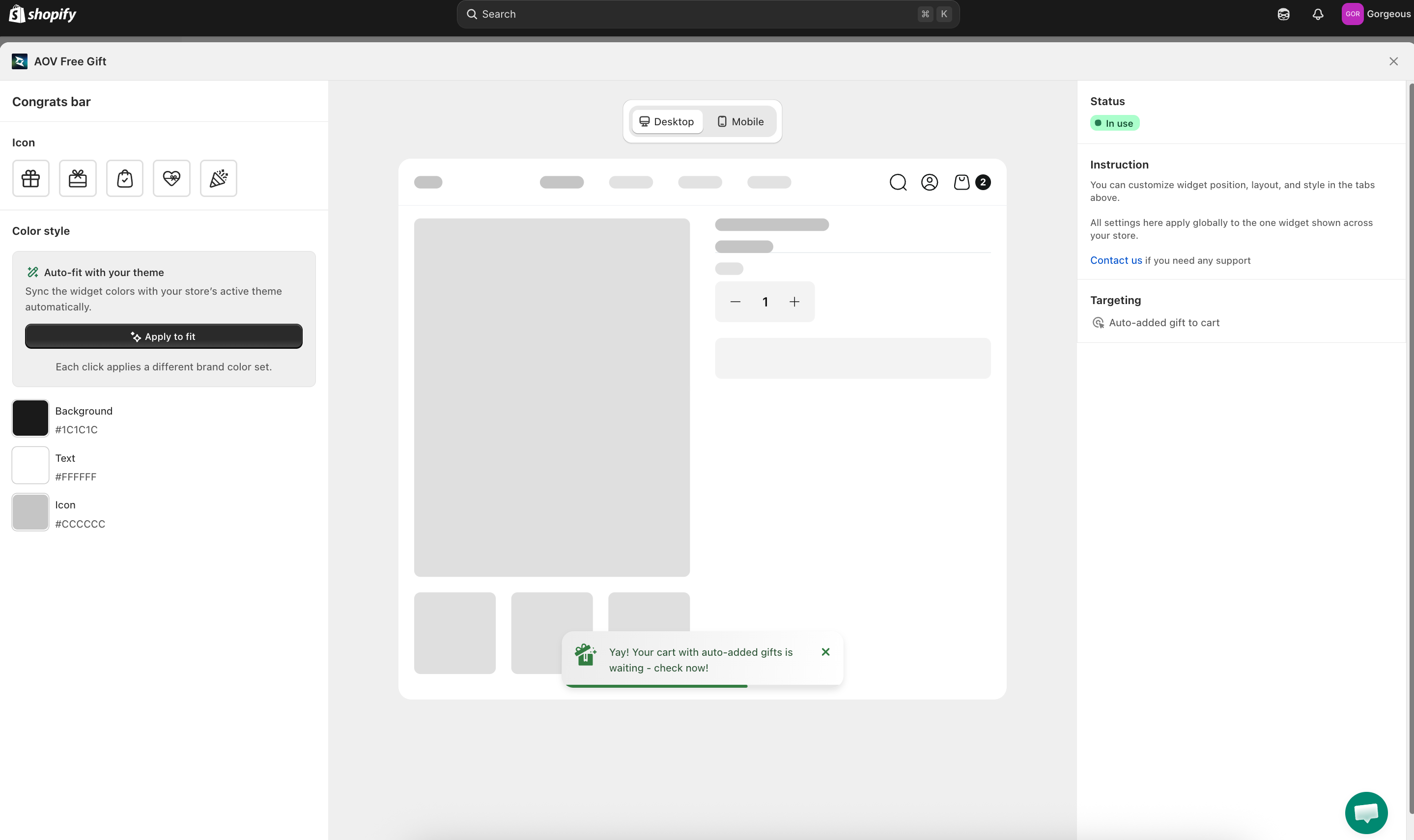
What is the Congrats Bar?
The Congrats Bar is a dynamic notification banner in the AOV.ai Free Gift app that appears on your storefront to celebrate a customer’s achievement, such as unlocking a gift or qualifying for a discount. It reinforces their progress and encourages them to complete the checkout process.
Why use the Congrats Bar?
Boosts customer excitement when rewards are unlocked
The Congrats Bar adds a sense of excitement and achievement to the shopping journey. Celebrating a milestone in real time adds a rewarding, interactive element, making customers feel motivated and more likely to complete the purchase.
Increases clarity by confirming that a gift has been successfully added to the cart
Displaying a progress bar or message nudges customers to complete the purchase, reducing cart abandonment. Since customers know they are about to earn something extra, they’re more likely to proceed to checkout.
Strengthens brand through a visually engaging and on-brand message
The positive experience of reaching and celebrating a milestone helps strengthen brand loyalty. Customers remember brands that make them feel rewarded, increasing the likelihood of repeat purchases.
Improves conversions by motivating customers to complete their purchase
The Congrats Bar boosts conversions by confirming rewards in real time and creating excitement. It reassures customers that they've earned a gift, encouraging them to complete their purchase instead of abandoning the cart.
How to set up:
To give merchants full flexibility and control, the Congrats bar feature is configured in two distinct places, each serving a different purpose:
- Campaign ( Display setting )
This section lets you define the message content shown inside the Congrats bar for each campaign. It’s campaign-specific because different campaigns may have different offers, tones, or messages.
- Widget Styling (Gift alerts on qualification)
This section controls how the Congrats bar looks across your storefront, regardless of the campaign. It ensures consistent design and branding across your store.
How to choose the Congrats Bar?
For campaigns that use the auto-add gift method (such as Order Goal, Gift with Cart Value, Buy X Get Y, and others), the Congrats bar option appears automatically in Step 2: Display setting of the campaign editor.
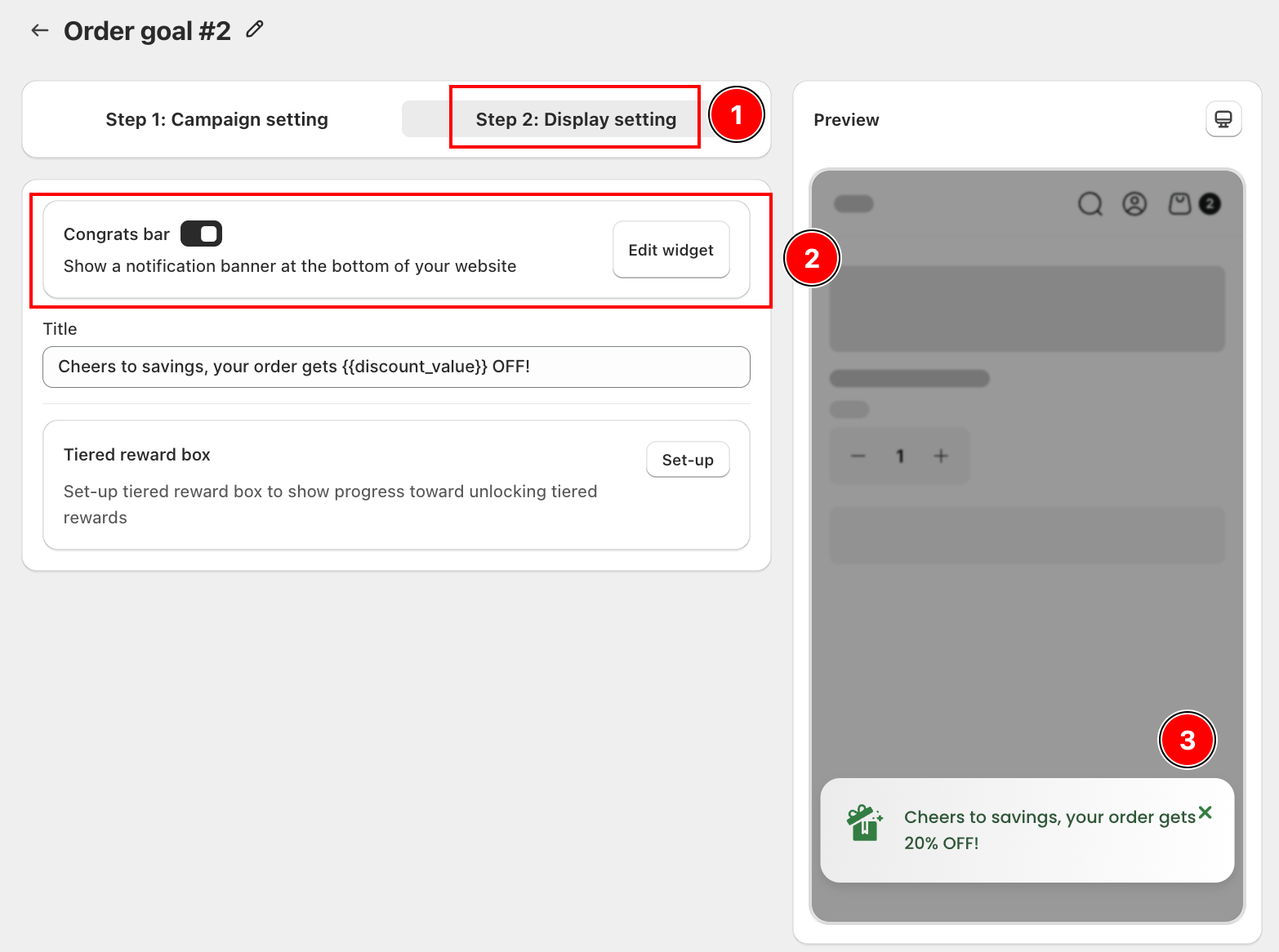
- (1) Open the campaign and go to the Step 2: Display setting tab.
- (2) The Congrats bar toggle is shown at the top. Toggle it on to activate the notification banner. You can also edit the Title text directly here (e.g., "Cheers to savings, your order gets
{{discount_value}}OFF!"). - (3) The preview on the right shows how the bar appears at the bottom of your storefront in real time.
Click Edit widget to open the widget settings and customize the bar's appearance (colors, icon, background).
How to set up the Congrats Bar?
Step 1: Access the Congrats bar widget
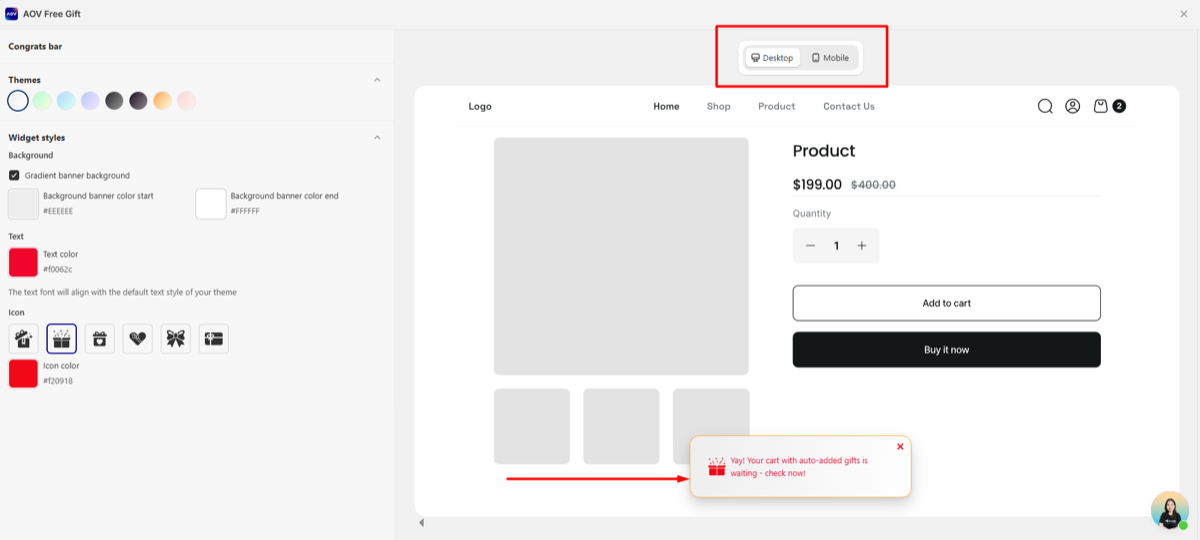
Navigate to Widget Styling -> Congrats bar from the list of widgets. Choose Customize to start customizing the congrats bar.
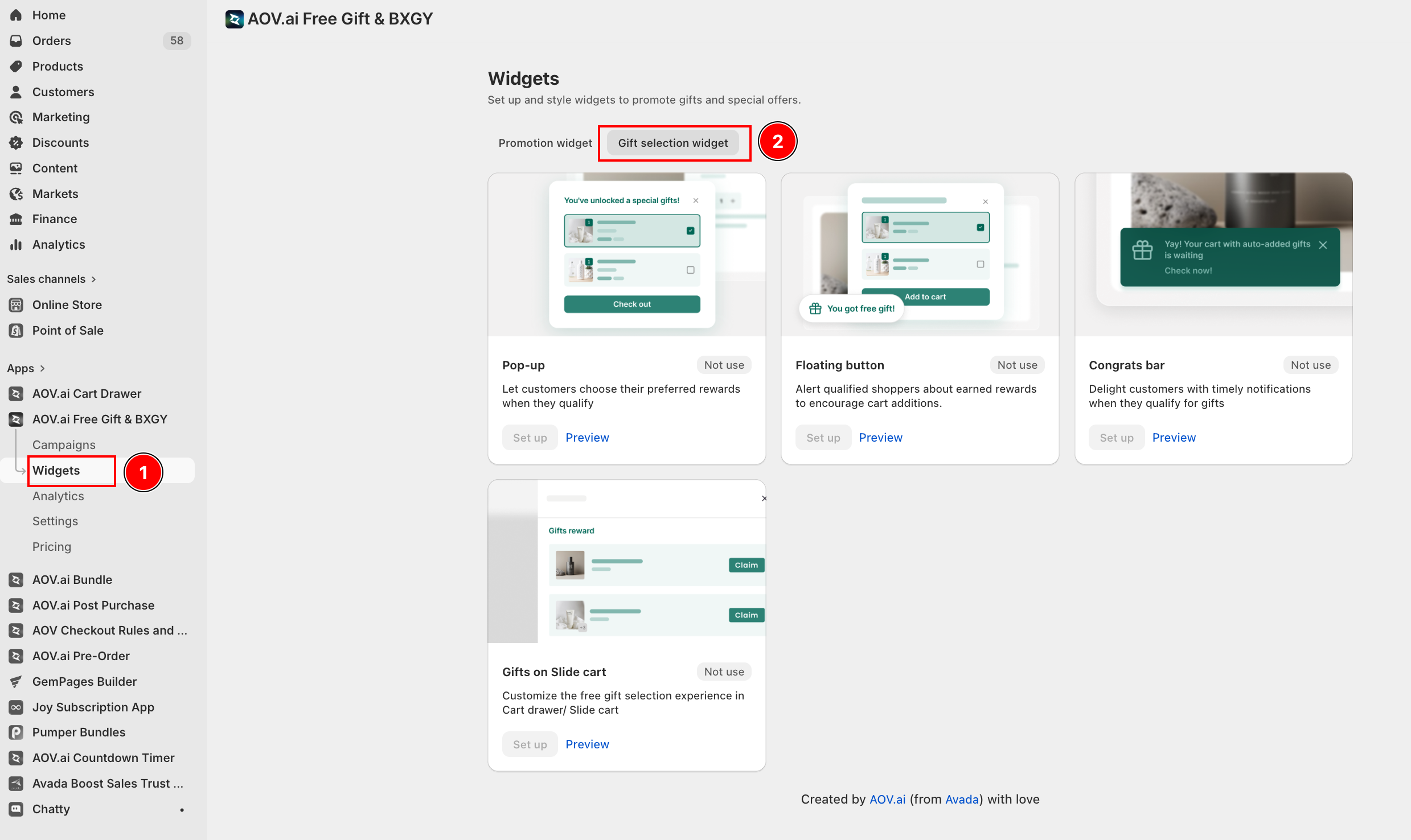
*From the Display setting section, there's a shortcut you can click on the Edit widget button to navigate to the Customize Widget section.
Step 2: Customize widget theme
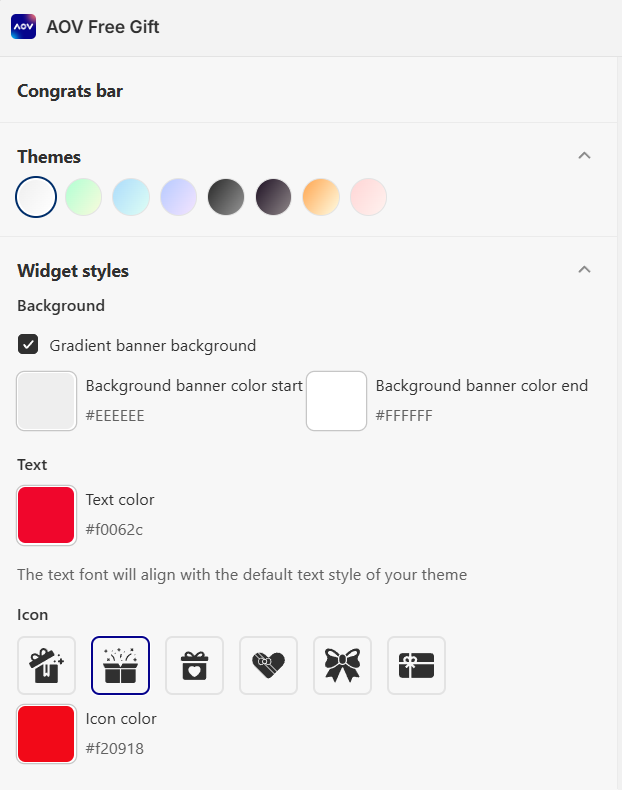
- You can choose the theme for your Congrats Bar so that you don't have to manually change its style. There are several colors to choose from, which match your store's aesthetics and campaign requirements.
Step 3: Customize widget style
Set up the Congrats bar background
- Choose whether you want the gradient banner background or not by ticking the box.
- Adjust the background color to harmonize with your brand’s color palette.
Choose text color
- Choose the text color for your Congrats Bar. Ensure text readability by selecting a color that contrasts well with the background.
Select icon
- Choose an appropriate icon that visually represents the message of gifts being added to the cart automatically.
- Customize the icon's color, ensuring that it matches the overall theme.
Step 4: Finalize your customization
- Utilize the preview feature on desktop and mobile versions to visualize how your customizations appear in real time.
- Test the Congrats bar on your storefront to ensure it displays correctly and functions as expected. This is an example of the congrats bar displaying on your store:
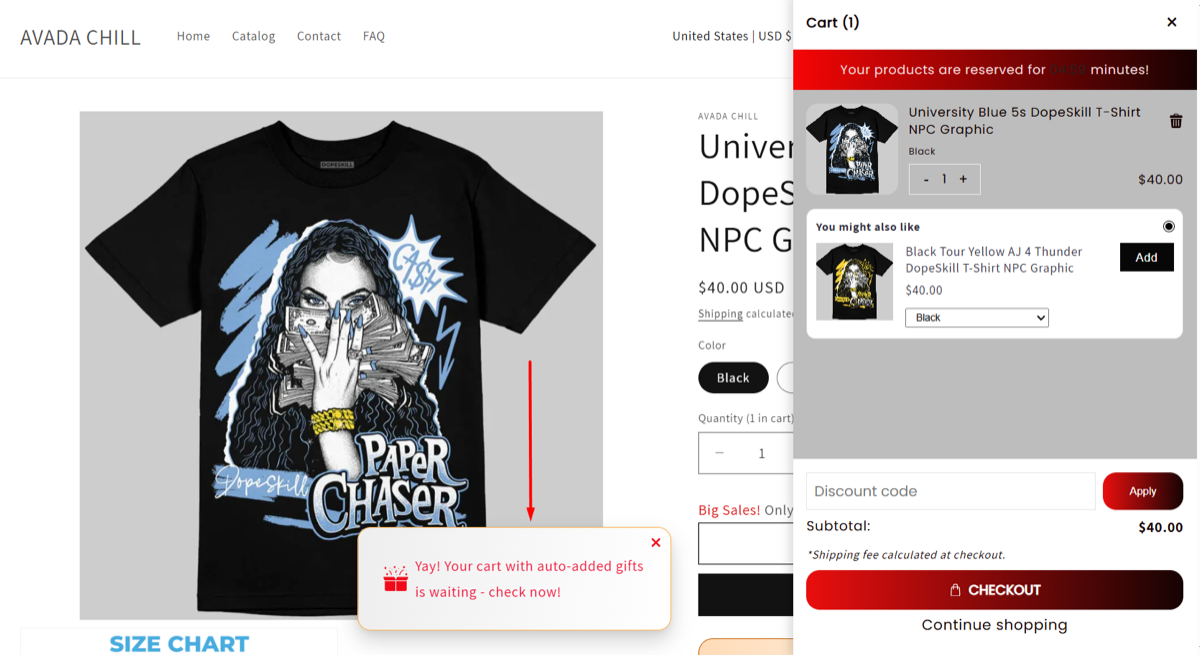
By customizing a well-designed Congrats Bar, you can reinforce promotions in a subtle yet effective way, enhancing customer experience and boosting conversion rates.