Promotion Card
Discover a step-by-step guide to configuring the Promotion Card widget in the AOV.ai Free Gift app to boost your AOV.
Promotion Card supports four campaign types: Buy X Get Y, Gift with Cart Value, Gift with Collection Value, and Gift with Quantity Purchase.
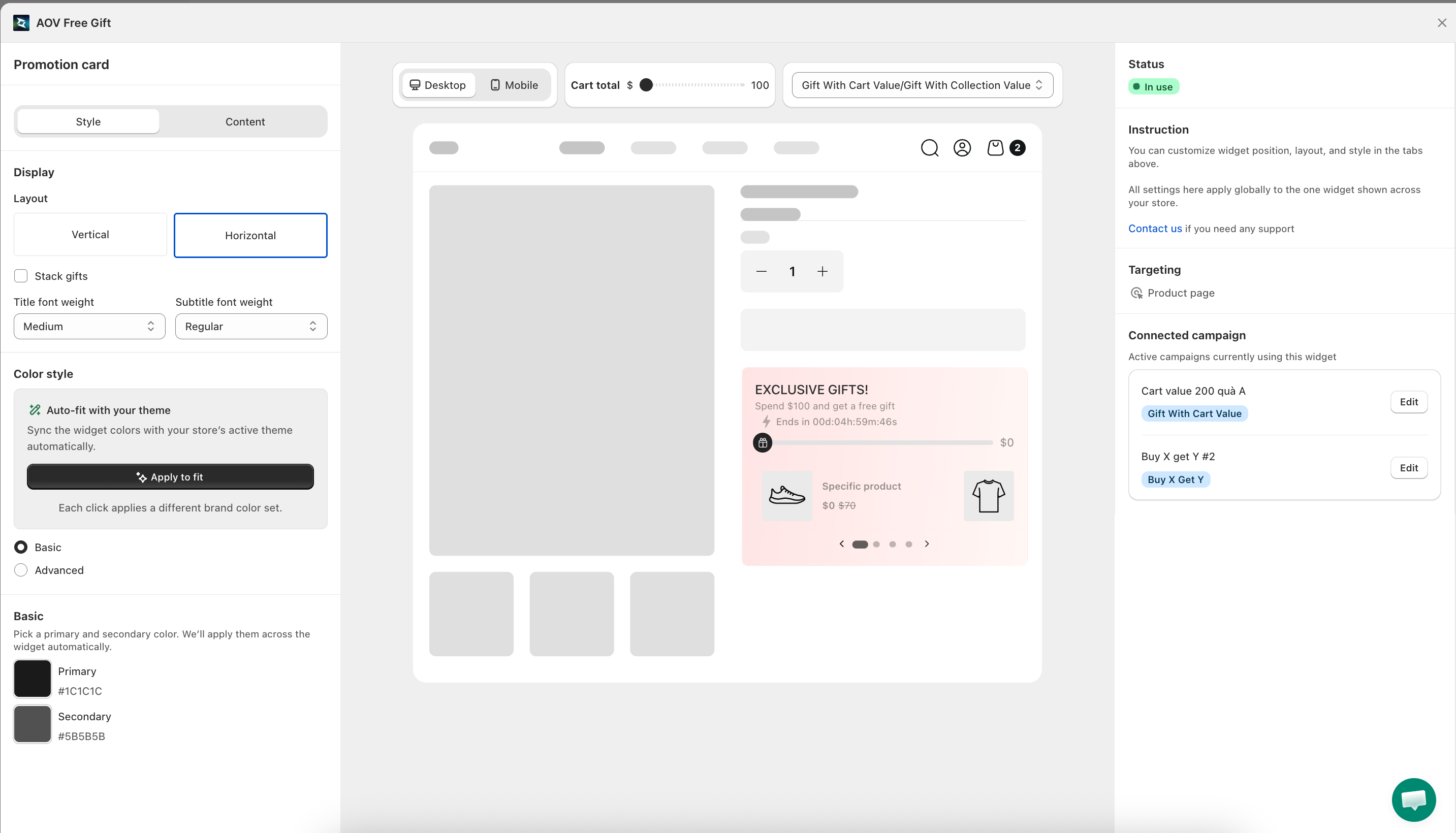
What is Promotion Card?
The Promotion Card is a widget that appears on your product page to highlight active promotions. It shows customers the offer details and conditions to unlock the gift or discount, encouraging them to add more to their cart.
The widget applies globally across your store. Connected campaigns are shown as a carousel inside the card.
Why use Promotion Card?
Drives awareness of active promotions
Placed directly on the product page, the Promotion Card ensures customers see your active deals while browsing, without needing to visit a separate page.
Encourages immediate action
Showing offer conditions and a countdown timer creates urgency, motivating customers to act quickly and add more to qualify for the gift.
Aligns with your brand
Fully customizable layout and colors ensure the card matches your store's visual identity.
How to set up
Step 1: Access the Promotion Card
Go to Widgets in the left sidebar, then click Set up on the Promotion card widget.
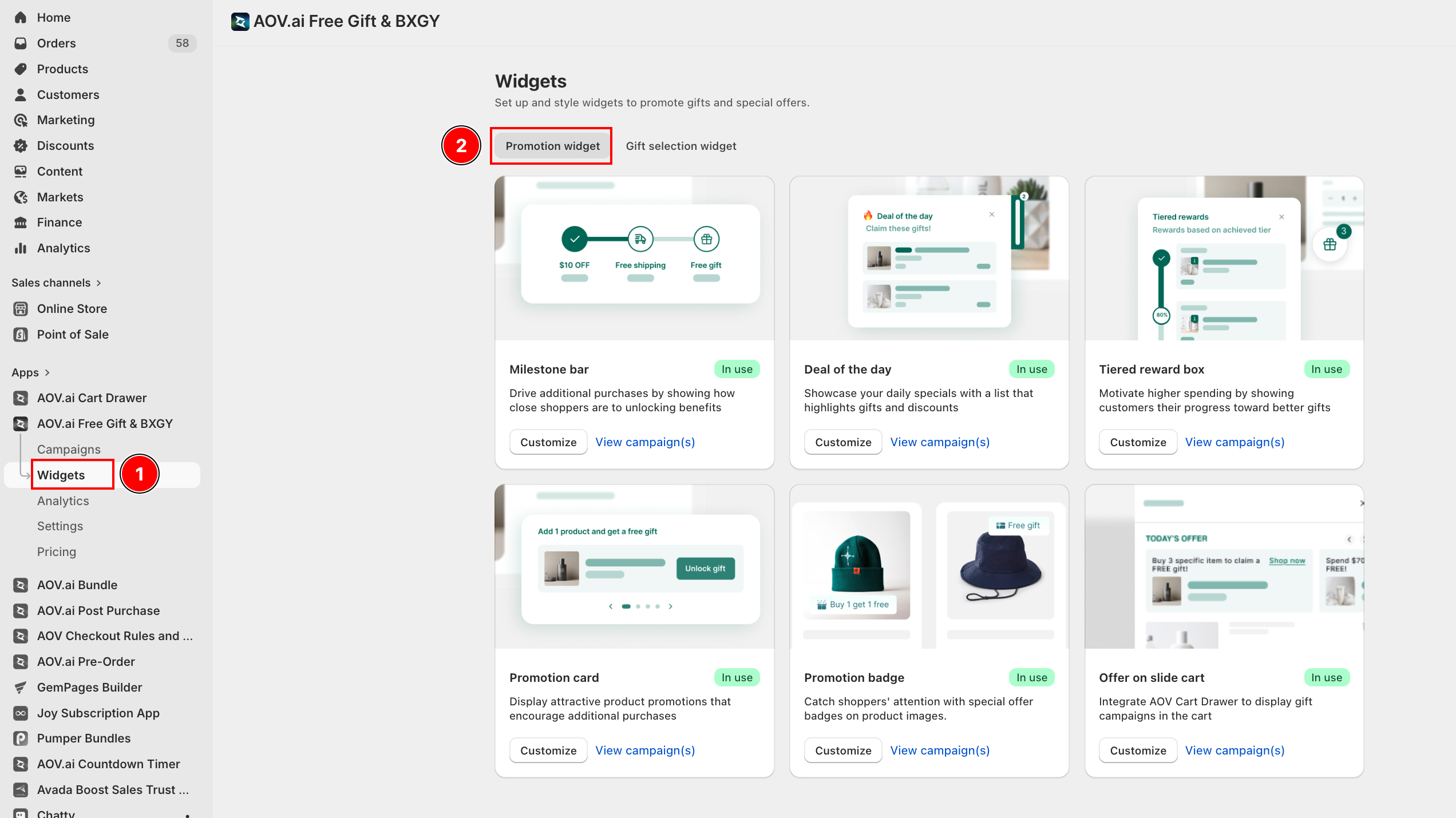
Step 2: Style tab - Display
In the Style tab, configure the card layout and colors:
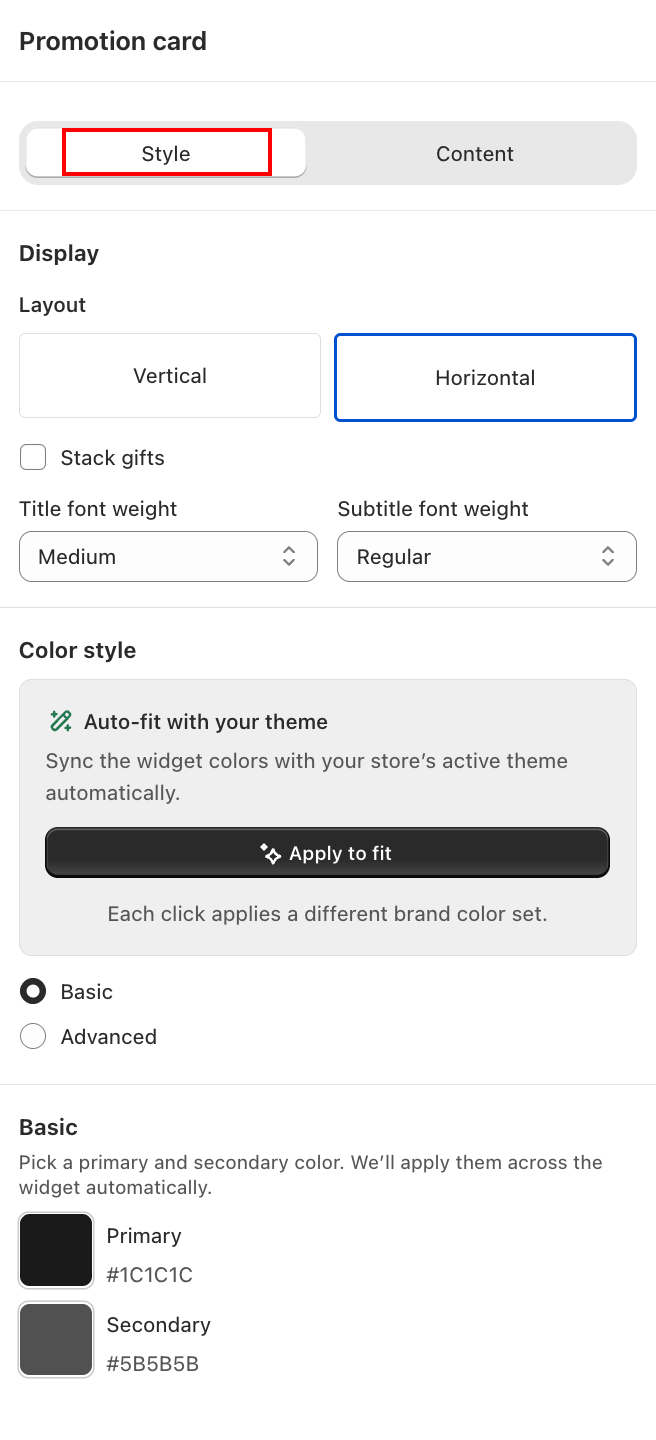
Display
- Layout — choose Vertical or Horizontal to control how the card is arranged.
- Stack gifts — enable to stack multiple gift items vertically inside the card.
- Title font weight — set the weight of the offer title text (e.g., Medium).
- Subtitle font weight — set the weight of the subtitle text (e.g., Regular).
Color style
- Auto-fit with your theme — automatically syncs colors with your store's active theme. Click Apply to fit to apply. Each click cycles through a different brand color set.
- Basic — manually set a Primary and Secondary color applied consistently across the card.
- Advanced — fine-tune individual color values for each element.
Step 3: Content tab and Connected campaigns
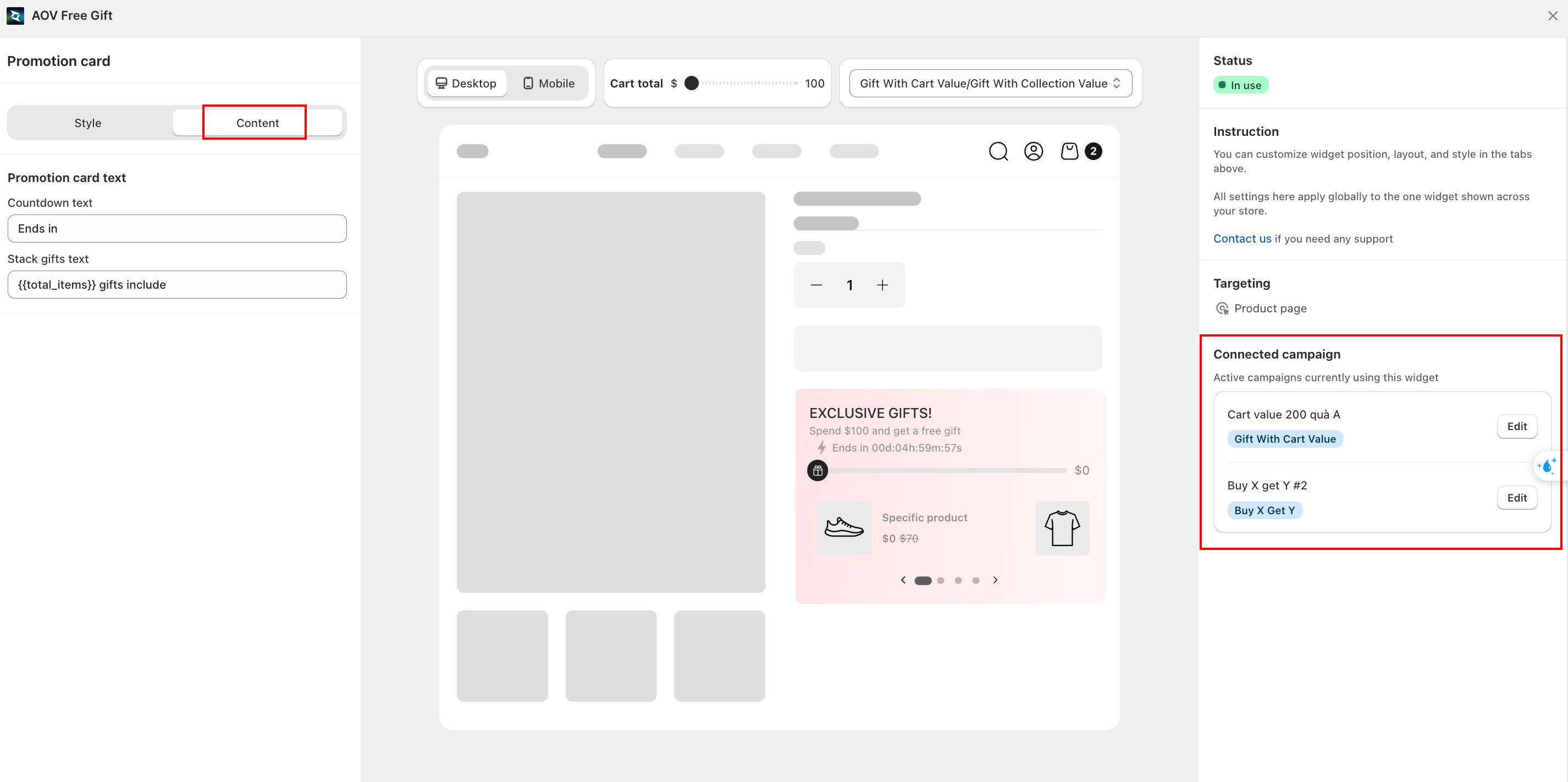
Switch to the Content tab to customize the text shown on the card:
- Countdown text — label shown next to the countdown timer, for example "Ends in".
- Stack gifts text — text displayed when multiple gifts are stacked, for example
{{total_items}} gifts include.
The Connected campaign panel on the right shows which campaigns are currently displayed on this card. Click Edit next to any campaign to adjust its connection.
Step 5: Preview and save
Use the Desktop / Mobile toggle and the campaign filter dropdown in the preview to check how the card looks for different campaigns. Click Save to apply your changes.