Connect Claude Code
Claude Code is the terminal client. Setup is one command plus one paste, and it only has to be done once per machine.
Add the server
Run this in your terminal. Any folder works.
claude mcp add --transport http aov-ppu https://aov-post-purchase.firebaseapp.com/ppuDo not add a header or a token — the sign-in happens in the next step.
Copy your connect code
In the app, open Settings → AOV MCP and copy the code shown under Paste your connect code.
If it shows ••••-••••-••••, a code already exists but has been hidden — codes are only visible when generated. Select New code to get one you can copy.
Sign in
In Claude Code, type:
/mcpPick aov-ppu from the list, then choose Authenticate. A browser tab opens on your store.
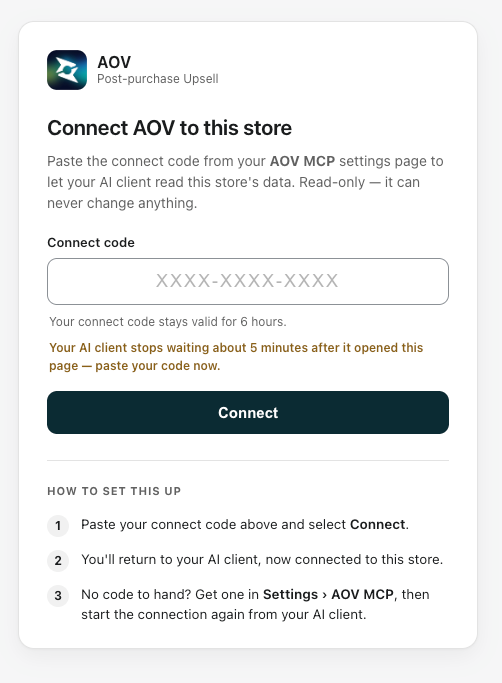
Paste the connect code into that tab and select Connect. The page carries its own setup reminder, so there is nothing to remember from here.
/mcp → Authenticate again and paste the same code — the code itself is still good for 6 hours.Confirm
Back in the app, select Check connection. The badge should read Connected.
You can also just ask Claude something:
How much extra revenue did my post-purchase offers make last week?Everyday use
Once connected, nothing needs repeating. Ask in plain language, in any project folder:
- Which offers earn the most, and what's their accept rate?
- Which offer types have nothing active right now?
- Compare this month's AOV lift to last month's.
More examples and how to phrase them: Tool guide.
Removing it
To sign out but keep the server configured:
/mcpthen choose Clear authentication for aov-ppu.
To remove the server from Claude Code entirely:
claude mcp remove aov-ppuTo cut access from the store's side — which also covers a machine you no longer have — use Disconnect in Settings → AOV MCP.