A/B Testing
Test different offer variations to find what converts best. A/B testing lets you compare up to 2 options for each upsell step and measure which performs better.
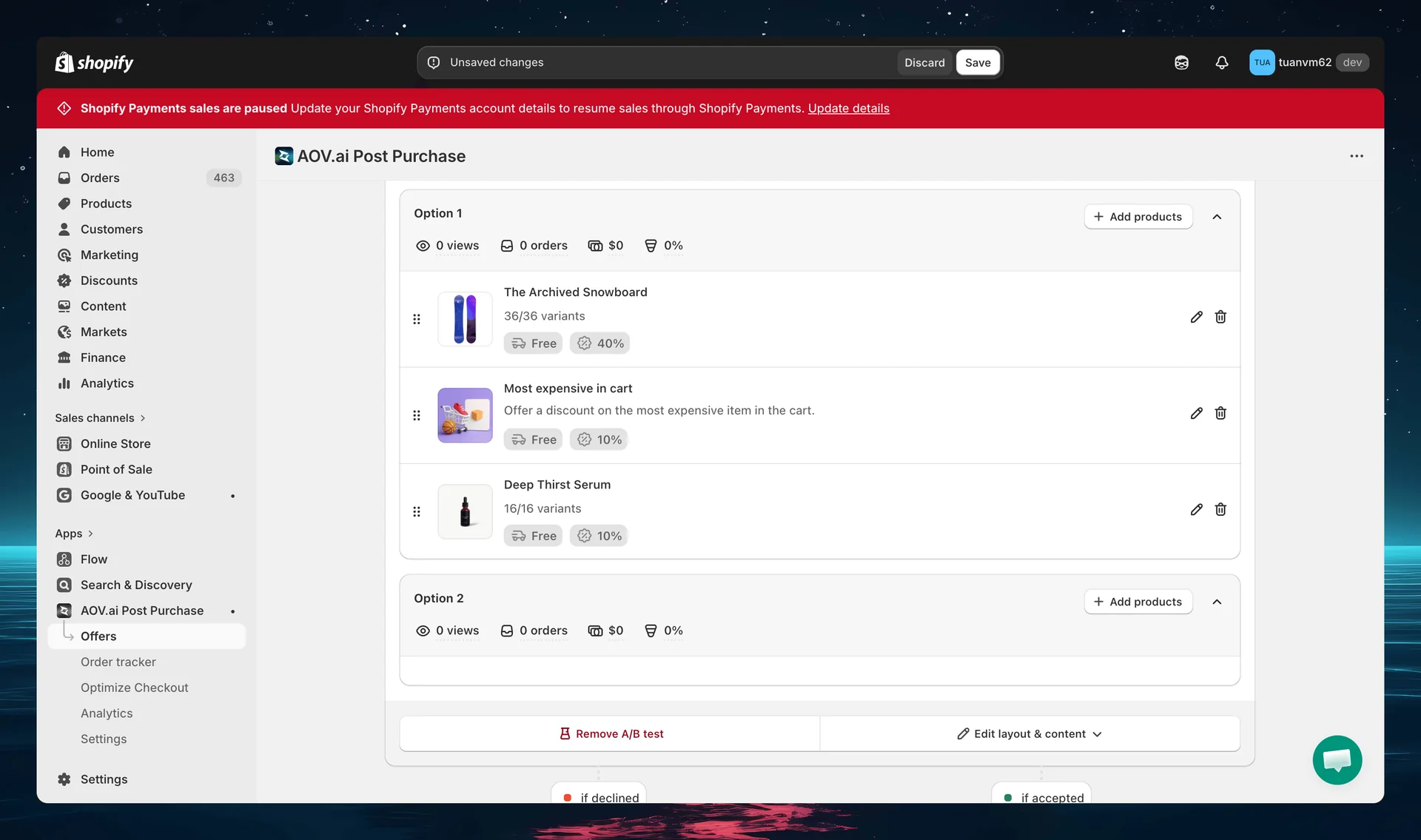
How it works
When A/B testing is enabled, customers are randomly shown one of the test variations. The app tracks performance metrics for each variation so you can identify the winner. If you pause the test, every customer sees the same option until you resume, see Pause and resume a test.
What you can test
You can create variations for any of these elements:
| Element | Description |
|---|---|
| Offer title | Test different headlines and messaging |
| Discount type & value | Compare percentage vs fixed amount, or different discount levels |
| Template | Test different layout designs |
| Countdown display | Test with/without countdown timer |
| Countdown text | Test different urgency messages |
| Expiration time | Test different offer durations |
| Free shipping | Test with/without free shipping offer |
| Product layout | Test scrollable vs standard layout |
Metrics tracked per variation
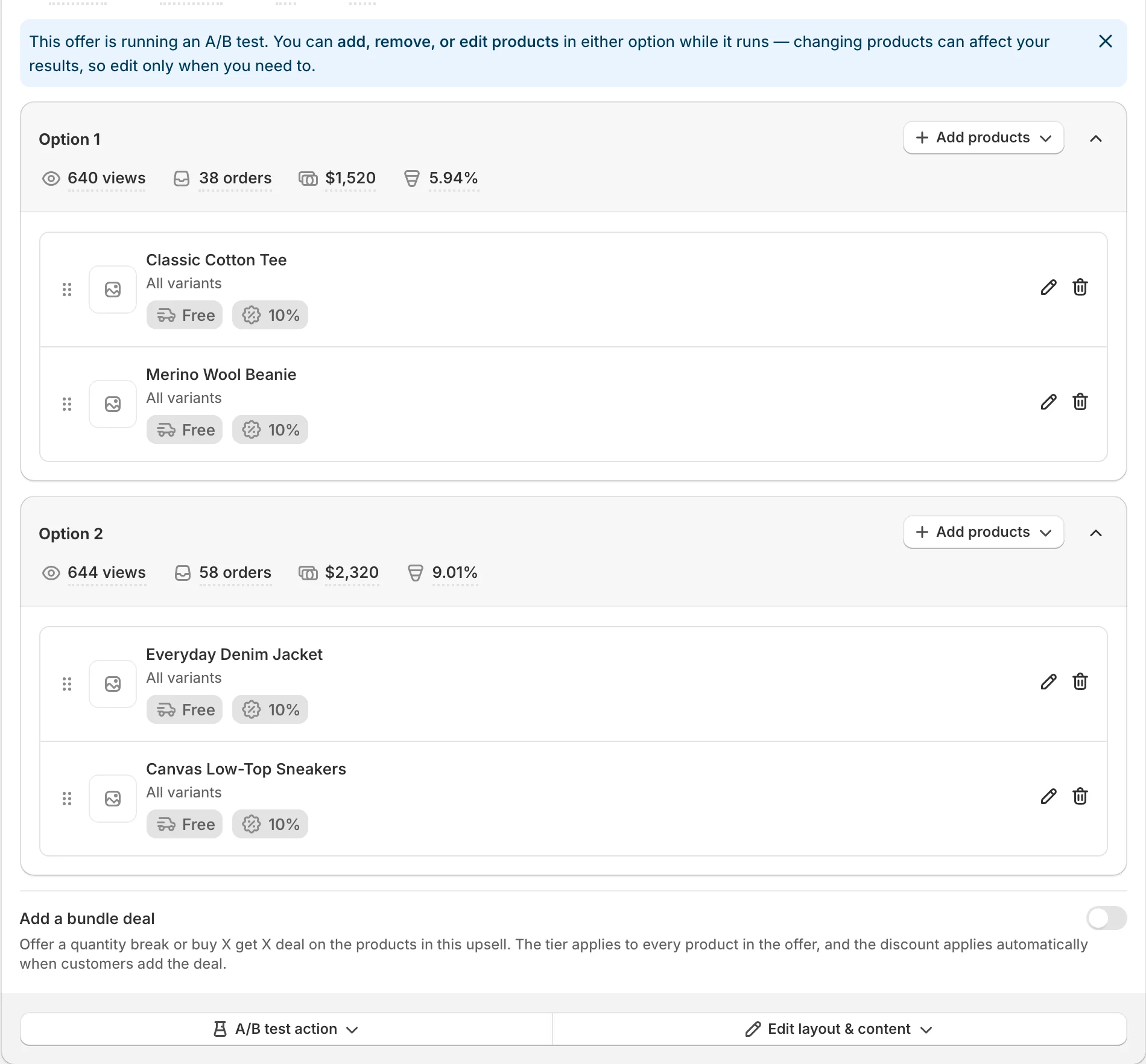
Each option shows its own stats on the offer step:
- Views: number of times the option was displayed
- Orders: number of orders created from this option
- Revenue: revenue generated by this option's orders
- Conversion rate: orders divided by views, shown as a percentage
Setting up an A/B test
Step 1: Open your offer
Navigate to your offer's edit page and go to the upsell step you want to test. On the step card, find the Create A/B test button at the bottom.
Step 2: Create the A/B test
Click Create A/B test. This splits the step into Option 1 and Option 2, each with its own products and layout.
Step 3: Configure each option
Set up Option 1 and Option 2 with the variations you want to compare. Use the Edit layout & content button (which now lets you pick Option 1 or Option 2) to open each option's layout. For example:
- Change the discount from 10% to 15%
- Use a different template
- Adjust the countdown timer text
Step 4: Save and monitor
Save your offer. The app automatically splits traffic between the two options and tracks performance for each.
Step 5: Review results
Each option's views, orders, and revenue appear directly on the step card. Compare:
- Which option gets more orders?
- Which generates more revenue?
- Which has a higher conversion rate?
Step 6: Pick a winner
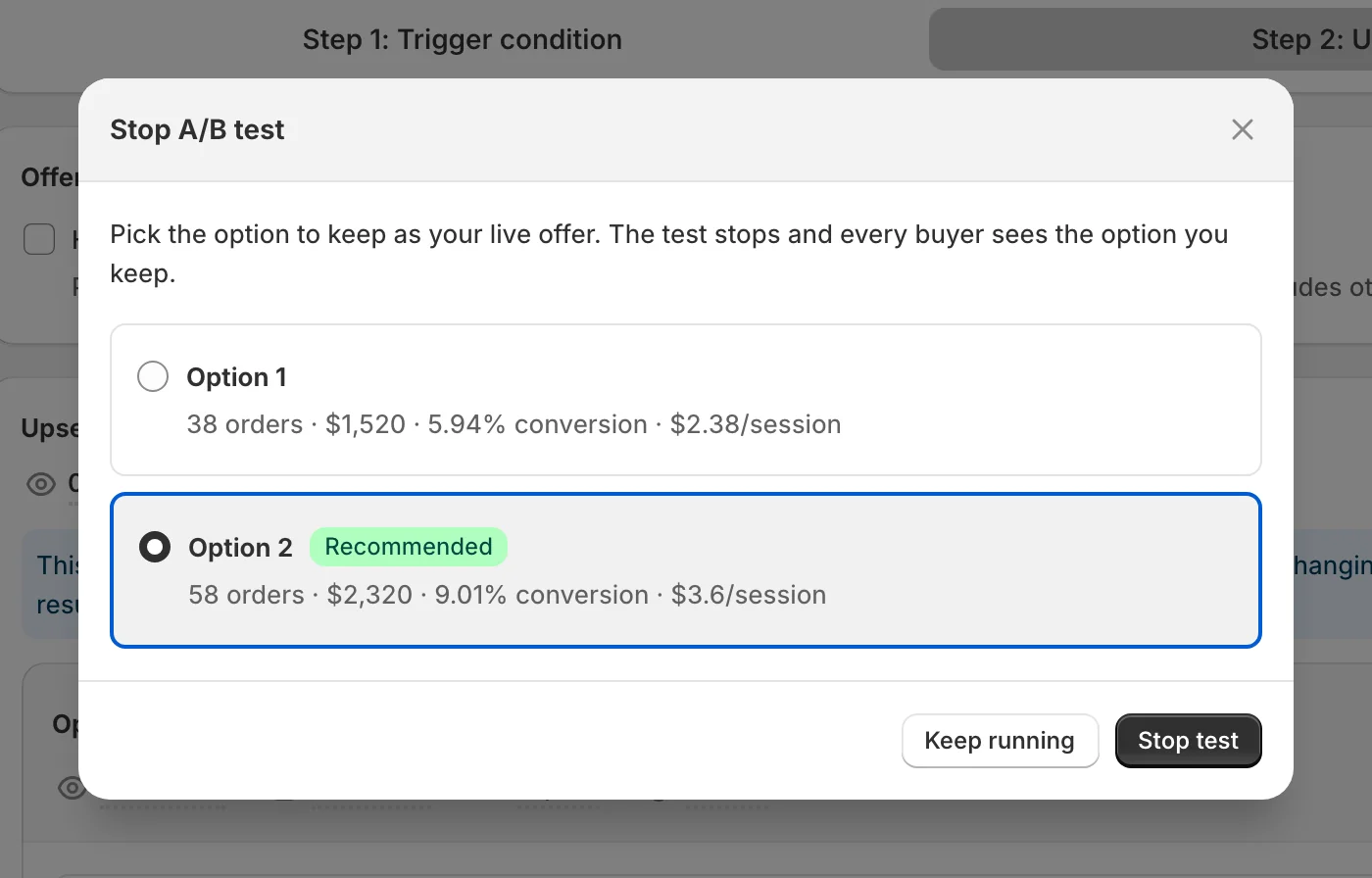
Once you have enough data, open the A/B test action menu on the step card and choose Stop A/B test. The window shows each option's results side by side:
- Orders
- Revenue
- Conversion rate
- Revenue per view (shown as RPS)
The app puts a Recommended badge on the option with the higher revenue per view. It only recommends a winner when each option has at least 100 views and the two options are not tied. Until then, the window says Not enough data to recommend a winner yet and you choose the option yourself.
Pick the option you want to keep, then click Stop test. The option you keep becomes your main offer and every customer sees it. To close the window without stopping the test, click Keep running.
To clear performance data without ending the test, choose Reset analytics from the same menu. This resets views, orders, and revenue for all options to 0, removes the Edited badge, and does not affect your setup or traffic split. To discard the test entirely before saving, use Remove A/B test.
Managing a running test
You don't have to stop a test to change it. While a test runs, you can edit its options, pause it, and resume it later. This works on every step that supports A/B testing, including the Thank you page and Order status page upsells.
Edit an option while the test runs
You can add products, change the discount or free shipping, and remove products in both options while the test is running. You don't need to stop the test first.
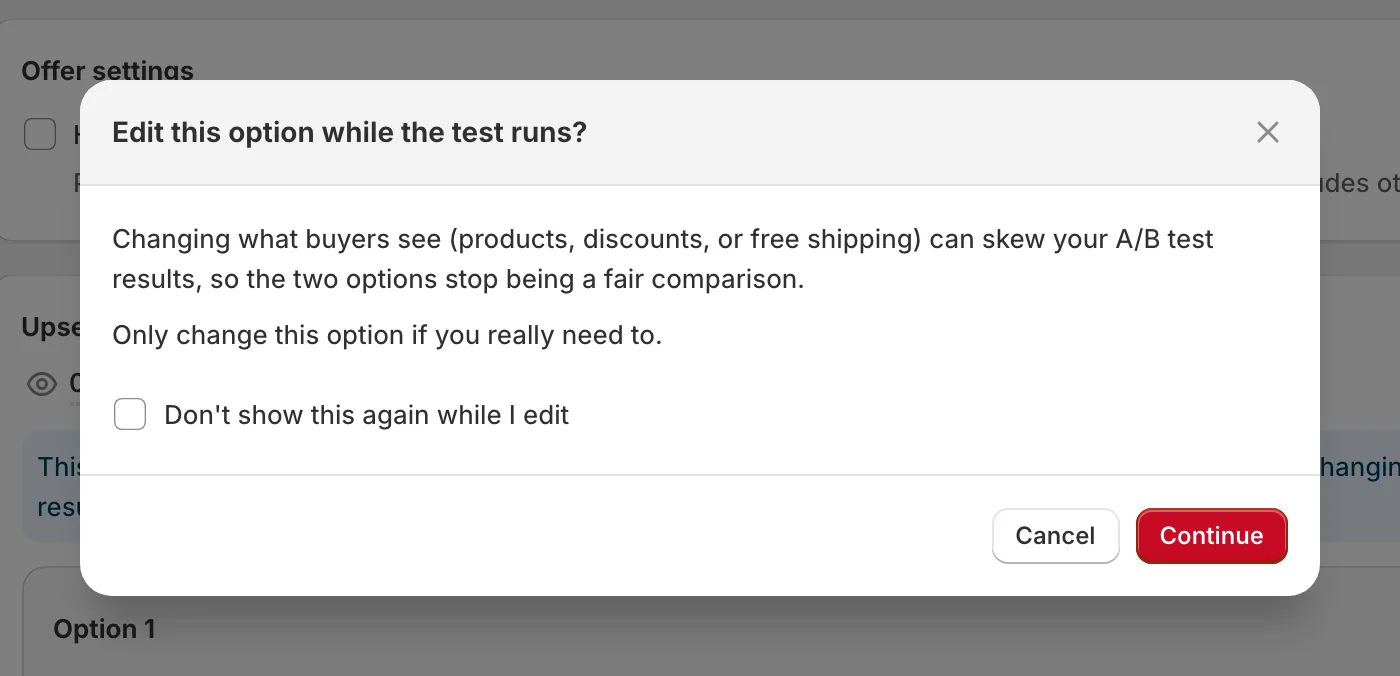
- The app asks you to confirm before you change an option, because the numbers for the two options may no longer be a fair comparison
- Tick Don't show this again while I edit to skip the prompt for the offer you have open
- An option you changed shows an Edited badge, which means its stats from before and after your change are combined
- To count from zero again, choose Reset analytics from the A/B test action menu. The Edited badge goes away too
Pause and resume a test
Pause a test when you want everyone to see one option for a while without losing any data.
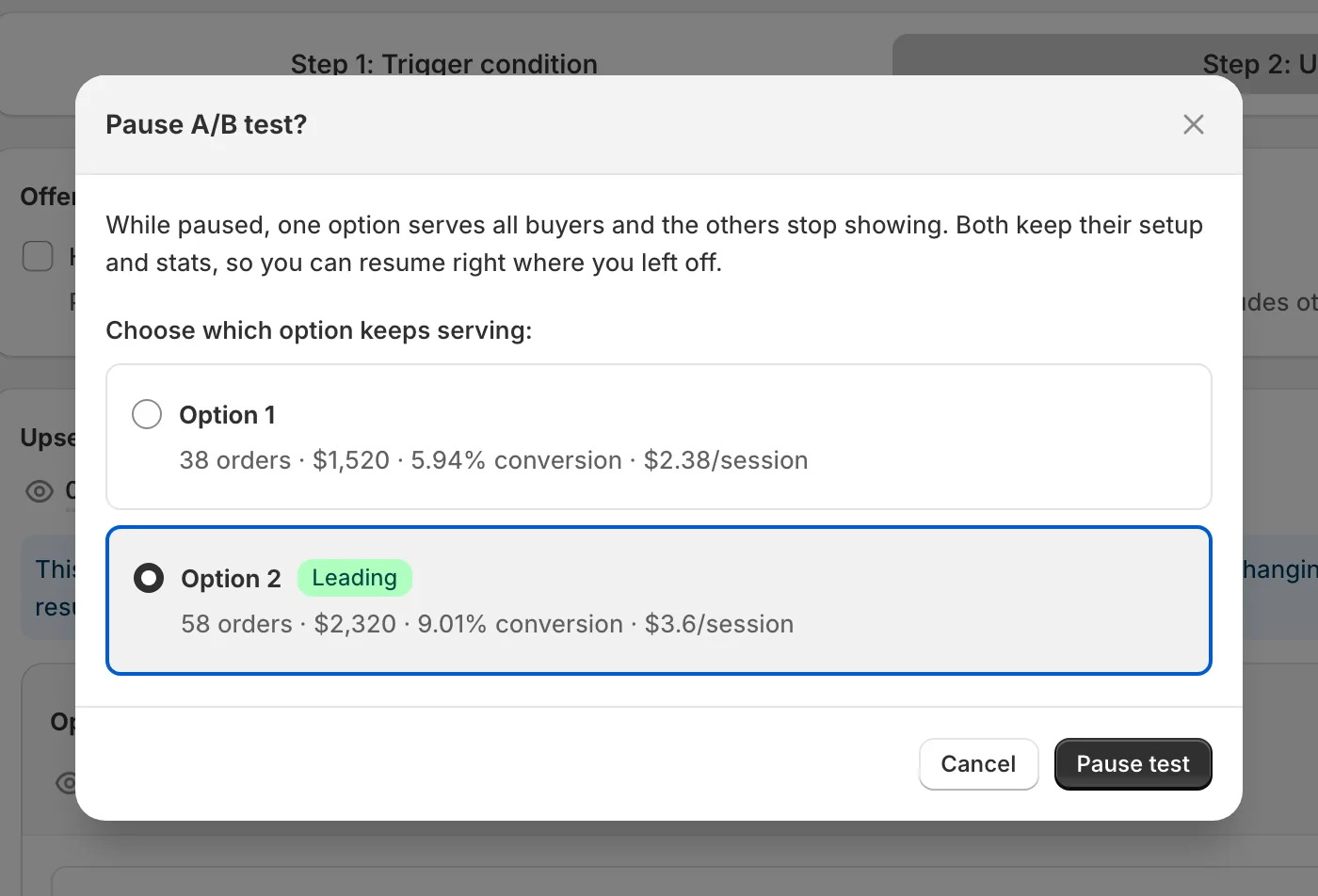
- Open the A/B test action menu on the step card and choose Pause test.
- Choose which option keeps running for 100% of customers. The app preselects the option with the Leading badge when there is enough data, and Option 1 when there is not.
- Click Save.
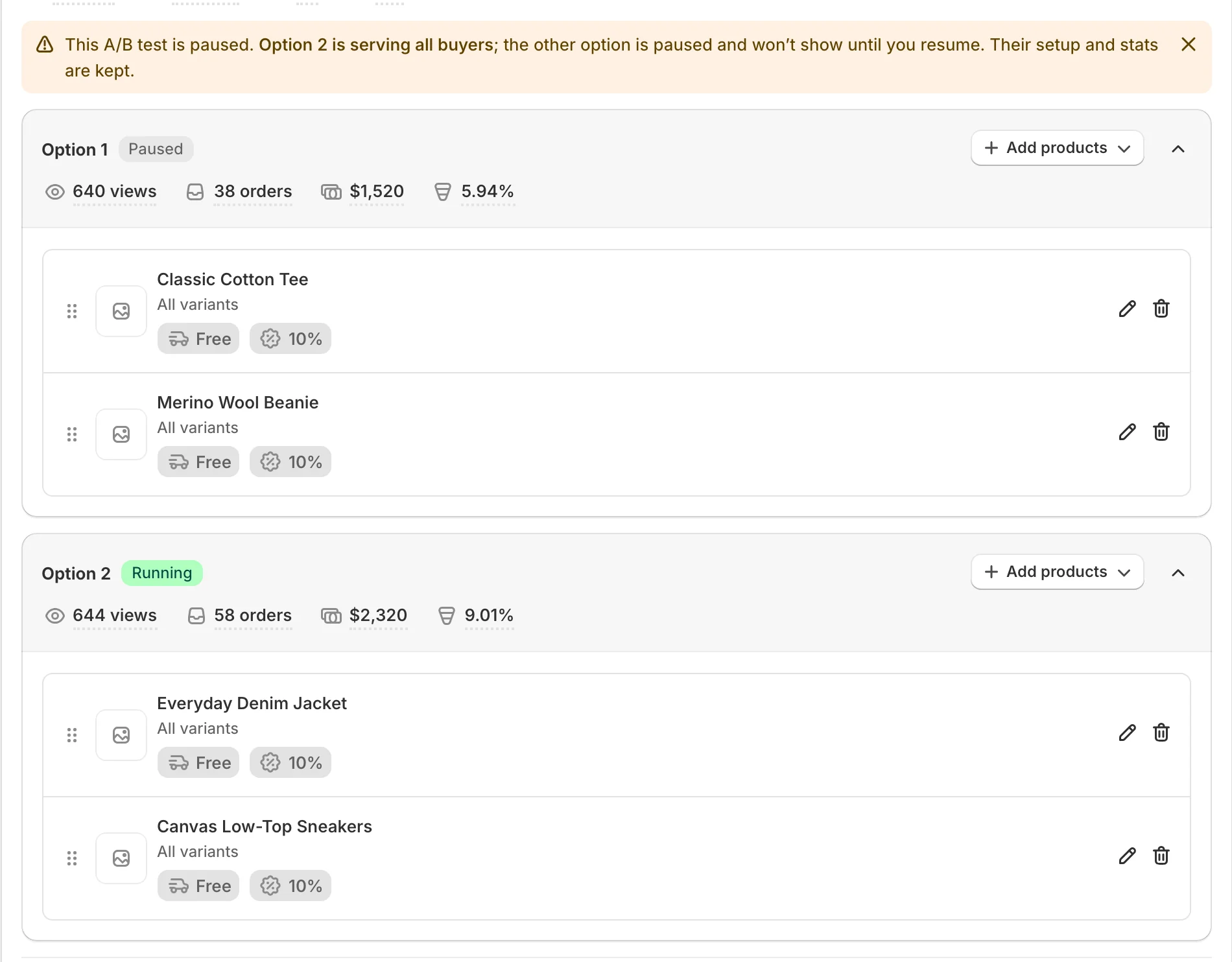
While the test is paused:
- A yellow banner tells you which option is running
- The two options show Running and Paused badges
- The paused option stops showing to customers but keeps its setup and stats
- You can edit products without the confirmation prompt
To start again, open the A/B test action menu and choose Resume test. The test continues from where it stopped. If an option has no products, add some first, then resume.
Save to apply. Pause, Resume, Stop, and Reset analytics only take effect after you click Save. The yellow banner reminds you with This change takes effect after you Save. If customers still see both options after you pause, check that you saved.
Best practices
- Run tests long enough: wait for at least 100 impressions per variation before drawing conclusions. The app also waits for 100 views per option before it recommends a winner
- Test one element at a time: changing multiple things makes it hard to know what caused the difference
- Start with high-impact elements: test discount value and offer title first, as they have the biggest impact on conversions
- Reset analytics from the A/B test action menu if you make changes mid-test to get clean data
Availability
A/B testing is available on the upsell steps of each offer type:
- Post-purchase upsell: Upsell #1, Upsell #2, Downsell, Upsell #3, and Downsell #2
- Thank you page upsell: Upsell step
- Order status page upsell: Upsell step
If your shop moves to the Free plan, you can still pause, resume, and stop a test that is already running. Creating a new A/B test needs a paid plan.