Dashboard
The app's Home dashboard is where you land after setup, and where you'll come back to track performance and find new offer ideas. This page covers what's on it, top to bottom: the Statistics card, the Offer AI card, the onboarding Checklist widget, and the Inspiration Library.
Statistics card
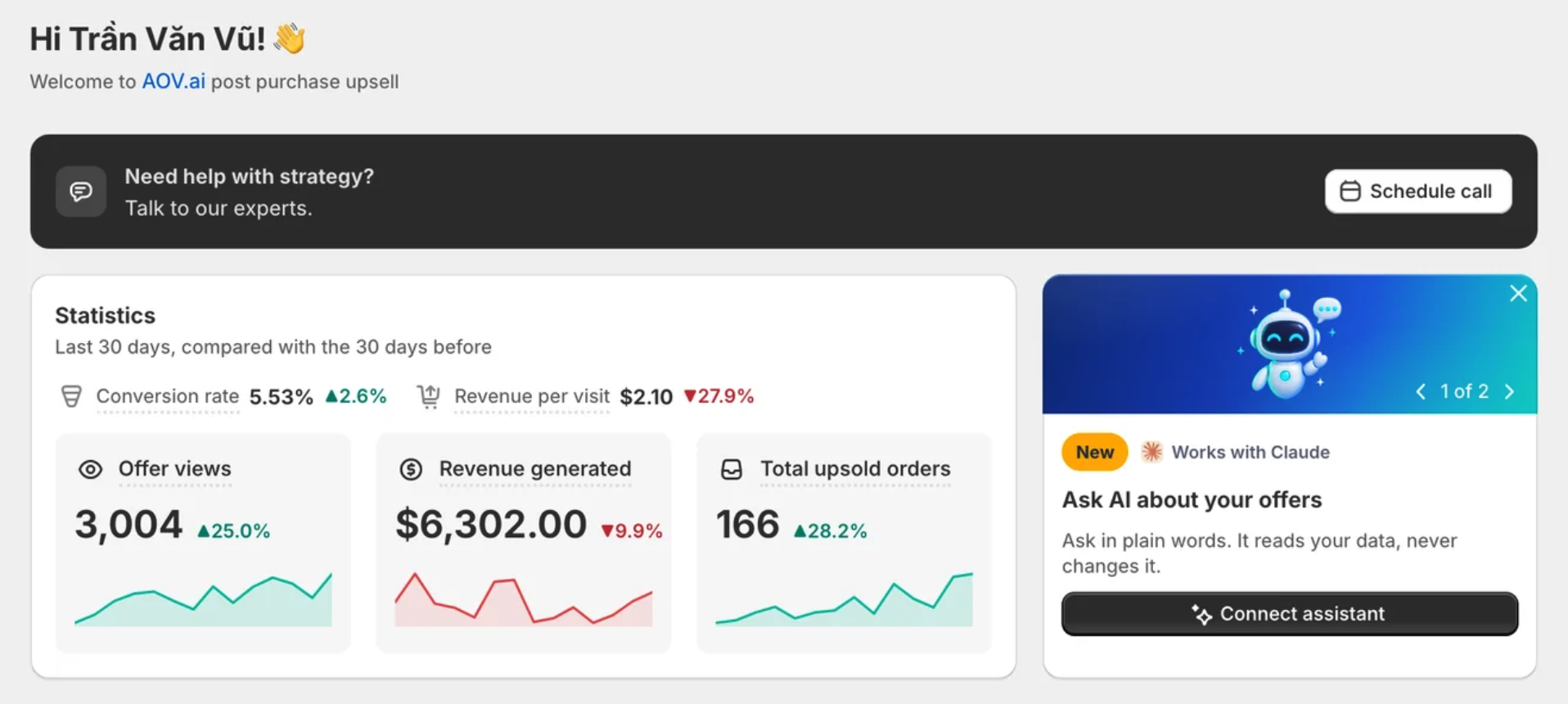
The Statistics card sits at the top of Home, next to the Offer AI card. It compares your last 30 days against the 30 days before that, so you can tell at a glance whether things are trending up or down without opening Analytics.
30-day comparison
The subtitle under the card title reads "Last 30 days, compared with the 30 days before." Two metrics sit in the top row:
- Conversion rate: the percentage of upsold orders compared to total offer views.
- Revenue per visit: average revenue generated per upsell offer view.
Below them, three tiles each add a small daily chart:
- Offer views: the total number of times upsell offers were shown to customers.
- Revenue generated: the total value of orders successfully upsold.
- Total upsold orders: the total number of orders where upsell offers were successfully applied.
Hovering over any metric's name shows a tooltip with that definition.
Next to each value is a trend indicator comparing it to the previous 30 days:
| Indicator | Meaning |
|---|---|
| Green ↑ N% | Up from the previous 30 days |
| Red ↓ N% | Down from the previous 30 days |
| Gray 0% | Same value in both periods |
| Gray — (dash) | No previous-period data to compare against |
Hovering over a chart
Hover over one of the three tiles' small charts to open a popover with a bigger comparison chart: a solid line for the current 30-day period and a dotted line for the previous 30 days, each labeled with its own date range.
Offer AI (Beta) card
Beside Statistics is a card titled "Let Offer AI draft offers", with the description "Reads your catalog and recent orders, then fills the offer in." and an Analyze my store button.
Clicking Analyze my store opens the Choose offer type page, which has its own Offer AI entry point with the same Analyze my store action.
Offer AI itself is still Pro-plan only. A shop below Pro can still click through from either entry point and reach the Choose offer type page, but starting the actual analysis there opens an upgrade prompt instead of running it. See Offer AI and Pricing plan for what's included on each plan.
Clicking the card's ✕ dismisses it, Statistics then expands to fill the full row. Once dismissed, the card doesn't come back for that shop.
Checklist widget while onboarding is incomplete
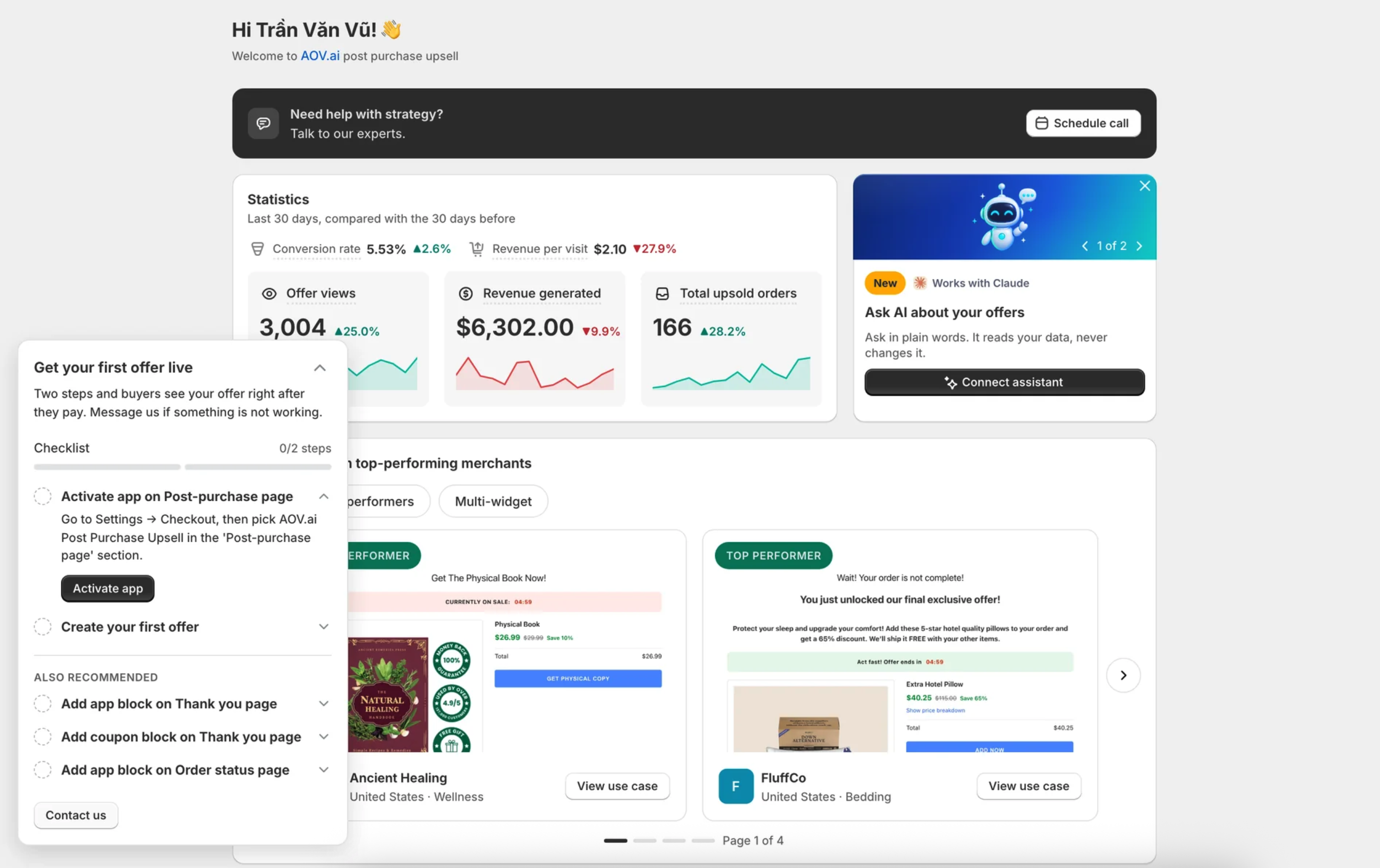
Until you finish the onboarding checklist, a Checklist tile also appears on this same Home dashboard, floating over the Statistics and AI assistant cards. See Onboarding for what each task does.
Inspiration Library
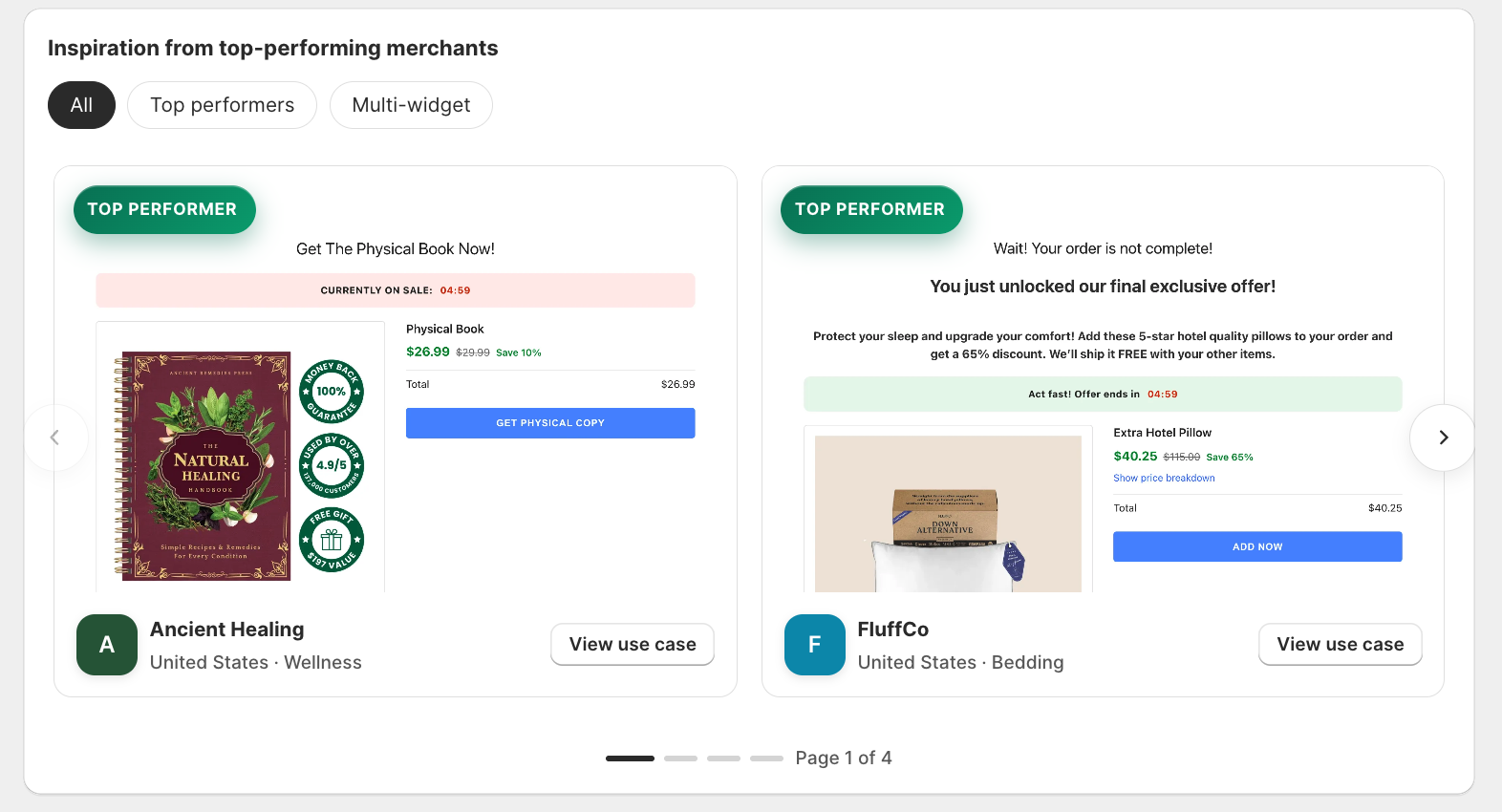
Scroll below the Statistics section to find the Inspiration Library, under the heading Inspiration from top-performing merchants. It's a gallery of ready-made offer templates, modeled on offers from real, top-performing stores. Instead of building your first offer from a blank form, you can preview a template, copy it in one click, and tweak it. It is the fastest way to go from install to your first live offer.
Browse and filter
The section shows templates in a carousel, two cards per page. Use the arrows (or the dots below) to move between pages.
Filter the list with the pills at the top of the section:
- All: every template in the library.
- Top performers: offers with the strongest results, marked with a Top performer badge.
- Multi-widget: templates that combine several widgets (for example a countdown, a badge, and social proof), marked with a Multi-widget badge.
Preview a template
Click a card's View use case button to open its preview. The preview shows:
- The store name and location, plus any Top performer or Multi-widget badge.
- Trigger and Upsell: what sets the offer off and what it promotes.
- Conversion rate and AOV uplift: performance figures, shown when available.
- Why it works: a short, bulleted explanation of what makes the template effective.
Try a template
In the preview, click Try this template. The app creates a new draft offer pre-filled with the template's layout, headline, widget, and discount, then opens the editor so you can finish it.
Finish the offer before you activate it. A template offer is created as Inactive. By default it uses AI Recommendation for the upsell product and No condition for the trigger, so it shows to everyone. Choose your own product and trigger, review the discount, then set the offer to Active.
Related
- Quickstart: the full install-to-first-offer walkthrough.
- How to set up: build or finish a post-purchase offer from the editor.
- Display setting: customize the widget once your offer is drafted.
- Offer AI: what the analysis does and how to turn a suggestion into an offer.
- Analytics: the full reporting page, with a selectable date range.
- Pricing plan: Free vs. Pro, in full.