Manage offer priority
Control which offer is shown when multiple offers match the same order by setting a priority order for Post-purchase, Thank you page, and Order status page upsells.
Why priority matters
The AOV.ai Post Purchase app can hold many offers per store, but a customer can only see one offer per upsell surface on any given order. When more than one active offer matches the same trigger conditions, priority decides which one is displayed.
- Priority 1 is the highest — it is evaluated first and shown if it qualifies.
- Priority is managed per offer type (Post-purchase upsell / Thank you page upsell / Order status page upsell). A Post-purchase offer never competes with a Thank you page offer — they run on different surfaces.
Quick rule of thumb
Top of the list = priority 1 = the one your customer sees first.
How to reorder offers
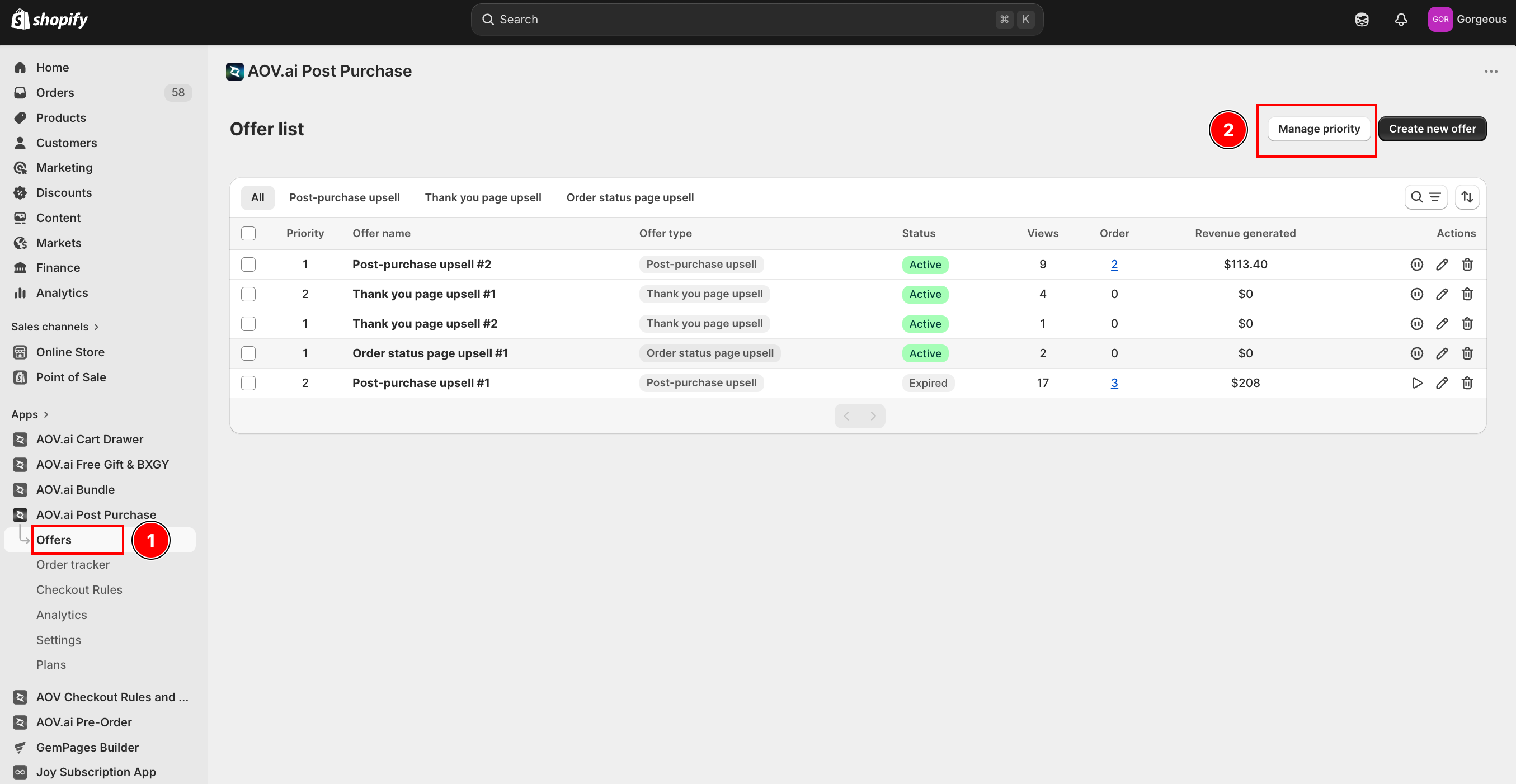
Go to Offers in the app menu.
Select Manage priority (top-right of the Offer list, next to Create new offer).
In the Offer priority modal, use the Choose type of offer to manage priority dropdown to pick the offer type you want to reorder:
- Post-purchase upsell
- Thank you page upsell
- Order status page upsell
If you opened the modal from a specific tab (for example, Post-purchase upsell), the dropdown is pre-filtered to that type only. Open the modal from the All tab to see all three types.
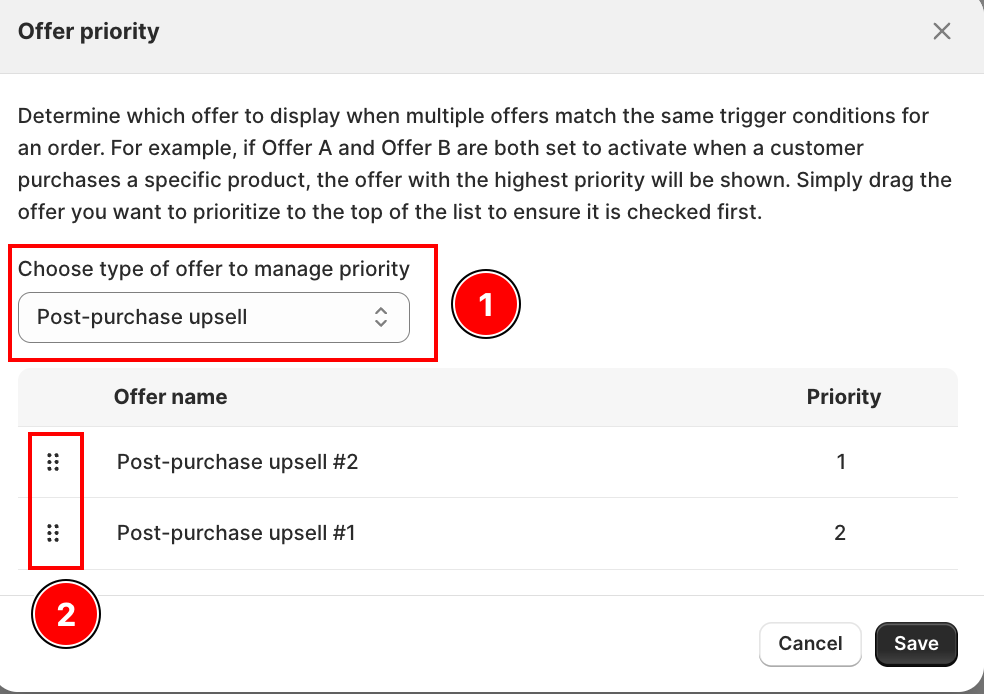
Drag offers using the handle on the left of each row. The top row becomes priority 1, the next row priority 2, and so on. The Priority column re-indexes automatically as you drag.
Select Save. Your changes apply immediately to new orders.
Automatic priority behavior
You do not need to touch priority for most day-to-day work — the app keeps the list consistent on its own.
| Event | What happens |
|---|---|
| Create a new offer | The new offer is inserted at priority 1 within its type. Existing offers of that type shift down by one (old priority 1 becomes priority 2, etc.). |
| Delete an offer | Remaining offers in the same type re-rank to close the gap — no "holes" in the priority sequence. |
| Offers without priority (legacy) | When the list first loads, offers that have no saved priority are ordered by most recently created first and then assigned priority values automatically. |
Sort options on the Offer list
The Offer list shows a Priority column and supports four sort options:
| Sort option | What you see |
|---|---|
| Priority — Ascending | Priority 1 first (highest priority on top) |
| Priority — Descending | Lowest priority first |
| Date Created — Newest | Most recently created first |
| Date Created — Oldest | Oldest first |
When to use priority
Good candidates for manual priority
- Seasonal / promo over evergreen — You run a short-term campaign (Black Friday, launch week) on top of a baseline offer. Boost the promo to priority 1 during its window, then swap back afterward.
- Overlapping trigger conditions — Two offers target the same collection or customer segment. Priority breaks the tie so the customer sees the specific one you care about.
- A/B-style staggering — You keep a fallback offer live with loose conditions as a safety net, and a narrow, high-value offer on top.
Heads up
- An inactive (draft / expired / paused) offer keeps its priority slot but will not be shown — the engine simply skips it and evaluates the next one in order.
- If no offer in the type qualifies for an order, no upsell appears on that surface — priority does not force an offer to show.