Offer AI
What Is It?
Offer AI reads your store's product catalog and your last 60 days of paid orders, then drafts up to 3 ready-to-use offers with the products, discount, and layout already filled in. You review each suggestion, edit anything you like, and click Save yourself, Offer AI never creates or activates an offer on its own.
It's built for the moment merchants normally get stuck: a blank offer form, no idea which product to upsell or what discount to set.
How to Use It
Step 1: Start the analysis
Go to AOV.ai Post Purchase Upsell → Offers, then click Offer AI at the top of the Offer list ①②.
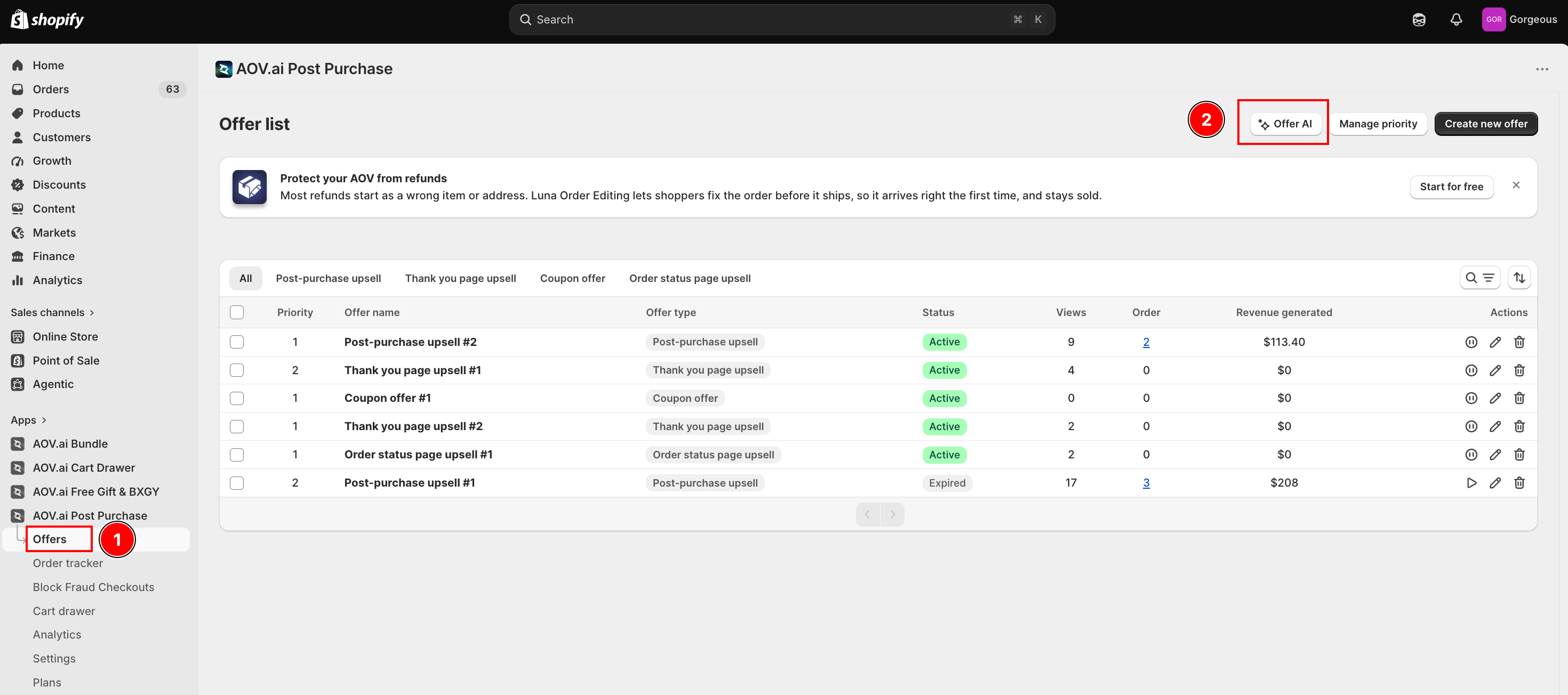
The app then reads your catalog and 60-day order history. This usually takes well under a minute.
Step 2: Read the results
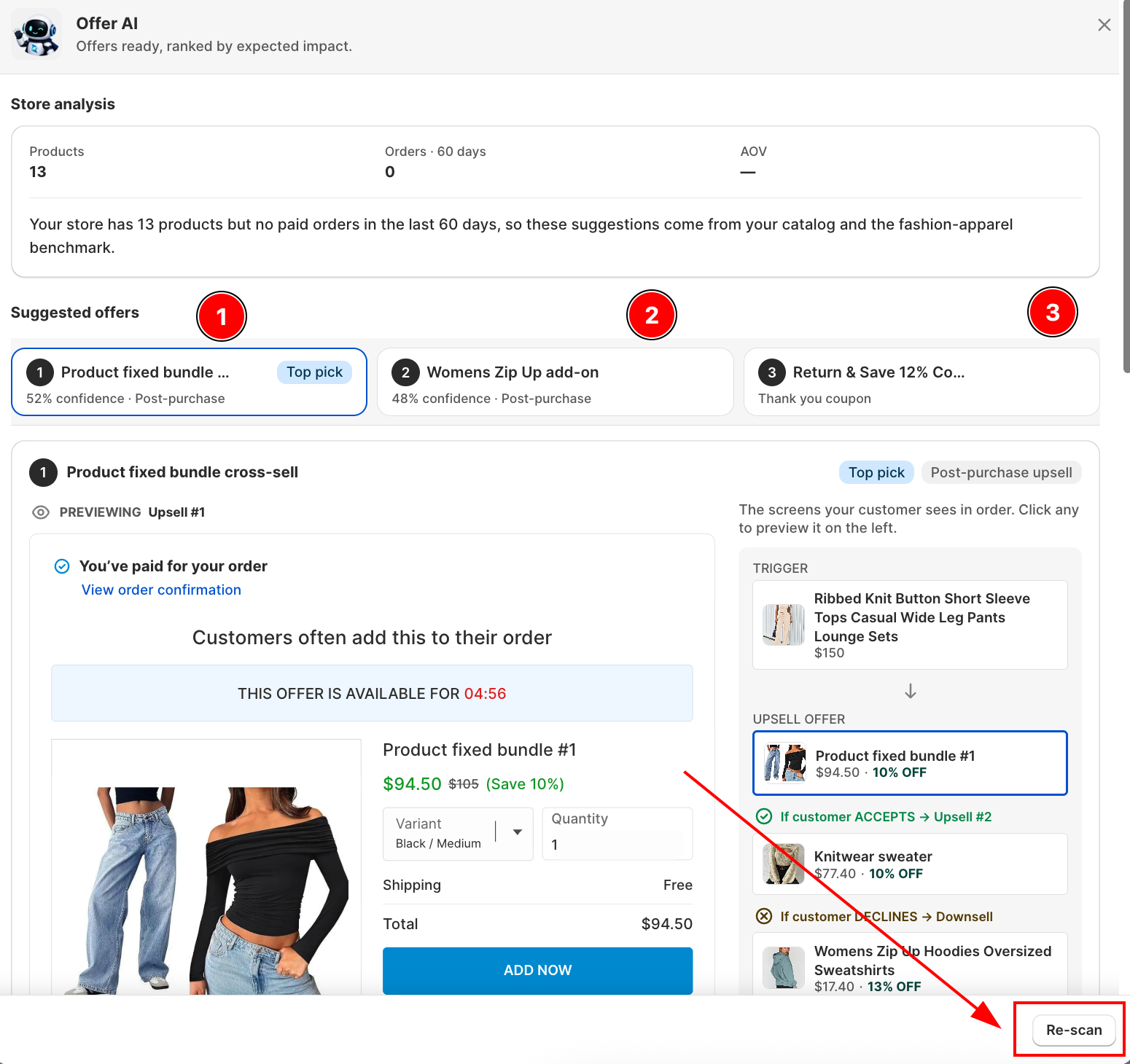
The Offer AI panel has two parts:
- Store analysis (top): the number of Products, Orders · 60 days, and your AOV, plus a plain-language summary. If your store has no paid orders in the last 60 days, Offer AI still works, it falls back to your catalog plus a category benchmark, and says so directly in the summary (for example, "Your store has 13 products but no paid orders in the last 60 days, so these suggestions come from your catalog and the fashion-apparel benchmark.")
- Suggested offers (below): up to 3 cards ranked by expected impact. The strongest one is tagged Top pick.
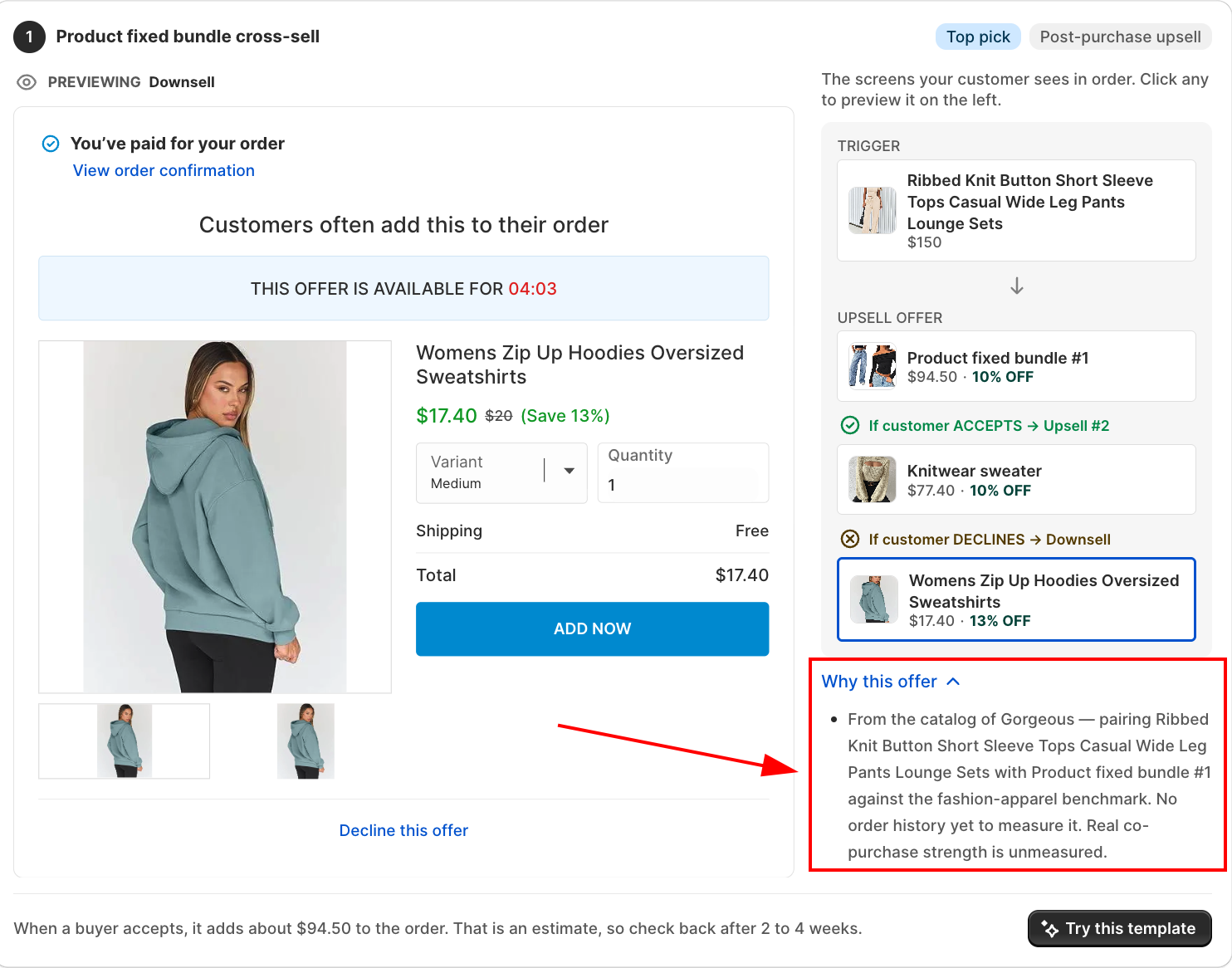
Click a card to see it in detail: a live preview of exactly what the customer would see, a step-by-step flow on the right (Trigger → Upsell offer → Upsell #2 / Downsell, depending on whether the customer accepts or declines), and a Why this offer section you can expand for the reasoning behind that specific suggestion.
- Don't like what you see? Click Re-scan to run the analysis again and get a different set of suggestions.
- Check Why this offer on each card to see the reasoning behind that specific suggestion, for example, which products it paired and what data (or benchmark) it based the offer on.
Step 3: Turn a suggestion into a real offer
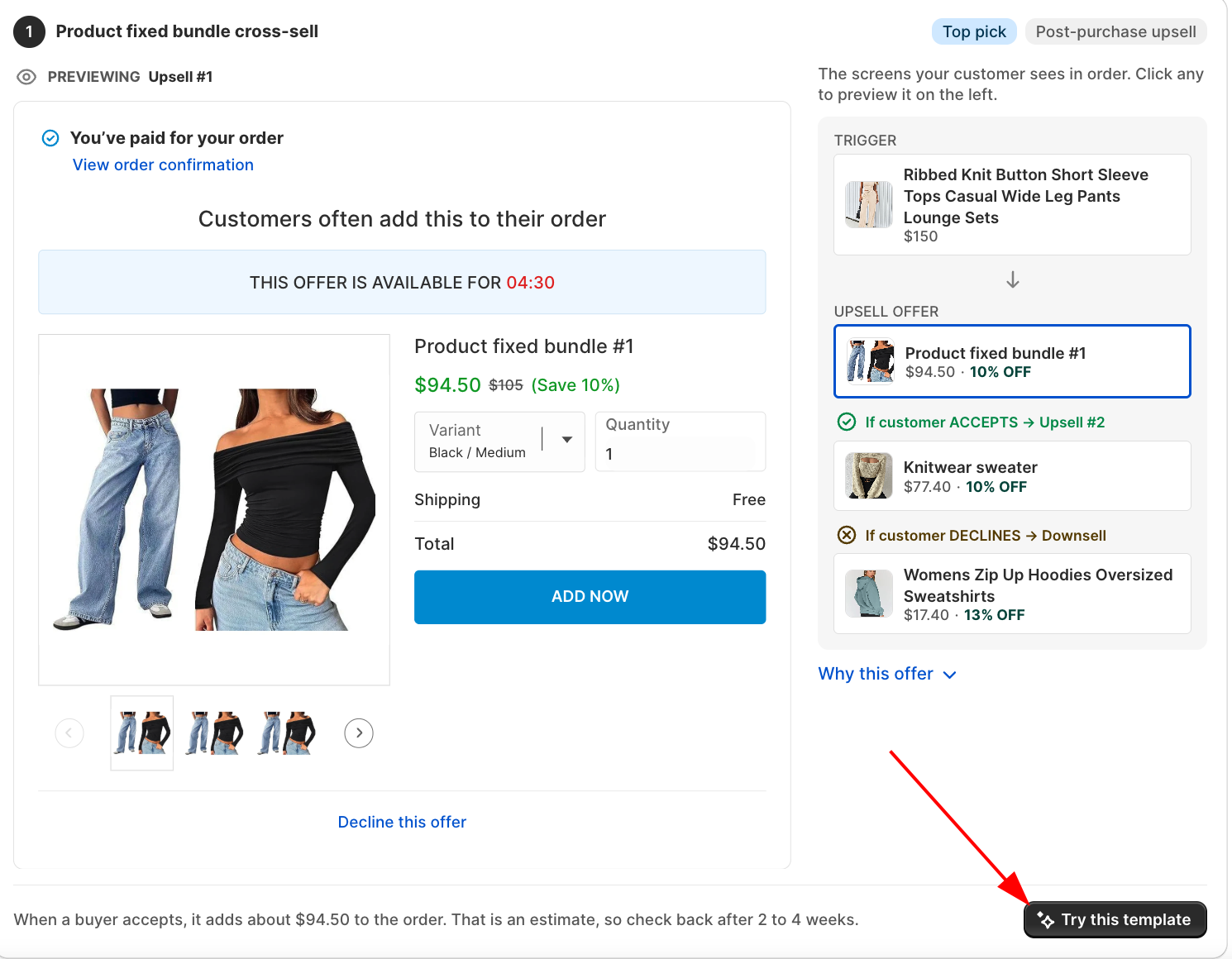
Click Try this template on the card you want to use. This opens the normal Create offer form, already filled in with the suggested products, discount, and layout. Edit anything you want, then click Save, nothing is created or goes live until you do.
Results are saved, so reopening the Offer AI panel later just shows your last scan rather than analyzing again automatically. Re-scan once you've added new products or built up more order history, so the suggestions reflect your latest data.
Good to Know
- A store with no orders in the last 60 days still gets suggestions, they're inferred from your catalog and a category benchmark instead of real purchase data.
- Suggestions are ranked and reasoned by the app's analysis, one suggestion also includes an AI-polished description, but the offers themselves aren't freely generated text, they're built from your real products and data.
Troubleshooting
"This app no longer has permission to read your products"
Shopify access to your catalog was revoked. Reinstall AOV.ai Post Purchase Upsell from your Shopify admin to restore access, then try the analysis again.
"We could not reach your catalog just now"
A temporary connection issue. Wait a moment and click Offer AI again.
"Your store has no products to build an offer from"
Add at least one product to your store, then run the analysis again.
"That analysis has expired" / "That suggestion is no longer part of the current analysis" / "The suggested products are no longer available in your store"
The saved scan is out of date, for example, a suggested product was deleted or the scan is old. Click Re-scan to get current suggestions, then try Try this template again.