Inspiration Library
The Inspiration Library is a gallery of ready-made offer templates, modeled on offers from real, top-performing stores. Instead of building your first offer from a blank form, you can preview a template, copy it in one click, and tweak it. It is the fastest way to go from install to your first live offer.
On the app Home, scroll below the Statistics section to find it under the heading Inspiration from top-performing merchants.
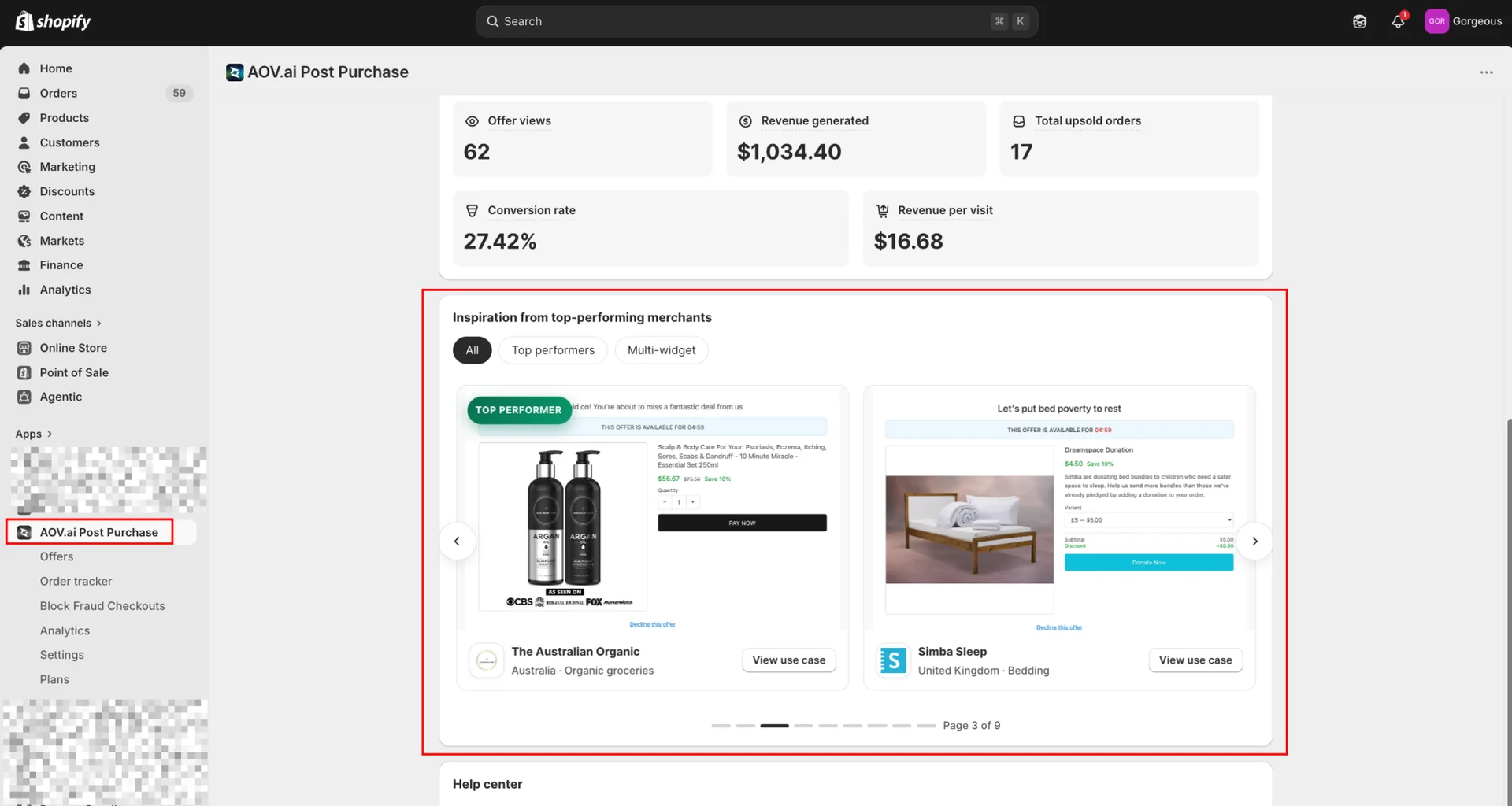
Browse and filter
The section shows templates in a carousel, two cards per page. Use the arrows (or the dots below) to move between pages.
Filter the list with the pills at the top of the section:
- All: every template in the library.
- Top performers: offers with the strongest results, marked with a Top performer badge.
- Multi-widget: templates that combine several widgets (for example a countdown, a badge, and social proof), marked with a Multi-widget badge.
Preview a template
Click a card's View use case button to open its preview. The preview shows:
- The store name and location, plus any Top performer or Multi-widget badge.
- Trigger and Upsell: what sets the offer off and what it promotes.
- Conversion rate and AOV uplift: performance figures, shown when available.
- Why it works: a short, bulleted explanation of what makes the template effective.
Try a template
In the preview, click Try this template. The app creates a new draft offer pre-filled with the template's layout, headline, widget, and discount, then opens the editor so you can finish it.
Finish the offer before you activate it. A template offer is created as Inactive. By default it uses AI Recommendation for the upsell product and No condition for the trigger, so it shows to everyone. Choose your own product and trigger, review the discount, then set the offer to Active.
Next steps
- How to set up: build or finish a post-purchase offer from the editor.
- Display setting: customize the widget once your offer is drafted.
- Quickstart: the full install-to-first-offer walkthrough.