Connect Claude Desktop
Claude Desktop connects through a custom connector. The same steps work for Claude on the web.
Add a custom connector
In Claude Desktop, go to Settings → Connectors → Add custom connector.
Name it AOV and paste this server URL:
https://aov-post-purchase.firebaseapp.com/ppuCopy your connect code
In the app, open Settings → AOV MCP and copy the code under Paste your connect code.
If it shows ••••-••••-••••, the existing code is hidden — codes are only visible when generated. Select New code to get one you can copy.
Sign in
Select Connect on the connector. Claude opens a page on your store and asks for a code — this is the one.
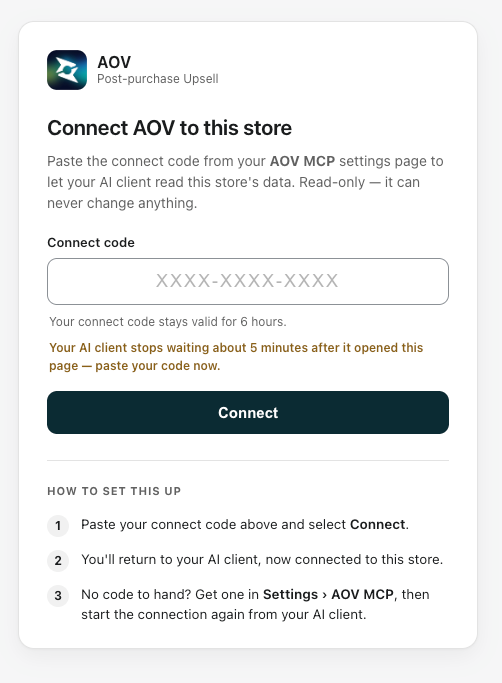
Paste it and select Connect.
Confirm
Back in the app, select Check connection. The badge should read Connected.
Or just ask Claude:
Which offers earn the most, and what's their accept rate?Using the same code for both clients
A connect code works for several clients within its 6 hours. If you already connected Claude Code today, you can paste that same code into Claude Desktop instead of generating a new one — which is the better move, since a new code would disconnect Claude Code.
Removing it
Delete the connector in Settings → Connectors, or use Disconnect in Settings → AOV MCP to cut access for every connected client at once.