Integrations
Connect third-party review apps to power the Testimonial widget in your upsell offers with real product reviews and star ratings.
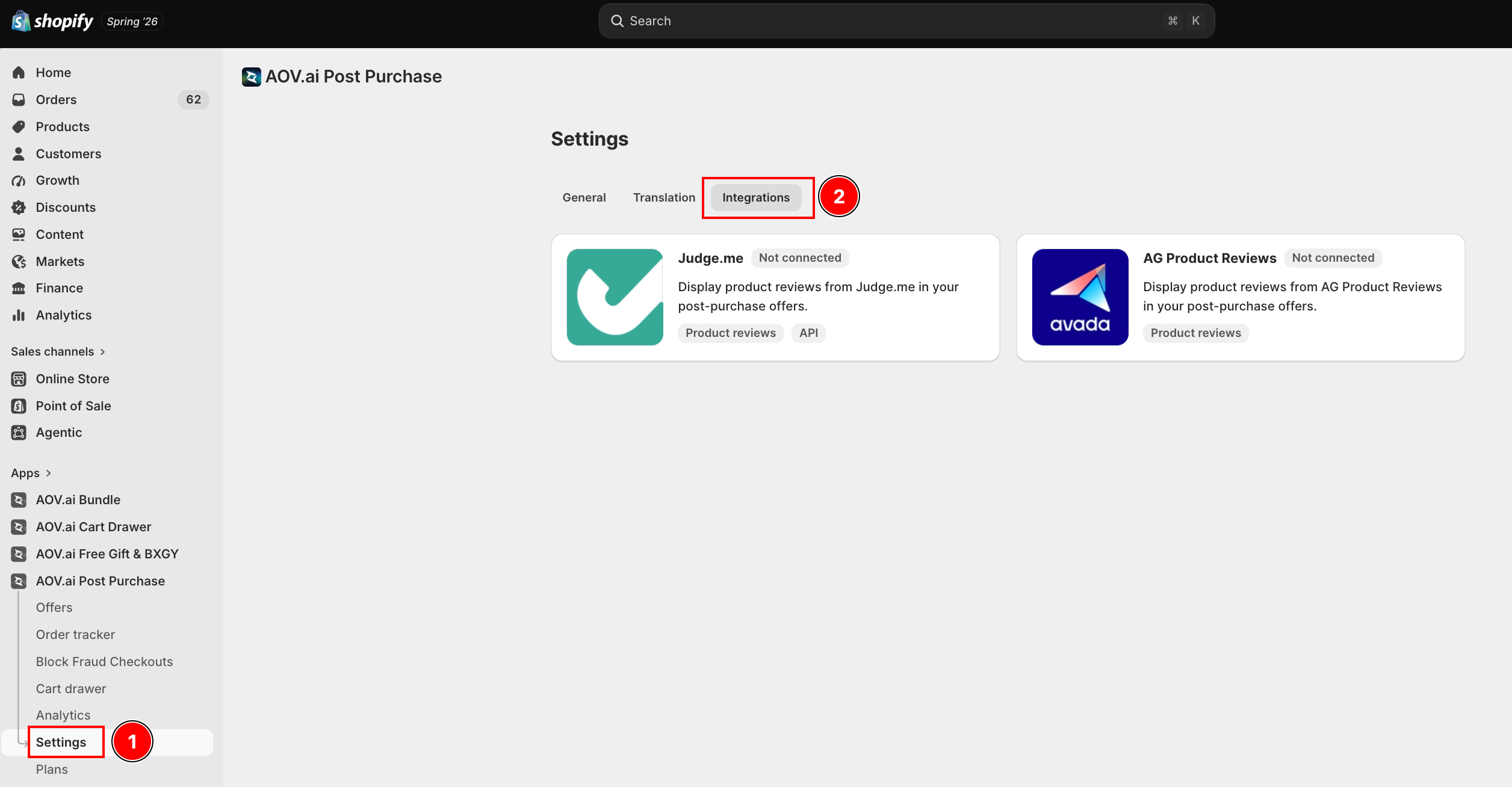
Review Apps
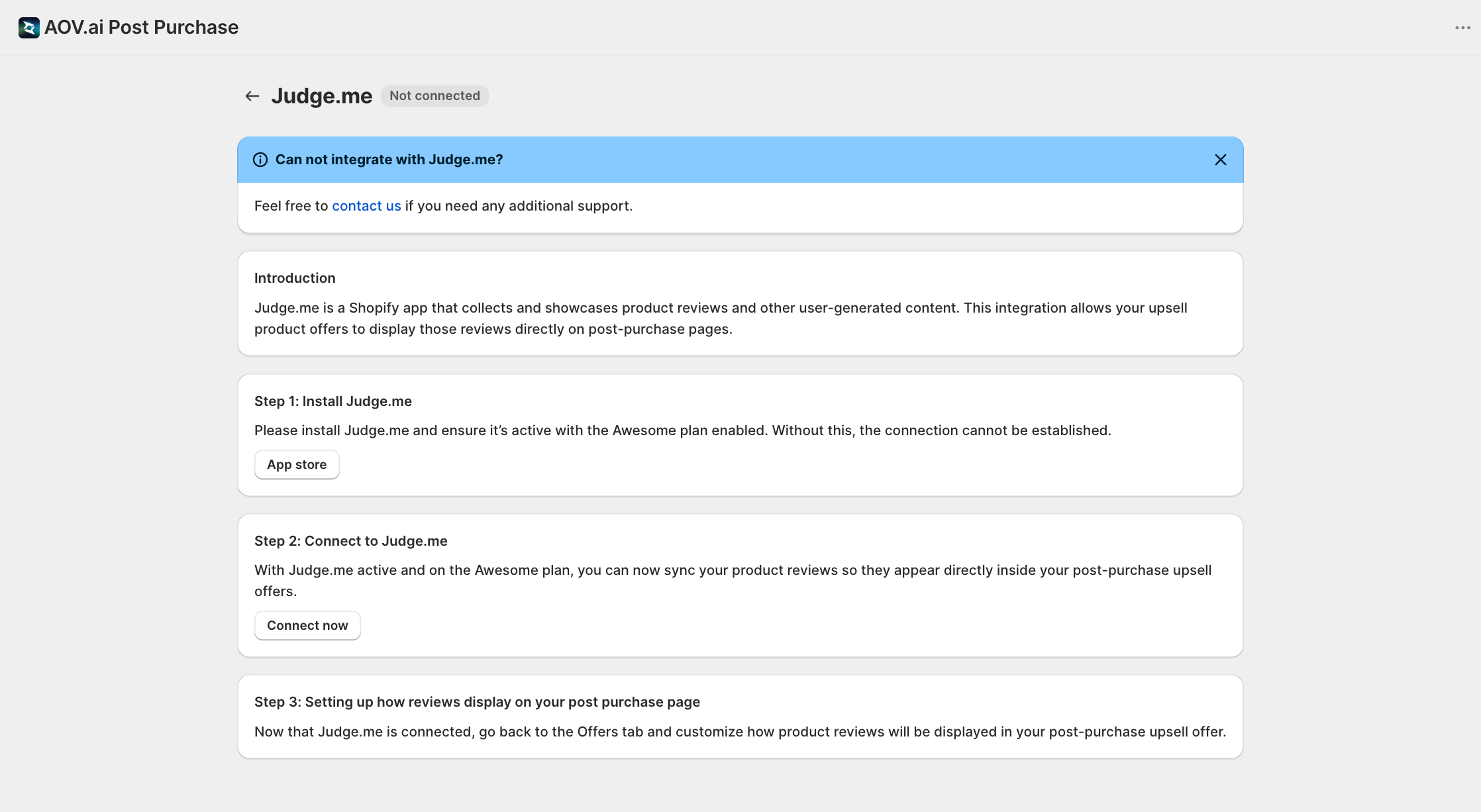
Judge.me
Display product reviews from Judge.me (opens in a new tab) directly in your upsell offers using the Testimonial widget.
Setup:
- Install Judge.me and ensure it is active with the Awesome plan enabled
- In the AOV Post Purchase Upsell app, go to Settings → Integrations and open Judge.me
- Click Connect now to connect your Judge.me account
- In your offer's design editor, add the Testimonial widget
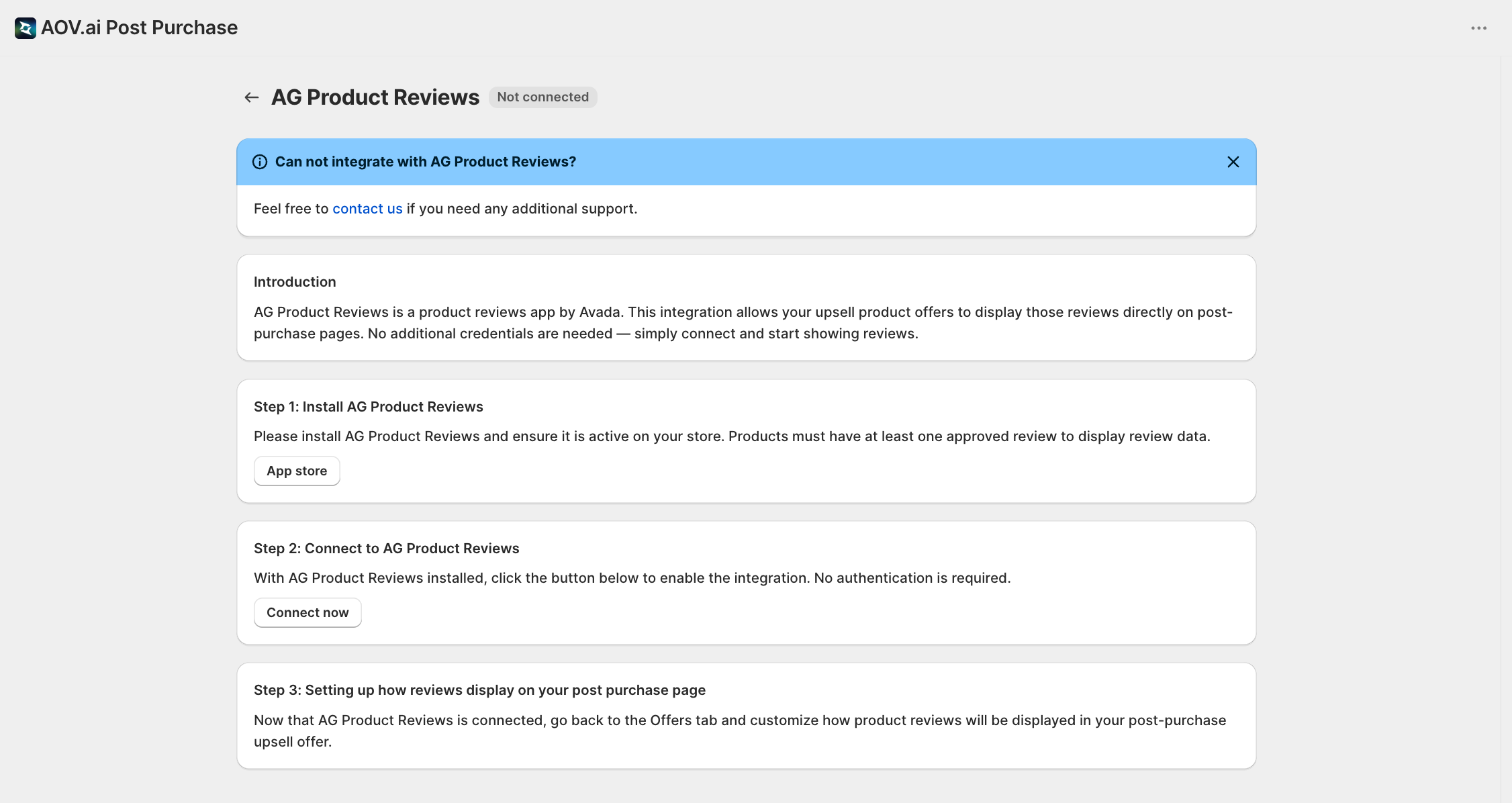
AG Product Reviews
Display product reviews from AG Product Reviews (a reviews app by Avada) directly in your upsell offers using the Testimonial widget. No API key is needed, connect with a single toggle.
Setup:
- Install AG Product Reviews (opens in a new tab) from the Shopify App Store and make sure it is active. Products need at least one approved review to display review data.
- In the AOV Post Purchase Upsell app, go to Settings → Integrations and open AG Product Reviews
- Click Connect now, no authentication is required
- In your offer's design editor, add the Testimonial widget, then pick AG Product Reviews under Select where to import reviews from
Testimonial widget options:
| Setting | Options |
|---|---|
| Review source | Judge.me or AG Product Reviews, chosen per widget under Select where to import reviews from |
| Review type | 5 stars reviews, 4 stars and up, All reviews |
| Sorting default | Recent, Highest |
| Display layout | Vertical, Horizontal |
Star Rating widget
In addition to full testimonials, you can show a Star Rating widget on your offers. This displays the product's average star rating.
Customization:
| Setting | Options |
|---|---|
| Star color | Yellow, Blue, Pink, Black |
| Star size | Small, Medium |
The star rating appears near the product information and helps build trust at a glance.
Tips
- Social proof increases conversions: offers with reviews and ratings help build trust at the point of decision
- Use the 5 stars reviews review type for the strongest social proof
- The Horizontal layout works well for offers with limited vertical space
- Combine star ratings with testimonials for maximum impact
- Connect at least one review app before publishing an offer with the Testimonial widget, otherwise customers see a sample review instead of your real ones
Shopify Sidekick
What Is It?
AOV.ai Post Purchase Upsell connects to Shopify Sidekick, Shopify admin's built-in AI assistant. Ask Sidekick about your offers in plain language, for example "How did my post-purchase offers do last month?", and it answers using real data from the app, with a link straight to the offer in question. No need to open the app and hunt through tabs first.
How to Ask
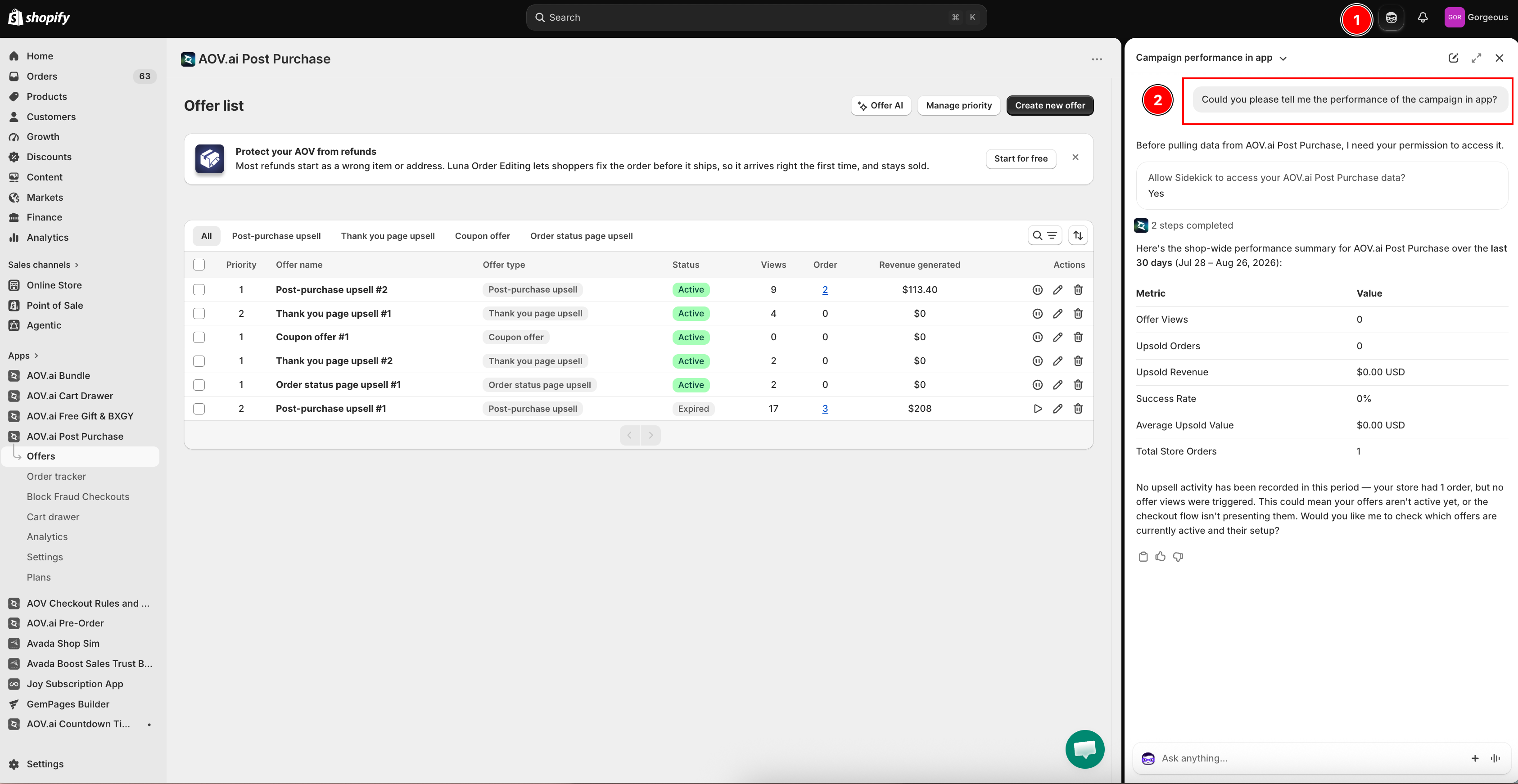
In Shopify Admin, open Sidekick ① and ask your question directly, for example "Could you please tell me the performance of the campaign in app?" ②. There's nothing to turn on in AOV.ai Post Purchase Upsell itself, once the app is installed, Sidekick can already read its data (as long as Shopify has Sidekick enabled for your store, see Good to know below).
The first time you ask, Sidekick shows a one-time permission prompt, "Allow Sidekick to access your AOV.ai Post Purchase data?", click Yes to continue. Sidekick then replies with a shop-wide performance summary, including the date range it used and a metric table (Offer Views, Upsold Orders, Upsold Revenue, Success Rate, Average Upsold Value, Total Store Orders).
What You Can Ask
- Find and list offers, by name, by placement, or by status (running, scheduled, or off)
- Details of one offer, its schedule, trigger conditions, and what each funnel step sells: products, per-product discount, bundle deal tiers, and A/B test variants
- Display order, which offer shows first in a placement when more than one qualifies, name the placement or Sidekick will ask which one you mean
- Counts and gaps, how many offers exist per placement, and which placements have no active offer at all
- Upsell product suggestions, ranked by real co-purchase history for your store where there's enough data, otherwise falling back to your best sellers
- Performance, revenue, impressions, and claims by placement for any date range, plus a shop-wide summary (matching the Analytics page) and all-time totals (matching the Statistics card on the app's Home tab), and your best-earning offer
If you don't give a date range, Sidekick reports the last 30 days by default, and always states the period it used. Coupon offers don't carry a revenue figure since the discount is redeemed on a future order the app can't attribute, Sidekick reports claims and success rate for those instead.
Opening an Offer from an Answer
Offers in Sidekick's answer appear as a clickable link with the app's icon. Click it to jump straight to that offer inside the app to make changes.
Good to know
- Read-only for now. If you ask Sidekick to change something, activate an offer, edit a discount, reorder priority, it will tell you to do that inside the app, and link you to the right place.
- Requires Shopify Sidekick. This only works on stores where Shopify has enabled Sidekick. It's a Shopify-side rollout, not something you turn on in this app.
- Ask in your own words. Sidekick isn't limited to English.