Sidekick Integration (Shopify AI Assistant)
What Is It?
You can now manage AOV.ai Cart Drawer directly inside Shopify Sidekick (Shopify's built-in AI assistant), by chatting instead of opening the app. Ask about your setup status, check performance numbers, or turn 5 features on and off, all from the same chat window.
How to Open It
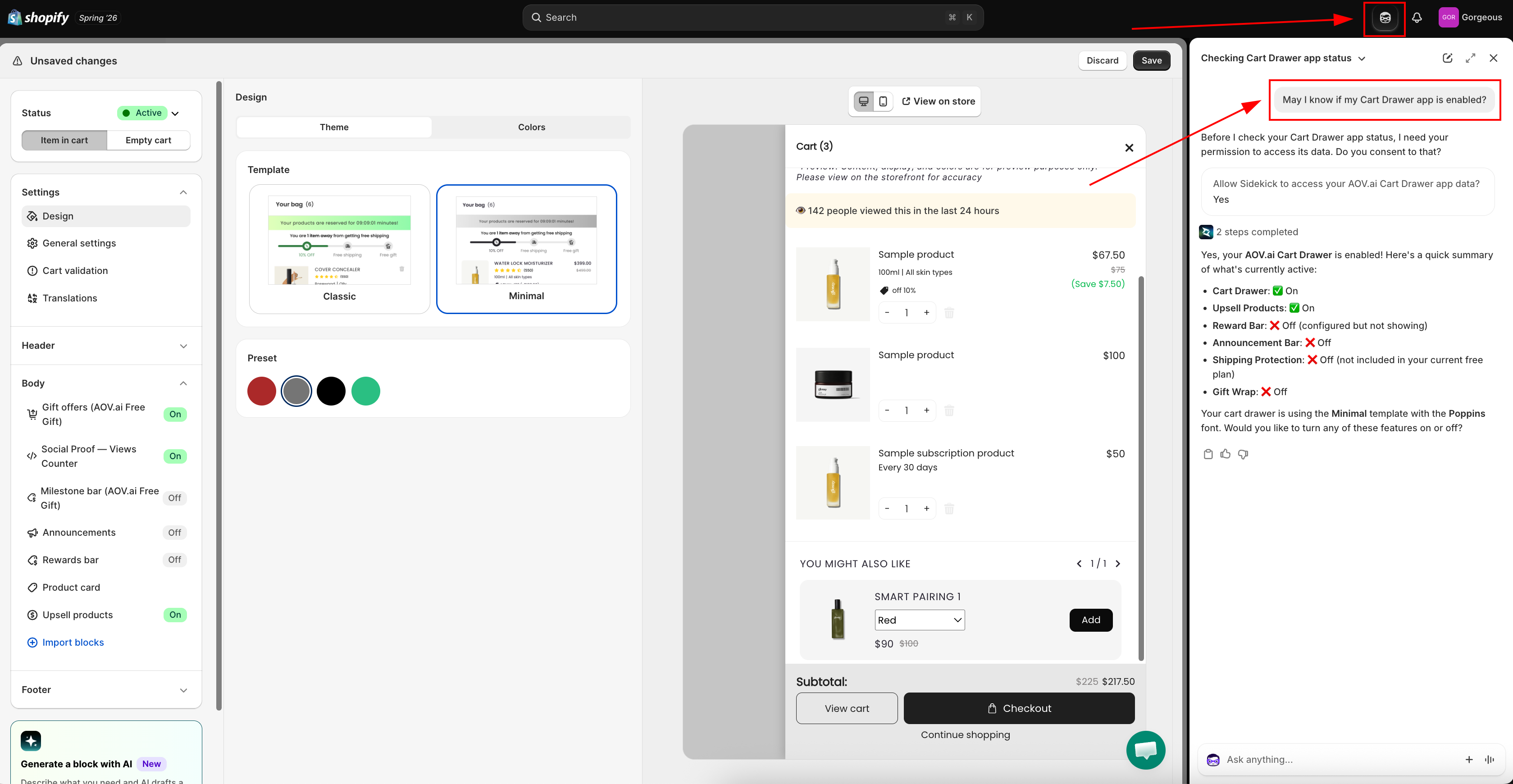
In Shopify Admin, open Sidekick (the sparkle icon in the top bar). No extra install is needed, once AOV.ai Cart Drawer is installed, Sidekick already has access to it.
What You Can Do
1. Check Your Setup Status
Ask something like "Why is my cart drawer not showing?" Sidekick diagnoses your setup and reports any issues with a clickable fix link that opens the right place (Theme Editor or a Quick Fix).
Issues Sidekick can detect:
| Issue | What it means |
|---|---|
| App embed is off | The cart drawer can't load on your storefront until the app embed is enabled in the Theme Editor |
| Cart drawer is off | The drawer is disabled in the app's own settings |
| Theme is not Online Store 2.0 | App embeds/blocks aren't available on your theme |
| No settings created yet | The drawer hasn't been initialized, open Cart Editor and save once |
| No impressions recorded yet | The app embed may not be live, or the storefront hasn't been visited since enabling it |
| Text not translated yet (optional) | Drawer labels haven't been customized |
| Upsell not configured yet (optional) | No upsell offers set up in Cart Editor |
2. Check What's Enabled
Ask "What features do I have enabled?" Sidekick lists each feature's ON/OFF state, your shipping protection pricing, and your drawer's color and font settings. The first time you ask, Sidekick will ask for your permission to access your Cart Drawer app data.
3. Check Performance
Ask "How is my cart drawer performing this month?" Sidekick reports orders, revenue, average order value, abandoned-cart rate, revenue broken down by feature, and your top upsell products for the period you ask about.
4. Turn Features On or Off by Chat
Sidekick can toggle 5 features: Cart drawer, Upsell, Reward bar, Announcement, and Shipping protection.
Say something like "turn off my upsell" or "turn everything on", Sidekick opens an inline toggle panel right in the chat, already switched to what you asked for. Review it, then click Save to apply.
Things to know
- Sidekick doesn't save automatically. Every change is only staged, nothing takes effect until you click Save.
- Toggles only. Sidekick can turn the 5 features on/off, it can't edit their content, colors, prices, or set up upsell rules. For that, you still need the Cart Editor.
- Shipping protection needs a paid plan. On the Free plan, you'll see a locked banner with an upgrade link, this is expected, not an error.
- Upsell and Reward bar need to be set up once first. If you've never configured upsell offers or reward tiers in the Cart Editor, asking Sidekick to turn them on won't do anything meaningful until you set them up there.
More screenshots for this page are pending (setup diagnosis, performance report, and feature toggle panel). If you have screenshots from Sidekick, share them and we'll add them here.