Express Payments
What Is It?
Express payments add one-tap checkout buttons (such as Shop Pay, PayPal, Google Pay, or Apple Pay) inside the cart drawer, right alongside the regular checkout button. Shoppers can skip the standard checkout flow and pay with a wallet they already trust.
To show these buttons you first enable express payment methods in your Shopify admin, then embed a small snippet in your theme so the cart drawer can display them.
When to Use It
- You already accept wallet payments (Shop Pay, PayPal, Google Pay, Apple Pay) and want them in the drawer
- You want to shorten the path to purchase for returning, wallet-ready shoppers
- You want to match the express button height and corner style to the rest of your drawer
Setup Walkthrough
Step 1: Open Express Payments
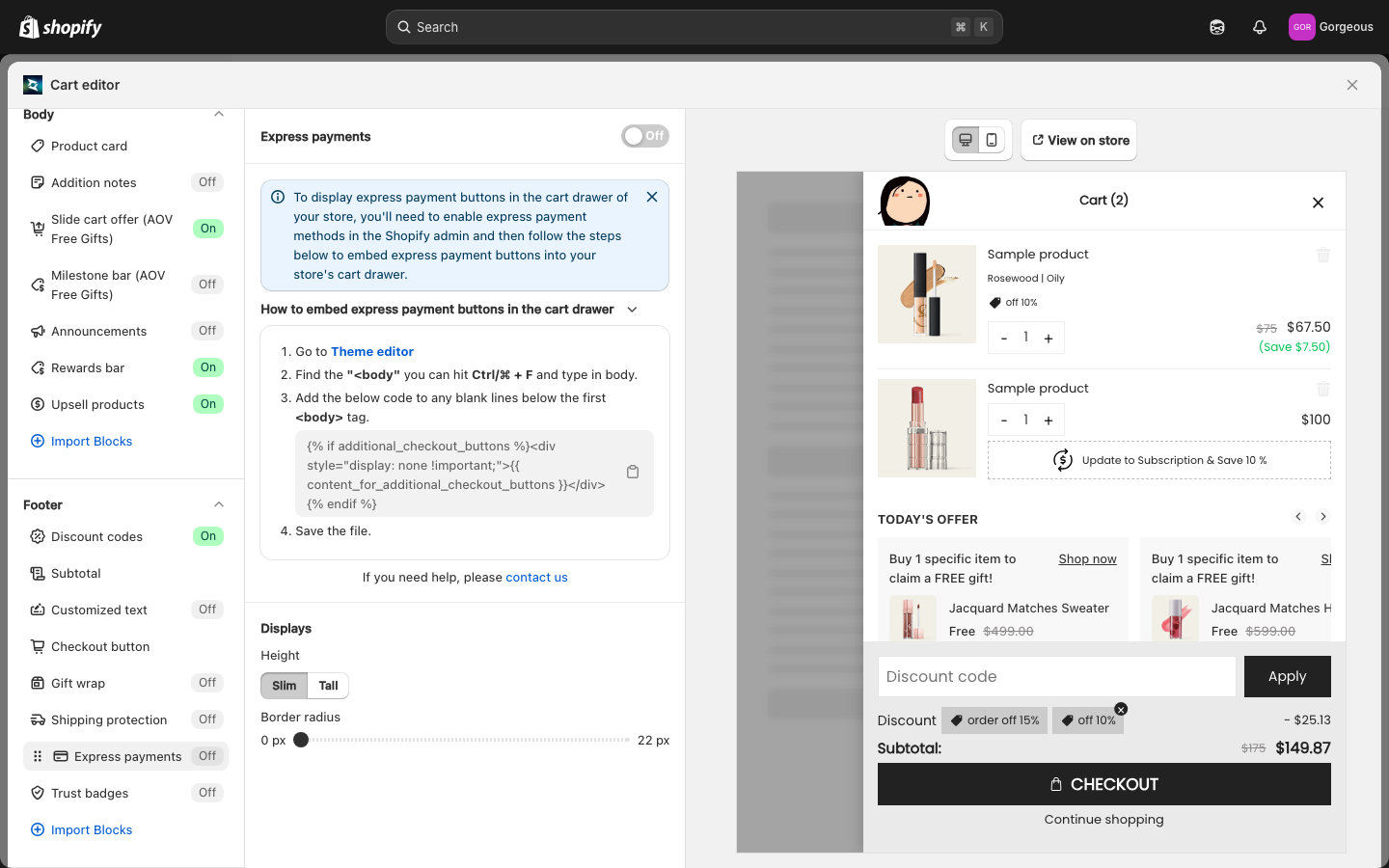
From the Cart Editor, click Express payments under Footer in the left panel.
Step 2: Turn On Express Payments
Use the toggle at the top of the section to enable express payments in the drawer.
Step 3: Enable Express Methods in Shopify Admin
The info banner reminds you: "To display express payment buttons in the cart drawer of your store, you'll need to enable express payment methods in the Shopify admin and then follow the steps below to embed express payment buttons into your store's cart drawer."
Step 4: Embed the Code in Your Theme
Expand How to embed express payment buttons in the cart drawer and follow the numbered steps:
- Go to the Theme editor.
- Find the
<bodytag. You can hit Ctrl/⌘ + F and type in body. - Add the below code to any blank lines below the first
<body>tag. Click the copy icon to copy the snippet. - Save the file.
{% if additional_checkout_buttons %}<div style="display: none !important;">{{ content_for_additional_checkout_buttons }}</div>{% endif %}. Use the copy icon in the field so you copy it exactly.Step 5: Set the Button Height
Under Displays, set the Height of the express buttons. Choose Slim or Tall.
Step 6: Adjust the Corner Style
Use the Border radius slider to round the button corners. The range runs from 0 px to 22 px.
Troubleshooting
Q1: I turned on Express payments but no buttons show in the drawer
Two things are required. First, enable express payment methods in your Shopify admin. Second, embed the snippet in your theme as described in Step 4. If either is missing, the buttons stay hidden.
Q2: Which wallets appear?
The drawer shows whatever express methods you have enabled in your Shopify admin (for example Shop Pay, PayPal, Google Pay, or Apple Pay). The app does not pick the wallets; Shopify and the shopper's device do.
Q3: I copied the code but it still does not work
Confirm the snippet sits on a blank line below the first <body> tag in theme.liquid, and that you saved the file. Re-copy it with the copy icon to avoid missing characters.
Q4: I still need help
In the embed guide there is an "If you need help, please contact us" line. Click contact us to reach support.