Rewards Bar
What Is It?
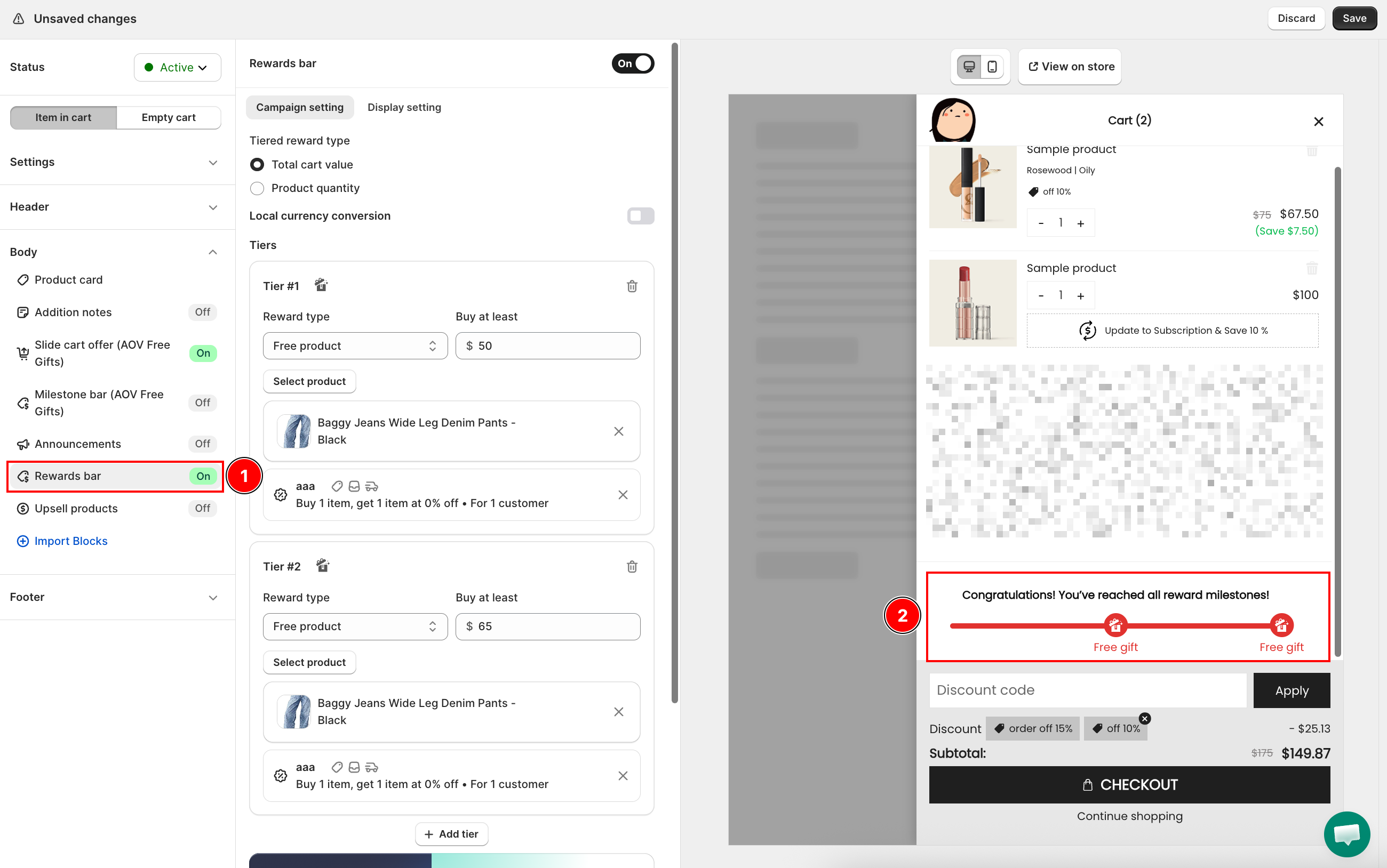
The Rewards Bar is a visual progress bar inside the cart drawer that shows customers how close they are to earning a reward. You define the milestones (spend $X, add N items) and the rewards (free shipping, a discount, a free product). As the customer's cart grows, the bar fills and rewards unlock automatically.
When to Use It
- You want to increase average order value by giving customers a visible goal to work toward
- You offer free shipping above a threshold and want to surface that incentive inside the cart
- You run tiered promotions (spend more, save more)
Before You Start
- If you are offering free shipping as a reward, confirm your Shopify shipping settings are configured to deliver free shipping when the condition is met.
- Free plan stores are limited to 1 tier. Upgrade to a paid plan for multiple tiers.
Setup Walkthrough
Step 1: Open Rewards Bar Settings
From the Cart Editor, click Rewards bar under Body in the left panel.
Step 2: Choose the Reward Trigger Type
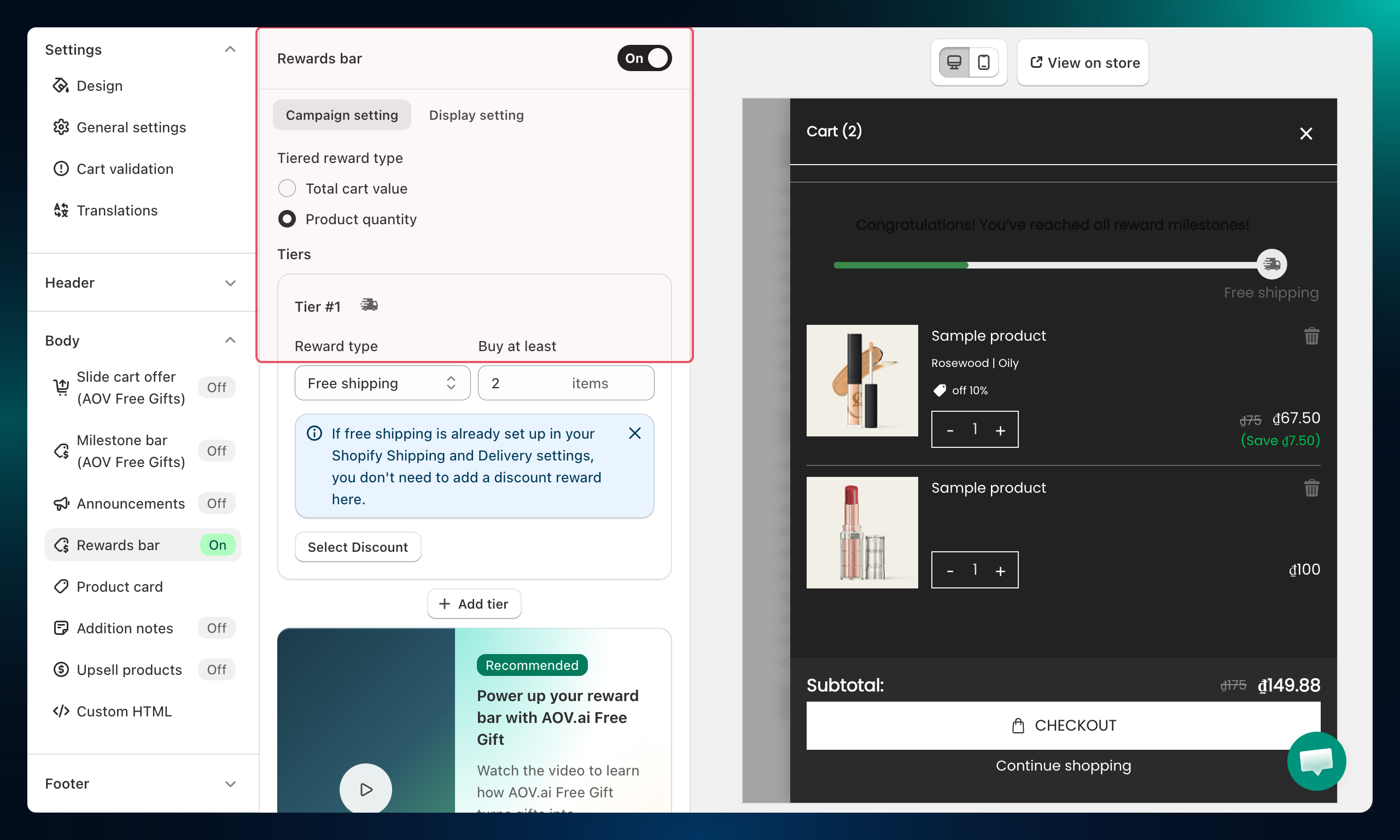
Under Campaign setting, select what the progress bar tracks:
| Type | How it works |
|---|---|
| Total cart value | Progress is based on how much the customer spends |
| Product quantity | Progress is based on how many items are in the cart |
Step 3: Configure Reward Tiers
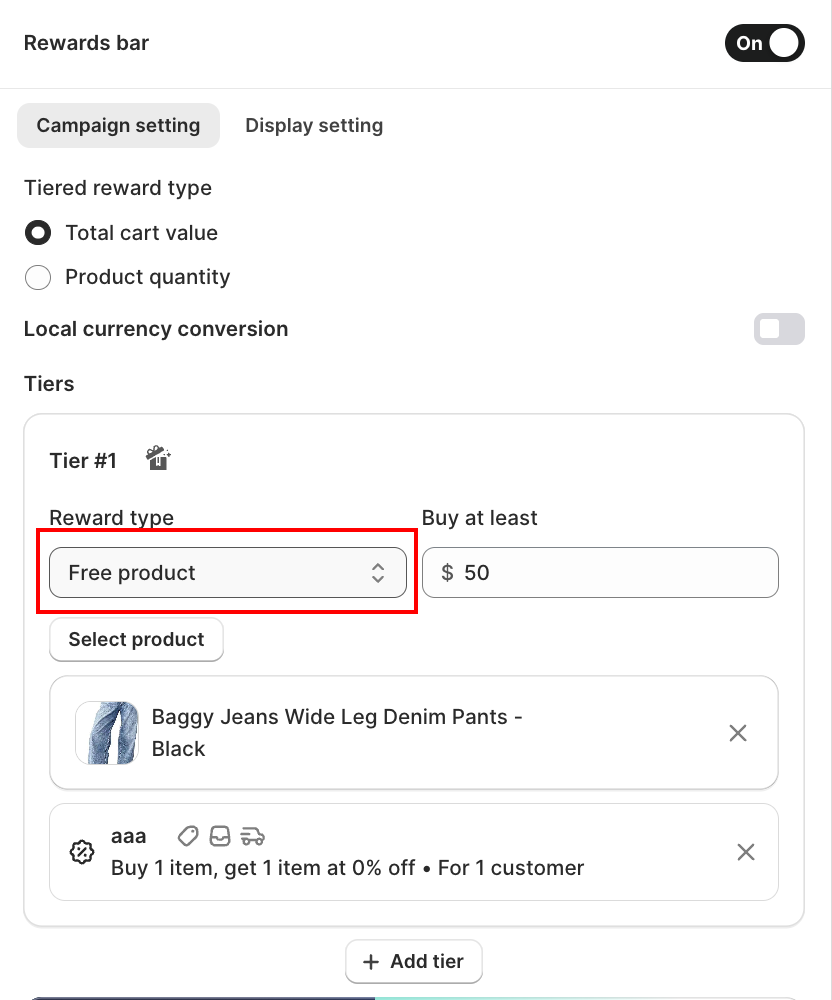
Under Tiers, set up each milestone:
- Reward type: choose what the customer earns at this tier:
- Free shipping: removes shipping cost at checkout
- Order discount: applies a percentage or fixed-amount discount
- Free product: automatically adds a selected product to the cart
- Buy at least: the minimum cart value or item count to unlock this tier
- For Order discount: set Discount type (Percentage or Fixed amount) and the Discount value
- For Free product: use the product picker to select the gift product, then click Select Discount to link a Shopify discount to the tier.
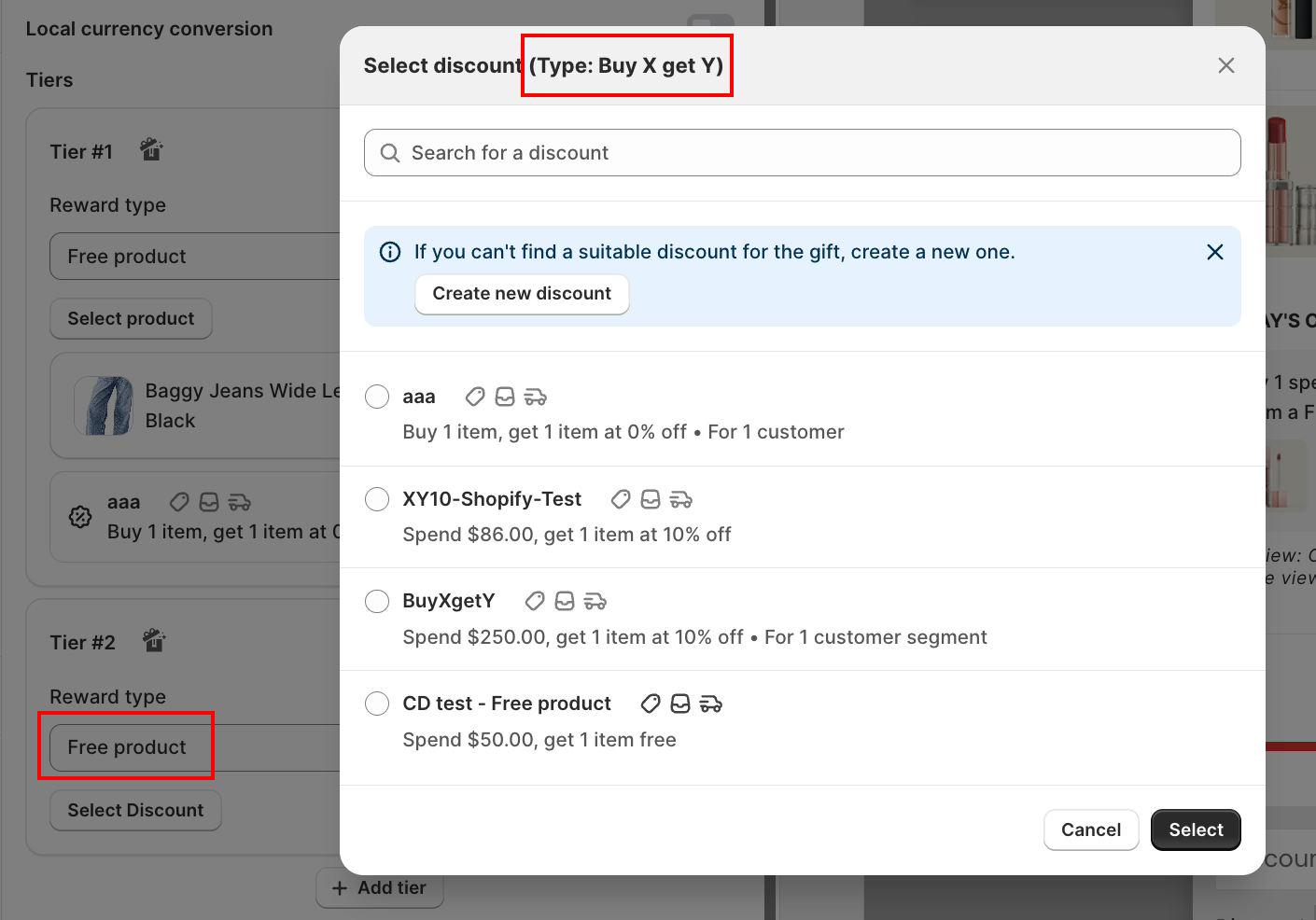
Click Add tier to add more milestones.
Step 4: Set Thresholds by Currency or Market (Optional)
When Tiered reward type is Total cart value, a Set thresholds by option appears. It controls how your tier goals apply across currencies and Shopify Markets:
| Option | What it does |
|---|---|
| Default | One goal per tier, auto-converted to each currency by exchange rate. |
| Local currency conversion | Set a separate goal per currency. |
| Local market threshold | Set a different goal for each Shopify Market. Free on all plans. |
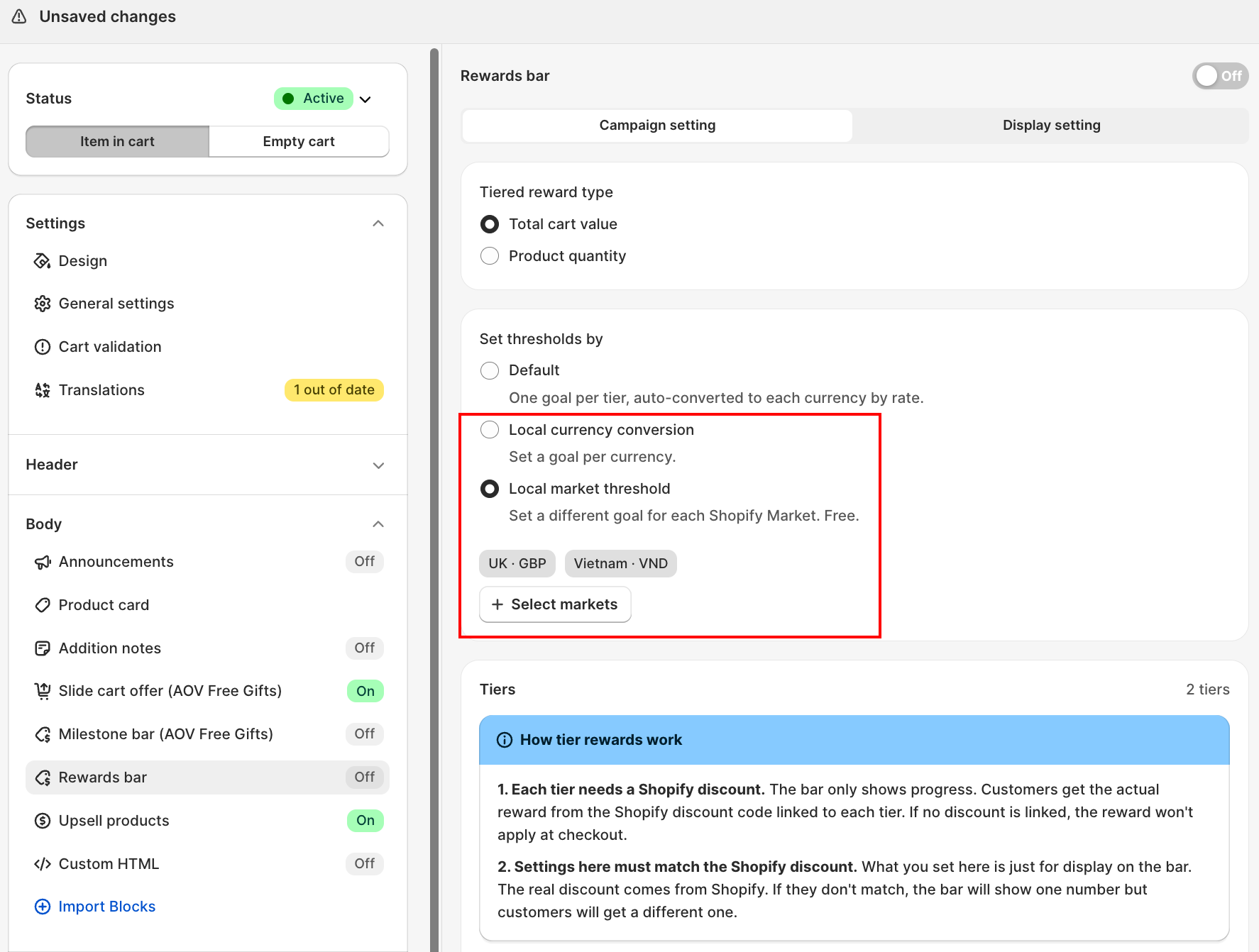
Local market threshold lets you set a different goal for each Shopify Market, even when markets share the same currency (for example, a lower goal for Spain and a higher one for Germany, both in EUR).
- Select Local market threshold.
- Click Select markets and pick the markets you want to customize. Use Search market to find one. If a market is missing, activate it in your Shopify admin first.
- For each selected market, enter the goal for each tier. In each tier, a Threshold by market row shows one input per selected market, in that market's currency.
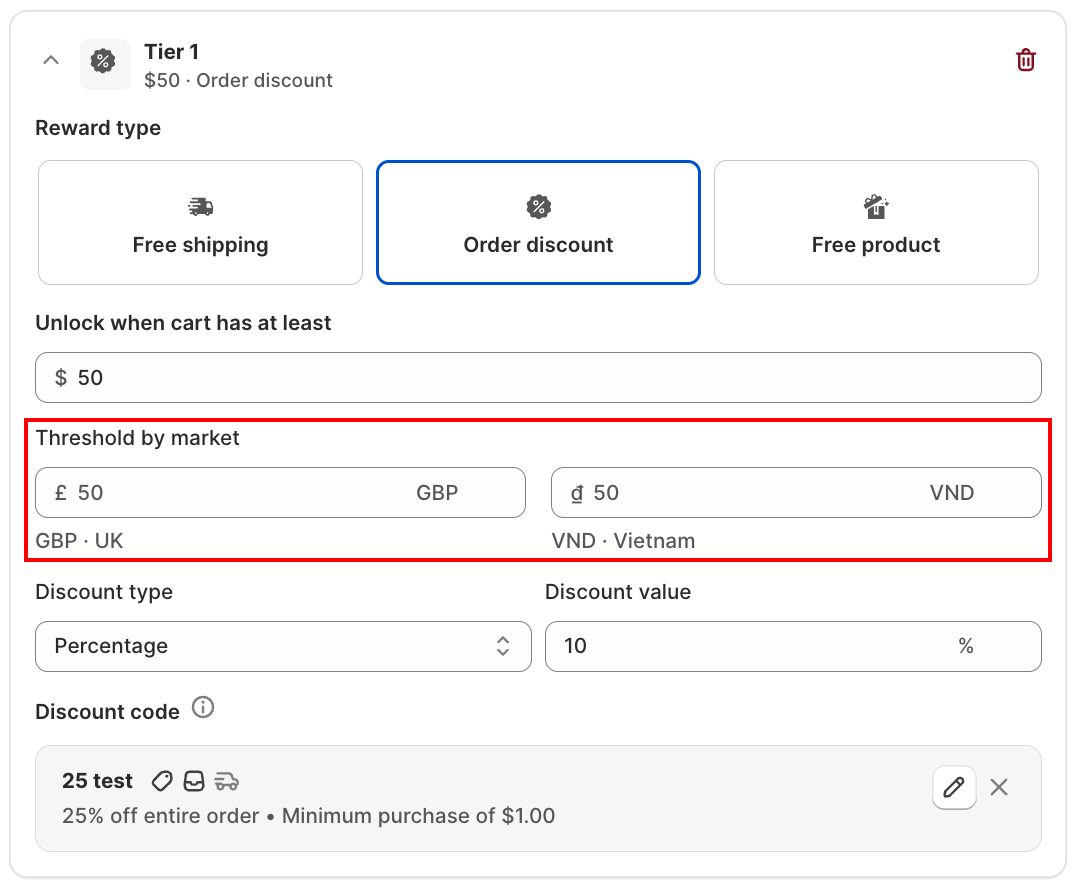
Markets you do not configure fall back to the default goal converted by exchange rate, so shoppers always see a goal in their own currency.
Step 5: Configure Content Labels
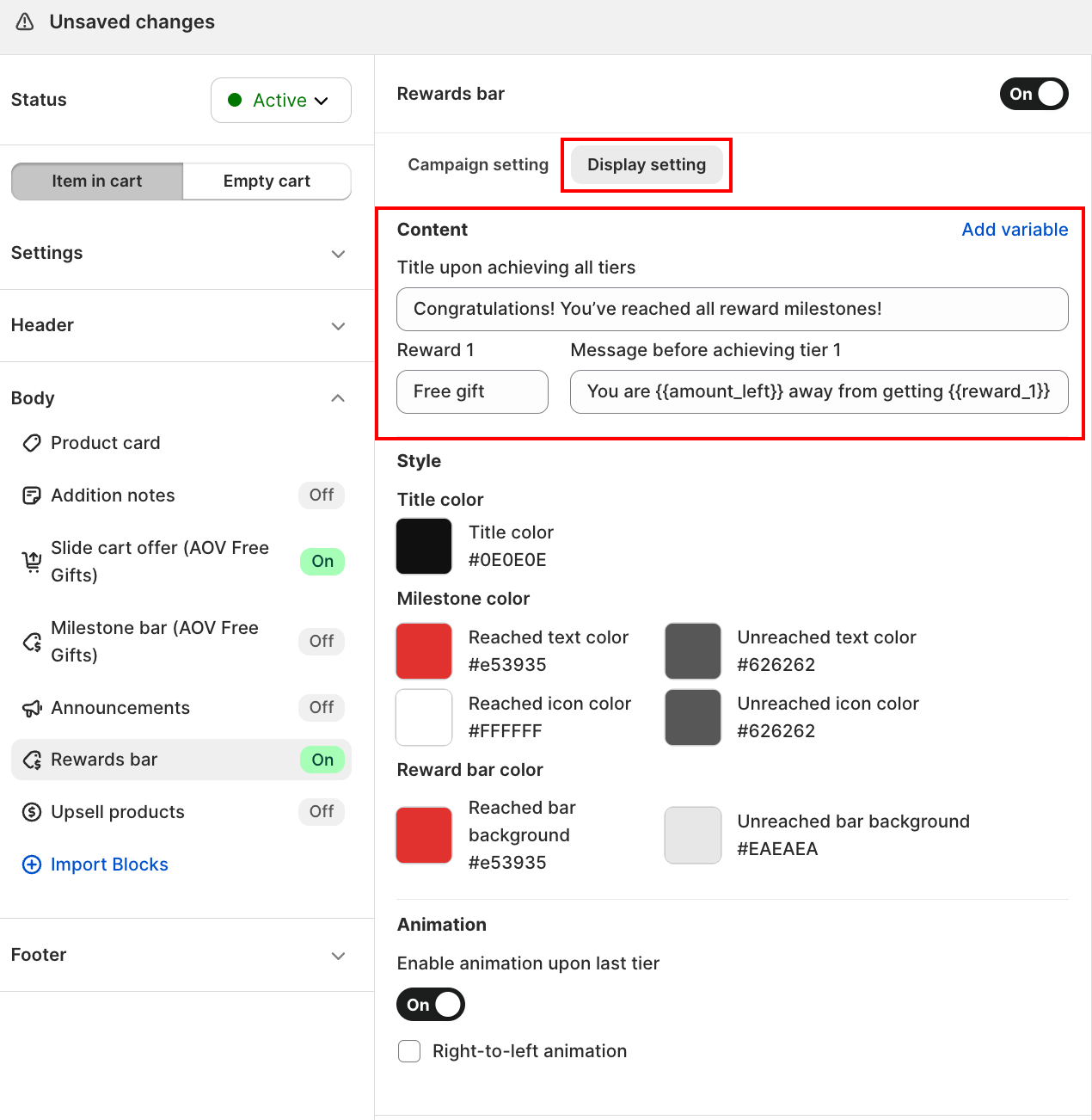
Under Display setting > Content, customize the text customers see as they progress:
- Title upon achieving all tiers: the congratulations message shown when all rewards are unlocked
- Reward: the label for each milestone reward
- Message before achieving tier: the motivational message shown while working toward the next reward; supports these variables:
| Variable | What it inserts |
|---|---|
{{amount_left}} | Amount remaining to reach the next tier |
{{item_left}} | Items remaining to reach the next tier |
{{discount}} | The discount value unlocked at the current tier |
Step 6: Customize Colors and Animation
Under Display setting > Style, set the visual appearance of the bar:
- Title color: the rewards bar heading
- Milestone color: the milestone marker color
- Reached text color / Unreached text color: text for completed and pending tiers
- Reached icon color / Unreached icon color: icons for completed and pending tiers
- Reward bar color: the main progress bar fill color
- Reached bar background / Unreached bar background: the filled and unfilled portions of the bar
Under Animation:
- Enable animation upon last tier: plays a celebration animation when the customer reaches the final reward
- Right-to-left animation: flip the animation direction for RTL language stores
Troubleshooting
Q1: The rewards bar doesn't appear in the drawer
Confirm the Rewards bar toggle is enabled in the left panel and that at least one tier is configured. Click Save after making changes.
Q2: Free shipping is unlocked but checkout still charges shipping
Free shipping requires a matching shipping rule in Shopify. Go to Settings > Shipping and delivery and add a free shipping rate that triggers at the same threshold you set in the rewards bar.
Q3: The progress bar doesn't move as the customer adds items
Check that the Tiered reward type matches how you set thresholds. If you chose Total cart value but set thresholds in item quantities (or vice versa), the bar won't track correctly.
Q4: I can only set one tier
The free plan is limited to one tier. Upgrade to a paid plan to unlock multiple tiers.
Q5: A market shows the default amount, not the one I set
Set Tiered reward type to Total cart value, choose Set thresholds by > Local market threshold, and confirm the market is selected with a goal entered for each tier. Markets you have not configured fall back to the default goal converted by exchange rate. Also make sure the market is active in your Shopify admin.