Subtotal
What Is It?
The Subtotal section controls how the cart total is displayed in the footer — including what price information is shown and how it looks.
Setup Walkthrough
Step 1: Open Subtotal Settings
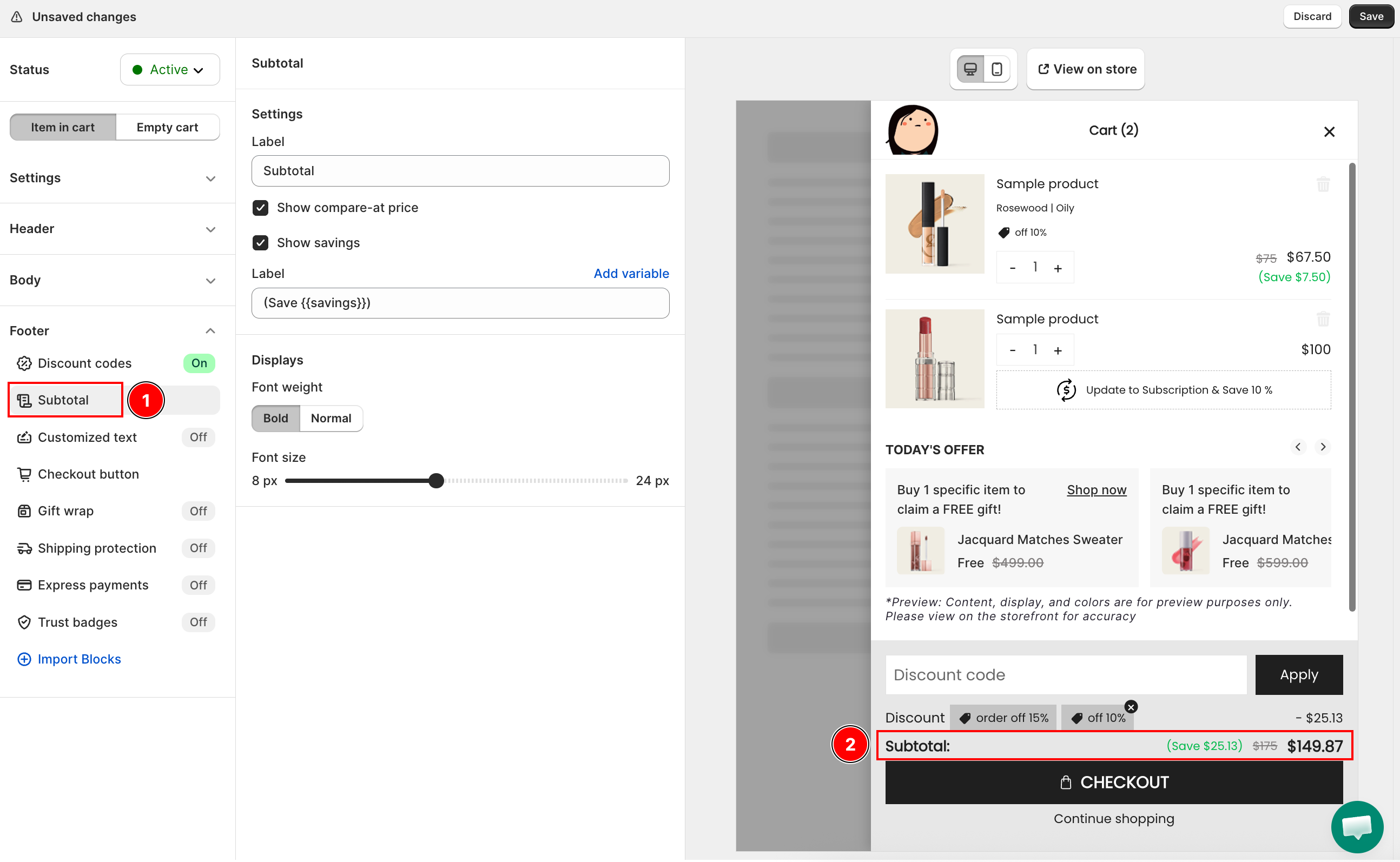
From the Cart Editor, click Subtotal under Footer in the left panel.
Step 2: Configure Settings
Under Settings:
- Label — the heading shown next to the total amount (default: Subtotal)
- Show compare-at price — displays the original total before discounts, with a strikethrough
- Show savings — shows how much the customer saves in total
- Label (savings label) — the text shown alongside the savings amount; supports the
{{savings}}variable to insert the actual value (default:Save {{savings}})
Step 3: Configure Displays
Under Displays:
- Font weight — choose Bold or Normal for the subtotal text
- Font size — drag the slider to set the text size (8px to 24px)
Troubleshooting
Q1: The savings label does not show the correct amount
Make sure the savings label field contains the {{savings}} variable. Without it, the saved amount will not be inserted into the text.
Q2: The compare-at price does not appear
Confirm Show compare-at price is checked and that your products have a compare-at price set in Shopify. If no compare-at price is set on a product, there is nothing to display.