Product Card
What Is It?
The Product Card settings control how each item in the cart is displayed: which details to show, how the thumbnail is sized, and which icon removes an item. Every toggle here applies to all products shown in the drawer.
Setup Walkthrough
Step 1: Open Product Card Settings
From the Cart Editor, click Product card under Body in the left panel.
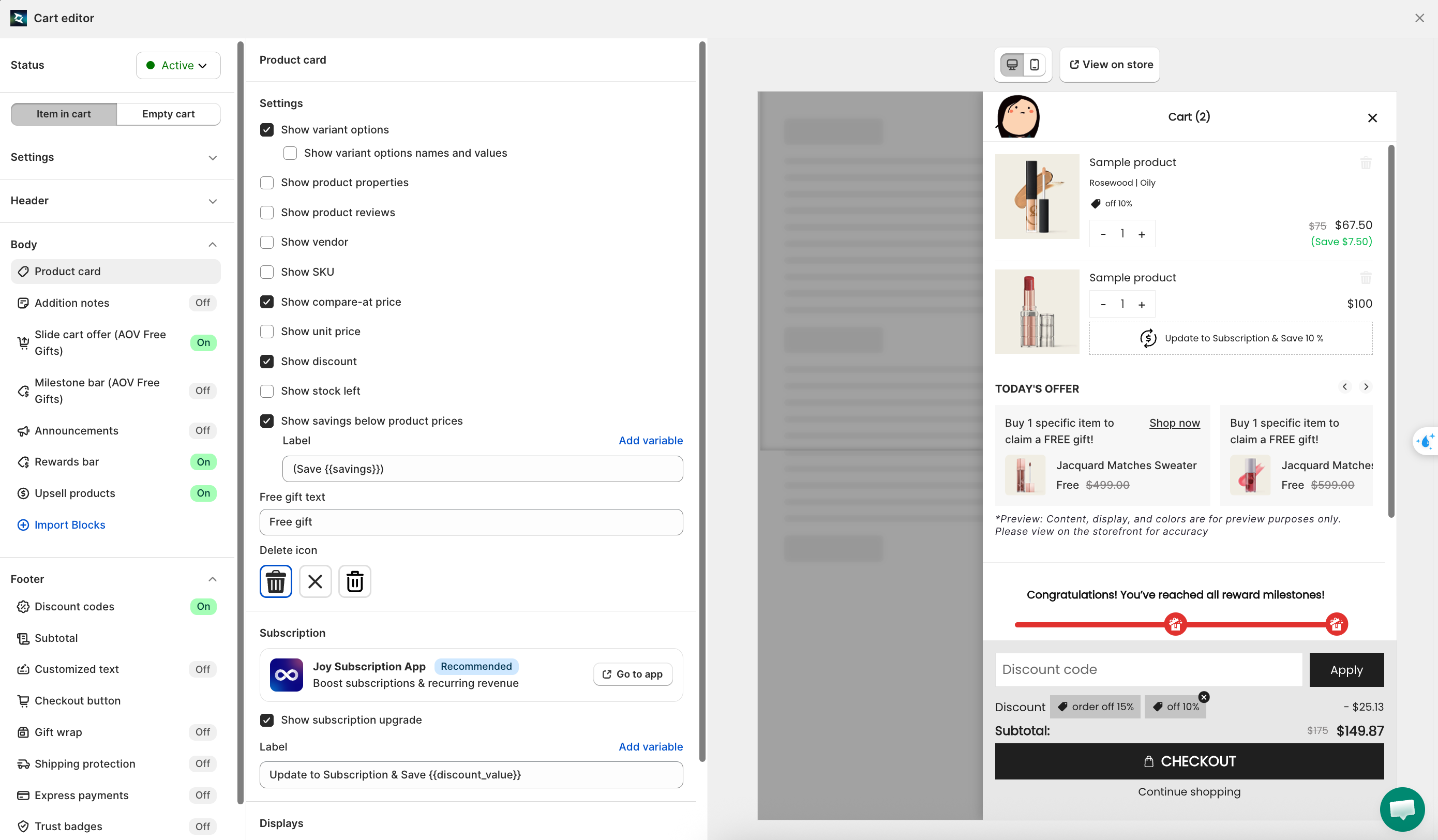
Step 2: Choose What to Show on Each Card
Toggle the details you want visible on every product in the cart:
| Toggle | What it shows |
|---|---|
| Show variant options | Variant names and values below the product title (for example, Size: M / Color: Blue) |
| Show product reviews | Star rating on each product |
| Show vendor | Product vendor name |
| Show SKU | SKU code |
| Show compare-at price | Original price with a strikethrough |
| Show discount | Discount amount highlighted on the card |
| Show stock left | Remaining inventory count. You can set a threshold: Show only when stock left is less than N items, which creates urgency without cluttering cards for well-stocked products. |
| Show savings below product prices | How much the customer saves |
Step 3: Turn On Quick Edit Variant
The Enable quick edit variant toggle lets customers change a product's variant (size, color, etc.) right inside the cart drawer, without leaving the page to visit the product page.
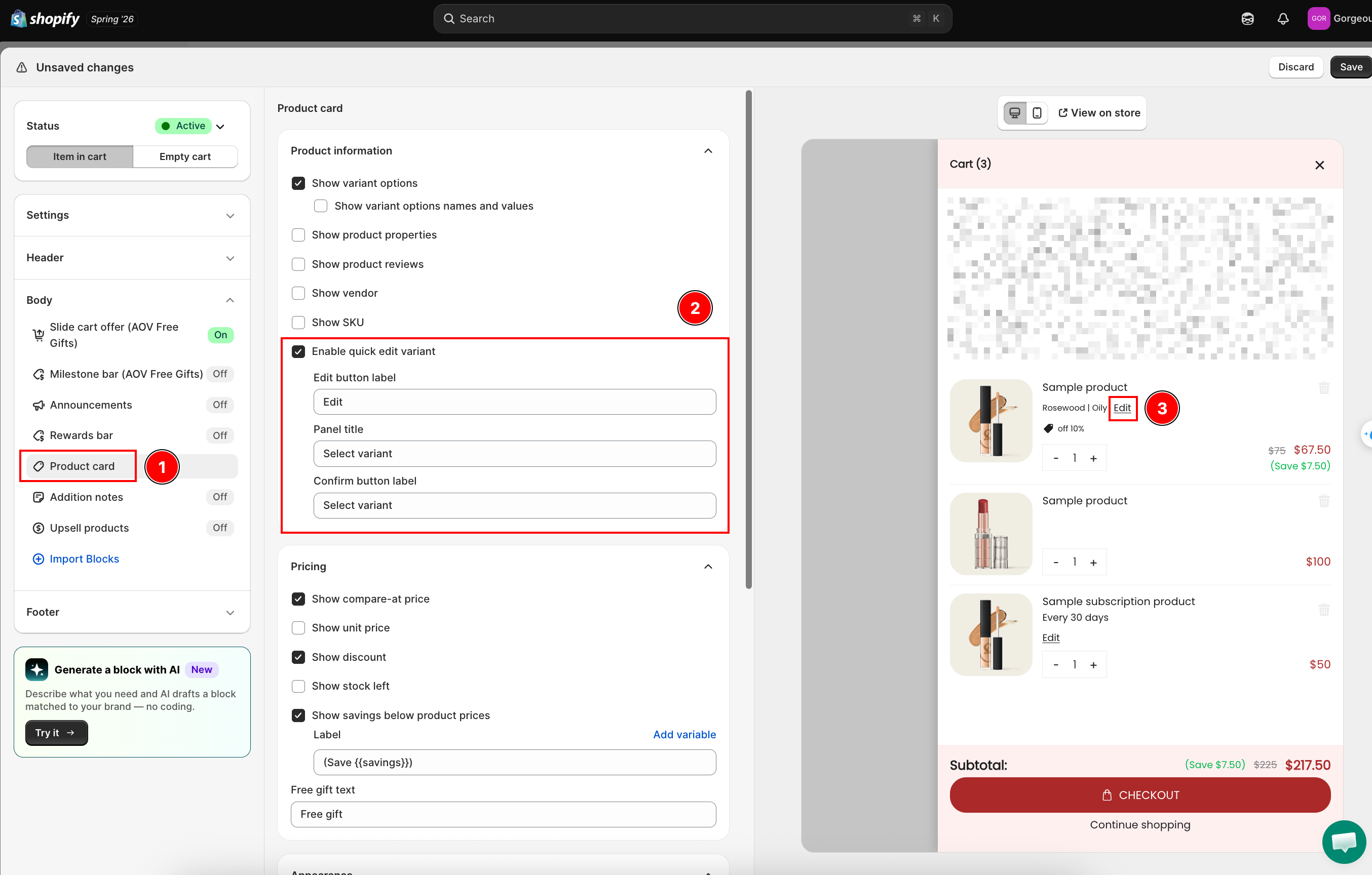
Once turned on, set the three labels that appear:
| Label | What it controls | Default |
|---|---|---|
| Edit button label | Text on the button next to each eligible cart line | Edit |
| Panel title | Heading at the top of the variant-picker panel | Select variant |
| Confirm button label | Text on the button that applies the new variant | Select variant |
The Cart Editor's preview pane reflects your label changes right away, so you can check the wording before saving.
Off by default and fully backward compatible: turning this on does not change the drawer's layout or existing behavior for any other setting. Available on every plan.
How customers use it on the storefront:
- In the cart drawer, the customer clicks the Edit button next to a product that has more than one variant.
- A panel slides over the drawer, pre-selecting the variant already in the cart. Picking a different option updates the image and price live. Any option value that's out of stock across every matching variant shows dimmed with a line through it and can't be selected.
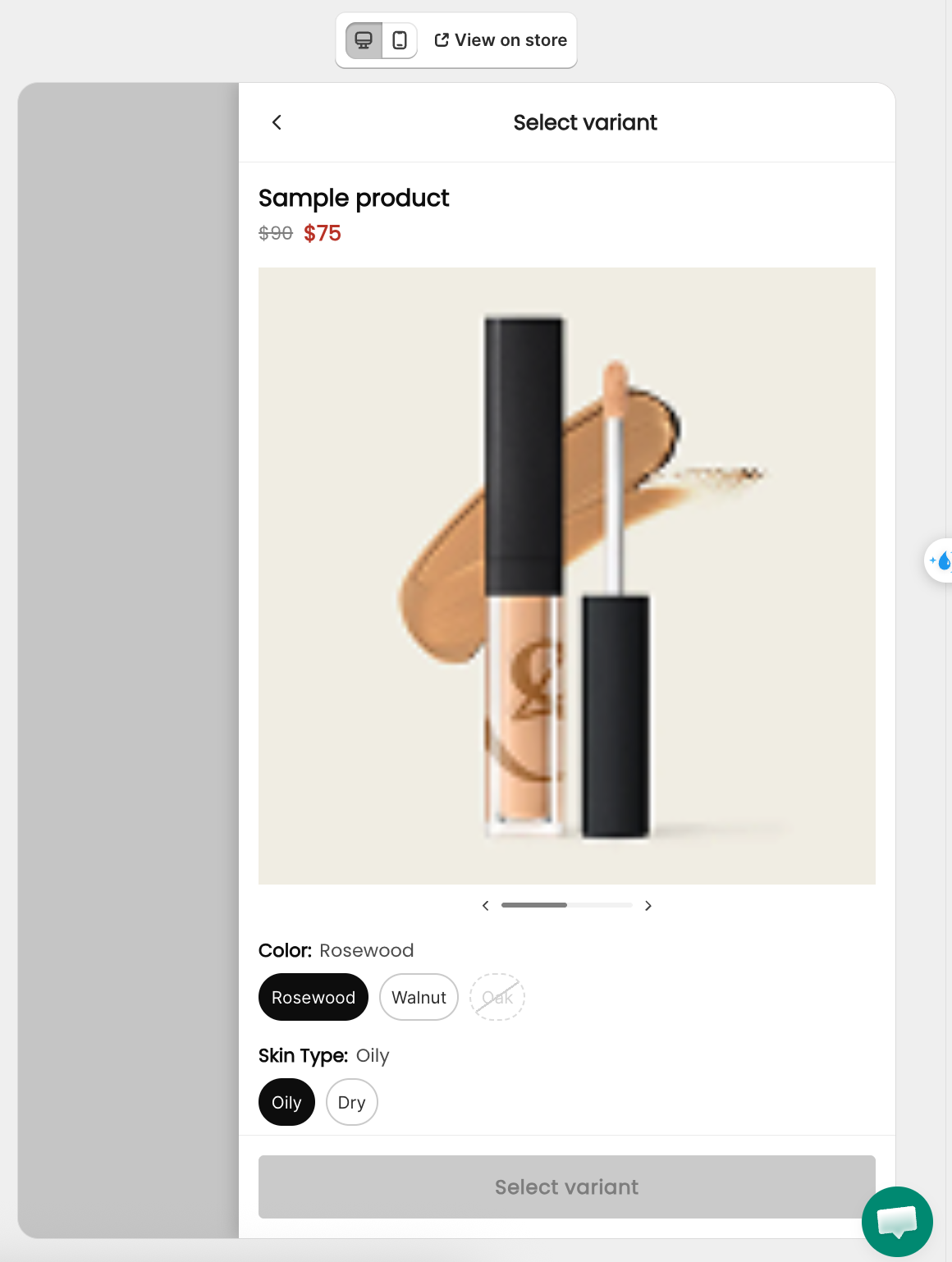
- Clicking the confirm button swaps the line to the new variant, keeping the same quantity and line properties (for example, personalization notes or a subscription selection). The confirm button stays disabled until the customer picks a different, in-stock variant.
The Edit button never appears on:
- Products with only one variant
- Lines your store added automatically: free gift, gift wrap, shipping protection, and post-purchase or upsell offer items
Customers shouldn't be able to swap those on their own.
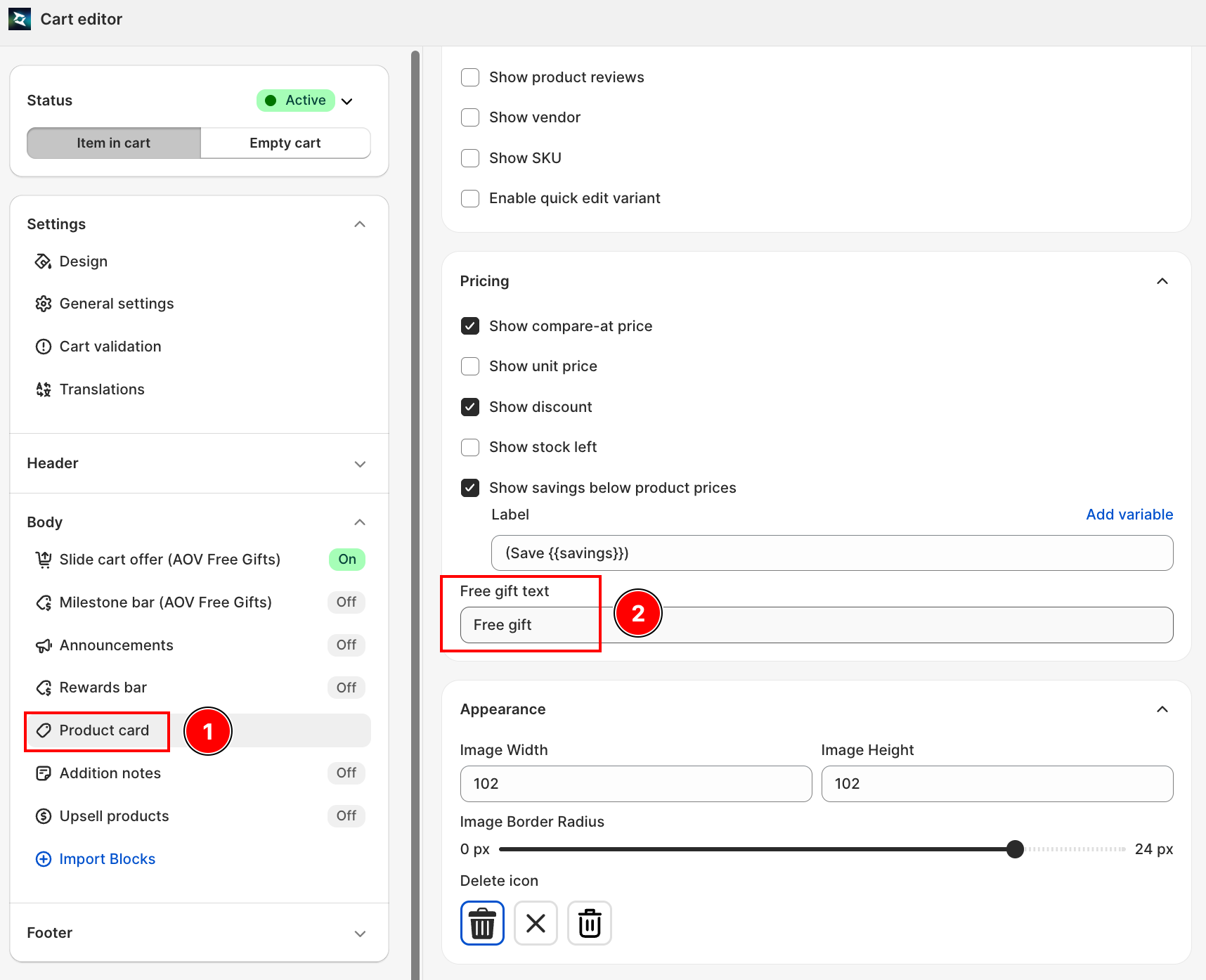
Step 4: Set the Free Gift Text
The Free gift text field sets the label shown on items that are added as free gifts (for example, via AOV Free Gift campaigns). The default value is Free gift. Change it to match your store's language or branding.
Step 5: Set Up Subscription Upgrade (Joy Subscription App)
The Subscription section integrates with the Joy Subscription App to show a subscription upgrade prompt on each product card.
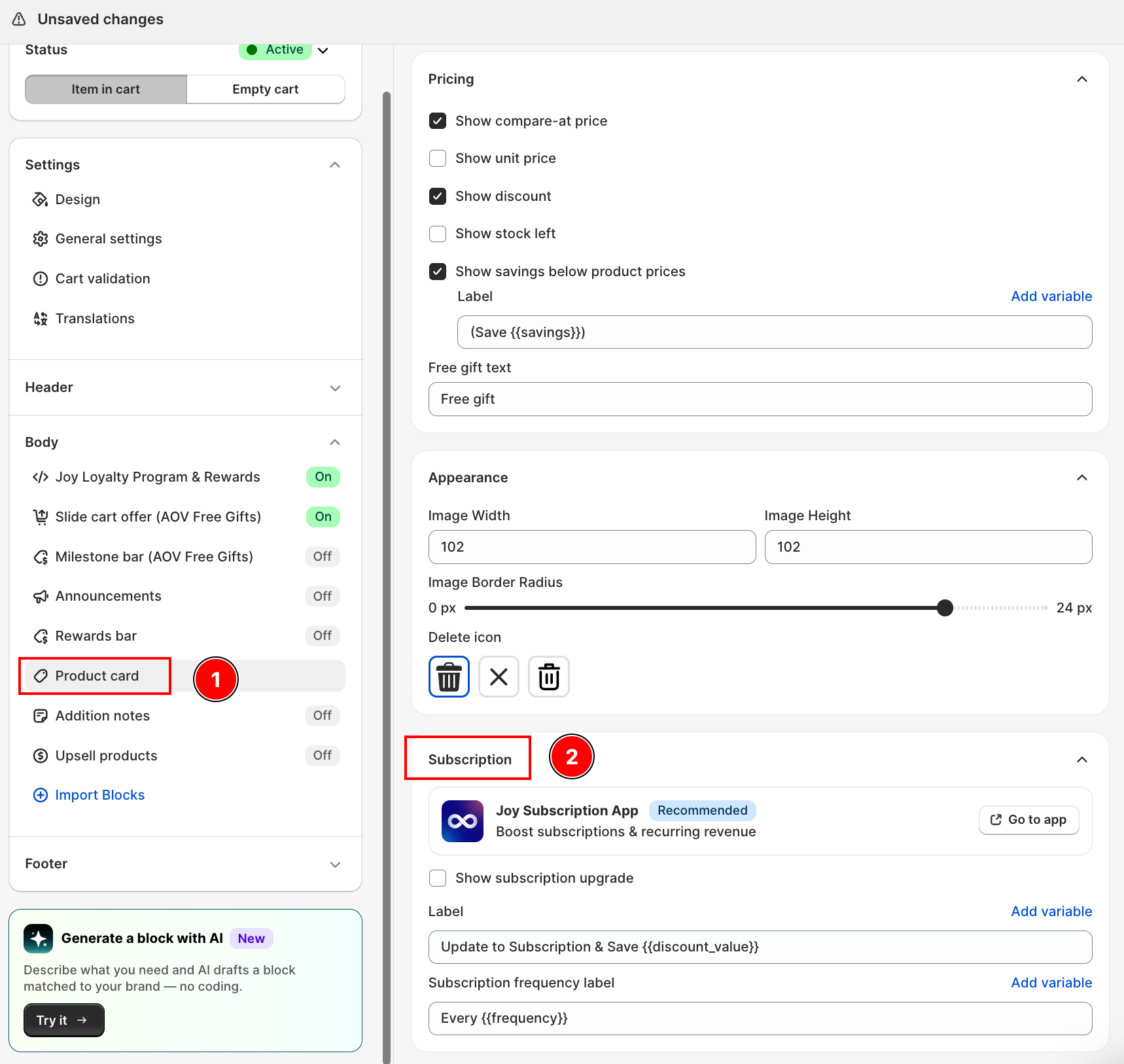
- If Joy Subscription App is not installed, an info card with a Recommended badge shows an Install button that opens its Shopify App Store listing. Once installed, the button becomes Go to app, linking straight to it in your Shopify admin.
- Toggle Show subscription upgrade to display the upgrade prompt on product cards.
- Set the Label text customers see on the upgrade prompt. Use Add variable to insert
{{discount_value}}. Default:Update to Subscription & Save {{discount_value}}. - Set the Subscription frequency label text. Use Add variable to insert
{{frequency}}. Default:Every {{frequency}}.
The Joy Subscription App card only appears if your store doesn't already have subscription selling plans set up.
Step 6: Adjust the Product Image
Use the sliders to control how product thumbnails appear:
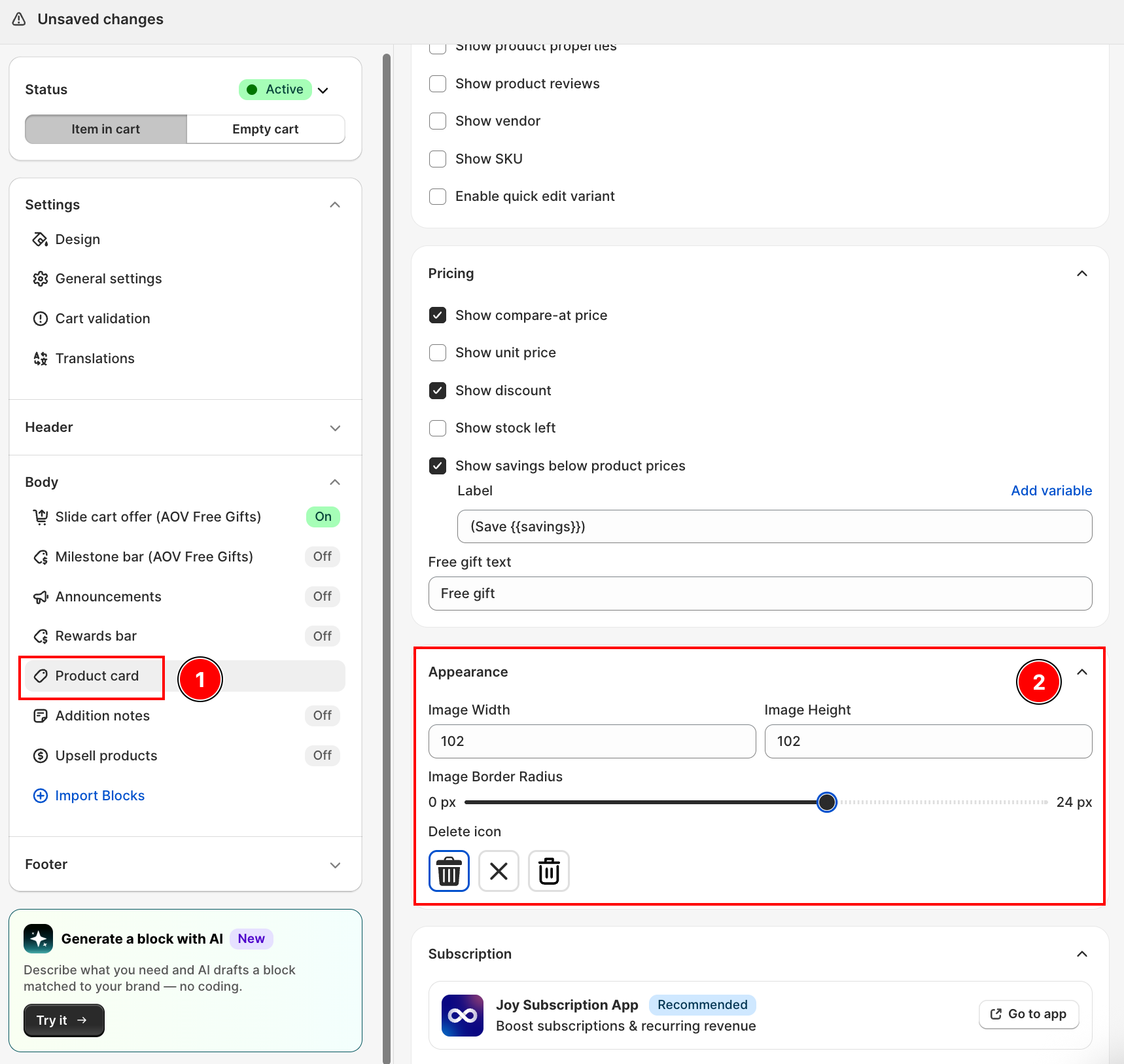
- Image Width: width in pixels
- Image Height: height in pixels
- Image Border Radius: corner roundness; set to 0 for square, higher for rounded
Step 7: Choose the Delete Icon Style
Pick the icon style used for the remove-from-cart button:
| Option | Icon style |
|---|---|
| strong-trash | Bold trash can |
| remove | Minimal "remove" label |
| trash | Standard trash can |
Troubleshooting
Q1: Variant options don't show even though the toggle is on
Make sure the product actually has multiple variants. If a product has only one variant, Shopify may not expose variant names, and nothing will display even with the toggle on.
Q2: Reviews don't appear
Product reviews require a review app (such as Judge.me or Shopify Product Reviews) to be installed and have reviews submitted for the product. The toggle shows the review data that app provides.
Q3: The Edit button doesn't show on a product
Check three things: Enable quick edit variant is toggled on, the product has more than one variant, and the line isn't a free gift, gift wrap, shipping protection, or upsell item added automatically by the store. None of those show the Edit button by design.