Upsell Products
What Is It?
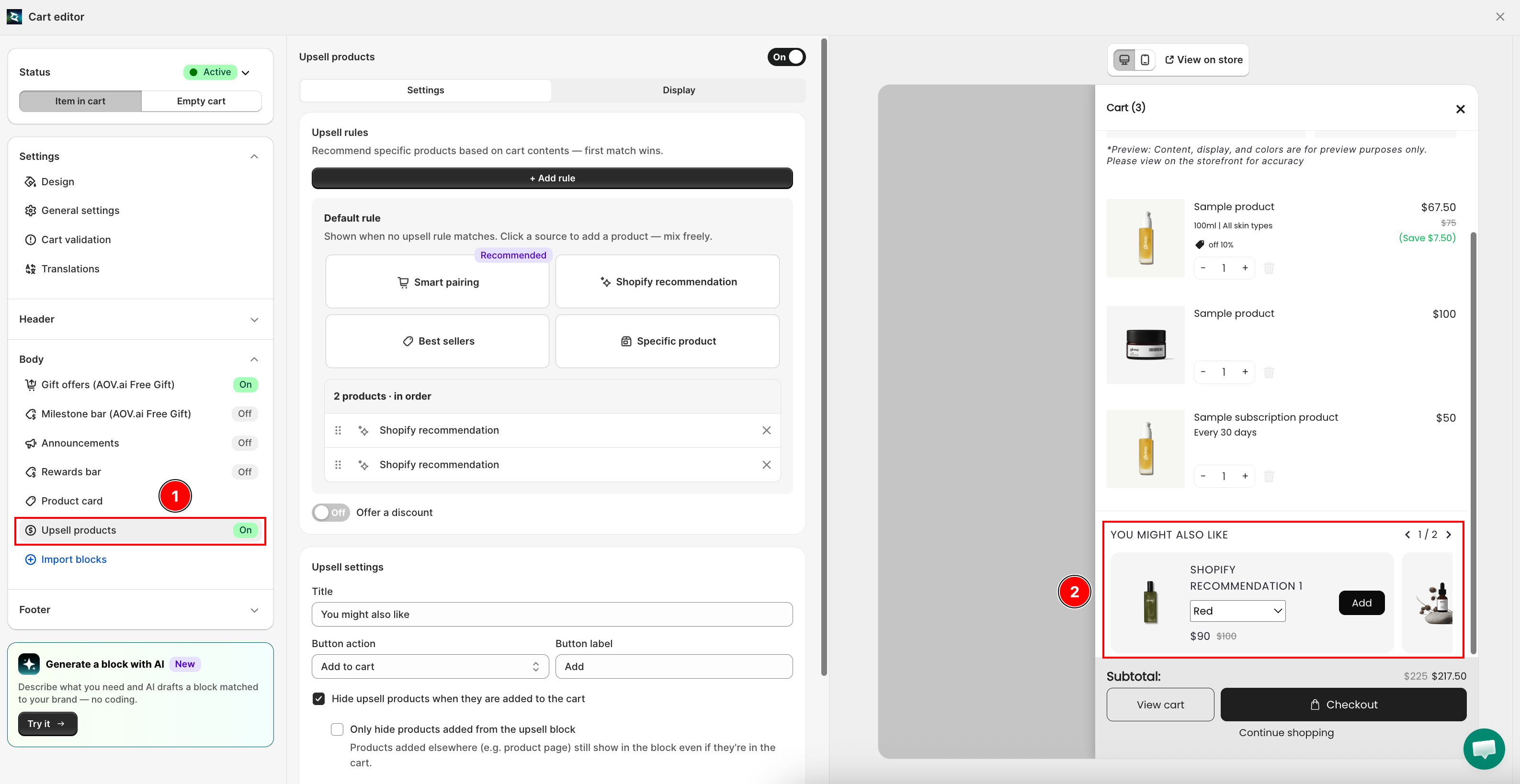
Upsell Products shows a row of product recommendations inside the cart drawer. Customers can add any suggestion directly from the drawer with one click, increasing average order value without interrupting their shopping flow.
When to Use It
- You want to surface complementary or frequently bought-together products at the moment of highest intent (when the cart is open)
- You want an automated recommendation system without manual curation
- You want to clear slow-moving inventory by featuring it as a manual upsell
Setup Walkthrough
Step 1: Open Upsell Products Settings
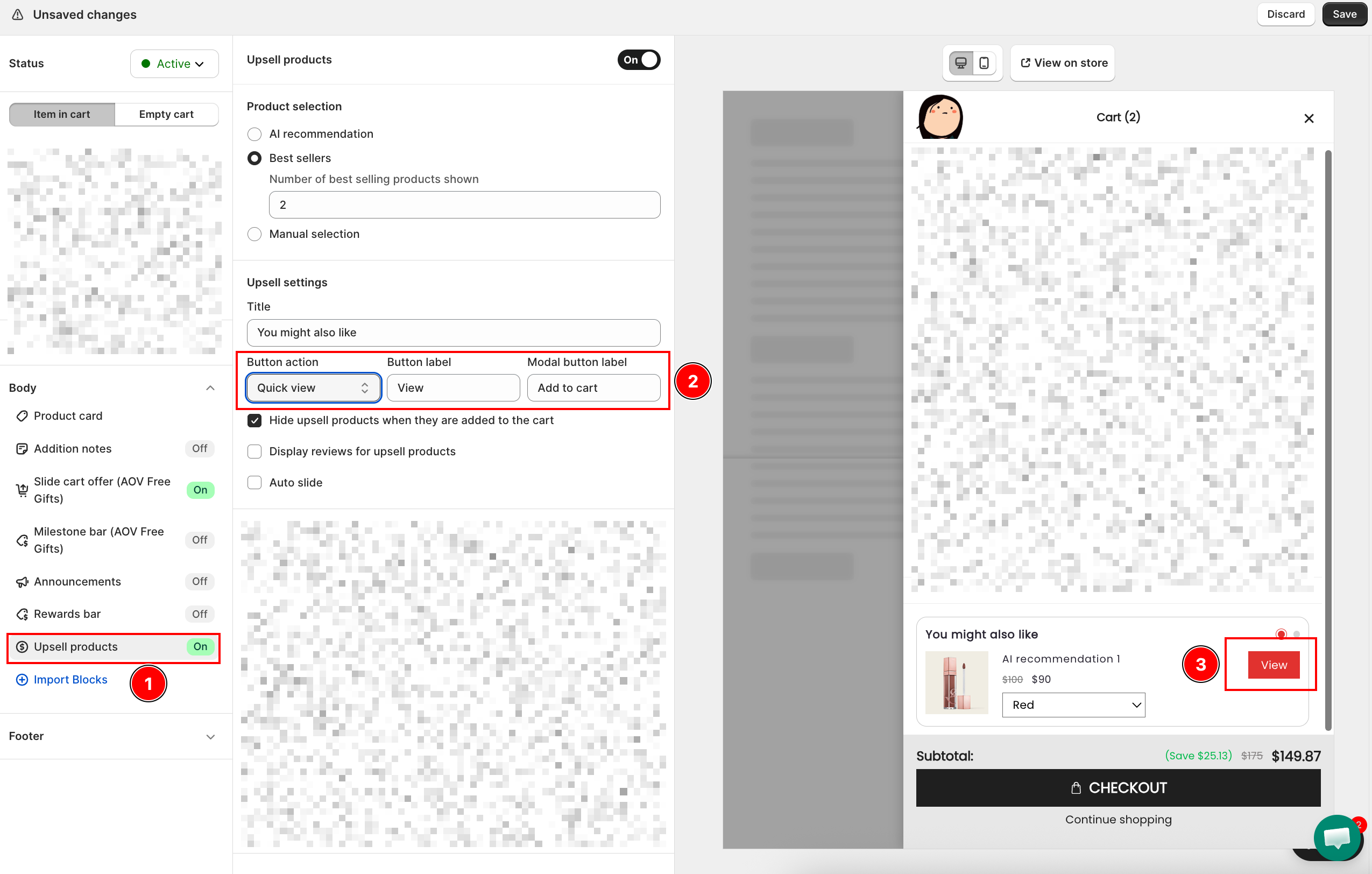
From the Cart Editor, click Upsell products under Body in the left panel.
Step 2a: Set Up Upsell Rules (optional)
Upsell rules let you recommend specific products based on what is already in the cart. When a rule matches, it overrides the default source (see Step 2b). The first matching rule wins.
To add a rule, click Add rule under Upsell rules.
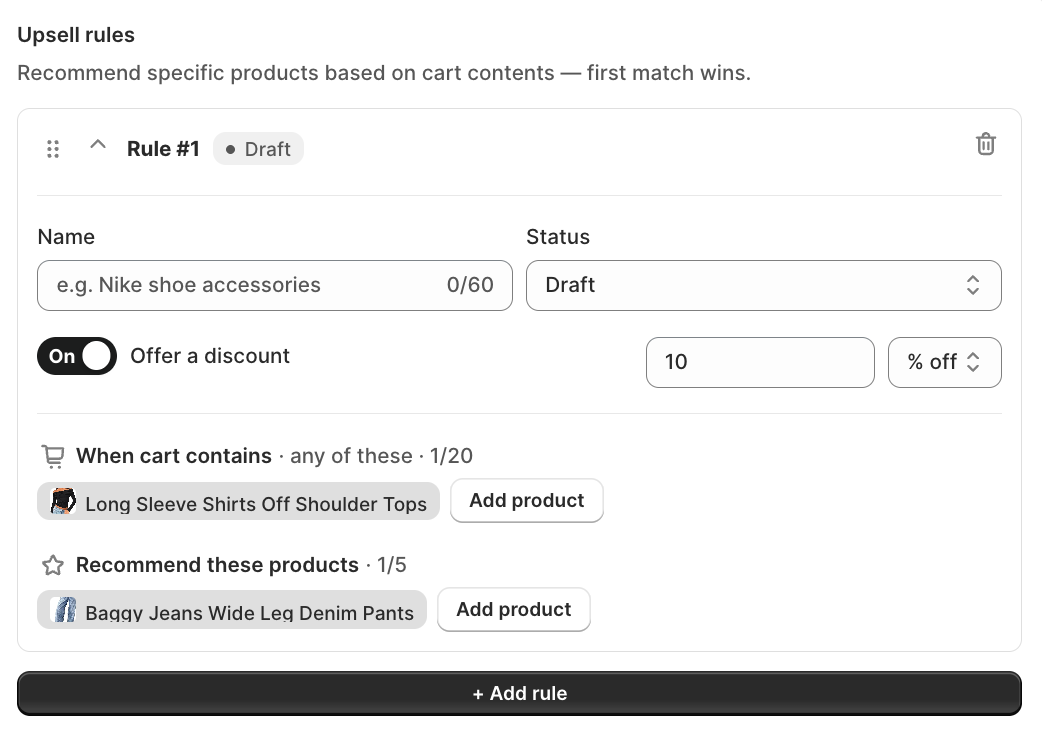
| Field | What it does |
|---|---|
| Name | Internal label for the rule (for example, Nike shoe accessories) |
| Status | Active: rule runs on the storefront. Draft: rule is saved but inactive. |
| When cart contains | Pick products that trigger this rule. The rule fires when the cart contains any of these. |
| Recommend these products | The products shown when the rule triggers. |
Things to know
- First match wins: if multiple rules match, only the top rule runs. Drag to reorder.
- Draft rules are saved but don't run on the storefront.
- Each rule needs at least 1 trigger product and 1 recommended product or it won't save.
- Gift items in the cart don't count as trigger products.
- Max 3 rules per template (Classic / Minimal saved separately).
Fallback order: Active rule matches → show rule products. Recommended products unavailable → fall back to Default rule (does not try the next rule). No rule matches → Default rule runs. Cart changes trigger a real-time re-evaluation.
To delete a rule, open it and click Delete this rule. This removes the rule and its trigger/recommended product setup permanently.
Step 2b: Set Up the Default Rule
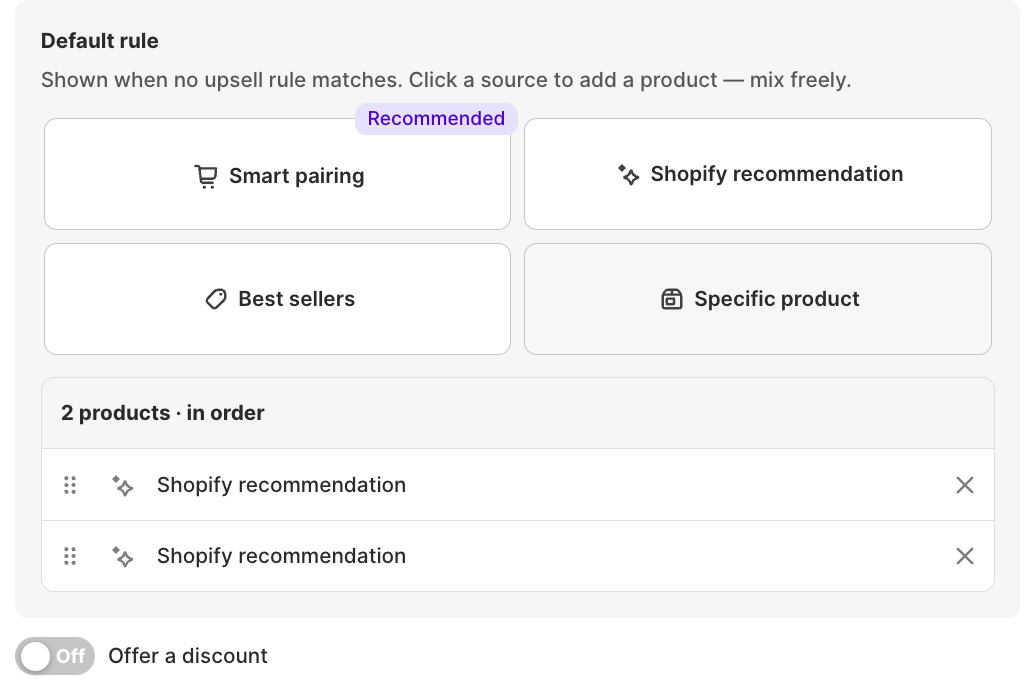
The Default rule is what shows when no Upsell rule (see Step 2a) matches the cart. Under Source, click a source card to add a product slot, you can mix sources freely; each click adds one more slot to the list, and you can drag to reorder them. Set Number of products to show to control how many appear on the storefront.
| Source | How it works | Plan |
|---|---|---|
| Smart pairing | Learns from your store's real orders and suggests what customers actually buy together with the item in the cart. Only shows pairs bought together at least 3 times, and keeps learning as new orders come in. Marked Recommended. | Free |
| Shopify recommendation | Auto-suggested based on what is currently in the cart, using Shopify's own recommendation engine. | Paid plans |
| Best sellers | Your store's top-selling products. | Paid plans |
| Specific products | Hand-pick specific products. Click the card to browse and select. | Free |
Smart pairing and Shopify recommendation both need order/cart data to work:
- Products without enough order history fall back to Shopify recommendations.
- On an empty cart, Smart pairing and Shopify recommendation won't run, Best sellers shows instead.
Step 2c: Offer a Discount (optional)
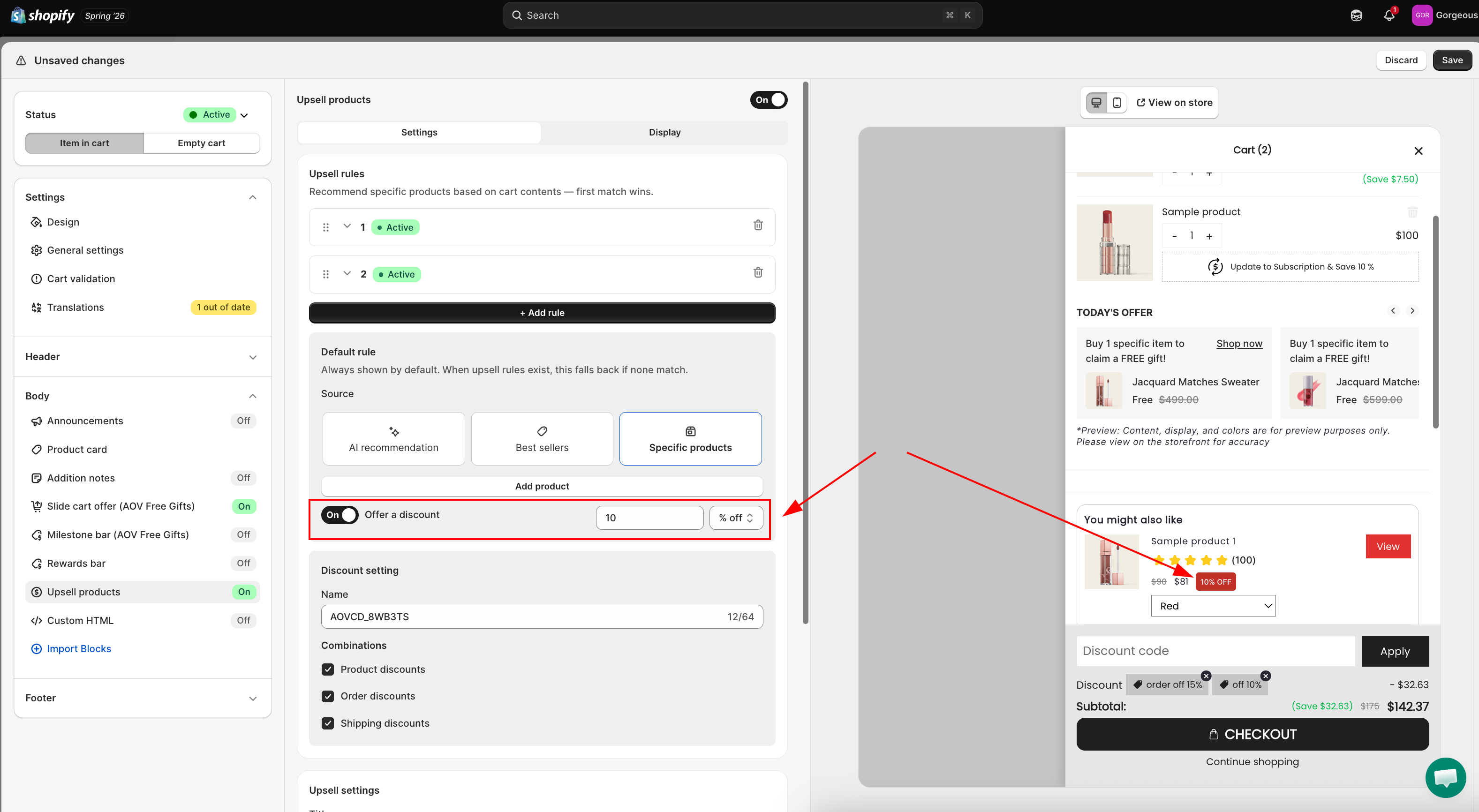
You can attach a discount (a percentage or a fixed amount) to your upsell products, so a suggested item shows a discount badge and a reduced price right inside the cart drawer. The discount is applied automatically at checkout through a Shopify discount, so customers never type a code. Set it on each Upsell rule or on the Default rule.
Turn on the discount
On the rule you want to discount (any Upsell rule or the Default rule), switch on Offer a discount.
- Choose the discount type:
- % off for a percentage.
- A fixed amount in your store currency. This option is labeled with your store's own currency symbol, for example $ off.
- Enter the discount value:
- Percentage: a whole number from 1 to 100.
- Fixed amount: a whole number of 1 or more.
- The default is 10% off. Switching to a fixed amount starts at 5.
On the storefront, the matching upsell card then shows a discount badge (for example, 10% OFF or $5.00 OFF) with the original price struck through and the discounted price next to it. This works on both the Classic and Minimal templates.
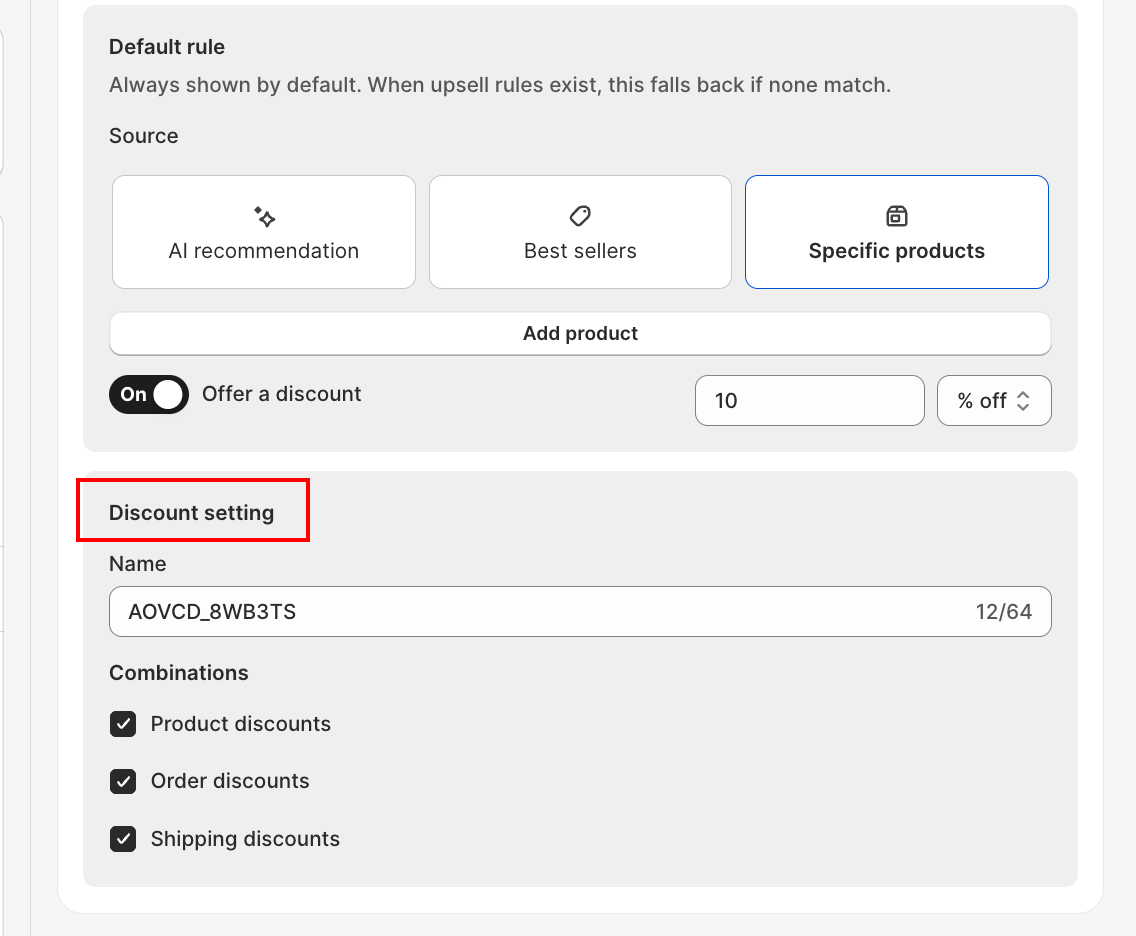
Fill in the Discount setting card
As soon as you turn on Offer a discount for any rule, a Discount setting card appears at the bottom of the Upsell products section. It stays hidden until at least one discount is on, and it applies to every discount on this template.
| Field | What it does |
|---|---|
| Name | The discount name customers see at checkout. It is also the discount's code in Shopify. Leave it blank and the app fills in a code like AOVCD_A1B2C3 for you. Up to 64 characters. |
| Combinations | Choose which other Shopify discounts can stack with this one: Product discounts, Order discounts, and Shipping discounts. All three are on by default. |
How the discount behaves
- Backward compatible: if you never turn on a discount, upsell products keep working exactly as before, with no badge and no code.
- Custom rules follow their trigger: for a custom Upsell rule with a discount on, if the customer removes the trigger product, the matching upsell item is removed from the cart too, and the discount stops applying at checkout.
- The Default rule always stays: its upsell items have no trigger, so they remain in the cart no matter how the cart changes. Turning its discount on or off never removes items.
- Managed in Shopify Discounts: the app creates the discount under Shopify → Discounts. If you disable or delete it there, the app turns the upsell discount off for every rule and shows a warning banner. Switch Offer a discount on again in the app and Save to recreate it.
- Currency: % off works the same in every currency; a fixed amount is stored in your store's base currency and converted to each customer's display currency at checkout.
Step 3: Configure Upsell Settings
| Setting | What it does |
|---|---|
| Title | The heading above the upsell section (for example, You may also like) |
| Button action | Add to cart: adds the product directly with one click Quick view: opens a popup with image, variants, and description so shoppers can choose before adding |
| Button label | The button text on each upsell card (for example, Add or View) |
| Modal button label | The add button text inside the Quick View popup (only shown when Button action is Quick view; default: Add to cart) |
| Hide upsell products when added to cart | Removes an item from the upsell list once the customer adds it |
| Display reviews for upsell products | Shows star ratings on upsell cards (requires a review app) |
| Auto-scroll products | Automatically cycles through upsell cards without the customer needing to swipe |
| Slide interval (seconds) | How long each card is shown before scrolling to the next (only active when Auto-scroll products is on) |
Step 4: Design
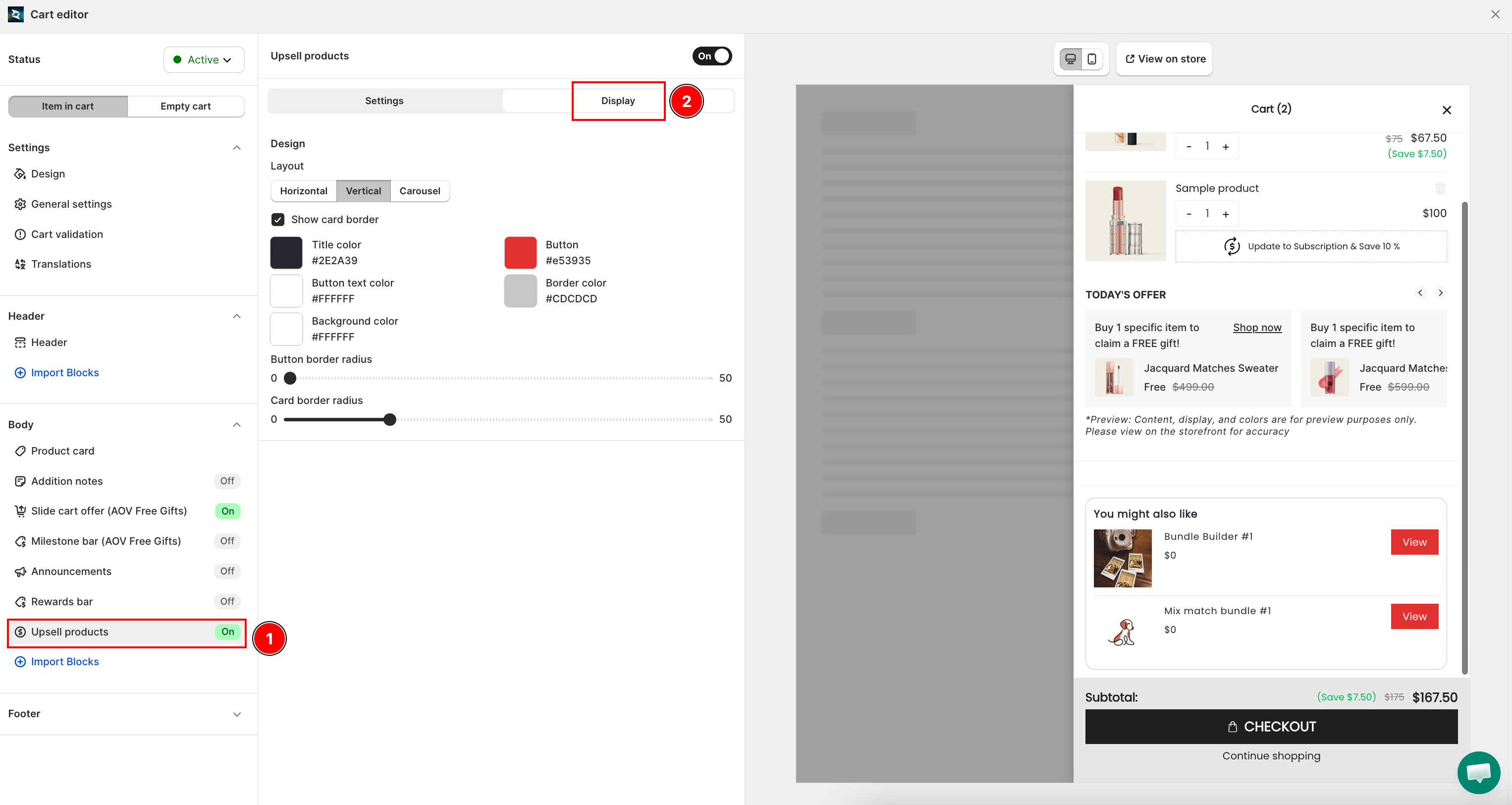
Under Design, choose the layout and style the upsell section to match your brand.
Layout: pick how upsell cards are arranged:
| Layout | How it looks |
|---|---|
| Horizontal | Single-row carousel, one card slides into view at a time |
| Vertical | Stacked list with no slider |
| Carousel | Multiple cards visible at once |
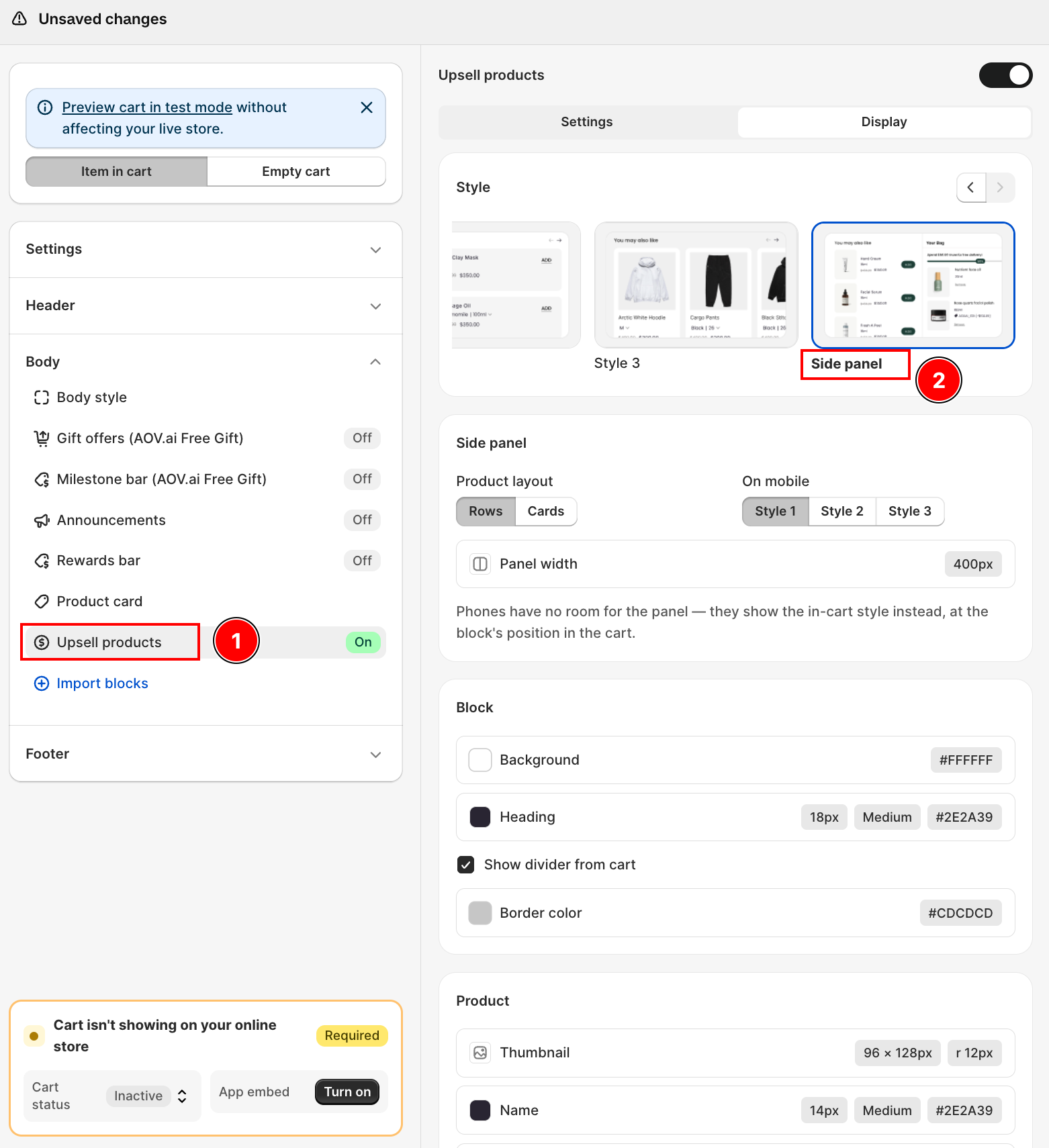
| Side panel | A separate column next to the cart, not inside the cart body, see below |
Side panel layout
Unlike the other 3 layouts, Side panel moves the upsell block out of the cart entirely and builds it as its own column pinned to the left edge of the drawer, full screen height, scrolling independently and sliding in with the cart. When a customer clicks Add, the item goes straight into the cart, the cart panel updates immediately, and the side panel stays open.
Once Side panel is selected, a dedicated Side panel settings card appears with:
| Setting | What it does |
|---|---|
| Product layout | Rows (default): a small image sits next to the text, column width 400px (adjustable 320-400px). Cards: a large square image spans the full width, text centered, button full width, column width 240px (adjustable 200-360px). |
| Panel width | Fine-tune the column width within the range for the selected Product layout. Switching layout resets the width to that layout's default. |
| On mobile | Which layout (Horizontal, Vertical, or Carousel) to fall back to when the side panel can't fit, see below. |
| Show divider from cart | Toggle the vertical divider line between the side panel and the cart. |
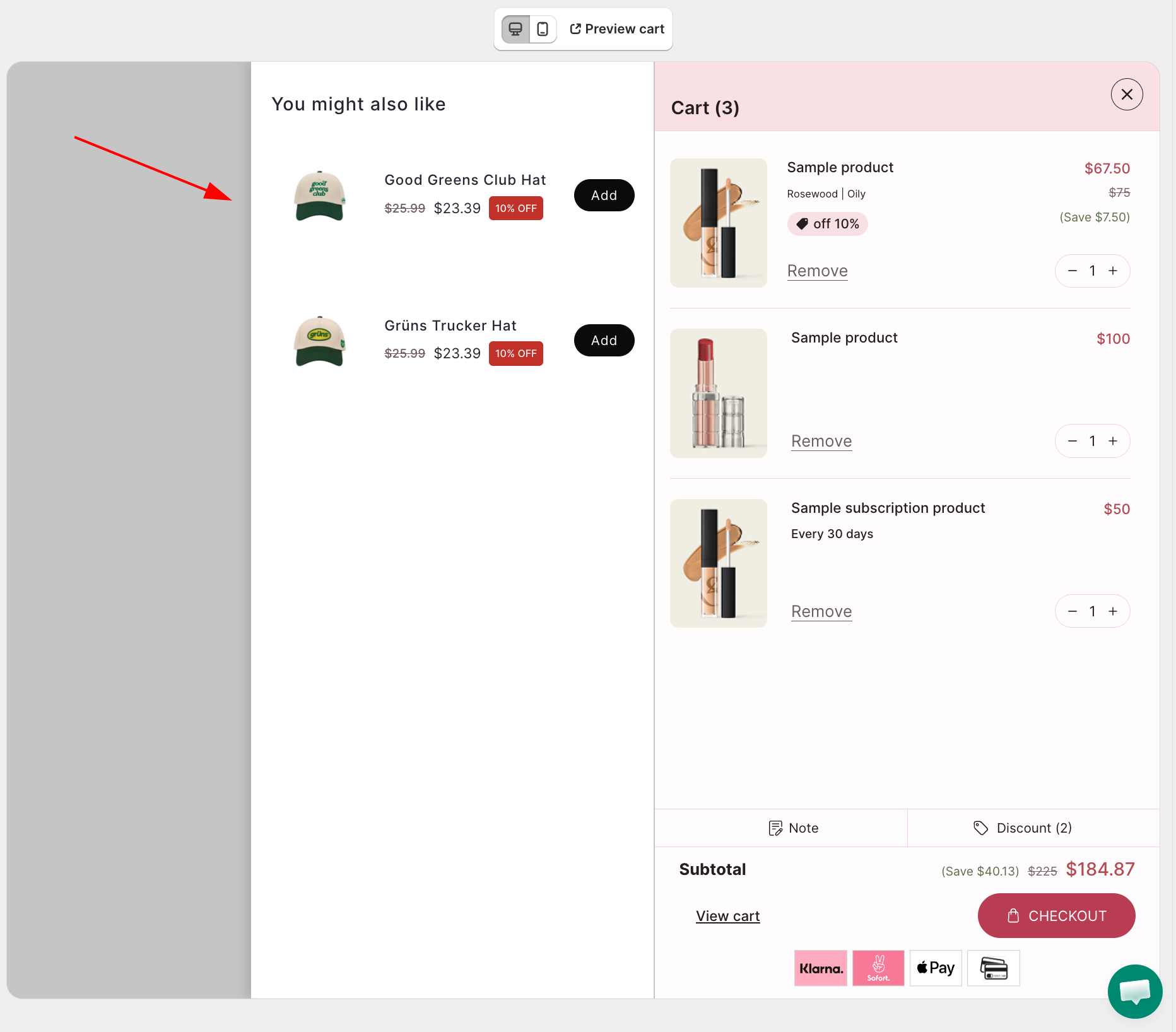
The Block, Product, and Add button cards still apply the same as the other 3 layouts.
When the side panel doesn't render
The panel needs enough horizontal room, it requires the browser window to be at least as wide as the cart plus the panel plus some breathing room. Below that width, on narrower screens, and on phones, the side panel does not render at all, upsell products fall back to whichever layout is chosen under On mobile, shown in its usual place inside the cart.
Selecting Side panel also sets Button action to Add to cart and Button label to Add the first time you pick it. Change either afterward and your choice is kept.
Colors & style:
| Setting | What it controls |
|---|---|
| Show card border | Toggle to show or hide the border around cards |
| Title color | The upsell section heading |
| Button | The add button's background color |
| Button text | Text on the add button |
| Border color | The card border color |
| Card background | The background color of each product card |
| Button border radius | Corner roundness of the add button (0–50) |
| Card border radius | Corner roundness of product cards (0–50) |
Troubleshooting
Q1: Smart pairing or Shopify recommendation shows no products
Both sources need order history to surface patterns. Smart pairing only shows pairs bought together at least 3 times. If your store is new or has few orders, add Best sellers or Specific products as additional sources until enough data accumulates.
Q2: A product I added to the upsell list no longer appears
If Hide upsell products when they are added to the cart is on, products already in the cart are filtered out of the upsell list. This is the expected behavior.
Q3: The upsell section doesn't appear in my drawer
Confirm the Upsell products toggle is enabled in the left panel and that you clicked Save. Also check that at least one product is configured for the selected selection method.
Q4: I can't find the Discount setting card
It stays hidden until you turn on Offer a discount for at least one Upsell rule or the Default rule. Once any discount is on, the card appears at the bottom of the Upsell products section.
Q5: The discount badge doesn't show on the upsell card
Confirm Offer a discount is on for the rule that matches the current cart (or the Default rule) and that you clicked Save. The badge only appears for the rule that is currently matched.
Q6: A discounted upsell item disappeared from the cart
For custom rules, removing the trigger product also removes its discounted upsell item. This is expected. Add the trigger product back to see the upsell (and its discount) again. Default-rule items are not affected.
Q7: A warning says the discount was disabled in Shopify
The discount was turned off or deleted under Shopify → Discounts. Re-enable it there, or switch Offer a discount off and on in the app and click Save to recreate it.