Trust Badges
What Is It?
Trust Badges are small icons shown in the cart drawer footer that reassure customers about payment security, shipping reliability, and purchase guarantees — right at the moment they are deciding whether to check out.
Setup Walkthrough
Step 1: Open Trust Badges Settings
From the Cart Editor, click Trust badges under Footer in the left panel.
Step 2: Select Icons from the Library
Click Select icons to open the badge library. Choose from pre-built icons including:
- Payment methods: Visa, Mastercard, PayPal, Apple Pay, and more
- Security: SSL secured, secure checkout
- Guarantees: money-back guarantee, free returns
Click any icon to add it to your selection. Selected icons appear in the badge row in the preview.
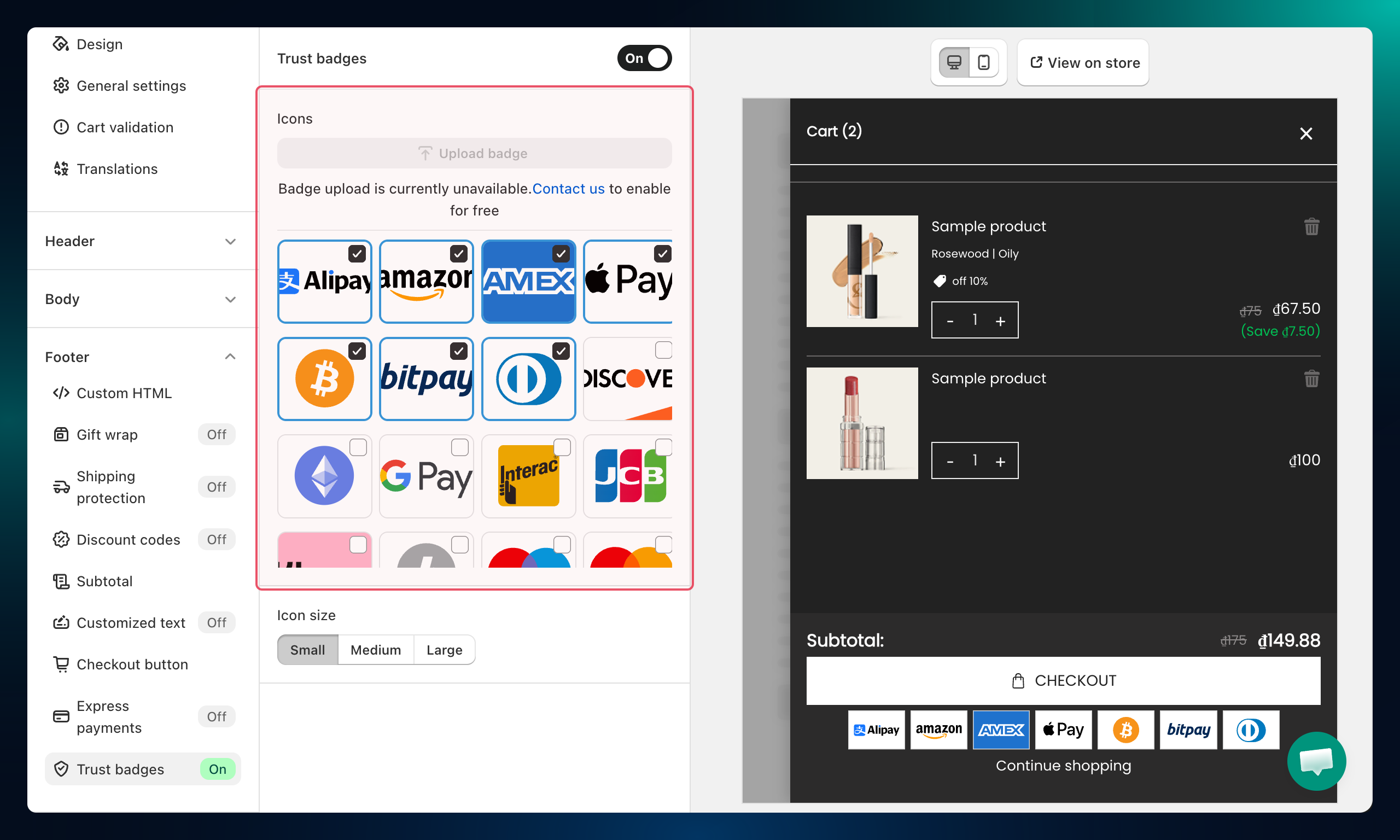
Step 3: Upload a Custom Badge (Optional)
Click Upload badge to add your own custom trust badge image.
- Accepted formats:
.gif,.jpg,.png,.jpeg - Maximum file size: 5 MB
Click Add files, select your image, then click Upload.
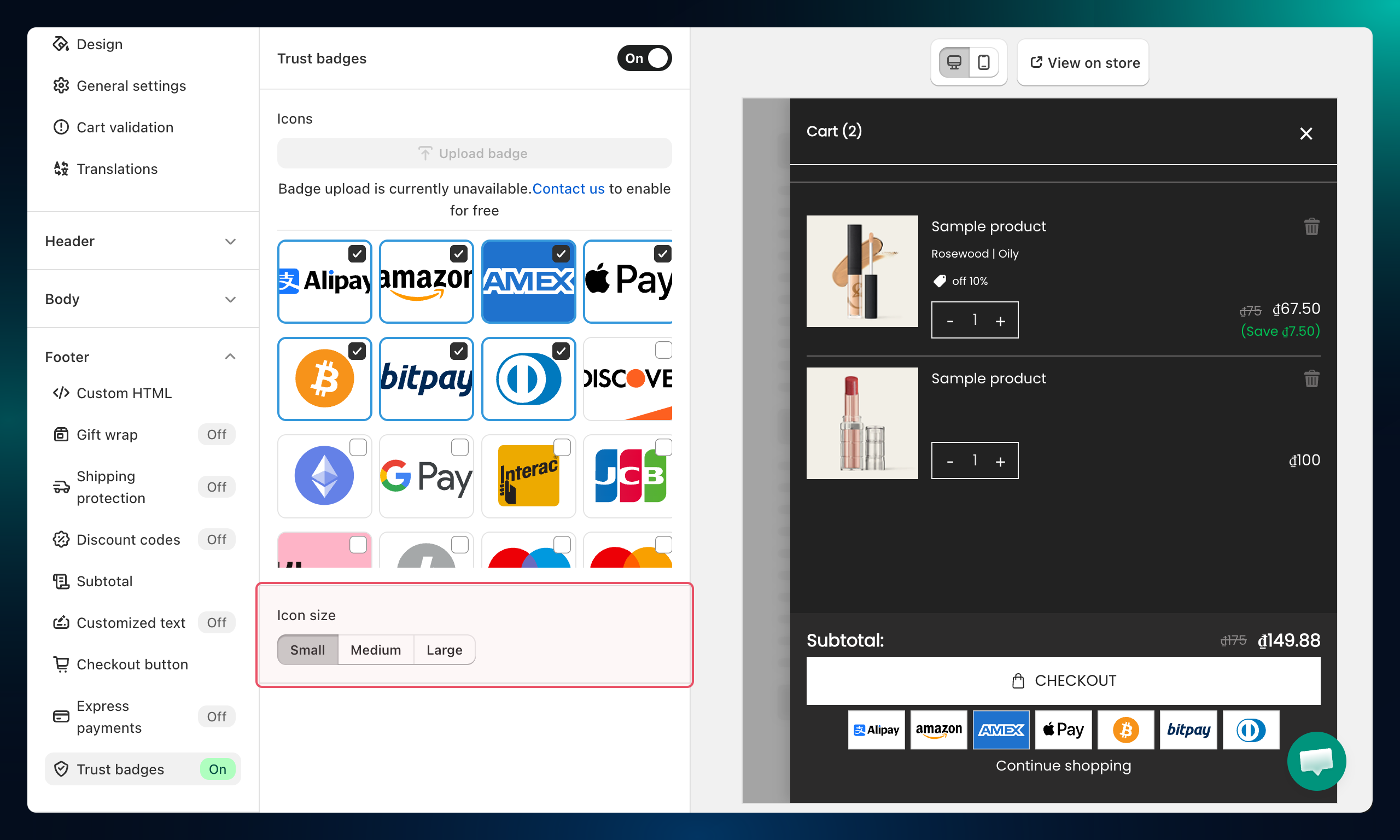
Step 4: Set the Icon Size
Choose how large the badges appear in the drawer:
| Option | Best for |
|---|---|
| Small | Subtle, minimal feel |
| Medium | Balanced, most stores |
| Large | High-visibility emphasis |
Troubleshooting
Q1: Trust badges don't appear in the drawer
Confirm the Trust badges section is enabled (toggled on) in the left panel and that at least one badge is selected.
Q2: My custom uploaded badge looks blurry
Use a PNG or SVG-equivalent at 2x resolution (at least 200px wide for a Medium size badge). JPEGs compress poorly at small sizes; PNG with transparency looks sharper.