Integrations
What Is It?
Integrations let you connect the cart drawer to third-party checkout and discount apps. When you enable a checkout integration, it replaces the default Shopify checkout flow the moment a shopper clicks the checkout button.
You manage all integrations from one place: Settings → Integrations.
When to Use It
- You use a regional checkout provider (Razorpay, GoKwik, Yampi, Shiprocket, or Tagada) and want the cart drawer to route shoppers into it
- You run AOV.ai Discount Free Gift BOGO and want it linked alongside the cart drawer
- You want to turn an integration on or off without editing theme code
Available Integrations
| Integration | Type | What it does |
|---|---|---|
| AOV.ai Discount Free Gift BOGO | Discount | Turn traffic into customers with eye-catching promotion campaigns and boost repeat purchases. |
| Razorpay COD & Magic Checkout | Checkout | Replace the default checkout flow with Razorpay Magic Checkout when shoppers click the checkout button. |
| GoKwik Checkout | Checkout | Replace the default checkout flow with GoKwik Checkout when shoppers click the checkout button. |
| Yampi Checkout | Checkout | Replace the default checkout flow with Yampi Checkout when shoppers click the checkout button. |
| Shiprocket: eCommerce Shipping | Checkout | Replace the default checkout flow with Shiprocket Checkout when shoppers click the checkout button. |
| Tagada Checkout | Checkout | Replace the default checkout flow with Tagada Checkout when shoppers click the checkout button. |
Setup Walkthrough
Step 1: Open the Integrations Tab
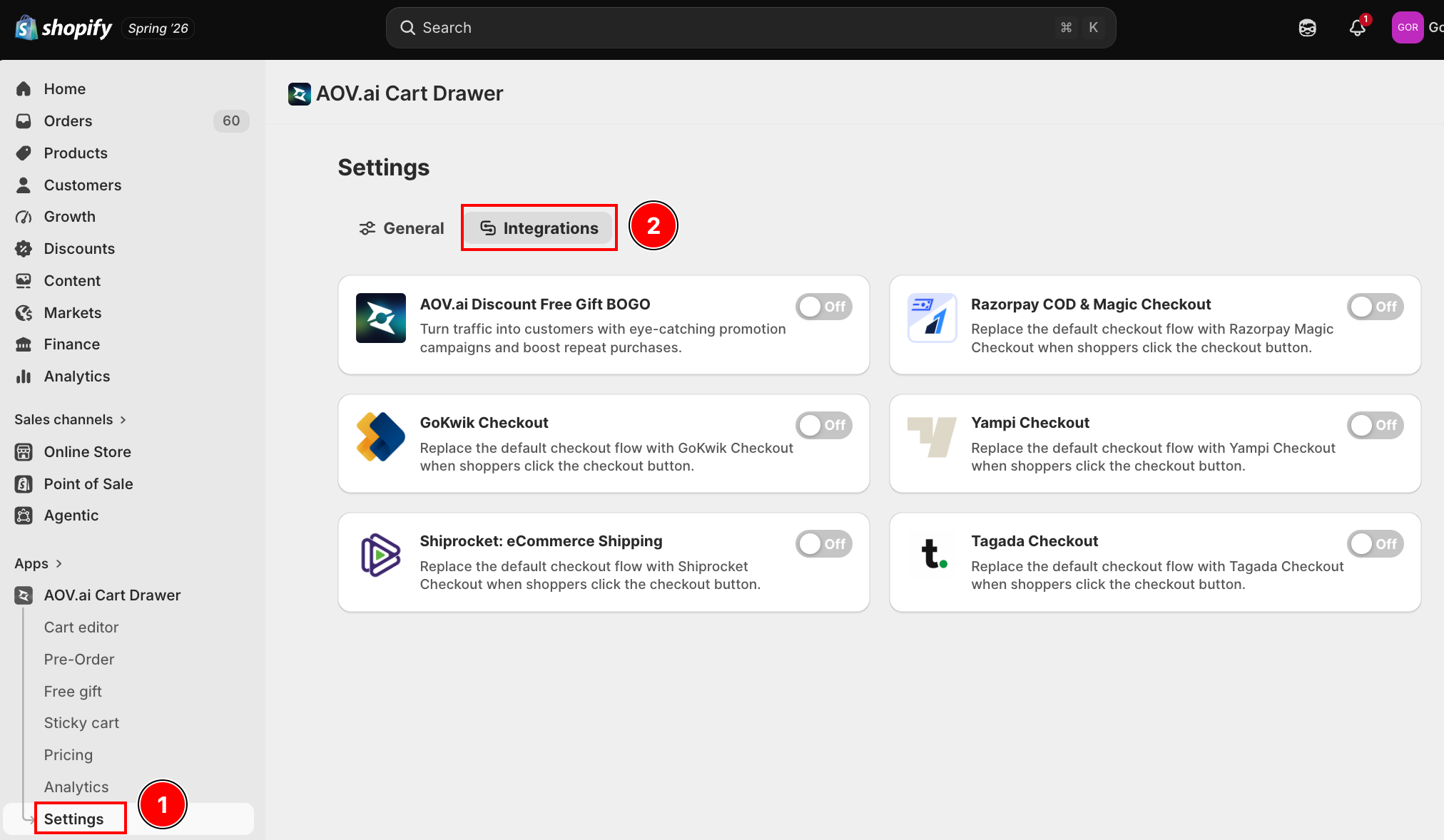
From the app, go to Settings and select the Integrations tab.
Step 2: Find the Integration You Need
Each integration shows as a card with its logo, name, a short description, and an on/off toggle. The six cards are AOV.ai Discount Free Gift BOGO, Razorpay COD & Magic Checkout, GoKwik Checkout, Yampi Checkout, Shiprocket: eCommerce Shipping, and Tagada Checkout.
Step 3: Enable or Disable an Integration
Click the toggle switch on the right of a card to turn it on or off. The change saves automatically, and you see the confirmation message Integration updated successfully.
Troubleshooting
Q1: I enabled a checkout integration but checkout still goes to Shopify
The integration only takes over if its provider script is installed and active on your store. Confirm the checkout provider's own app (for example, Razorpay) is installed, then re-open the cart drawer and click checkout again.
Q2: Shoppers reach two different checkouts
You likely have more than one checkout integration enabled. Only one checkout provider can own the checkout button. Disable the extras so a single integration stays on.
Q3: The toggle flips back to off
That usually means the save did not complete. Check your connection and toggle again. If the Integration updated successfully message does not appear, the change was not saved.