Design
What Is It?
The Design section controls the overall look of your cart drawer: which template it uses, which color scheme is active, and any custom CSS overrides. Style it once here and every section of the drawer picks it up.
Setup Walkthrough
Step 1: Open Design Settings
From the Cart Editor, click Design under Settings in the left panel.
Step 2: Choose a Template
Click Choose template to pick the base layout.
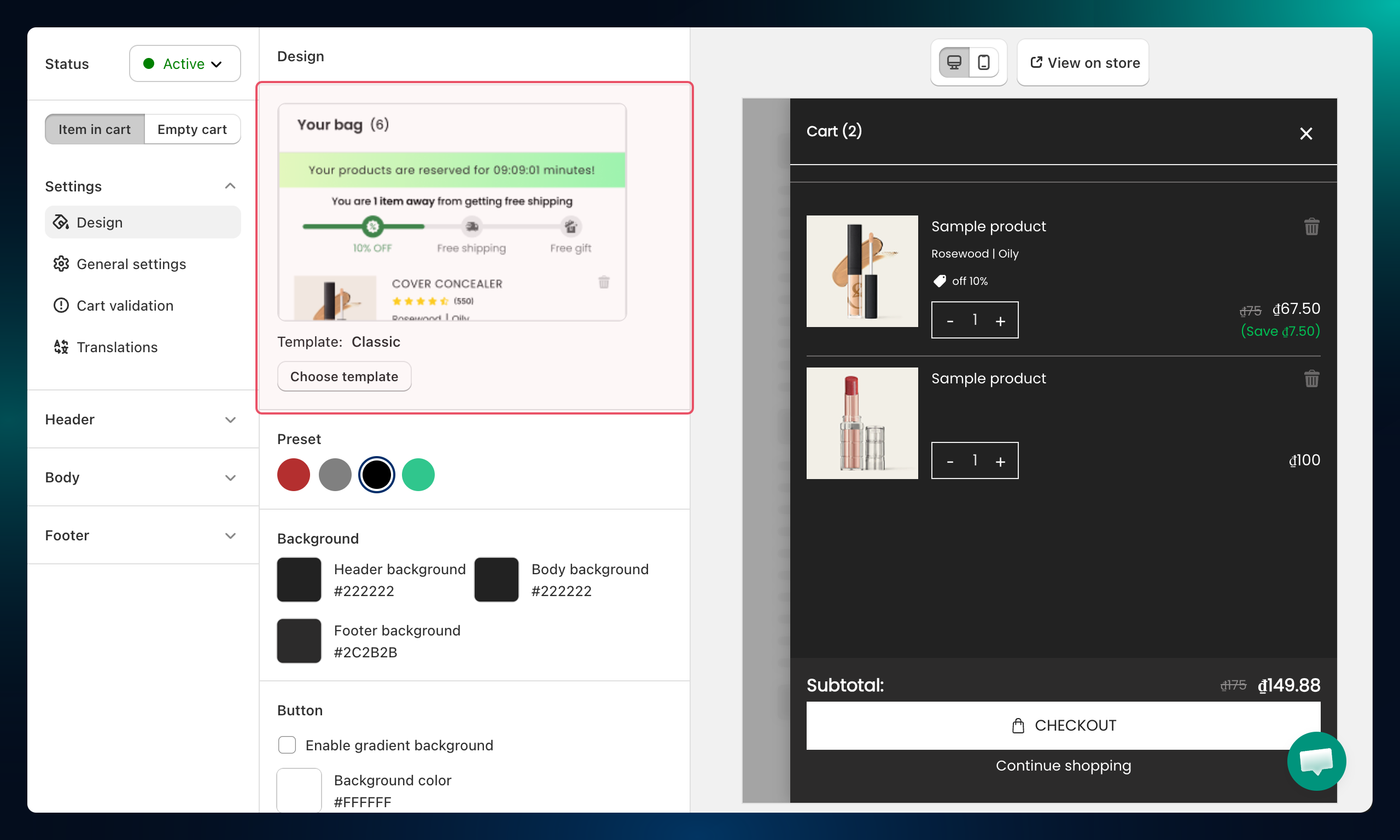
| Template | Description | Best for |
|---|---|---|
| Classic | Soft colors, timeless feel | Fashion, Fitness, Beauty |
| Minimal | Clean, distraction-free layout | Home & Garden |
Step 3: Apply a Preset Color Scheme
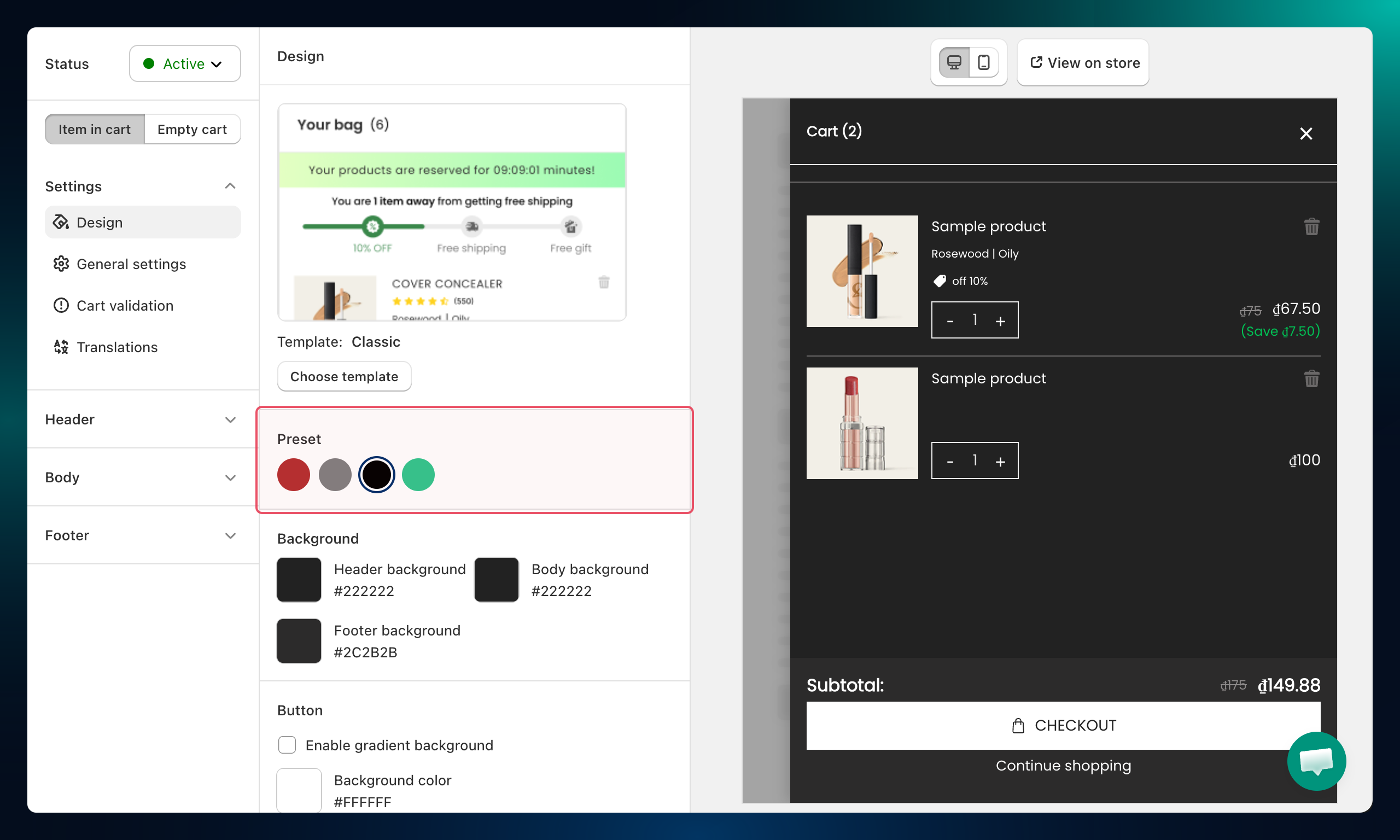
Under Preset, click any swatch to instantly apply its color scheme. Click Auto-match theme to pull the palette directly from your Shopify theme — click it multiple times to cycle through different extracted schemes.
Step 4: Customize Individual Colors
Fine-tune any color by clicking its swatch. Colors are organized into four groups:
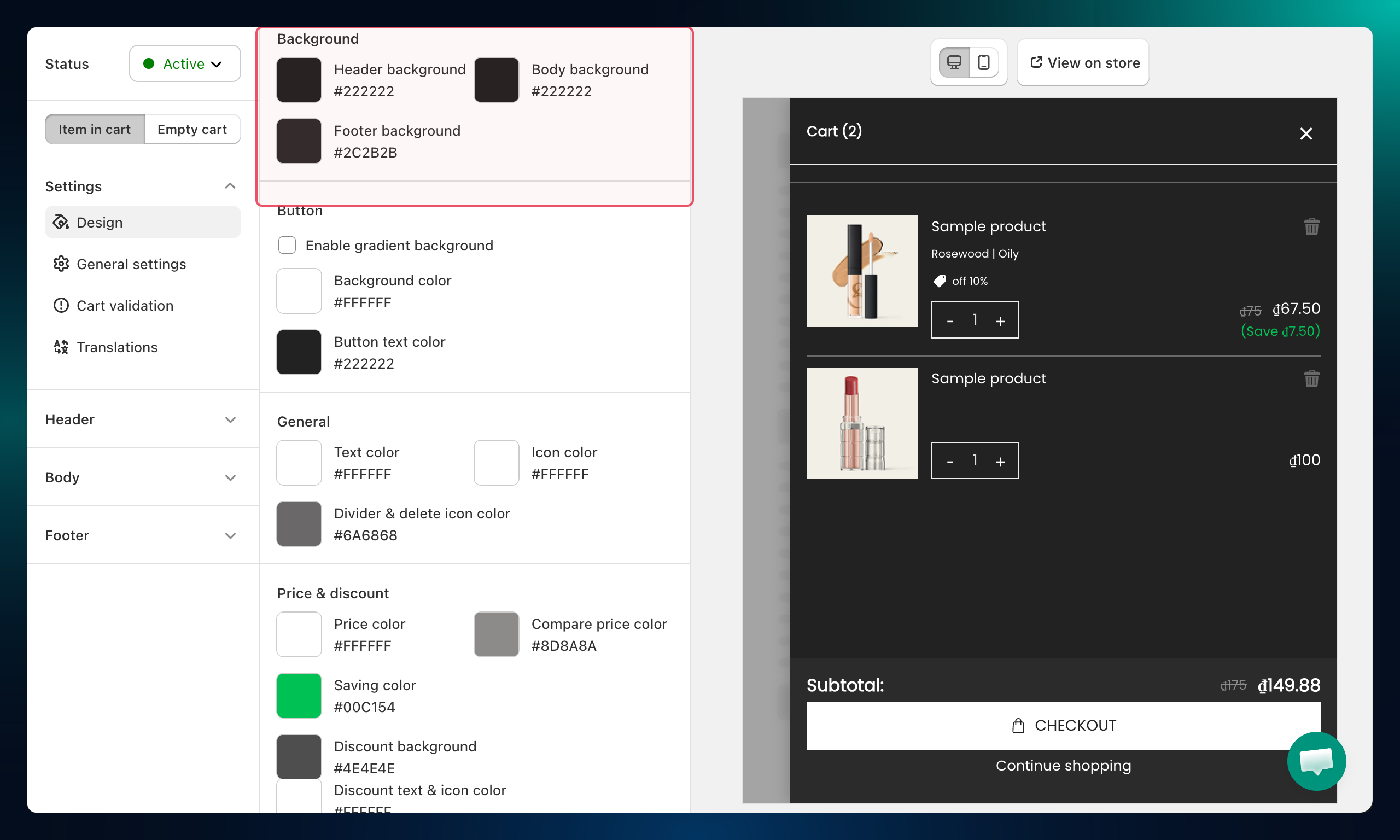
Background
- Header background — behind the cart title and logo
- Body background — behind the product list
- Footer background — behind the subtotal and checkout button
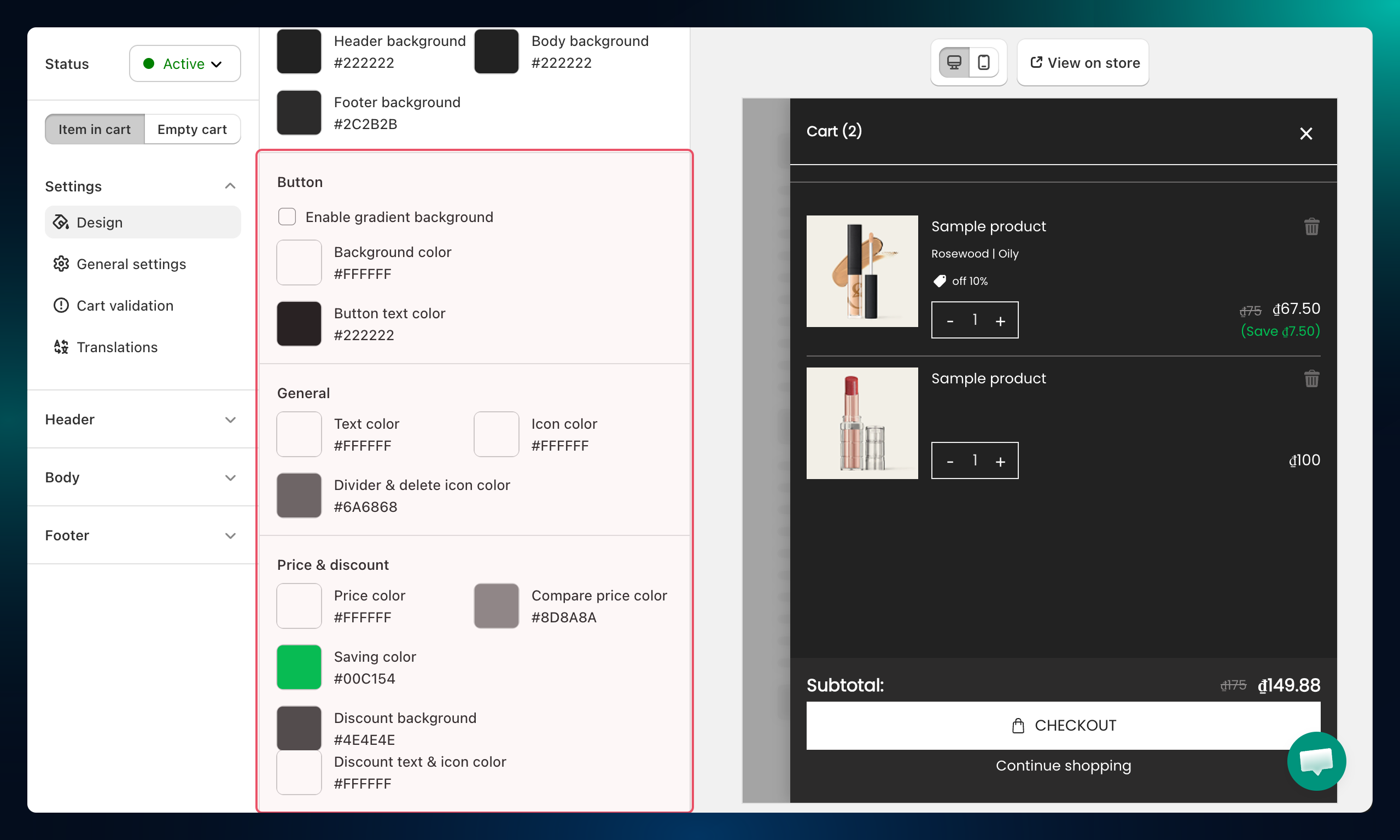
Button
- Background color — button fill
- Button text color — text on buttons
- Toggle Enable gradient background and set Gradient start color / Gradient end color for a gradient button effect
General
- Text color — main text throughout the drawer
- Icon color — all icons
- Divider & delete icon color — section dividers and the product remove icon
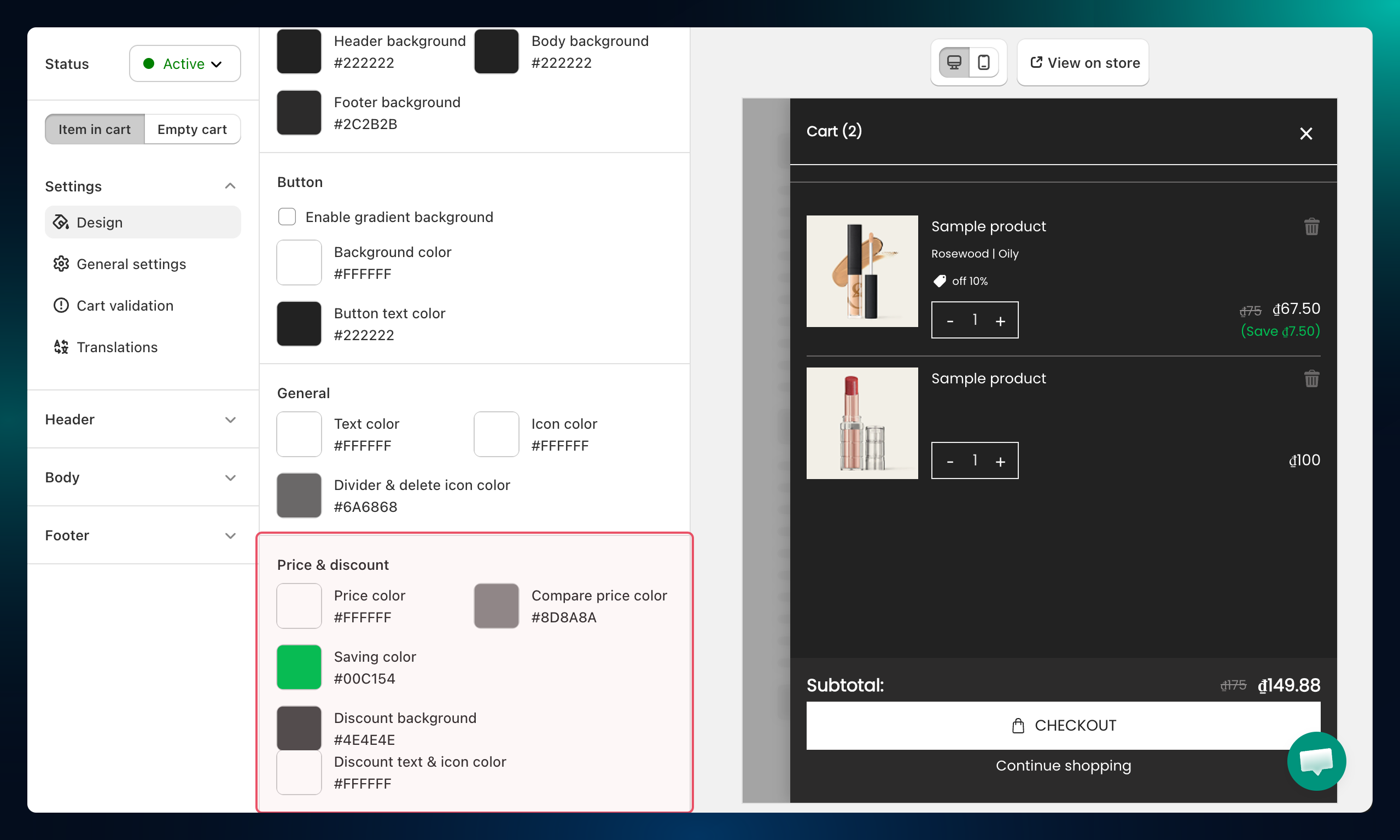
Price & discount
- Price color — product prices
- Compare price color — original strikethrough price
- Saving color — savings text
- Discount background — background of discount badges
- Discount text & icon color — text and icons inside discount badges
Step 5: Add Custom CSS (Optional)
Scroll to Custom CSS and enter your own CSS rules for pixel-perfect adjustments that go beyond the color controls.
Troubleshooting
Q1: Auto-match theme picks colors that don't look right
Click Auto-match theme again — each click extracts a different combination of colors from your theme. If none fit, apply a preset and adjust individual swatches manually.
Q2: My custom CSS isn't applying
Check for syntax errors in the CSS editor. CSS rules must target the cart drawer's HTML structure; use browser DevTools on the live drawer to find the correct selectors.