Cart Validation
What Is It?
Cart Validation sets a minimum or maximum number of items a shopper must have before they can check out. If the cart breaks the rule, the checkout button is blocked and a custom message explains what to fix.
When to Use It
- You sell wholesale or bundles and need a minimum quantity per order
- You want to cap how many units of a product a single order can contain
- You want the rule to apply to all products, or only to specific products or a collection
Setup Walkthrough
Step 1: Open Cart Validation
Open the Cart Editor. In the left panel, under the Settings group, select Cart validation, then toggle the section on.
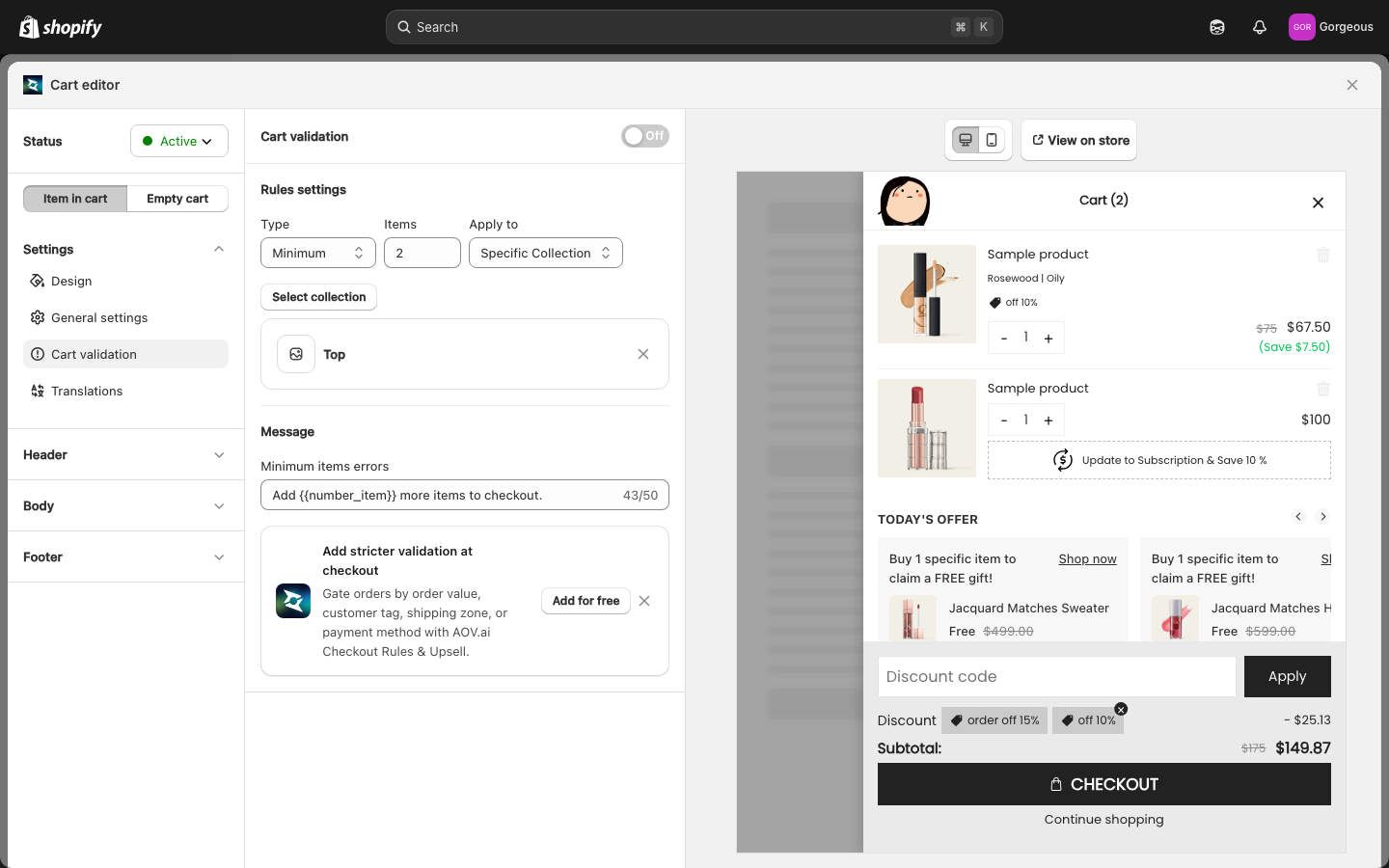
Step 2: Set the Rule
Under Rules settings, configure three fields:
- Type: choose Minimum or Maximum
- Items: the number of items the rule checks against (minimum 1)
- Apply to: choose All products, Specific Products, or Specific Collection
If you pick Specific Products or Specific Collection, a Select products or Select collection button appears. Click it to pick which items the rule covers.
Step 3: Write the Error Message
Under Message, fill in the Minimum items errors or Maximum items errors text (the label changes with the type you chose). This message shows in the drawer when the cart breaks the rule. Limit is 50 characters.
{{number_item}} in the message to show the dynamic count of items needed to checkout. For example: Add {{number_item}} more items to continue.Troubleshooting
Q1: The checkout button is blocked but no message shows
Confirm you entered text in the Minimum items errors or Maximum items errors field. An empty message field leaves shoppers without an explanation.
Q2: The item count in my message is wrong or missing
The count only appears if you used the {{number_item}} placeholder exactly as written. Typos in the placeholder will display as plain text.
Q3: The rule applies to the wrong products
Check the Apply to setting. All products validates the entire cart; Specific Products and Specific Collection only count the items you selected.