Translation
What Is It?
Translation lets you show the cart drawer text in the languages your store supports. You can edit each string by hand, or use Auto translate to fill them in for the languages connected to your store.
When to Use It
- You sell in more than one language and want the cart drawer to match
- You want to override a machine translation with your own wording
- You want to keep button labels, messages, and titles consistent across locales
Setup Walkthrough
Step 1: Open Translations
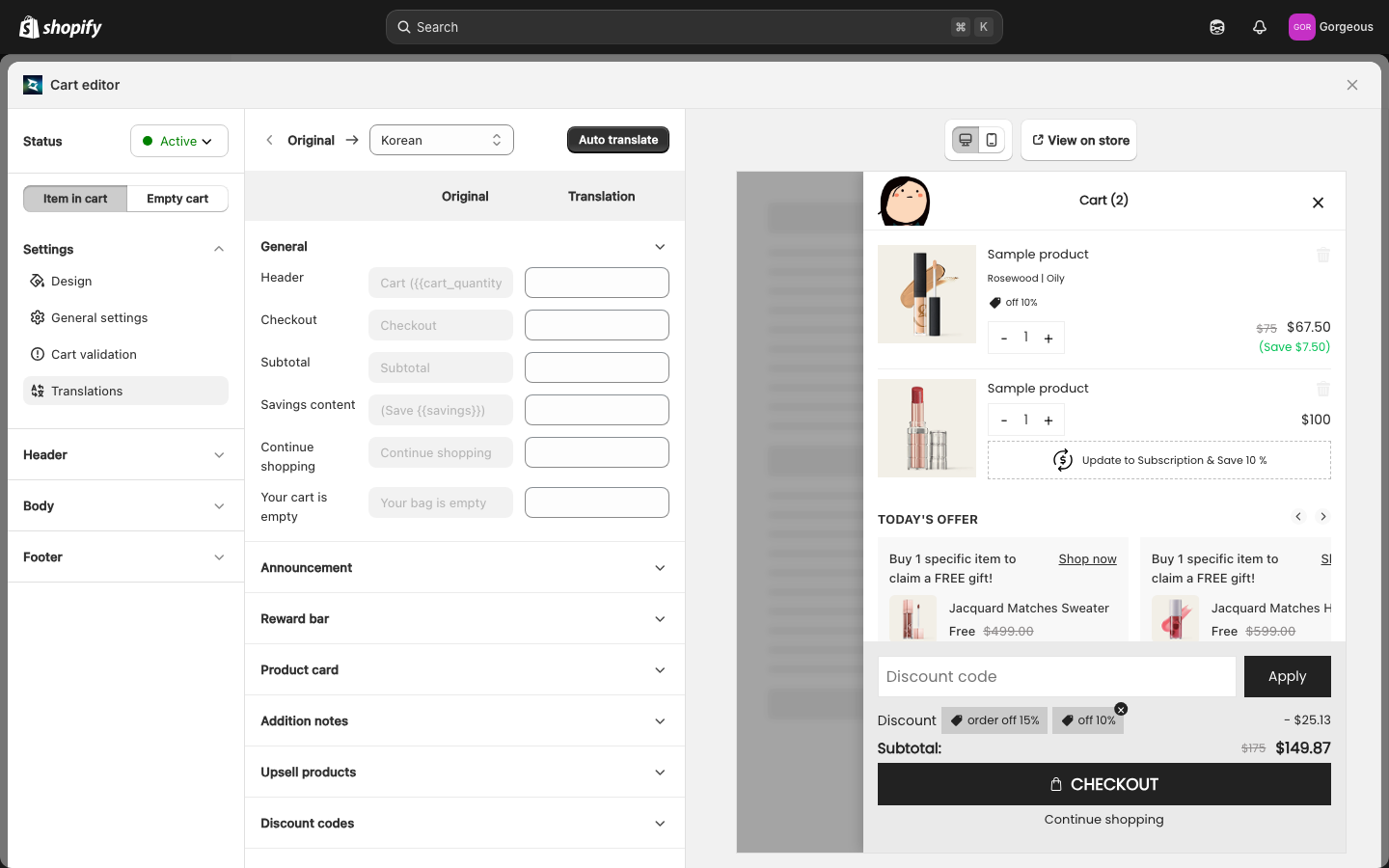
Open the Cart Editor. In the left panel, under the Settings group, select Translations.
Step 2: Pick a Language
Use the language selector to choose which locale you are editing. The Default language shows for reference. Each field lists the Original text next to its Translation.
Step 3: Edit the Text
Work through the field groups and type your wording in the Translation column. Strings are grouped by section (general fields, customized text, and feature-specific labels) so you can find what you need.
Step 4: Use Auto Translate (Optional)
To fill translations automatically, use Auto translate. The Auto translate button opens a menu with three scoped choices, plus there is a per-field button to translate a single line. Every Auto translate action runs for the language currently selected in the language picker.
The three menu options are:
- Translate empty fields: fills only the lines that have no translation yet. The menu shows how many are
{count} not translated. - Update out-of-date fields: re-translates only the lines whose source text changed after they were translated. The menu shows how many are
{count} changed since translated. - Re-translate everything...: re-translates every field. This is the only option that overwrites manual edits, so it opens a confirmation modal first (see below).
To translate a single line, click the wand icon button at the end of its row. It translates just that line into the selected language and fills in the Translation.
{{cart_quantity}} exactly as they are. The text around a variable is translated, but the {{ }} token itself is left untouched.Re-translate everything confirmation
When you choose Re-translate everything..., a confirmation modal titled Re-translate everything? appears. It warns that the action overwrites all translations for the selected language, including fields you edited by hand, and suggests using Translate empty fields or Update out-of-date fields instead if you want to keep your edits. Confirm with Re-translate all, or use Cancel to back out.
Out-of-Date and Missing Badges
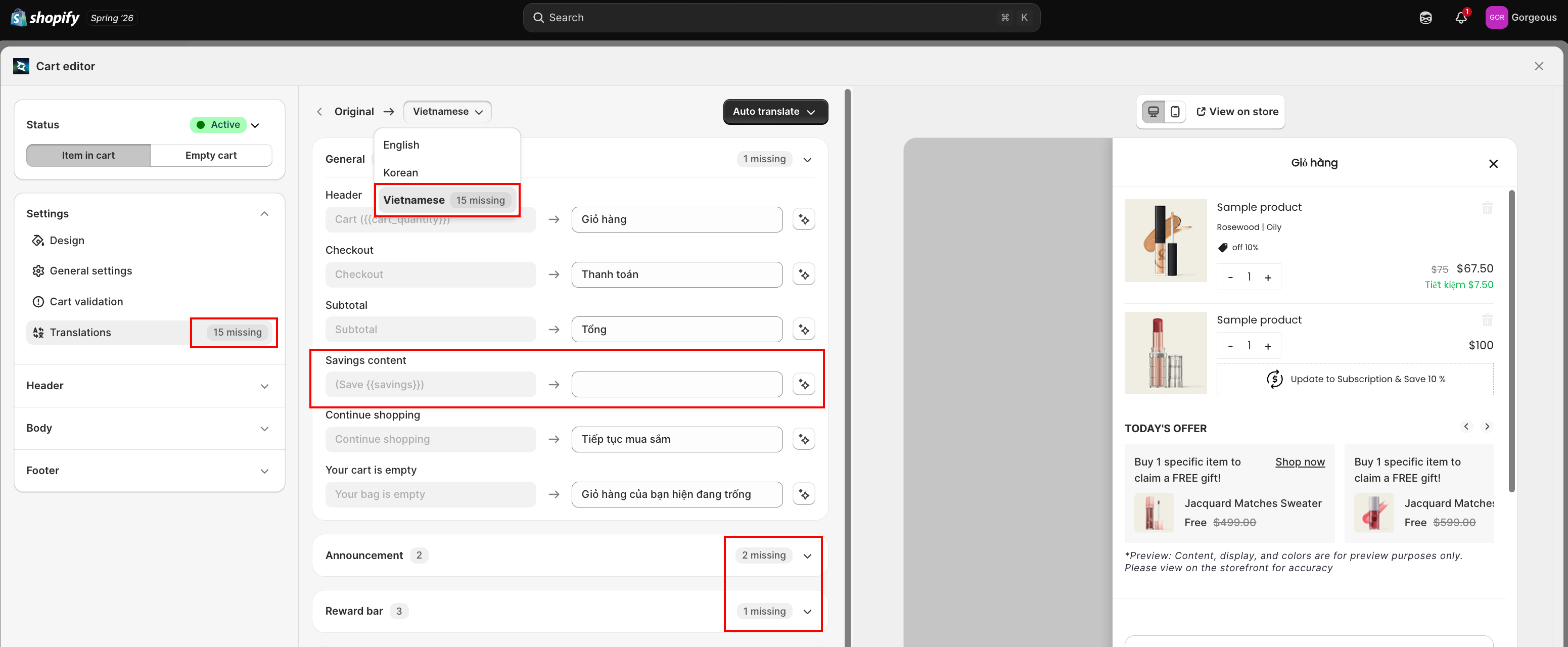
Once you have translated and saved at least one language, the app flags lines that need attention so you do not have to hunt for them by hand. Badges show up in a few places, each with its own scope:
- The Translations item in the left Settings menu shows a combined count across all of your languages.
- The language picker shows a separate count next to each language, counted for that language.
- The field group headers and individual field rows show badges for the language you are currently editing.
Two kinds of badge can show:
- Out of date: the source text changed after this line was translated. The badge on the field row reads Out of date. The menu and picker show a count such as
{count} out of date. - Missing: the line has no translation yet for this language. The menu and picker show a count such as
{count} missing.
To clear an Out of date badge, re-translate the line (with the wand icon button or with Update out-of-date fields) or edit the Translation yourself, then Save.
Troubleshooting
Q1: A language I need is not in the selector
The selector only lists languages published on your Shopify store. Add the language in Shopify's settings, then return here.
Q2: Auto translate is not available
Auto translate must be connected for your store. Use Reach out to us in the banner to request setup.
Q3: My translation does not show in the drawer
Confirm the shopper is browsing in that language and that you clicked Save. The drawer shows the Default language text for any field left blank.
Q4: A field shows an "Out of date" badge
The source text for that line changed after you translated it. Re-translate the line with the wand icon button or with Update out-of-date fields, or edit the Translation yourself, then click Save. The badge clears once the translation matches the new source text.
Q5: Auto translate changed a variable like {{cart_quantity}}
Auto translate is built to keep {{ }} variables untouched. If a variable looks wrong, edit the Translation by hand and click Save. Make sure the variable is written exactly as it appears in the Original column.