How to Set Up Your Cart Drawer
What Is the Cart Editor?
The Cart Editor is the central hub where you build every section of your slide-out cart drawer. The left panel lists all configurable sections; the right panel shows a live preview. Changes you make are reflected instantly in the preview before you save.
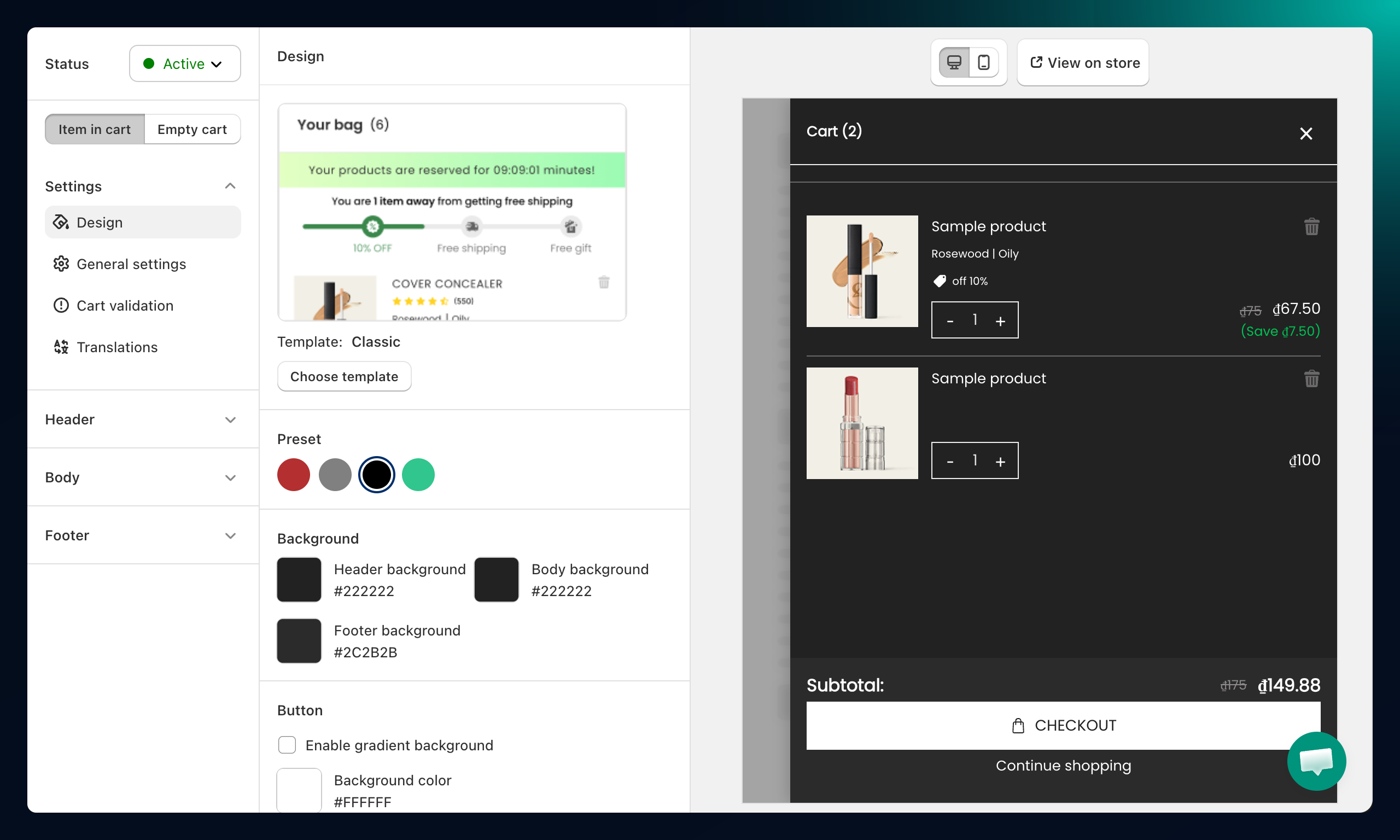
The left panel is divided into four areas:
- Settings — General settings, Design, Cart Validation, Translation
- Header — Header title, logo, font
- Body — Product card, Slide cart offer, Milestone bar, Announcements, Upsell products, Rewards bar, Addition notes, Import Blocks
- Footer — Gift wrap, Shipping protection, Discount codes, Subtotal, Customized text, Checkout button, Express payments, Trust badges
Before You Start
- The AOV.ai Cart Drawer app must be installed and active in your Shopify admin.
- Your Shopify store should have at least one product so the cart preview can display items.
Setup Walkthrough
Step 1: Open the Cart Editor
From the Shopify admin, open AOV.ai Cart Drawer in the left sidebar. Click Cart Editor.
Step 2: Configure General Settings
Click General settings under Settings in the left panel.
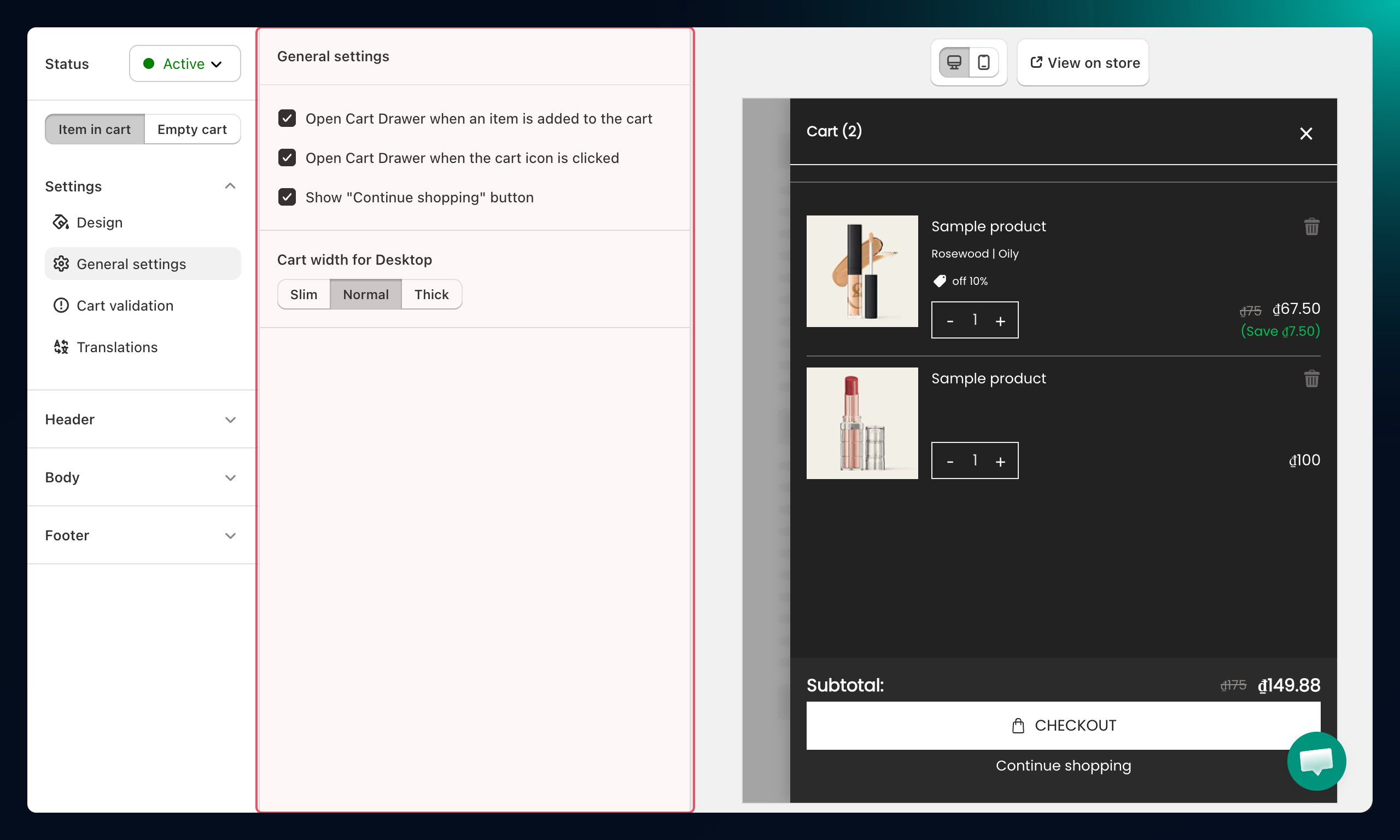
- Open Cart Drawer when an item is added to the cart — The drawer slides open automatically after a customer adds a product.
- Open Cart Drawer when the cart icon is clicked — The drawer opens when a customer clicks the theme's cart icon.
- Show "Continue shopping" button — Adds a close button to the drawer.
- Cart width for Desktop — Choose Slim, Normal, or Thick to control how wide the drawer appears on desktop.
Empty cart settings control what customers see when their cart has no items:
- Empty cart message — Text displayed when the cart is empty (for example, Your cart is empty).
- Continue shopping label — The button label that redirects customers back to your store.
- Destination — Choose All collections page or Other page (enter a custom URL).
Step 3: Configure Each Section
Use the left panel to navigate between sections. Each section has its own guide:
Settings
- Design — Color scheme, templates, custom CSS
Header
- Header — Cart title, logo, font
Body
- Product Card — Variant display, reviews, images, price labels
- Announcements — Text banners, countdown timers, rotating messages
- Upsell Products — AI, best-sellers, or manual product recommendations
- Rewards Bar — Tiered spending or quantity milestones
- Addition Notes — Order note field for gift messages or special instructions
Footer
- Gift Wrap — One-click gift wrapping add-on
- Shipping Protection — One-click shipping protection add-on
- Subtotal & Checkout — Subtotal display, checkout button, view cart button
- Customized Text — Rich text block with optional mandatory checkbox
- Express Payments — Accelerated checkout buttons (Shop Pay, PayPal, Apple Pay)
- Discount Codes — In-drawer promo code input
- Trust Badges — Payment and security icons
Step 4: Preview and Save
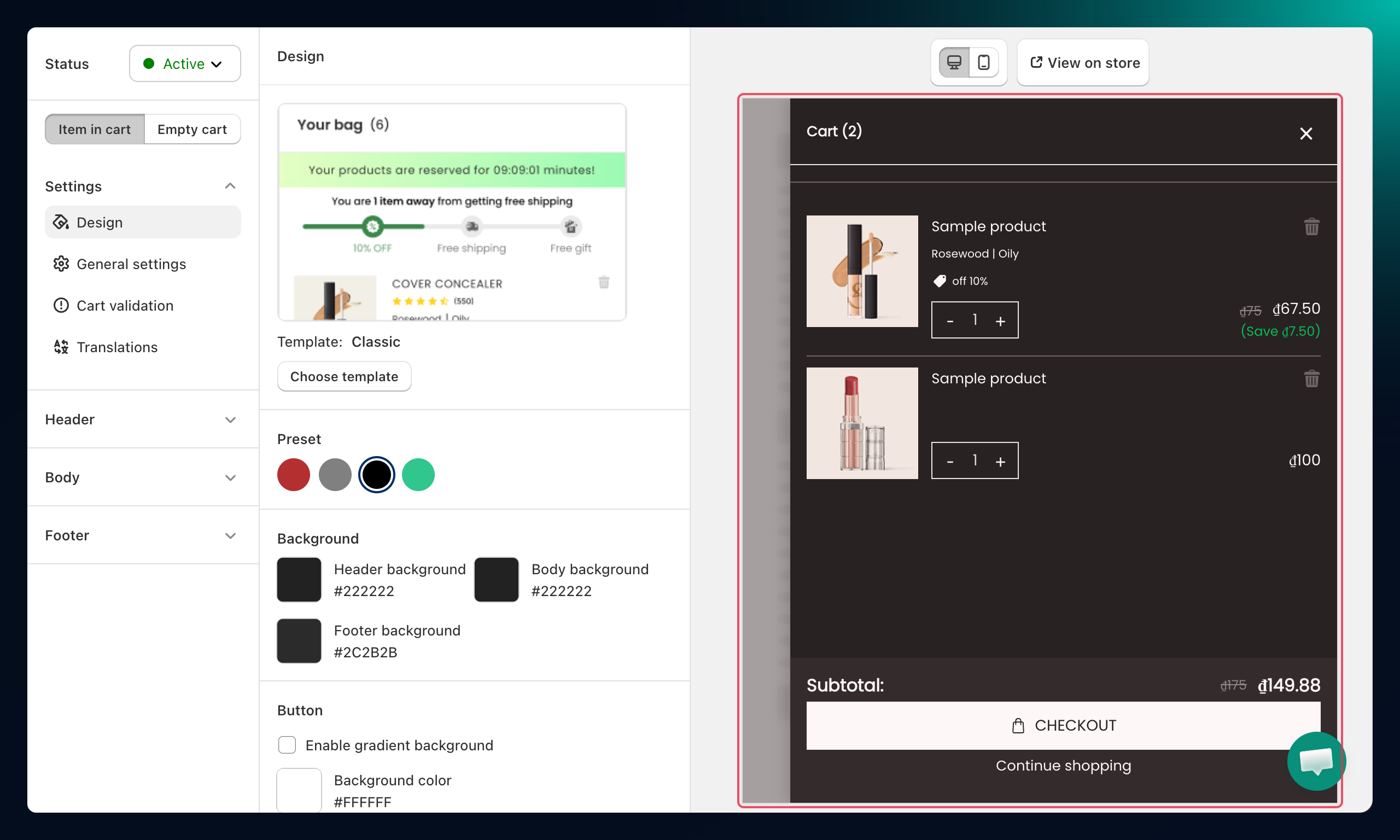
Click Preview Cart at the top of the editor to open a full-page preview on your live storefront. When you are satisfied, click Save to apply all changes.
Troubleshooting
Q1: The cart drawer doesn't open when I click the cart icon
Make sure Open Cart Drawer when the cart icon is clicked is toggled on in General settings. Also confirm the app is enabled in Shopify's theme editor under App embeds.
Q2: My changes don't appear on the storefront
Click Save after making changes — the live preview in the editor is separate from the published store. A hard refresh (Cmd+Shift+R or Ctrl+Shift+R) on the storefront clears cached styles.
Q3: The empty cart message doesn't show
Verify the Empty cart message field is filled in under General settings and that you saved after entering it.