Addition Notes
What Is It?
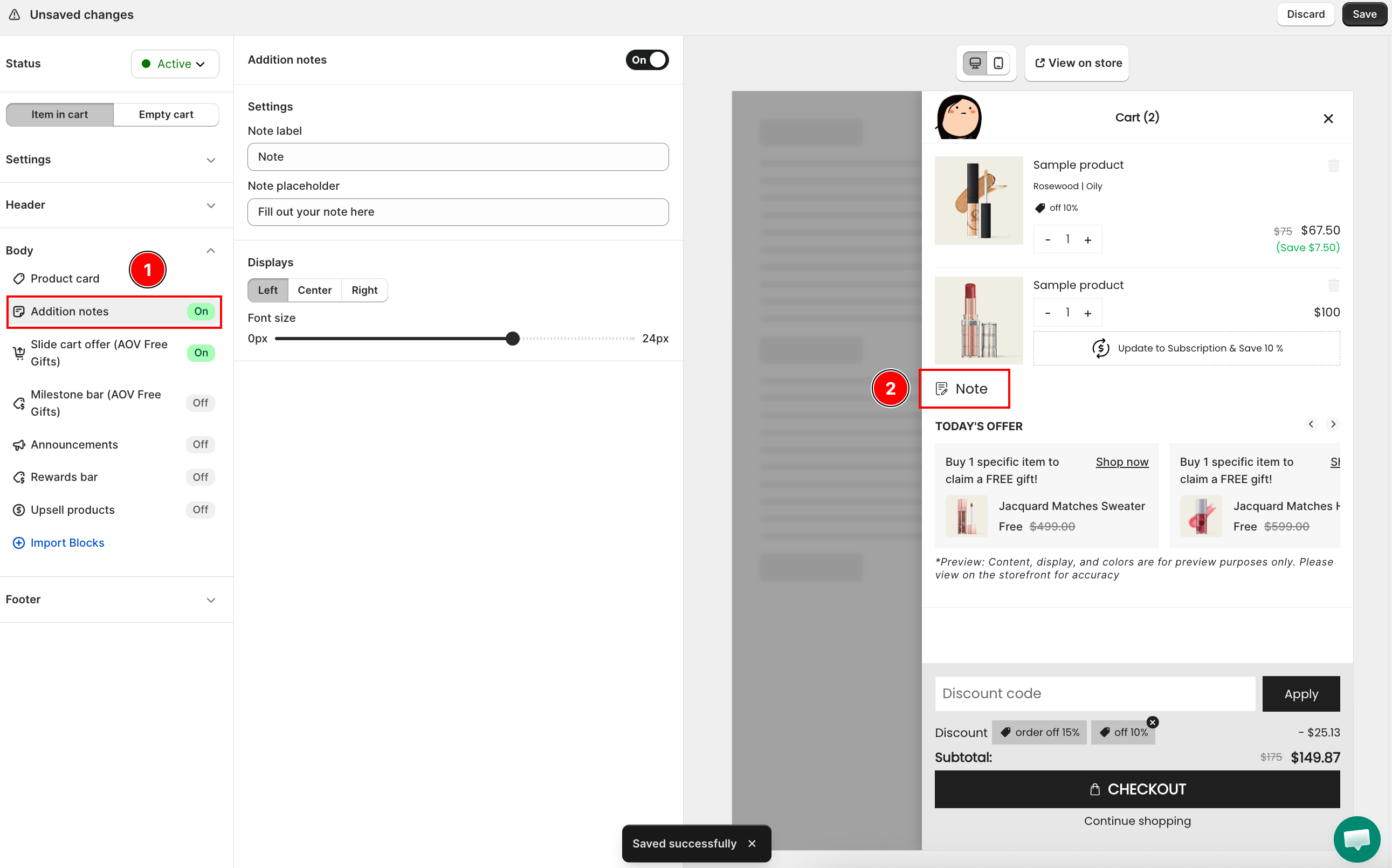
Addition Notes adds an order note field inside the cart drawer so shoppers can leave instructions before checkout. Customers can type gift messages, delivery requests, or any special handling notes, and the note travels through to the order. On the Classic template, the field shows directly in the cart body.
When to Use It
- You want shoppers to leave gift messages or personalization details with their order
- You sell products that often need special delivery or handling instructions
- You want to capture order-level notes without sending customers to a separate page
Setup Walkthrough
Step 1: Open Addition Notes Settings
From the Cart Editor, click Addition notes under Body in the left panel, then toggle it on to show the note field in the drawer.
Step 2: Set the Note Label
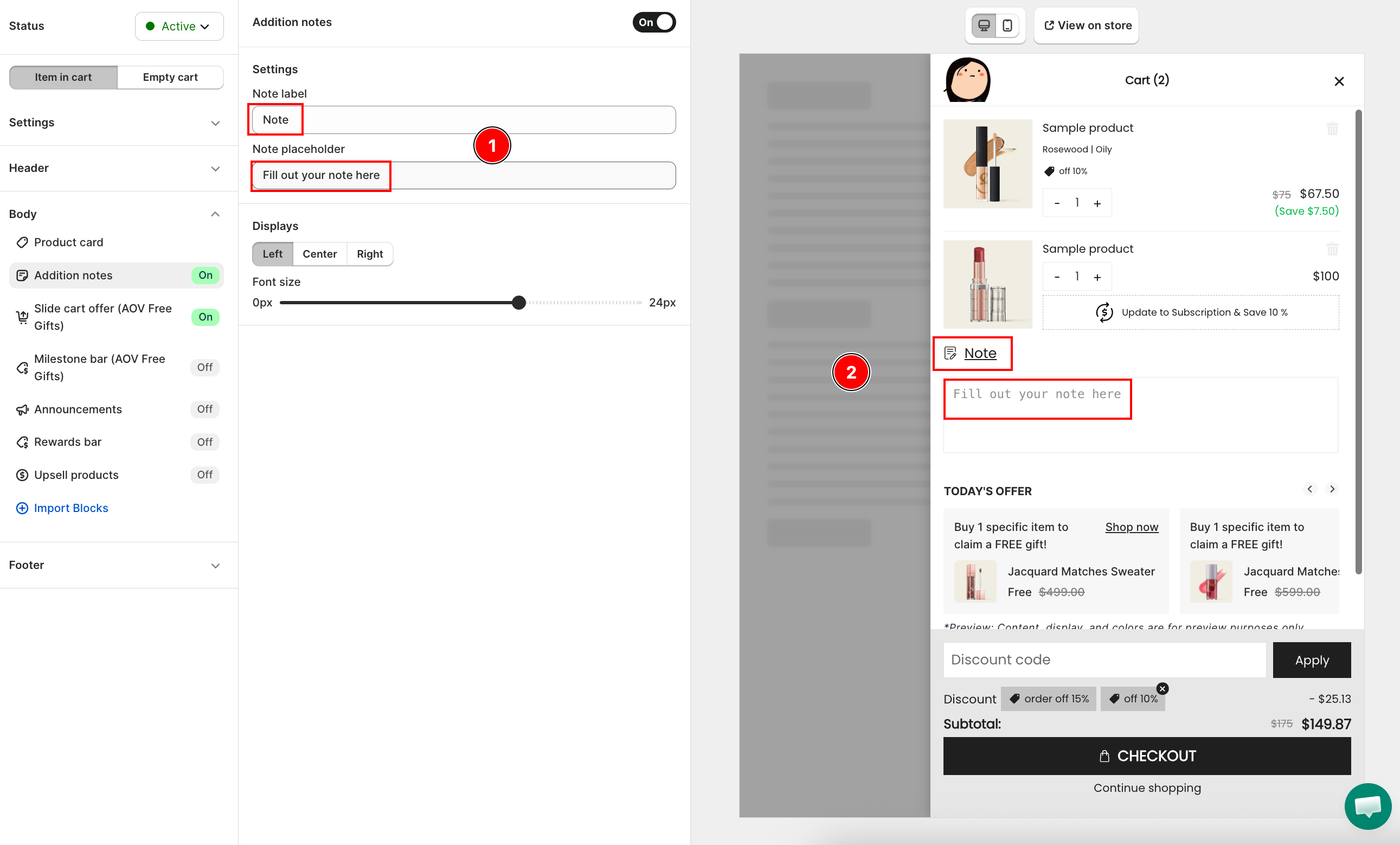
Under Settings, enter the Note label. This is the heading shown above the note field (for example, Add a note to your order).
Step 3: Set the Note Placeholder
Enter the Note placeholder: the greyed-out hint text shown inside the empty field (for example, Special instructions for your order).
Step 4: Choose the Alignment
Under Displays, pick how the note section aligns: Left, Center, or Right.
Step 5: Adjust the Font Size
Drag the Font size slider to set the text size for the note section, from 0px to 24px.
Troubleshooting
Q1: The note field does not appear in my drawer
Confirm the toggle at the top of the Addition notes panel is on, then click Save. If the toggle is off, the note field is hidden from shoppers.
Q2: I do not see the alignment and Font size options
The Displays section (alignment and Font size) shows on the Classic template, where the note field sits in the cart body. If your cart uses a different template, these options may not be available.
Q3: The placeholder text shows but customers cannot type anything
The placeholder is only hint text and disappears when a customer types. If the field is not editable, re-open the Cart Editor, toggle Addition notes off and on, then click Save to refresh the section.