How to Set Up the Header
What Is the Header?
The Header is the top section of your cart drawer. It displays the cart title — and optionally your store logo — so customers immediately know what they are looking at when the drawer opens.
Setup Walkthrough
Step 1: Open Header Settings
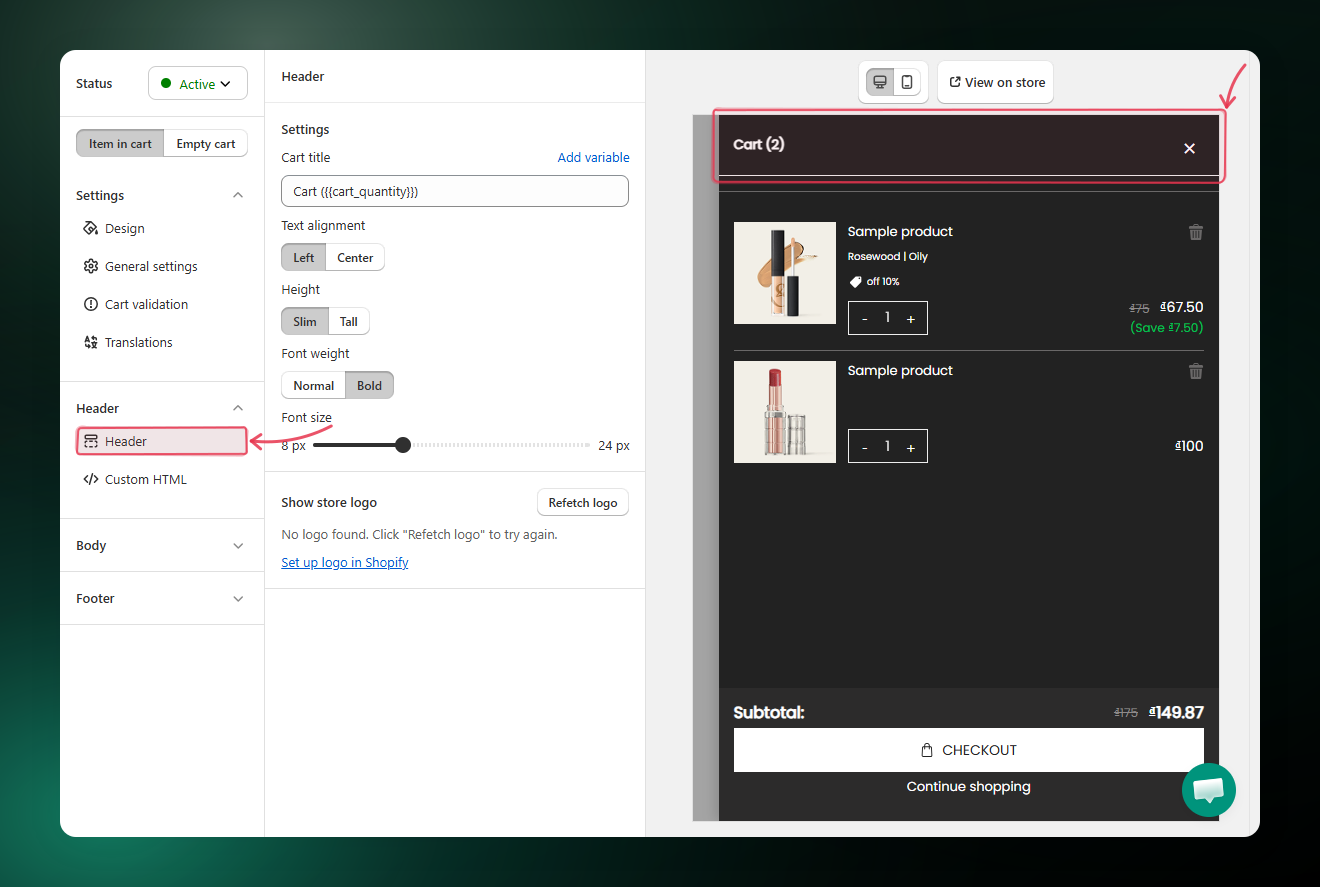
From the Cart Editor, click Header under Settings in the left panel. The header settings appear on the left, with the live preview on the right.
Step 2: Set the Cart Title
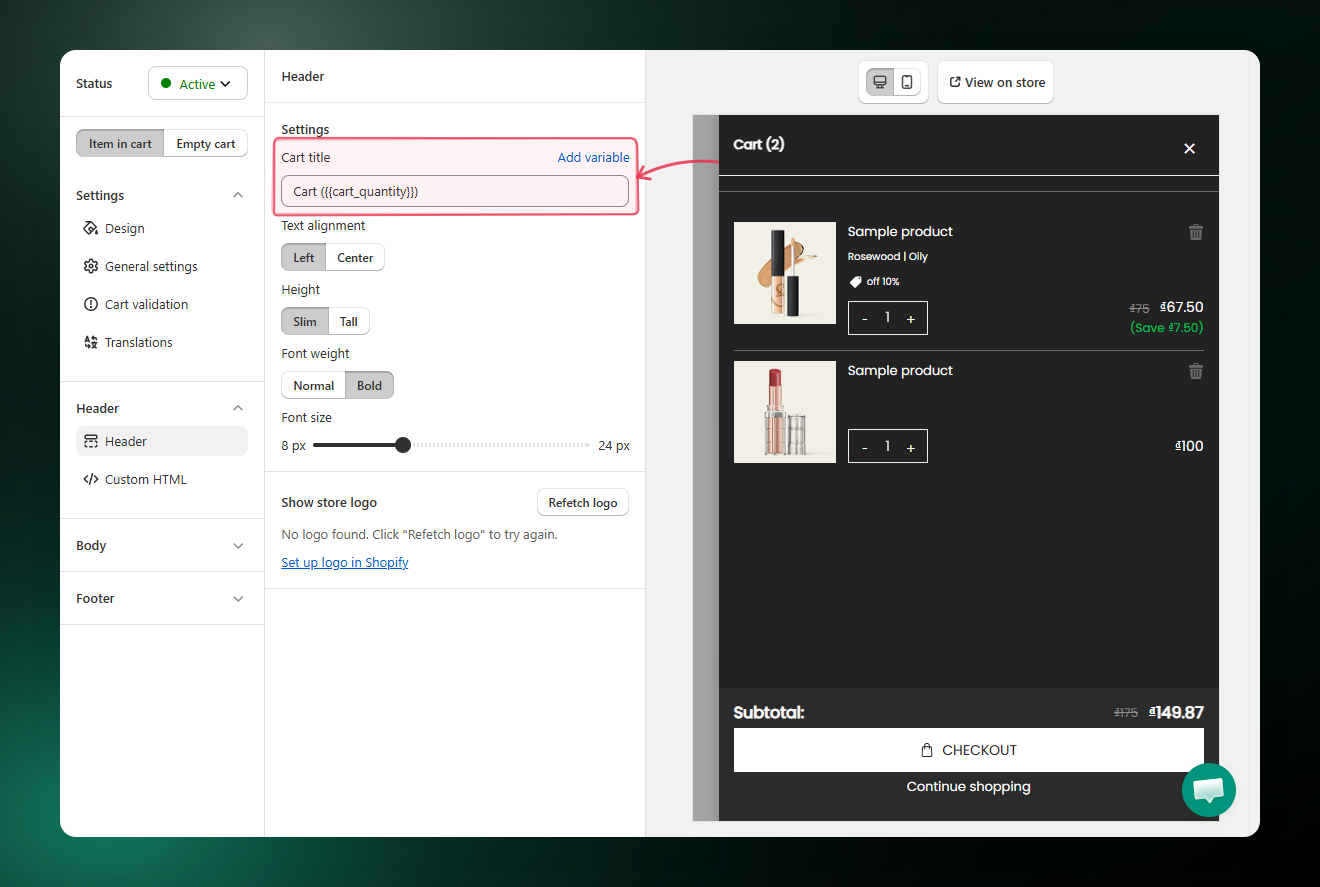
The Cart title is the text that appears at the top of the open drawer.
- Enter the text you want to display in the Cart title field.
- Optionally click Add variable and insert
{{cart_quantity}}to include a live item count in the title (for example, Your cart (3)).
Step 3: Set the Text Alignment
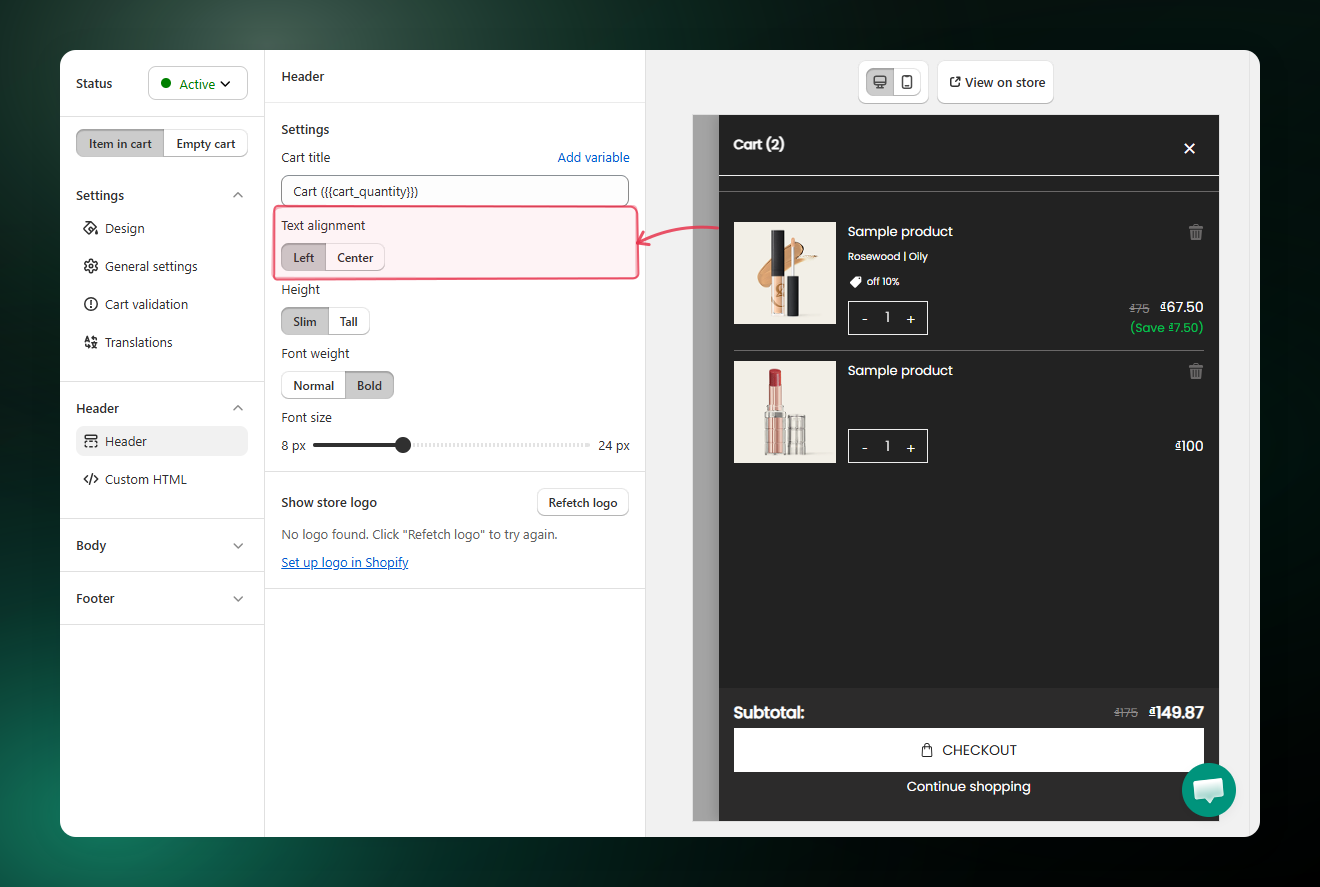
Choose where the title sits horizontally in the header.
| Option | Result |
|---|---|
| Left | Title aligns to the left edge |
| Center | Title sits in the middle |
Step 4: Set the Font Weight
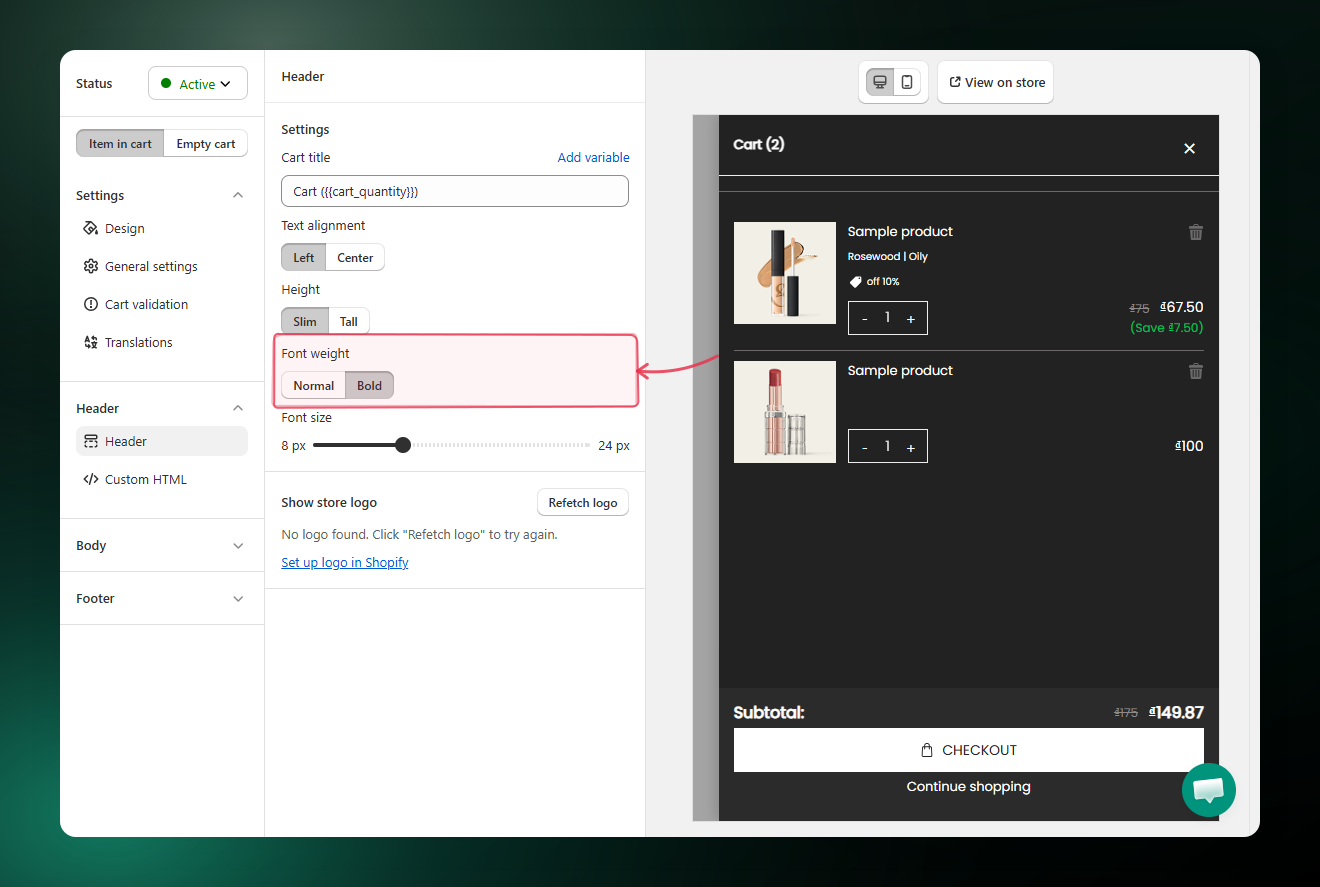
| Option | Result |
|---|---|
| Normal | Standard weight, lighter look |
| Bold | Heavier weight, stronger emphasis |
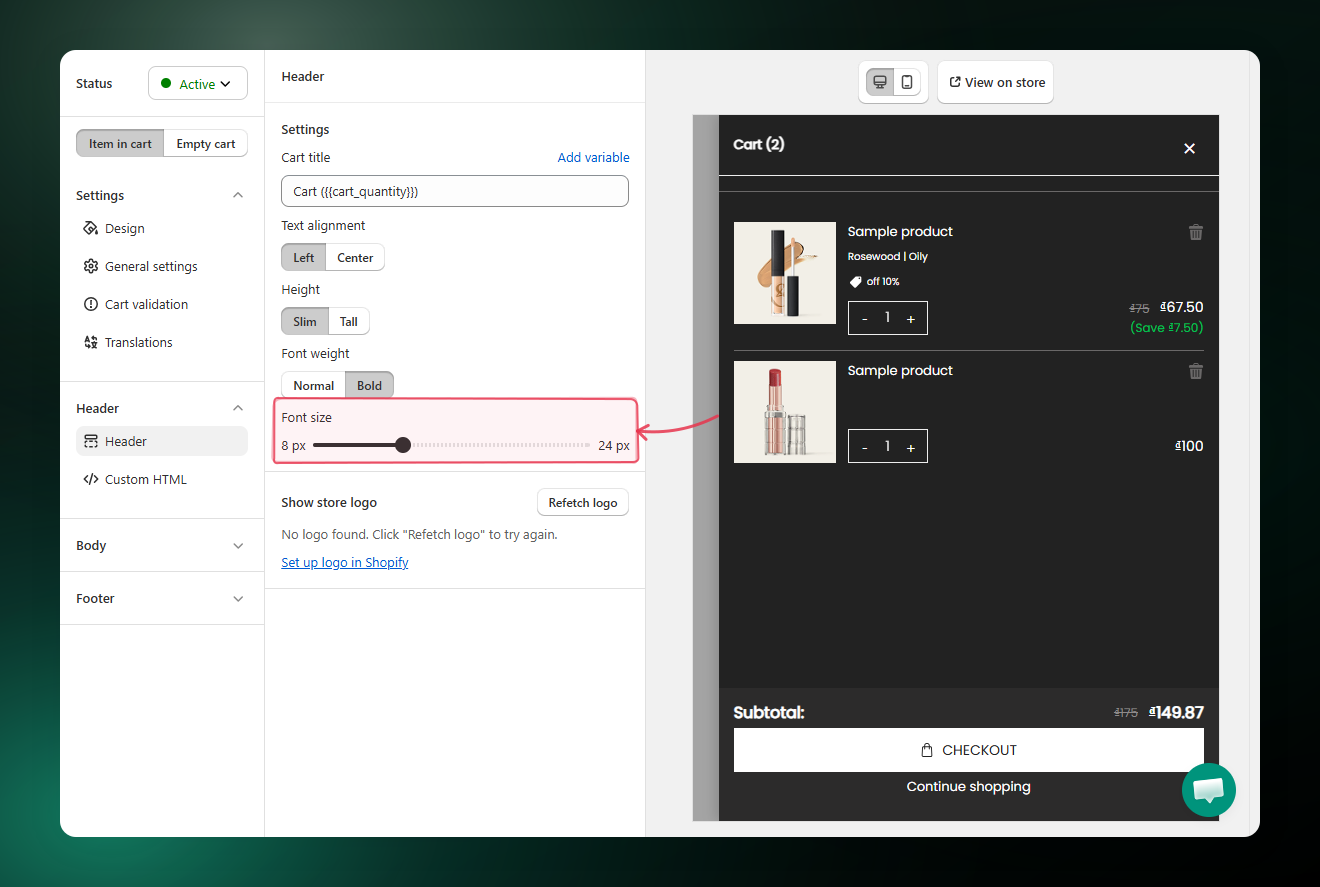
Step 5: Adjust the Font Size
Drag the Font size slider between 8 px and 24 px. Use the live preview to find the size that fits your design.
Step 6: Optionally Show the Store Logo
Toggle Show store logo to display your store's logo in the header. The app automatically detects and displays your logo from your Shopify theme -- no manual upload needed.
Use the Logo size slider to adjust how large it appears.
If no logo appears after enabling the toggle, click Refetch logo to pull it again, or click Set up logo in Shopify to configure your logo in the Shopify theme editor first.
Troubleshooting
Q1: The logo doesn't appear after I toggle it on
Click Refetch logo. If it still doesn't appear, your Shopify theme may not have a logo set. Go to Online Store > Themes > Customize and add your store logo there, then come back and click Refetch logo.
Q2: The cart_quantity variable shows 0
{{cart_quantity}} reflects the actual number of items in the cart. If the cart is empty, it shows 0. Add a product to the cart to test the live count.