Customized Text
What Is It?
Customized text is a free-form line you can show above the checkout button in the cart drawer. Use it for tax and shipping notes, store policies, or a short reassurance message. You can also turn it into a required agreement by adding a checkbox shoppers must tick before they can check out.
When to Use It
- You need a tax or shipping disclaimer above the checkout button
- You want shoppers to agree to your Terms and Conditions before checkout
- You want a short, styled note (bold, italic, link) right where shoppers decide to buy
Setup Walkthrough
Step 1: Open Customized Text
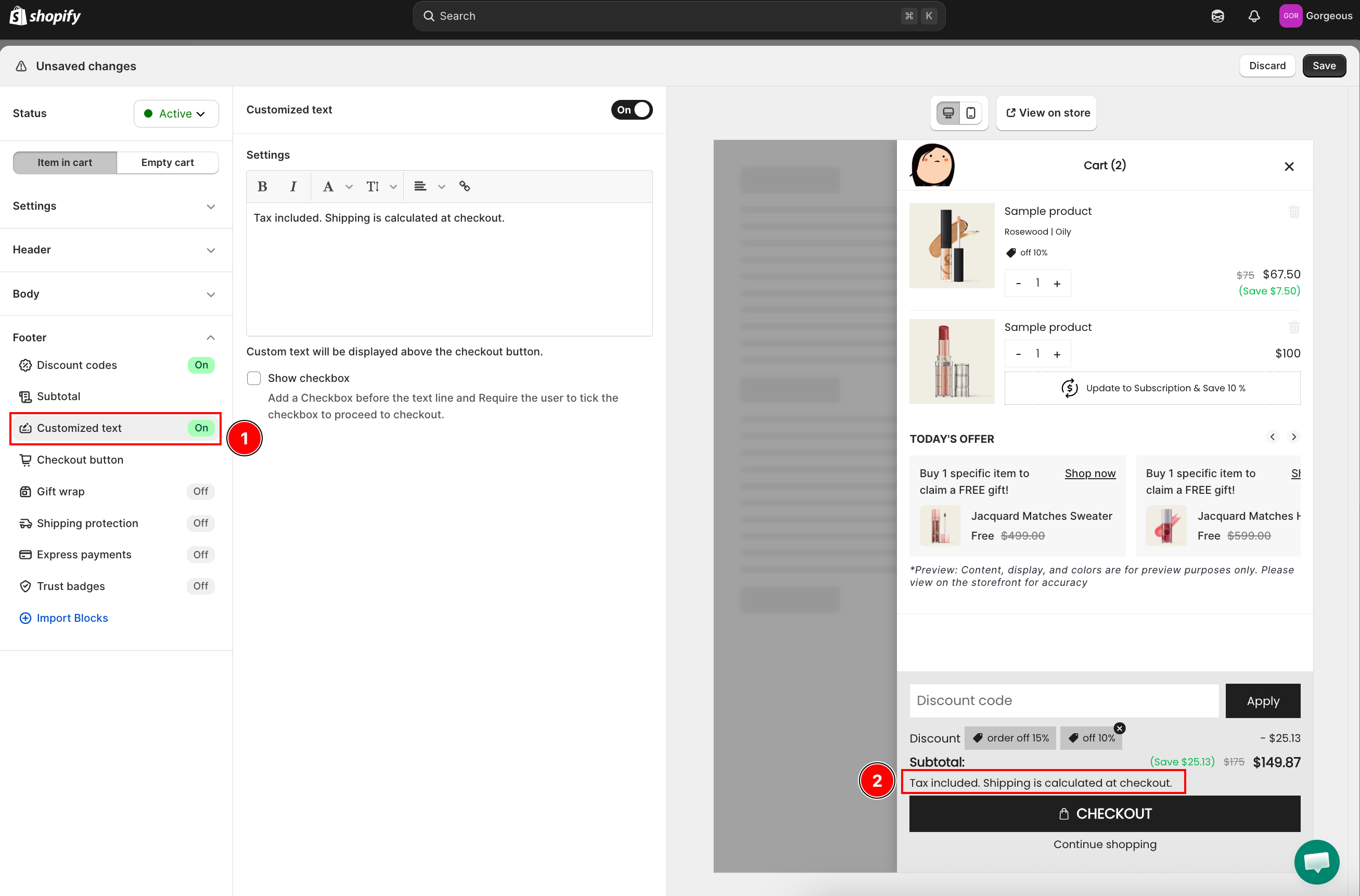
From the Cart Editor, click Customized text under Footer in the left panel.
Step 2: Turn On Customized Text
Use the toggle at the top of the section to show the customized text in the drawer.
Step 3: Write Your Text
Under Settings, type your message in the rich text editor. The toolbar lets you set bold, italic, font, font size, alignment, and a link. The helper note reads: "Custom text will be displayed above the checkout button."
Step 4: Add a Required Checkbox (Optional)
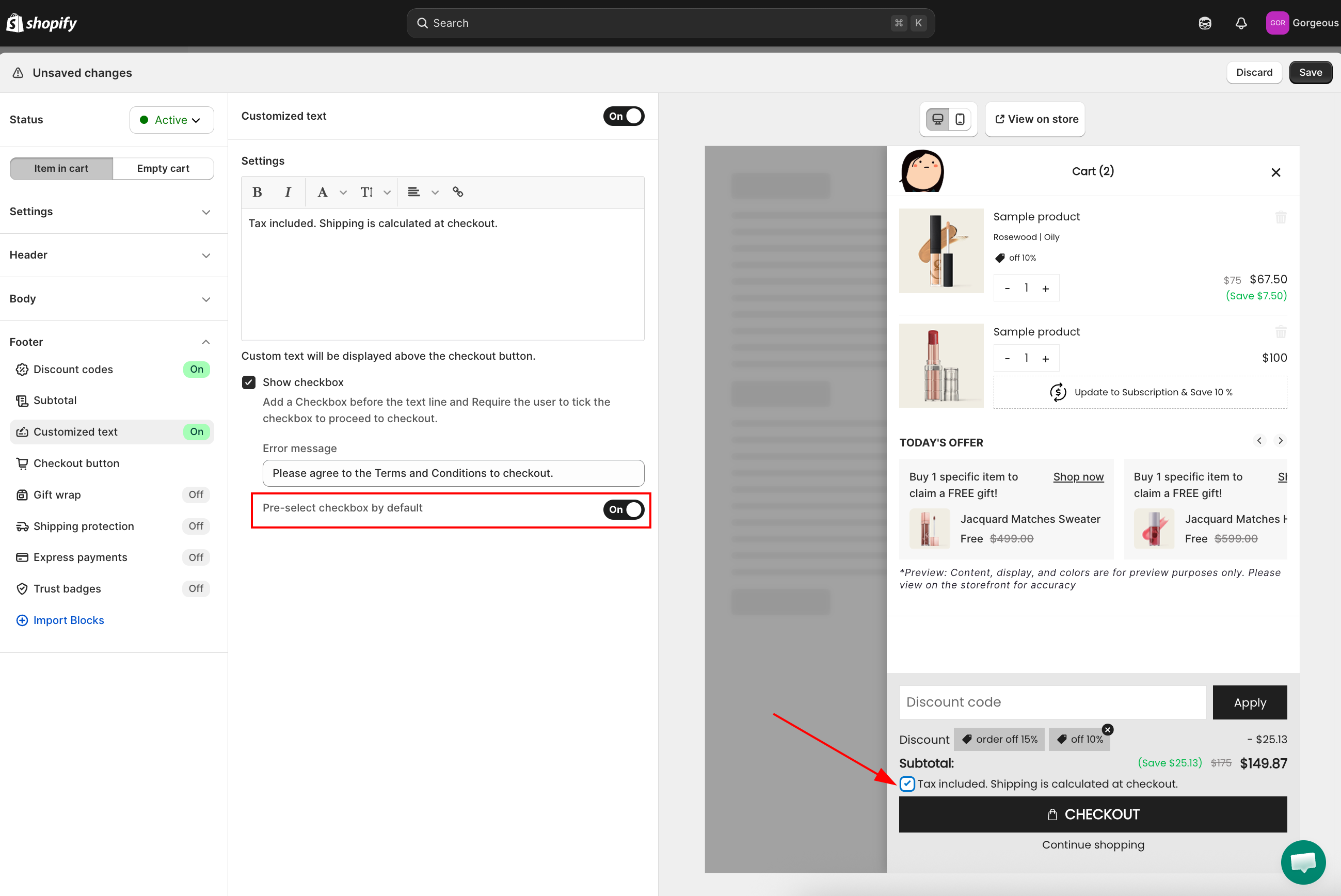
Tick Show checkbox to require agreement before checkout. Its description reads: "Add a Checkbox before the text line and Require the user to tick the checkbox to proceed to checkout."
Step 5: Set the Error Message
When the checkbox is on, fill in the Error message field. This is shown if a shopper tries to check out without ticking the box.
Step 6: Pre-Select the Checkbox (Optional)
Toggle Pre-select checkbox by default if you want the box ticked when the drawer opens. Shoppers can still untick it.
Troubleshooting
Q1: My text does not appear in the drawer
Confirm the Customized text toggle at the top of the section is on, and that the editor is not empty.
Q2: Shoppers can check out without agreeing
Make sure Show checkbox is ticked. The checkbox is what blocks checkout until the shopper agrees; the text alone is informational.
Q3: The error message does not show
The Error message field only appears (and applies) when Show checkbox is on. Enable the checkbox first, then enter the message.
Q4: My formatting (bold or link) is lost
Re-apply the styling with the editor toolbar (bold, italic, font, font size, align, link) rather than pasting pre-styled text, then save again.