Milestone Bar (AOV Free Gifts)
What Is It?
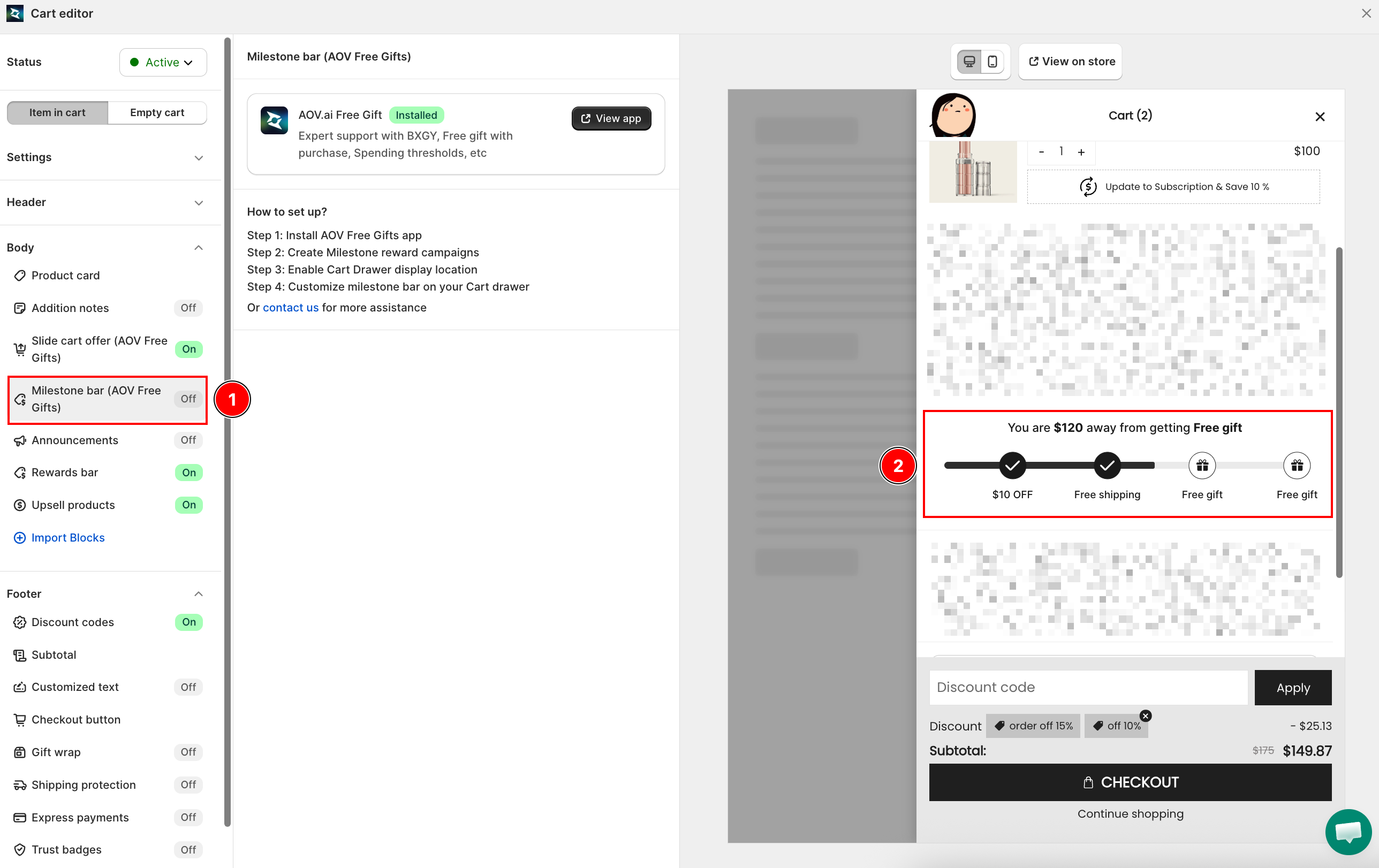
The Milestone Bar displays a progress bar inside the cart drawer that tracks how close a customer is to reaching a reward milestone -- such as a free gift, a discount, or free shipping. It is powered by the AOV.ai Free Gift app.
When to Use It
- You have milestone reward campaigns (spending thresholds) set up in AOV.ai Free Gift and want them visible inside the cart drawer
- You want a visual progress indicator to motivate customers to add more items to qualify for a reward
This feature requires the AOV.ai Free Gift app to be installed. If it is not installed, this section shows an Install app button that takes you to the Shopify App Store.
Setup Walkthrough
Step 1: Install AOV.ai Free Gift
From the Cart Editor, click Milestone bar under Body. If the app is not installed, click Install app to go to the Shopify App Store and install AOV.ai Free Gift.
Step 2: Create Milestone Reward Campaigns
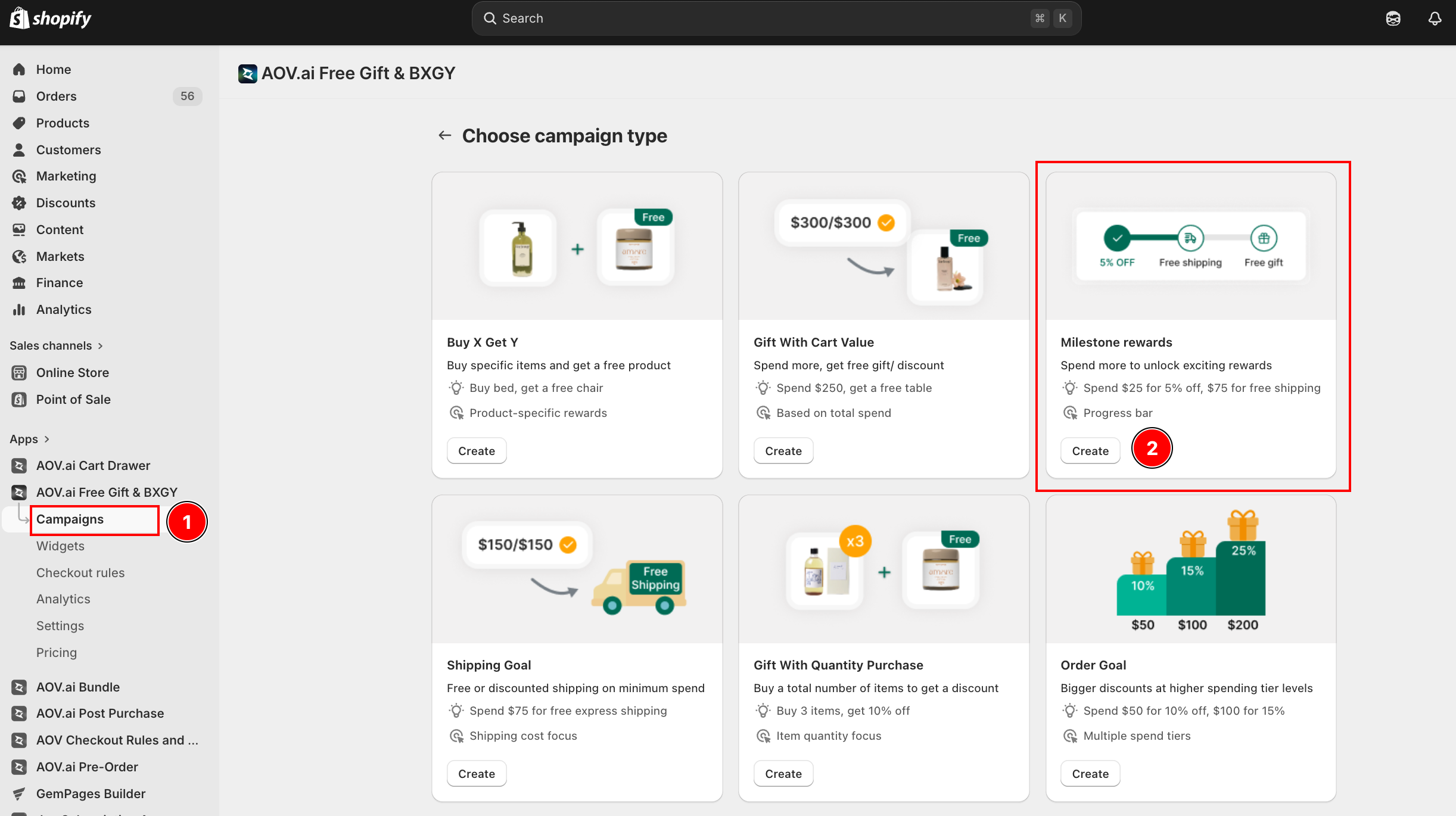
Open the AOV.ai Free Gift app and create one or more Milestone reward campaigns with your desired spending thresholds and rewards.
Step 3: Enable the Cart Drawer Display Location
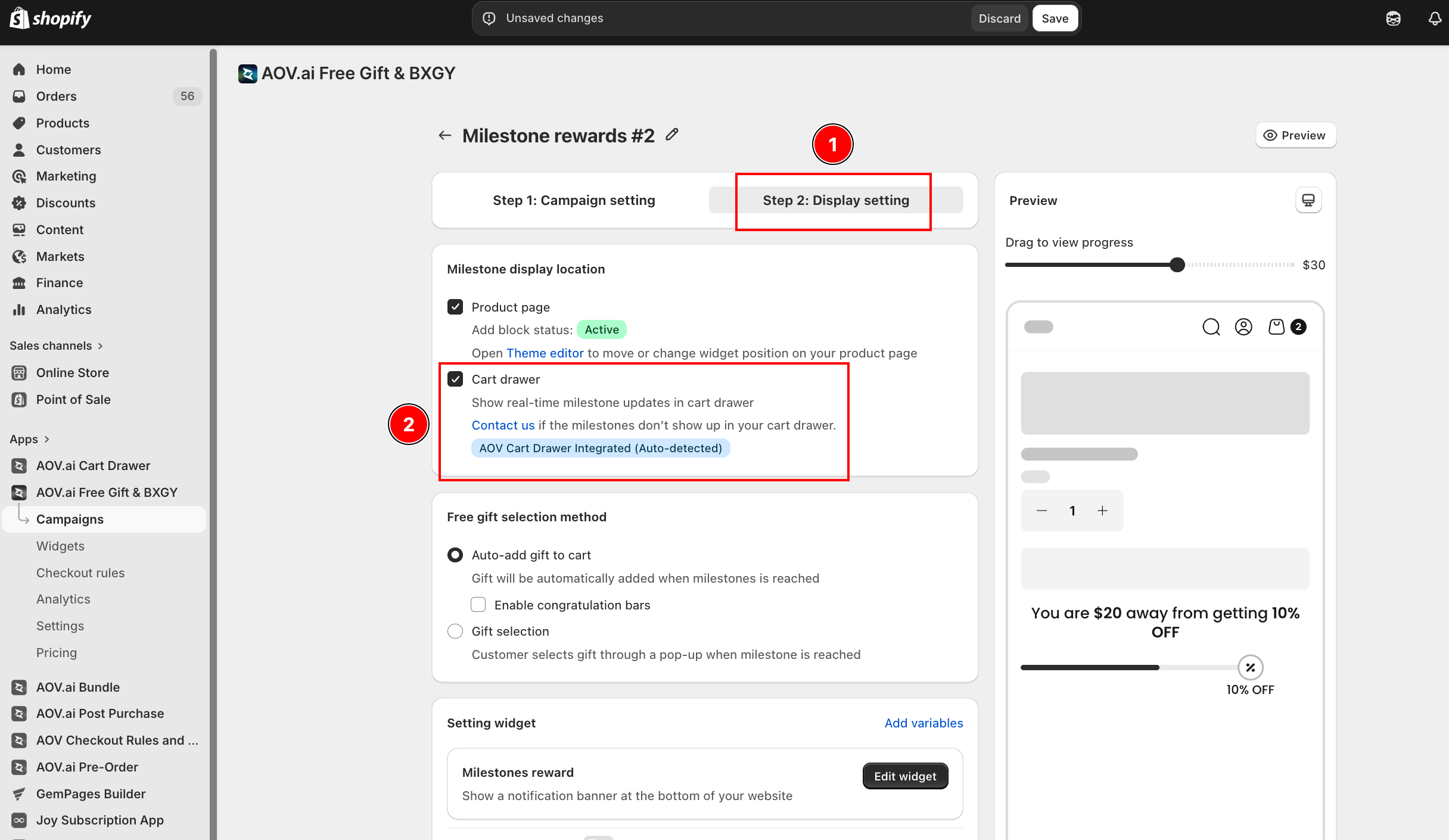
In AOV.ai Free Gift, find the display location settings for your milestone campaign and enable the Cart Drawer location.
Step 4: Customize the Milestone Bar
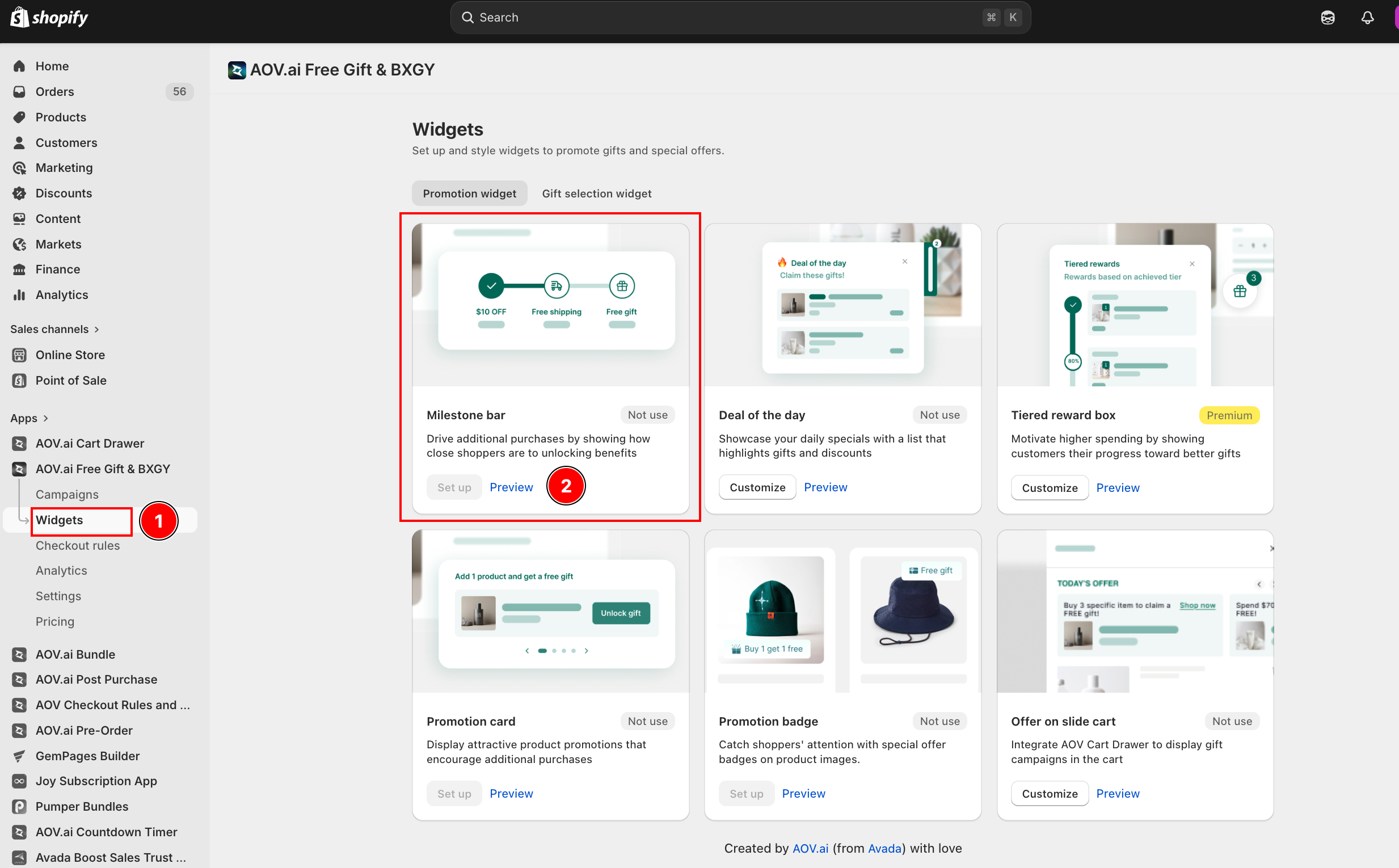
In AOV.ai Free Gift, go to Widgets and click Edit widget next to Milestones reward to customize how the milestone bar looks in the cart drawer.
Troubleshooting
Q1: The milestone bar does not appear in the drawer
Make sure the AOV.ai Free Gift app is installed, a Milestone reward campaign is active, and the Cart Drawer display location is enabled in that campaign. If it still does not appear, click Contact us inside the Milestone bar section for direct support.
Q2: The section shows "Not installed"
Install the AOV.ai Free Gift app from the Shopify App Store, then return to the Cart Editor -- the status will update to "Installed" automatically.