Child Product List Widget
What It Controls
The Child product list widget shows the component products contained inside a Product Fixed Bundle. It appears on the bundle's own product page (when Show products included in bundle is enabled in the offer) so customers can see exactly what they're getting.
The styling here applies to every Product Fixed Bundle in your store.
How to Open It
In AOV.ai Bundle Upsell, click Widget display in the left sidebar, then click Setup on the Child product list card.
What You Can Customize
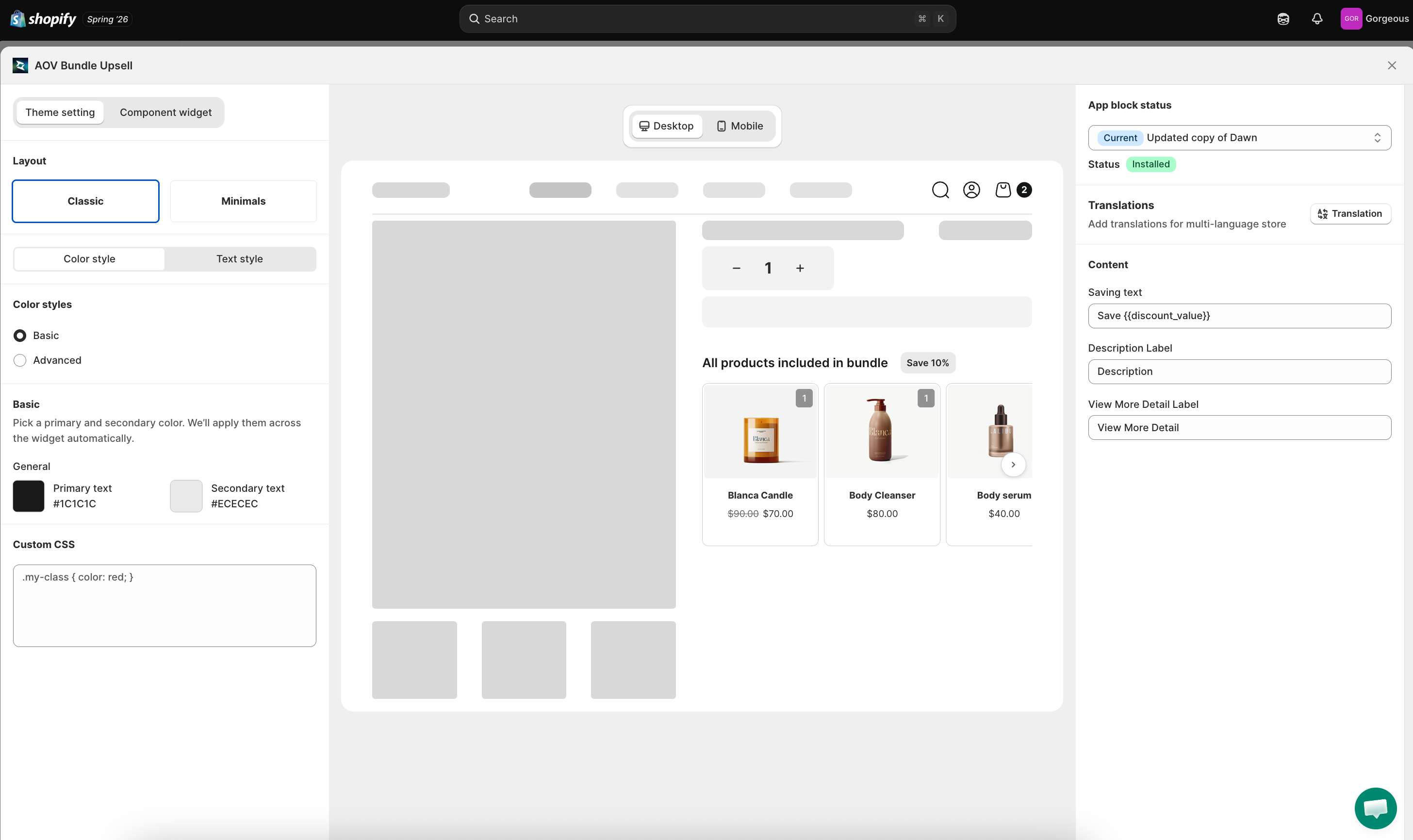
The setup modal has two top tabs:
- Theme setting: layout, colors, content labels (default tab)
- Component widget: sub-widget configuration for individual product cards
Theme Setting Tab
Layout (2 templates)
Pick the visual layout of the product list:
- Classic: standard product cards in a row, each with image, title, and price (default)
- Minimals: compact, minimal layout for tight product page space
Sync theme color
Auto-match widget colors to your Shopify theme. If it's locked due to a theme conflict, click Check my theme to request an unlock review.
Color and text settings are split into two tabs.
Color style tab
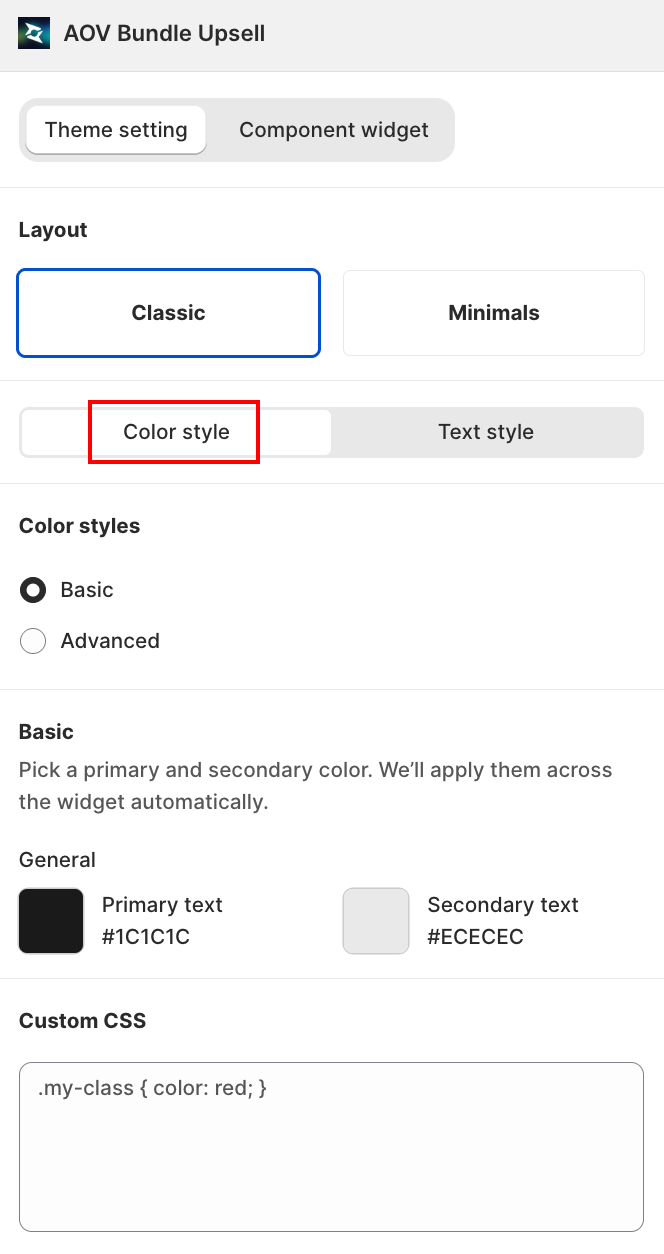
- Basic: pick a primary and secondary color.
- Primary text: default
#1C1C1C - Secondary text: default
#ECECEC
- Primary text: default
- Advanced: granular per-element control.
Text style tab
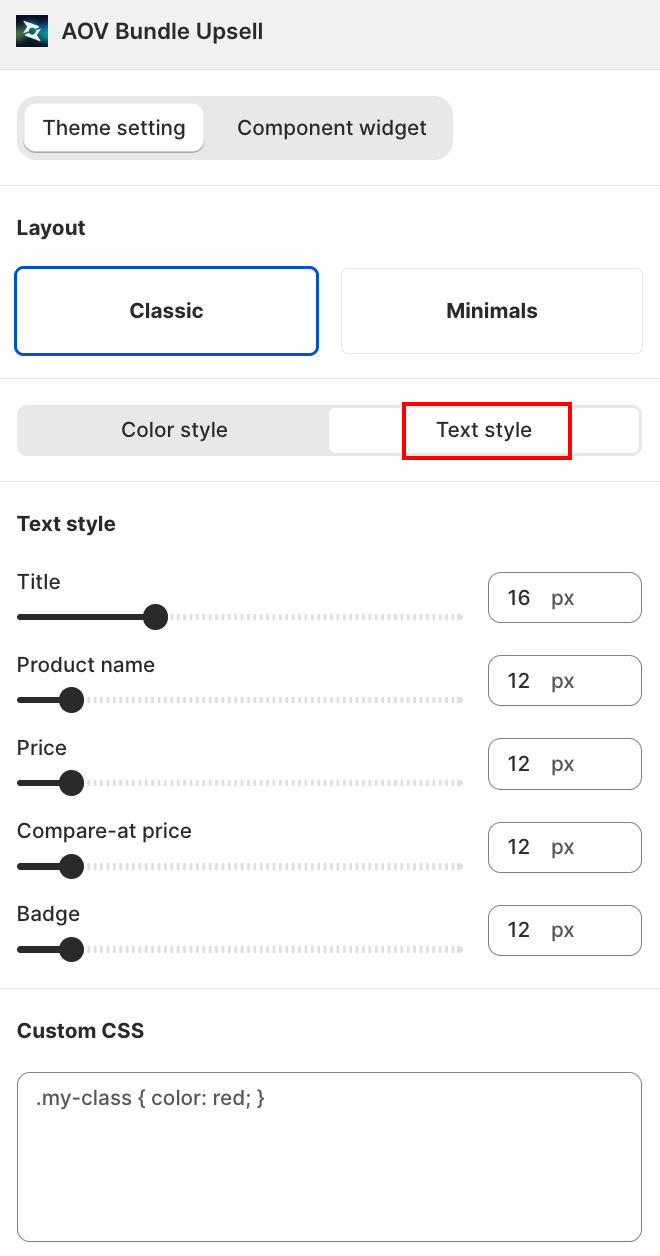
A slider + number field (10px to 30px) for each text element:
| Field | Controls |
|---|---|
| Title | The "All products included in bundle" heading |
| Product name | Each component product's name |
| Price | Each component product's price |
| Compare-at price | Each component product's struck-through original price |
| Badge | The savings badge next to the title |
Content (Right Column)
The Content section is short because this widget is mostly visual:
| Field | Default | Notes |
|---|---|---|
Saving text | Save {{discount_value}} | Badge shown next to the bundle title; supports the {{discount_value}} template variable so the actual discount amount renders dynamically |
Description Label | Description | Section label if you choose to show product descriptions |
View More Detail Label | View More Detail | Link/button label for expanding a product card |
Available Template Variables
{{discount_value}}: automatically renders the bundle's actual discount value (e.g., "Save 10%" or "Save $20") based on the offer's discount method
Live Preview
The center column shows the widget rendered on a mock bundle product page:
- A header reading All products included in bundle with a Save 10% badge to the right
- A horizontal product card row showing each component product (image, title, price)
- A scroll arrow indicator if more products extend beyond the viewport
Toggle Desktop / Mobile to verify both screen sizes.
When the Widget Appears
The Child product list widget only renders when:
- The Product Fixed Bundle offer has Show products included in bundle toggled on (in the offer's setup form)
- The theme app block is enabled (status shows Installed in the right-side App block status panel)
If the widget isn't appearing on a bundle's product page, check both of these conditions.
Save
Changes save automatically. Close the modal with the X in the top-right when you're finished.
Related
- Product Fixed Bundle how to set up: where you enable the "Show products included in bundle" toggle
- Sync theme color: how auto-match works
- App Embed and Theme Integration: if the widget isn't rendering