App Embed and Theme Integration
Why This Page Matters
Without theme integration, no AOV.ai Bundle Upsell widget will render on your storefront, no matter how many offers you create. This is the single most important onboarding step. If you only read one setup page, read this one.
Walkthrough Video
A 26-second walkthrough: Bundle home → Shopify Theme Editor → enable AOV Bundle in App embeds.
The Two Concepts: App Embed vs. App Blocks
Shopify's Online Store 2.0 themes have two separate extension points, and AOV.ai Bundle Upsell uses both.
| Concept | What it is | What it controls |
|---|---|---|
| Theme app embed | A theme-level toggle for an app | Loads the AOV.ai Bundle Upsell JavaScript and styles into your theme so any widget block can work |
| App blocks | Per-section blocks you drop into a template | Renders a specific widget (AOV Volume Discount, AOV Frequently Bought, AOV Bundle Builder, AOV Mix Match Bundle, AOV Child Product List, AOV Product Recommend) on a specific page |
Both are required. The embed is a one-time toggle per theme. App blocks are added per widget per page template.
Step 1: Enable the AOV.ai Bundle Upsell Theme App Embed
This is the Enable app task in the Setup guide on the home dashboard.
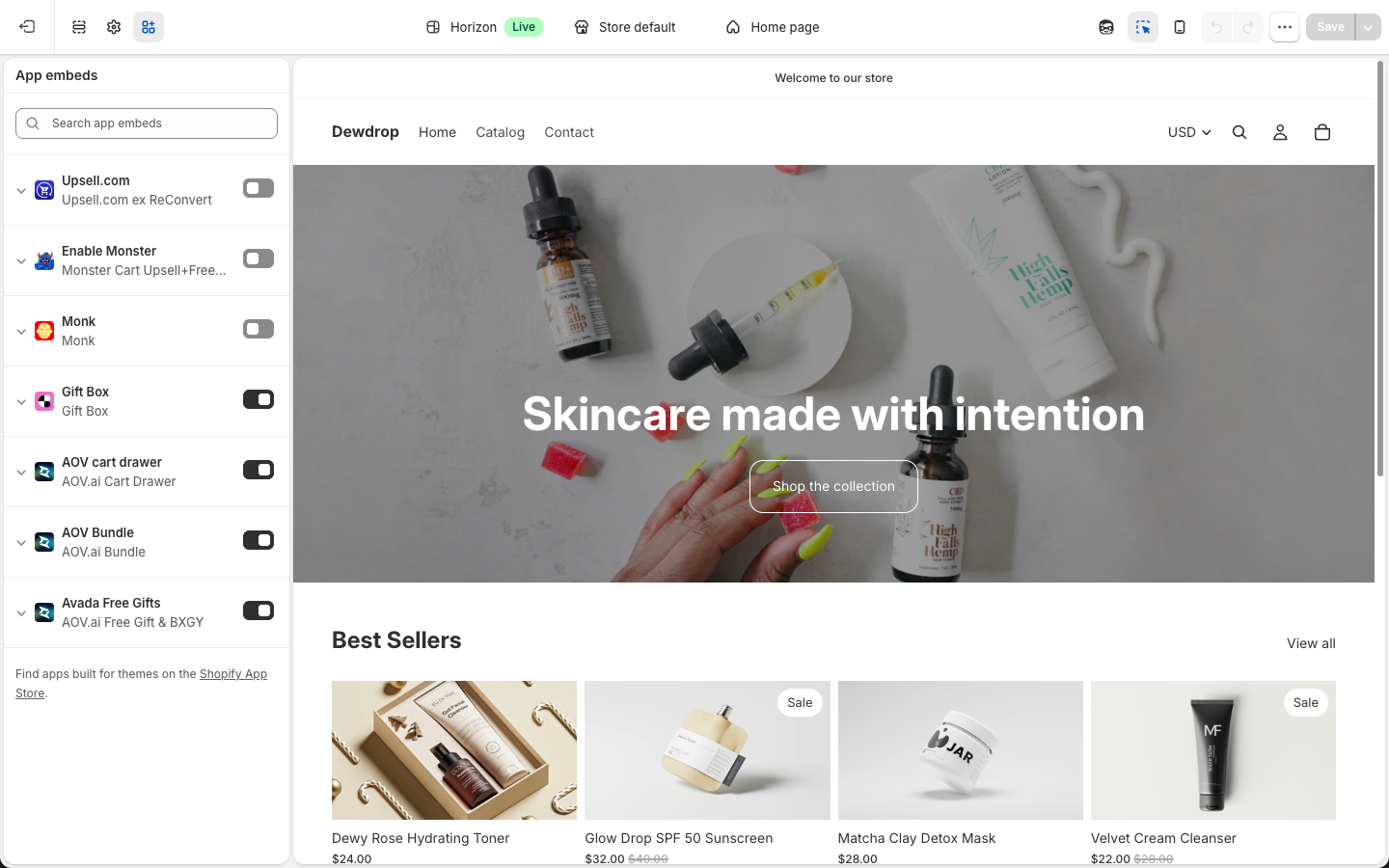
- From the Shopify admin, open AOV.ai Bundle Upsell
- On the home dashboard, find Enable app embed on theme. Click Enable app in the Setup guide (or the inline link)
- Shopify's theme editor opens with the App embeds tab pre-selected on the left
- Find AOV Bundle in the embeds list
- Toggle it on
- Click Save in the top-right of the theme editor
After saving, the home dashboard's Enable app embed on theme badge flips to Active.
Step 2: Add the Widget App Block to the Right Product Page Section
For each widget you want to use, add the matching app block to a product page section.
| App block name (in theme editor) | Used by which offer type | Where to add it |
|---|---|---|
| AOV Volume Discount | Volume Discount | Product page, near the variant pickers or Add-to-cart button |
| AOV Frequently Bought | FBT offers | Product page, below the product description |
| AOV Bundle Builder | Bundle Builder | Product page (the bundle's own product), main content area |
| AOV Mix Match Bundle | Mix-and-Match Bundle | Product page (the bundle's own product), main content area |
| AOV Child Product List | Product-Fixed Bundle | Product page (the bundle's own product), often below the description |
| AOV Product Recommend | Product Recommendation | Product page, near the product description or Add-to-cart button |
How to Add an App Block
- In Shopify admin, open Online Store → Themes → Customize
- Use the page selector at the top to switch to the Product template (or the specific product template the offer applies to)
- In the left sidebar, click the section where you want the widget (e.g., Product information)
- Click Add block
- Choose the relevant AOV.ai Bundle Upsell widget from the Apps group (e.g., AOV Volume Discount)
- Drag the block to the position you want
- Click Save
Shortcut from Inside the Widget Setup
Each widget setup screen in Widget display has a right-side App block status card that reads either:
- Status: Not installed: click Add block to deep-link straight into the theme editor with that block pre-selected
- Status: Installed: you're good to go
Use this shortcut when you're setting up widgets one at a time. Saves you a couple of clicks per widget.
Common Issues
| Symptom | Likely cause | Fix |
|---|---|---|
| Widget doesn't appear on the storefront | Theme app embed is off | Re-do Step 1 |
| Widget doesn't appear on a specific product page | App block not added to that template, or added to the wrong section | Re-do Step 2 for that page |
| Widget appears in an awkward spot | App block dragged into the wrong section position | Open theme editor, drag the block higher or lower |
| Widget renders but offer isn't active | Offer Status is set to Draft, or schedule is outside its window | See Status, Schedule, and activation |
| Widget colors clash with theme | Widget styling is using defaults | See Sync theme color and the per-widget styling pages under Widget display |
| App embed disappears after a theme change | The new theme doesn't have the embed enabled yet | Re-do Step 1 on the new theme |
Note: when you switch themes (during a redesign or A/B test), the embed and app blocks don't transfer automatically. Re-enable on the new theme before publishing.
Verifying Integration
After enabling the embed and adding blocks, check:
- Home dashboard: Enable app embed on theme shows Active
- Home dashboard: Active app blocks counter is greater than 0
- Storefront: navigate to a product the offer applies to and confirm the widget renders
- Inside the offer: Status is set to Active, schedule is in window
Next Steps
- Quick Start: the 4-task setup walkthrough
- Widget display Overview: style the widgets once they're wired up
- Choosing an offer type: pick which offer type (and therefore which widget) to start with
- Status, Schedule, and activation: when a wired-up widget still doesn't show