Choosing an Offer Type
What This Page Is About
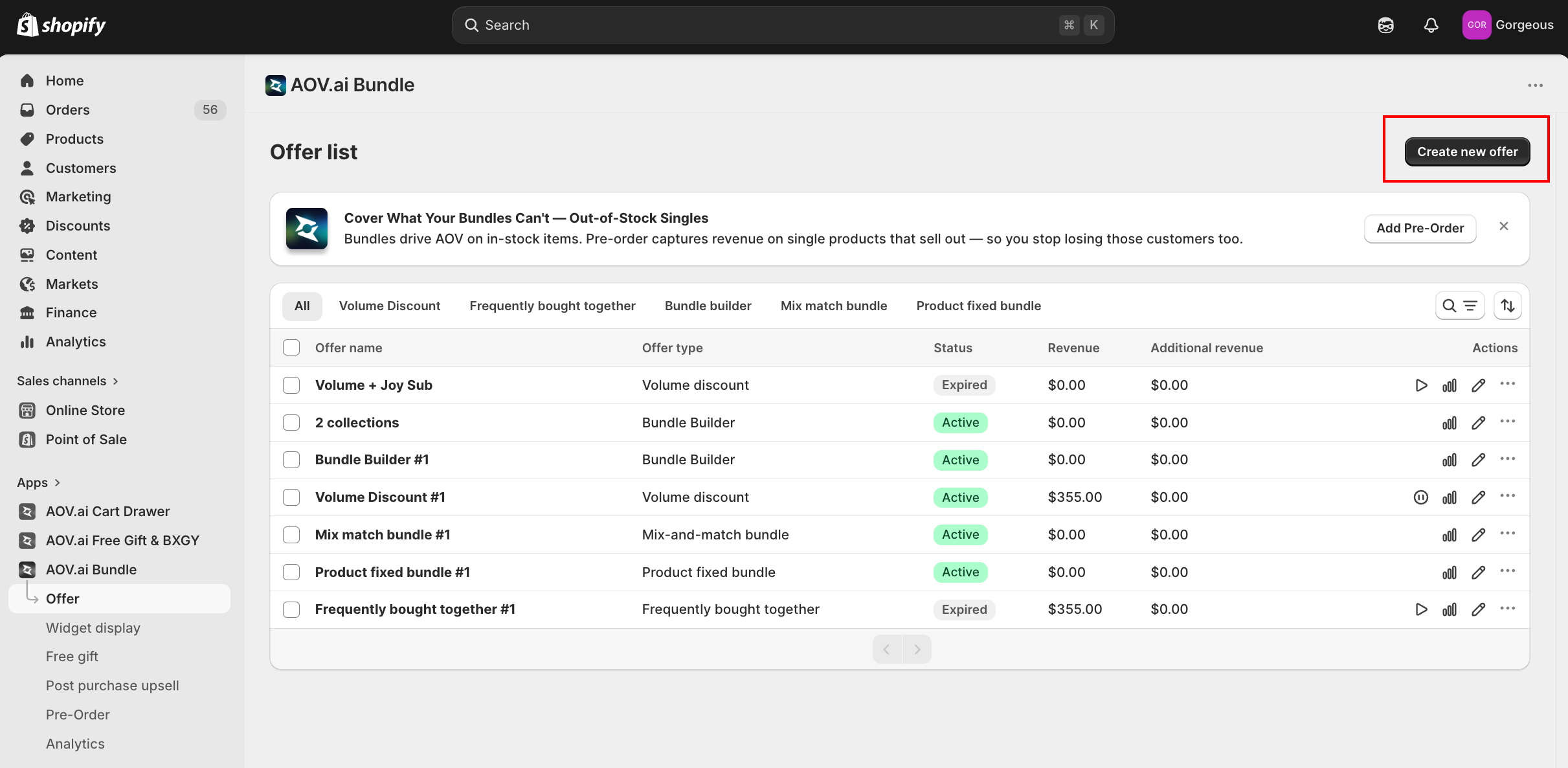
When you click Create new offer in the AOV.ai Bundle Upsell app, the first thing you see is the Select offer type screen. This page helps you decide which offer type to pick based on what you want to achieve, what you sell, and how you want customers to interact with the bundle.
How to Open It
From the Shopify admin, open AOV.ai Bundle Upsell in the left sidebar. Click Offer, then click Create new offer in the top-right.
What You'll See
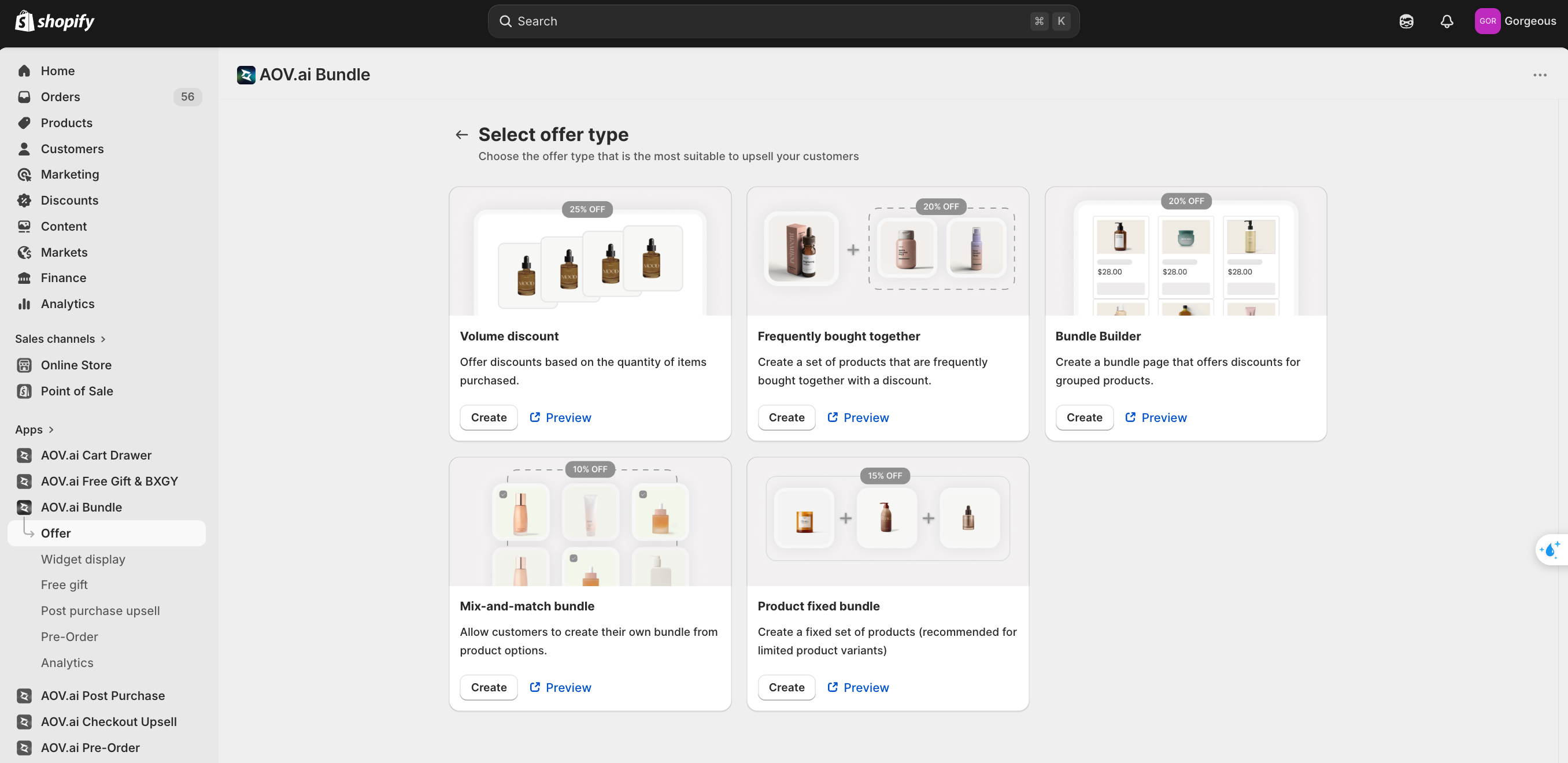
The chooser shows 6 native offer types:
| Card | What it does |
|---|---|
| Volume discount | Tier-based discount: the more units a customer buys of a product, the bigger the discount |
| Frequently bought together | Suggest complementary products on a product page with a discount when bought together |
| Bundle Builder | Customers mix and match from a list you define; tiered discount unlocks as they add more items |
| Mix-and-match bundle | Customers fill predefined option slots (e.g., pick a size, pick a color) to build a flexible pack |
| Product fixed bundle | A predefined set of products customers buy together as a single new product |
| Product recommendation | Suggest higher-value or complementary products on a product page, with an optional discount |
Picking the Right Native Type
| Pick this | If you want to... |
|---|---|
| Volume Discount | Reward customers for buying more units of the same product. Good for consumables, refills, multi-packs. |
| Frequently Bought Together | Show suggested add-ons on a product page (e.g., "Buy this with..."). Good for accessories, complementary products. |
| Bundle Builder | Let customers build a custom bundle from a list of products with tiered savings. Good for skincare regimens, apparel kits, supplement stacks. |
| Mix-and-match bundle | Let customers fill predefined option slots (e.g., a 3-pack where each slot picks a flavor). Good for variety packs, subscription boxes. |
| Product Fixed Bundle | Sell a predefined kit as its own product on the storefront. Good for starter sets, gift bundles, themed collections. |
| Product Recommendation | Show recommended products on a product page (e.g., "Suggest the premium version"). Good for upgrades, premium alternatives, complementary items. |
What Happens After You Pick
| If you pick... | The next step is... |
|---|---|
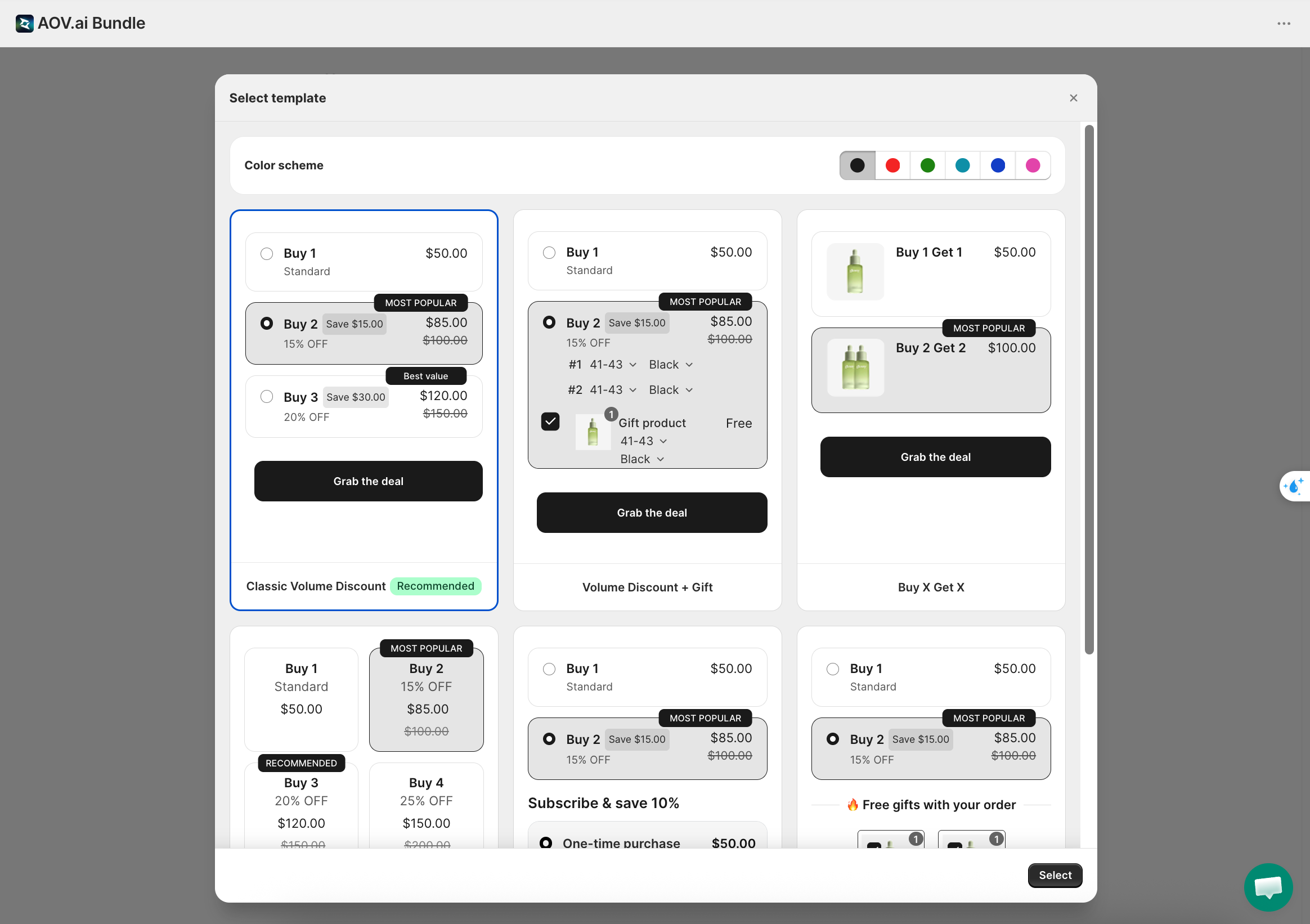
| Volume Discount | A template gallery opens (6 templates + color scheme picker). Choose a template, then go to the configuration form. See Volume Discount Templates. |
| All other native types | The configuration form opens directly (Step 1: Offer setting). There is no template gallery. |
Tips Before You Click Create
- You can run multiple offer types at once. Bundle and Volume Discount can sit on the same product, for example. Choose by what suits your campaign, not by what the app technically supports.
- Each offer type has its own widget. Style it once in the Widget display section and the styling carries across every offer of that type.
Next Steps
- Volume Discount how to set up: tier-based product discounts
- Frequently Bought Together how to set up: add-on product suggestions
- Bundle Builder how to set up: mix-and-match with tiered discounts
- Mix & Match Bundle how to set up: slot-based variety bundles
- Product Fixed Bundle how to set up: predefined kits as standalone products
- Product Recommendation how to set up: recommended products on the product page with an optional discount