Connect to AI
AOV.ai Bundle Upsell lets you connect an AI assistant, like Claude, ChatGPT, Gemini or Grok, or a developer tool like Claude Code or Cursor, directly to your store's bundle data. Once connected, it can look up your offers, revenue, plan and setup status, and, if you grant it, create and edit offers and widget design for you in a chat.
This page is the quick tour. For the full documentation, the two ways to connect, every tool, a page per client, and every error, see MCP.
What it does
- Connects any MCP-compatible AI assistant or developer tool to your Bundle Upsell data
- Two permission levels, chosen when you connect: Read-only or Read and write
- Scoped to this app only: it can read and, with write access, change your offers and widget design. It cannot touch your theme, your orders, your customers, or your billing
Two tabs in Settings
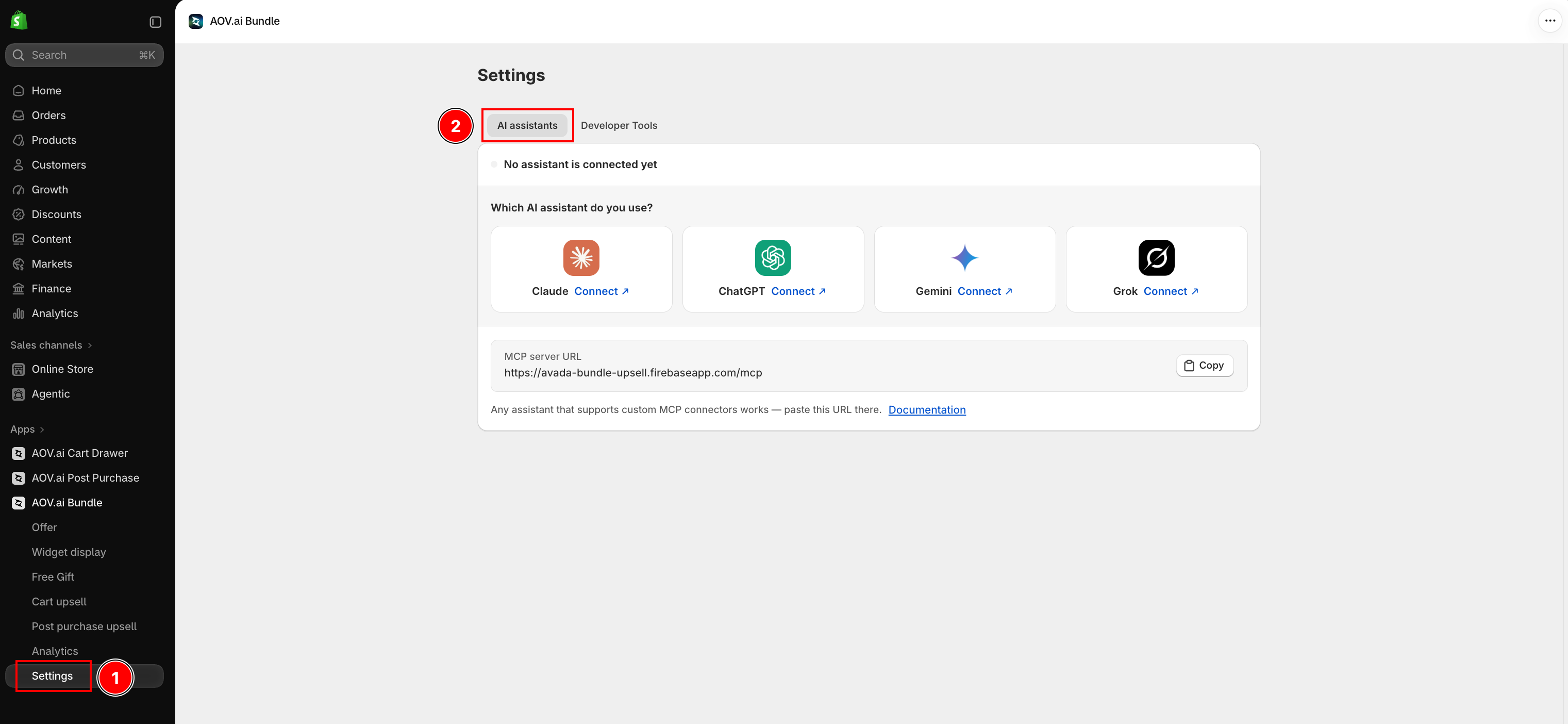
Go to Settings in the app. There are two tabs, one for each kind of connection:
- AI assistants: for Claude, ChatGPT, Gemini and Grok. You sign in with Shopify, there is no token to copy. Click Add assistant to start
- Developer Tools: for Claude Code, Cursor, Codex, or any other MCP client, plus a read-only Public API for your own scripts. Click Create token to start
Developer Tools is its own tab because most merchants never open a terminal. The AI assistants tab keeps a simple sign-in flow for everyone else.
Two permission levels
Every connection, on either tab, is one of:
- Read-only: the assistant can see your offers, design and results. Any staff member who can view products can approve this
- Read and write: the assistant can do what you do in the offer editor and on Widget display: create offers (all six types), edit them, turn them on or off, duplicate them, delete them, and change widget colors, fonts and text. Only the store owner can approve this
Access can't be changed after you connect. To move a connection from Read-only to Read and write (or back), revoke it and create a new one.
A few safeguards apply to every Read and write connection:
- Any offer the assistant creates starts switched off. Turning it on is a separate step
- Deleting an offer is permanent. There is no undo from inside the app
- Writes are capped at 60 per hour, per connection, and every write is logged
- The assistant is instructed to summarize what it is about to do and wait for your yes before it creates, changes, or deletes anything, but that instruction lives in the assistant, not in your store. Read what it proposes before you approve
How to connect
AI assistants (sign in)
- In AOV.ai Bundle Upsell, go to Settings → AI assistants
- Click Add assistant, then pick the one you use: Claude, ChatGPT, Gemini or Grok
- Follow the steps shown for that assistant: open it, paste the MCP server URL, and connect
- On the AOV Bundle screen that opens, enter your store's
.myshopify.comdomain, name the connection, choose Read-only or Read and write, then click Continue to Shopify - Sign in at Shopify and approve
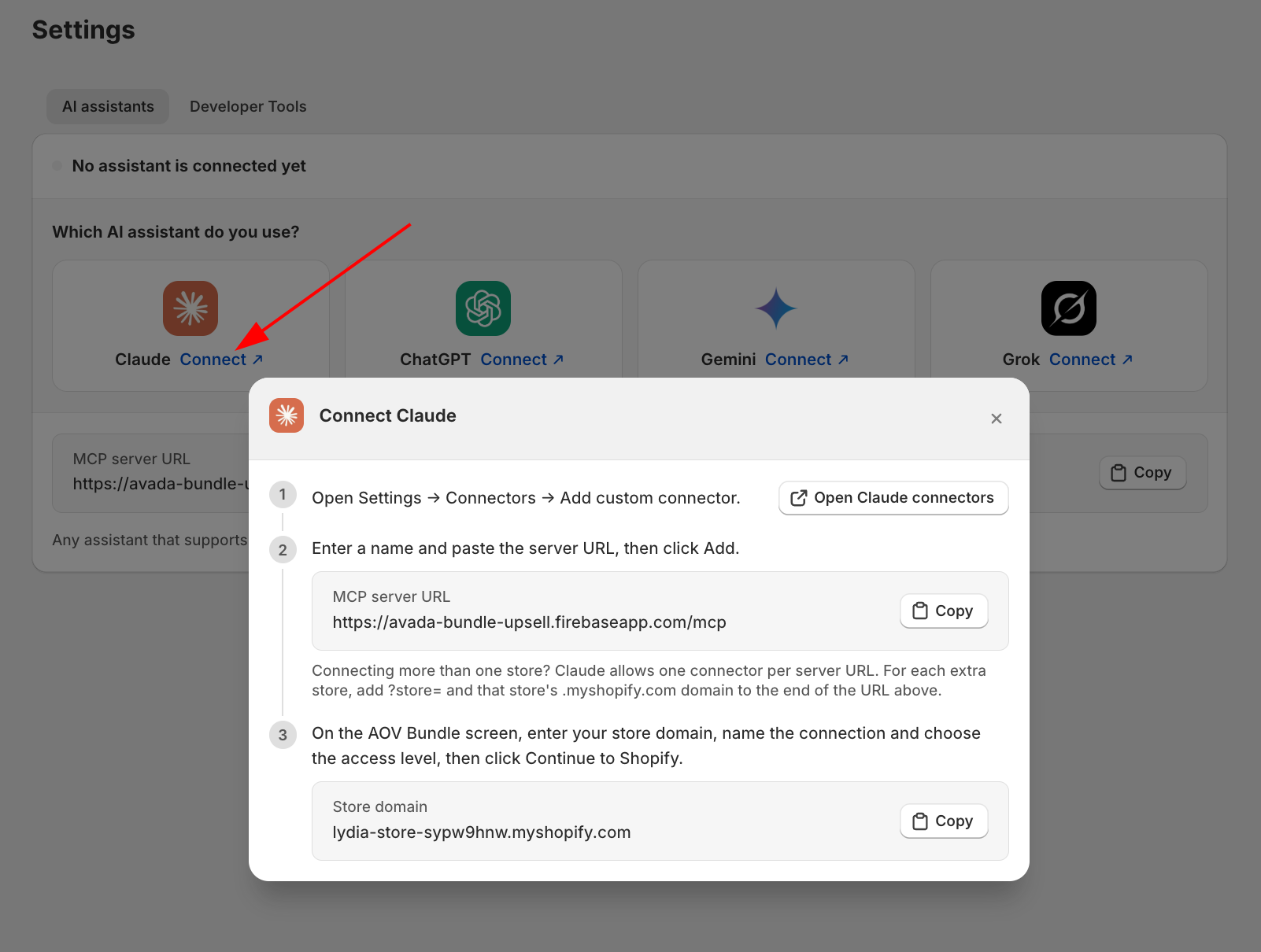
See Authentication for the full flow, including what to check on the consent screen before you approve it.
Developer Tools (token)
- In AOV.ai Bundle Upsell, go to Settings → Developer Tools
- Click Create token
- Name the connection and choose Read-only or Read and write, then click Create
- The token is shown once, with ready-to-copy snippets for Claude Code, Cursor, Codex, Any other client, and the Public API. Copy the one for your tool
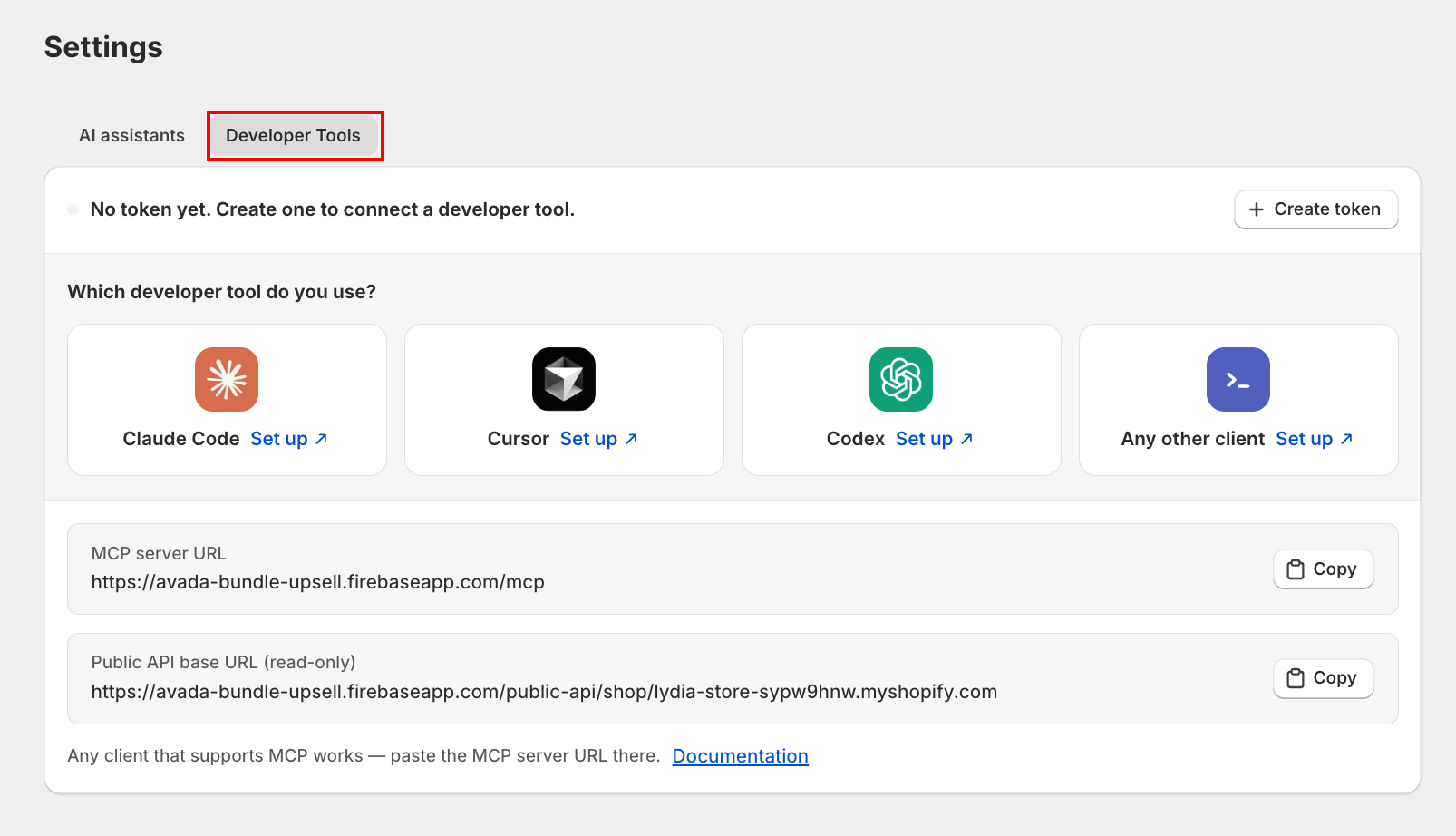
Your token is shown only once, right after creation. The server only keeps a fingerprint of it, not the token itself, so if you lose it you'll need to revoke the connection and create a new one. Keep it in a password manager rather than a file you might share.
Already set up before and just need the snippet again? Use See setup instructions at the bottom of the connections list, or the Documentation link on the tab. That generic view uses a placeholder in place of your token, since the real token can't be shown again.
Managing connections
- The Developer Tools tab caps you at 5 tokens created by hand. Connections made by signing in on the AI assistants tab don't count against that five
- Each row shows its access badge (Read-only or Read and write), when it was last used, and Rename / Revoke (Disconnect on the AI assistants tab) actions
- Revoking takes effect immediately and cannot be undone
Disconnecting inside the assistant's own settings does not revoke access on the AOV side. The assistant only forgets the connector; the token keeps working until you click Revoke (or Disconnect) in Settings here.
If you connected before September 2026
Connections made before this update only have the original 5 read-only tools. Everything else on this page, the extra read tools, write access, and the Developer Tools tab, needs a new connection. Reconnect from Settings → AI assistants or Settings → Developer Tools to pick up the rest.
Related
- MCP: the full documentation, authentication, a page per client, tool reference, recipes and troubleshooting
- Dashboard & overview: the same revenue and campaign data your AI assistant can read