Volume Discount Templates
What Templates Are
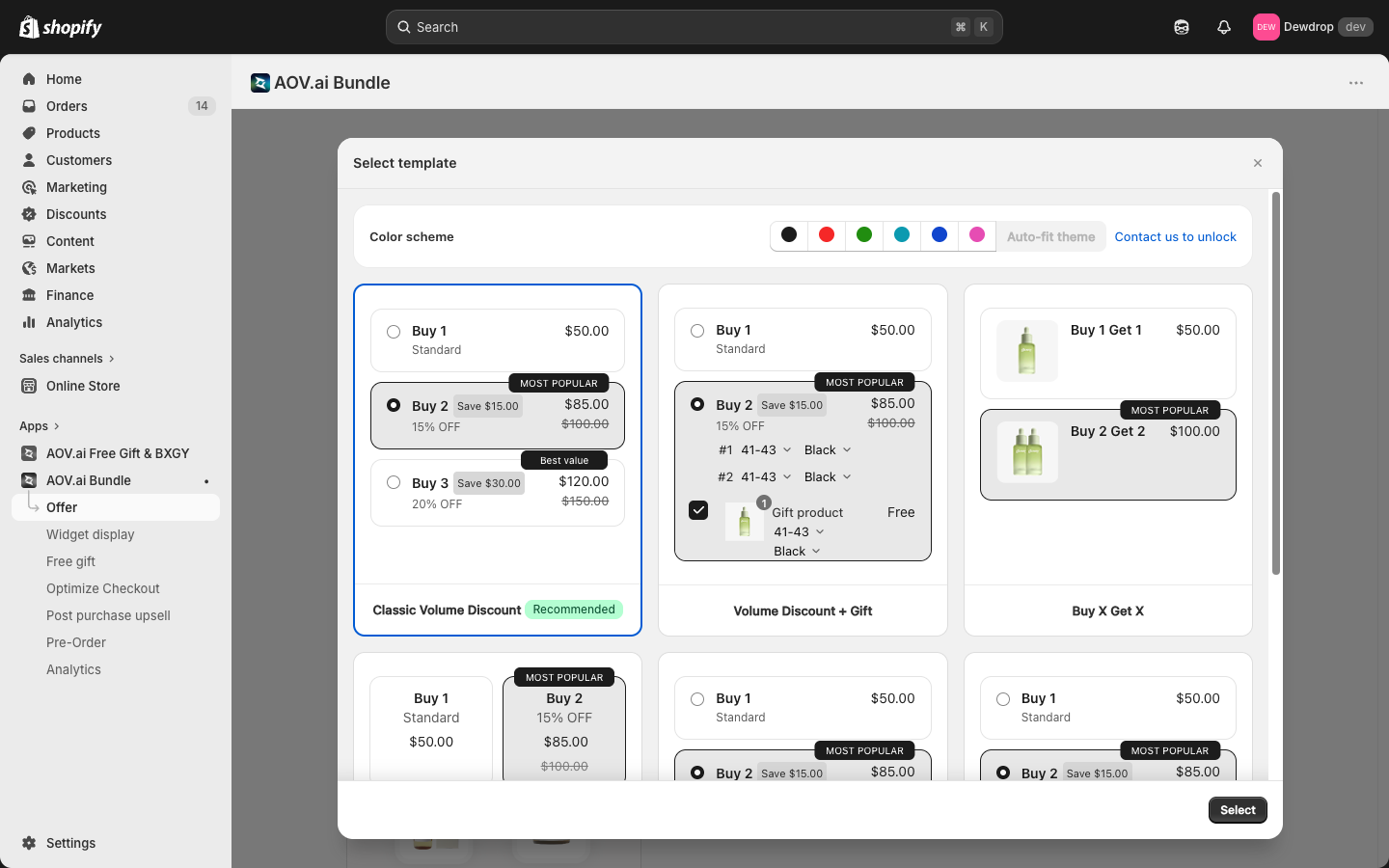
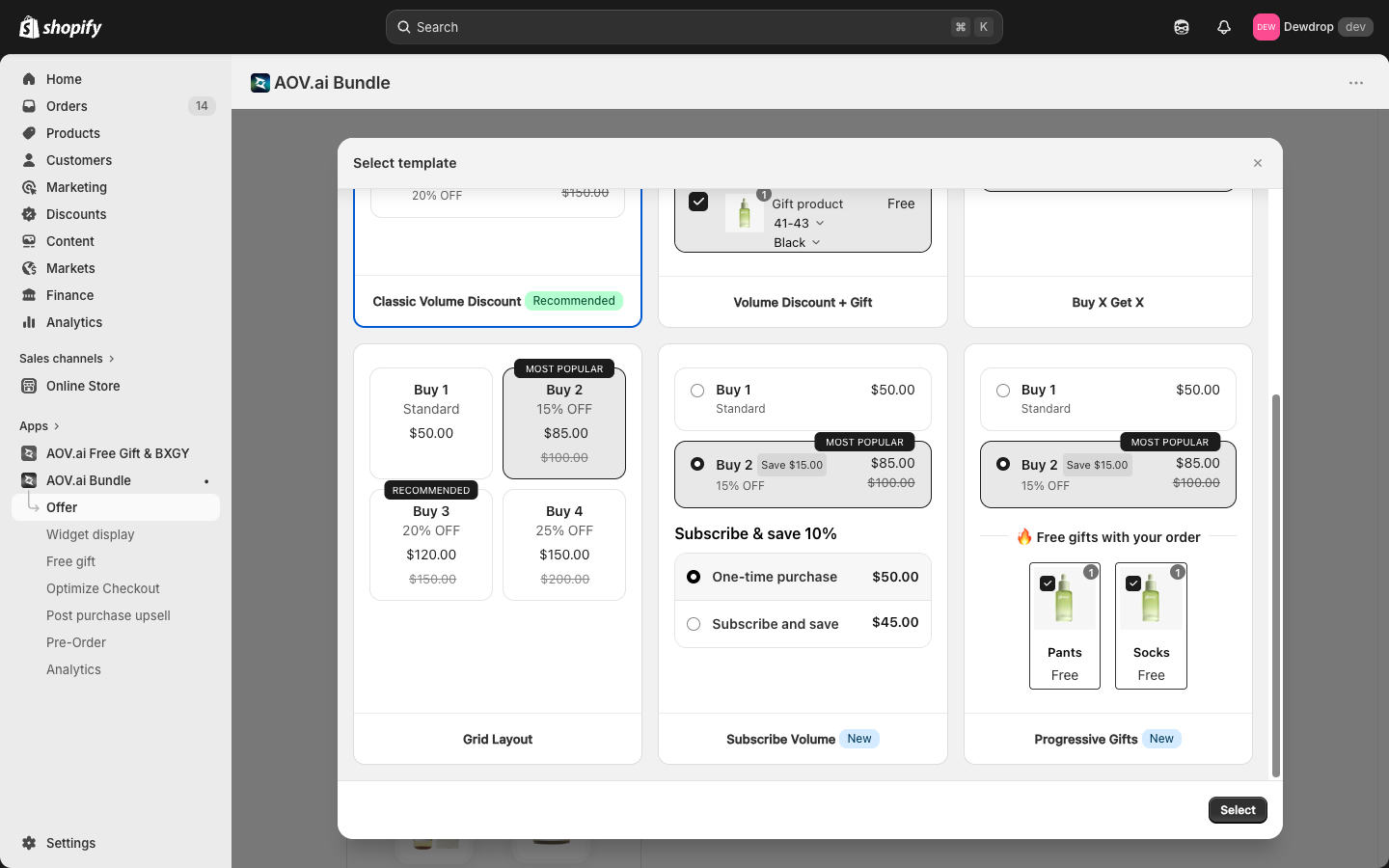
When you create a Volume Discount offer, the app shows a Select template modal as Step 1.5 of the create flow. The modal has 6 prebuilt templates and a color scheme picker. Pick a template + color, then click Select to load the configuration form pre-filled with that layout's defaults.
Note: Volume Discount is the only offer type with a template gallery. The other 4 offer types (FBT, Bundle Builder, Mix & Match, Product Fixed) skip this step and open directly to their configuration form.
How to Open the Template Gallery
- Open AOV.ai Bundle Upsell in the Shopify admin sidebar
- Click Offer
- Click Create new offer in the top-right
- On the Select offer type screen, click Create on the Volume discount card
- The Select template modal opens
Color Scheme
At the top of the modal, pick a color scheme. The selected scheme is applied to every template thumbnail so you can preview your choice.
- Predefined colors: Black, Red, Green, Cyan, Blue, Pink (one-click swatches)
- Auto-fit theme: auto-match the customer's Shopify theme colors (locked behind a paid feature; click "Contact us to unlock")
If your theme has a conflict that prevents auto-fit, the Sync theme color flow inside Widget display is the alternative. See Sync theme color and theme conflicts.
The 6 Templates
1. Classic Volume Discount (Recommended)
The default vertical tier list with checkboxes. Each row shows the quantity, savings amount, percentage off, original price, and discounted price. The middle tier is auto-flagged as MOST POPULAR.
- Visible elements: tier rows, MOST POPULAR badge, original/sale prices
- Best for: most product types. The safest starting point if you're not sure.
2. Volume Discount + Gift
Same as Classic, but each tier can include a free gift product that's added automatically when the customer hits that tier. The gift product appears as a separate line item with its own variant pickers (size, color, etc.) and a "Free" price tag.
- Visible elements: tier rows + Gift product card + variant pickers
- Best for: sweetening higher tiers with a complementary product (e.g., free travel size at the 3-unit tier)
3. Buy X Get X
Shows the offer as "Buy 1 Get 1" style cards instead of a tier list. Each card pictures the product and shows the unit price for that quantity.
- Visible elements: product image, "Buy N Get N" headline, MOST POPULAR badge
- Best for: visual product types where the photo is the selling point (apparel, beauty)
4. Grid Layout
A grid (typically 2x2) of larger tier cards instead of stacked rows. Each card shows the quantity, percentage off, and price. Includes a RECOMMENDED badge.
- Visible elements: grid cards (Buy 1, Buy 2, Buy 3, Buy 4) with badges
- Best for: product pages with more horizontal space. Gives each tier room to breathe.
5. Subscribe Volume (New)
Combines the volume tiers with a One-time purchase / Subscribe and save toggle. Customers can pick a tier and choose to subscribe for an extra 10% off.
- Visible elements: tier rows + Subscribe toggle showing One-time vs. Subscribe pricing
- Best for: subscription-eligible products (consumables, supplements, beauty)
- Requires: a subscription app installed (subscription pricing is configured separately)
6. Progressive Gifts (New)
Each tier unlocks a different free gift as the customer climbs the ladder. Shows a "Free gifts with your order" callout with the gift items pictured.
- Visible elements: tier rows + Free gift cards (Pants, Socks, etc.) per tier
- Best for: holiday or campaign promotions with progressive rewards
Selecting a Template
- Click any template card. It gets a blue selection border.
- Click Select in the bottom-right of the modal
- The configuration form opens, pre-filled with the template's defaults
You can change templates later by clicking back through the create flow on a new offer (existing offers keep their original template).
What the Template Controls vs. What It Doesn't
The template chooses:
- Layout structure (rows, grid, cards)
- Default badges (MOST POPULAR, RECOMMENDED, etc.)
- Gift mechanics (single gift, tiered gifts, no gift)
- Subscription toggle presence
- Color scheme (from the picker above)
The template does not control:
- Specific product/variant choices (set in Step 1: Offer setting)
- Discount amounts (set in Step 1: Discount tier)
- Schedule or status (set in Step 1)
- Detailed widget styling (managed in Widget display → Volume table)
Tips for Picking
- Start with Classic if you're unsure. It's the safest baseline.
- Use Volume Discount + Gift or Progressive Gifts when you want to push higher AOV with a sweetener.
- Use Buy X Get X for hero product pages where visuals matter.
- Use Grid Layout if your product page has wide layout space and multiple tiers are central to the offer.
- Use Subscribe Volume only if you have a subscription product and a subscription app installed. No subscription app, no subscribe toggle.
Next Steps
- Volume Discount how to set up: the full Step 1 + Step 2 walkthrough after picking a template
- Volume table widget: customize colors, labels, and styling that apply across every Volume Discount offer
- Sync theme color and theme conflicts: how to unlock the "Auto-fit theme" color option