Bulk Edit Offers
What This Page Is About
If you have several offers of the same type (for example, five Volume Discount offers), you no longer have to open and edit each one individually. Bulk edit lets you change a field, like discount value, title, or status, across many offers of the same type in a single action.
How to Open It
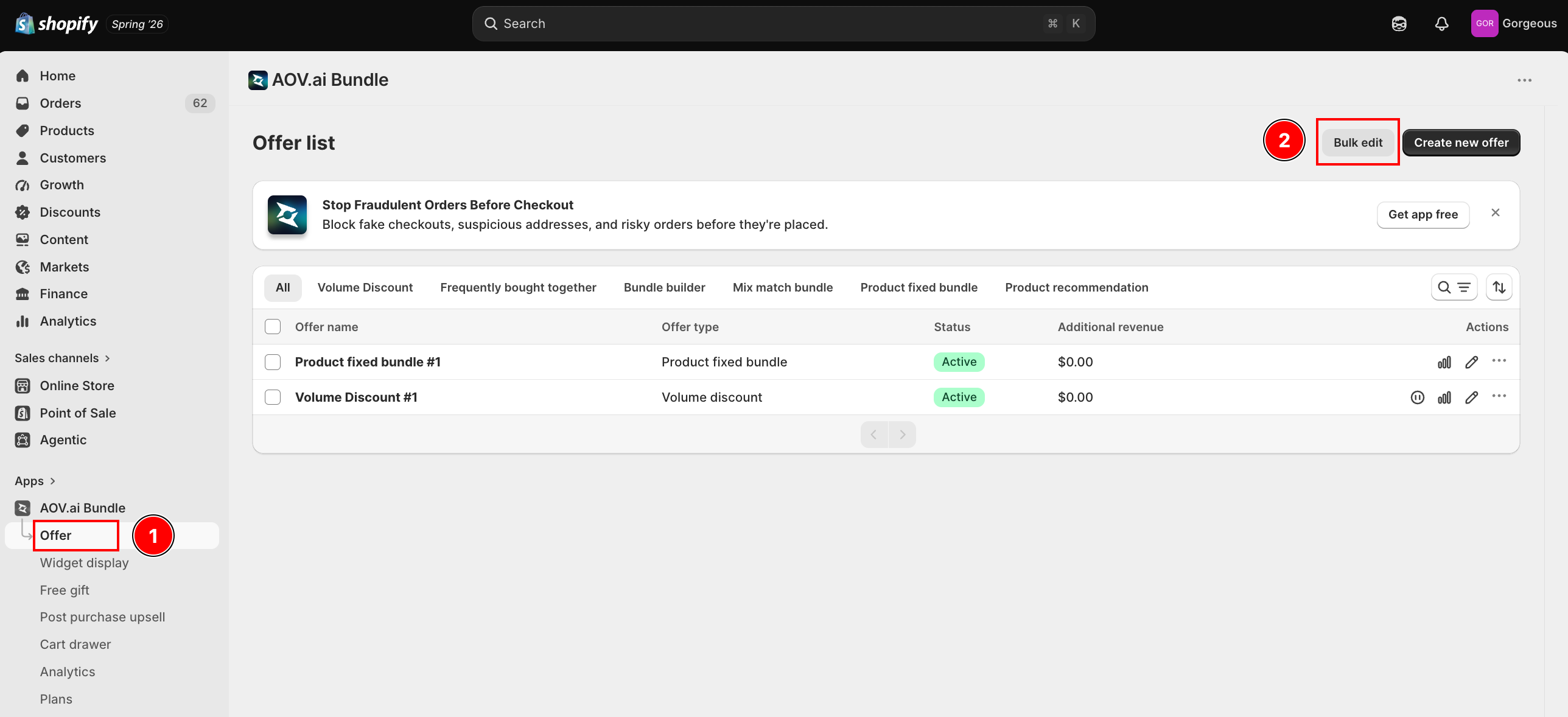
From the Shopify admin, open AOV.ai Bundle Upsell, go to the Offers page, then click the Bulk edit button in the header.
How It Works
Bulk edit opens as a two-step modal:
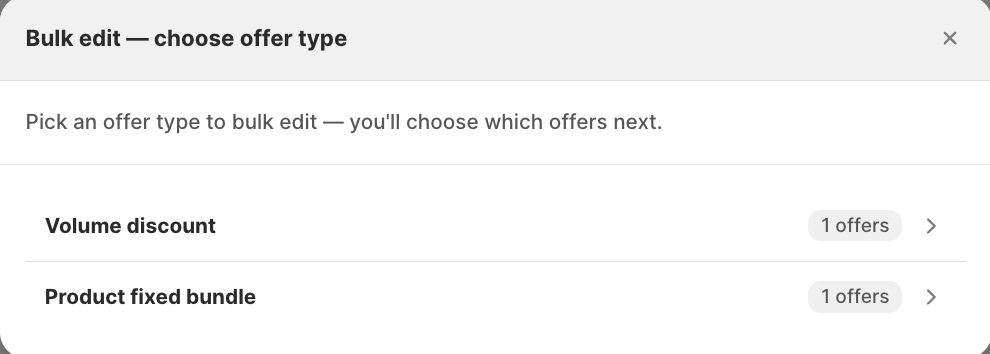
Step 1: Choose an offer type. You'll see a list of offer types with a count of how many offers you have of each. Types with zero offers are hidden.
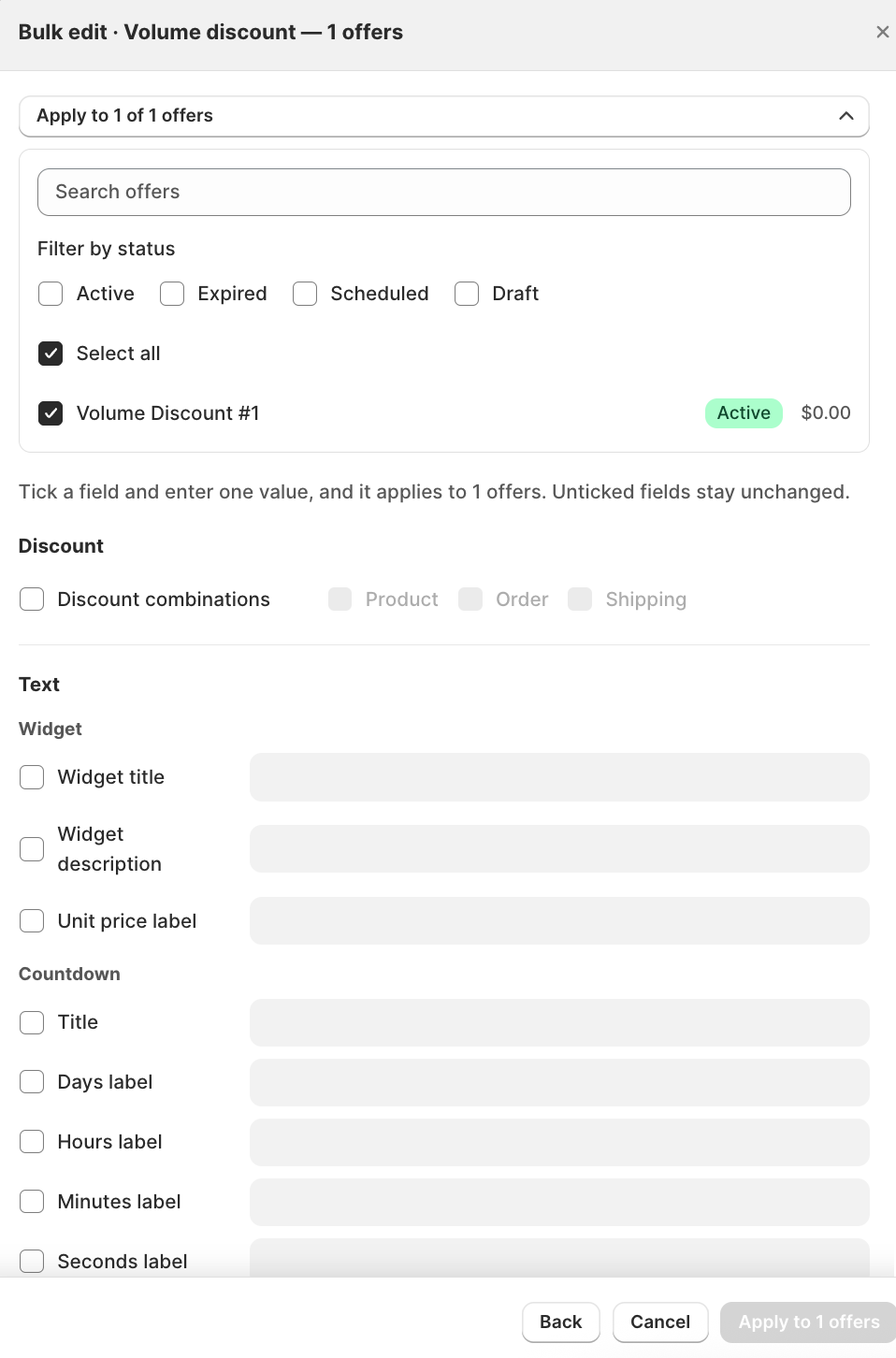
Step 2: Pick your scope, tick fields, and apply. Tick the checkbox next to each field you want to change and enter a new value. Fields you don't tick stay untouched. As the app puts it:
"Tick a field and enter one value, and it applies to {count} offers. Unticked fields stay unchanged."
There is no preview step. Clicking Apply to {count} offers applies the changes right away, and a report shows how many offers were updated, skipped, or failed.
What You Can Edit
Fields are grouped into up to four sections, and only the fields relevant to the selected offer type appear:
| Group | Covers |
|---|---|
| Discount | Turning discount on/off, discount type, discount value, discount combinations |
| Text | Widget titles, descriptions, countdown labels, cart tip message, promotion messages, and similar copy |
| Status | Active / Paused |
| Advanced Configuration | Minimum product quantity settings (Frequently Bought Together only) |
Product Fixed Bundle and Bundle Builder don't have bulk Discount fields, since changing discount in bulk for those two types has too broad an impact. Their bulk edit covers Text and Status only.
Fields available per offer type
| Offer type | Discount | Text | Status | Advanced |
|---|---|---|---|---|
| Volume Discount | Discount combinations | Widget title, widget description, unit price label, countdown title/days/hours/minutes/seconds labels, cart tip (enable + message) | Active / Paused | None |
| Frequently Bought Together | Enable discount, discount type, discount value, discount combinations | Offer title, offer description, all-items-selected text, partial-selection text | Active / Paused | Minimum products (enable + quantity) |
| Bundle Builder | None | Offer title, offer description, promotion message, progress message, promotion reached message | Active / Paused | None |
| Mix & Match Bundle | Enable discount, discount type, discount value | Offer title, offer description, total products label, discount badge label | Active / Paused | None |
| Product Fixed Bundle | None | Child products label | Active / Paused | None |
| Product Recommendation (Upsell) | Enable discount, discount type, discount value, discount combinations | Offer title | Active / Paused | None |
The Status field's "off" option is labeled Expired for Volume Discount, Frequently Bought Together, and Product Recommendation, but Draft for Bundle Builder, Mix & Match, and Product Fixed Bundle, since those three create a bundle product that Shopify sets to Draft when deactivated. This is a label difference only.
Choosing Which Offers to Edit
By default, a bulk edit applies to all offers of the selected type. To narrow it down, expand Apply to {count} of {total} offers and:
- Search offers by name
- Filter by status (you can select more than one status at once)
- Use Select all to target every offer of that type, or uncheck Select all and tick specific offers from the list
- Click Load more if you have more offers than fit on one page
Important Notes
- Existing offers aren't touched until you apply. Bulk edit is a new tool, existing offers only change when you actively select fields and click Apply.
- Bulk activating still respects your plan's revenue limit. If your shop has already hit its revenue cap, offers you try to bulk-activate won't turn on.
- Bulk-activating an offer whose end date has already passed clears that end date, so the offer doesn't immediately expire again.
- Up to 1,000 offers can be processed in a single bulk edit. If you have more, you'll need a second batch, the app will let you know if the cap was reached.