Bundle Builder Widget
What It Controls
The Bundle builder widget is the interactive bundle-building UI customers use on the bundle page. A grid of selectable products plus a live bundle summary panel that updates as they add items. The styling here applies to every Bundle Builder offer in your store.
How to Open It
In AOV.ai Bundle Upsell, click Widget display in the left sidebar, then click Setup on the Bundle builder card.
What You Can Customize
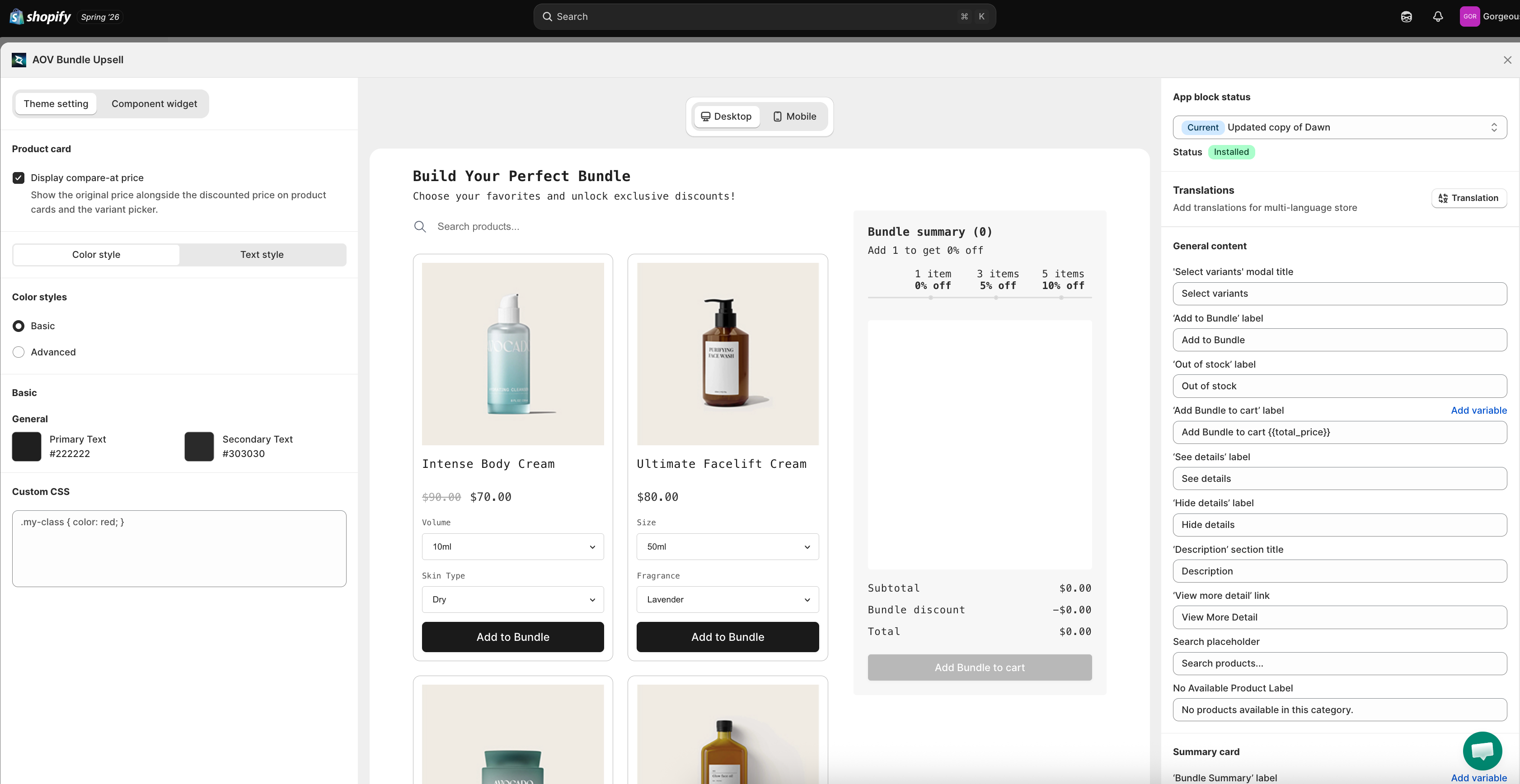
The setup modal has two top tabs:
- Theme setting: colors, layout, product card behavior (default tab)
- Component widget: sub-widget configuration for individual product cards
Theme Setting Tab
Sync theme color
Auto-match widget colors to your Shopify theme. If it's locked due to a theme conflict, click Check my theme to start the unlock review.
Color and text settings are split into two tabs.
Color style tab
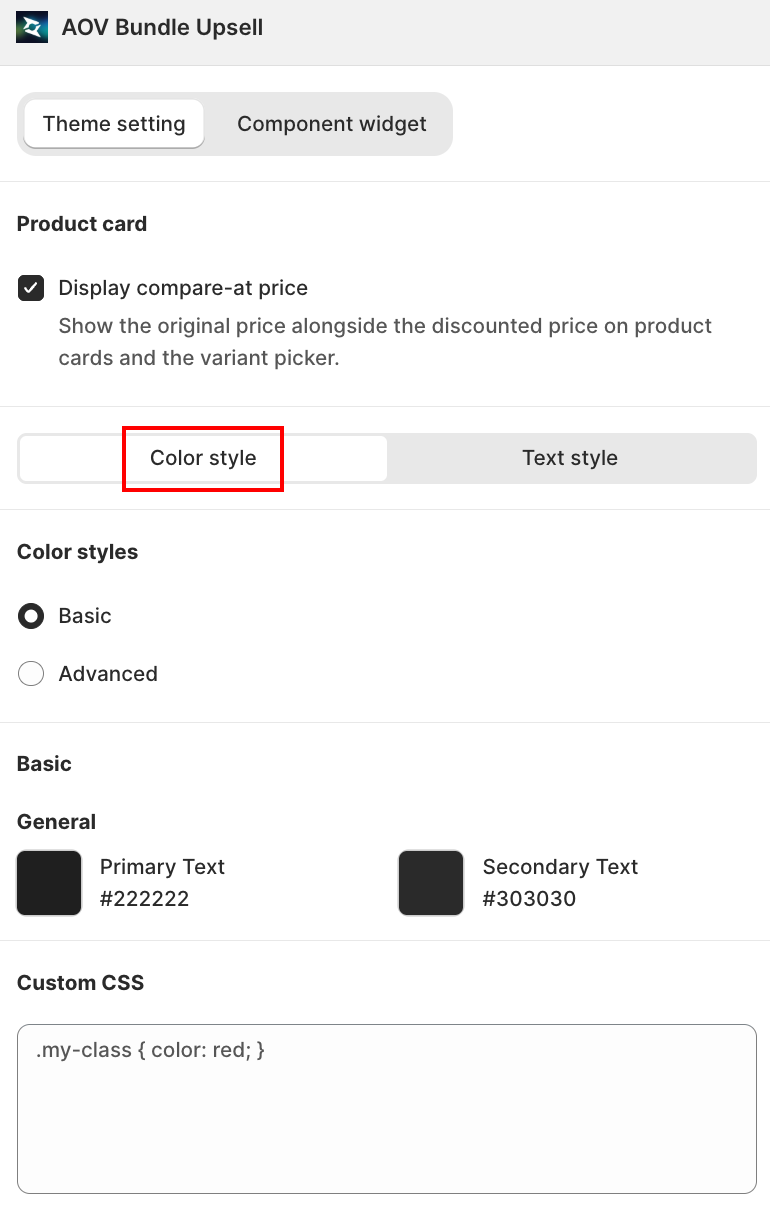
- Basic: pick a primary and secondary color, and the app applies them across the widget.
- Primary Text: default
#222222 - Secondary Text: default
#303030
- Primary Text: default
- Advanced: granular per-element control.
Text style tab
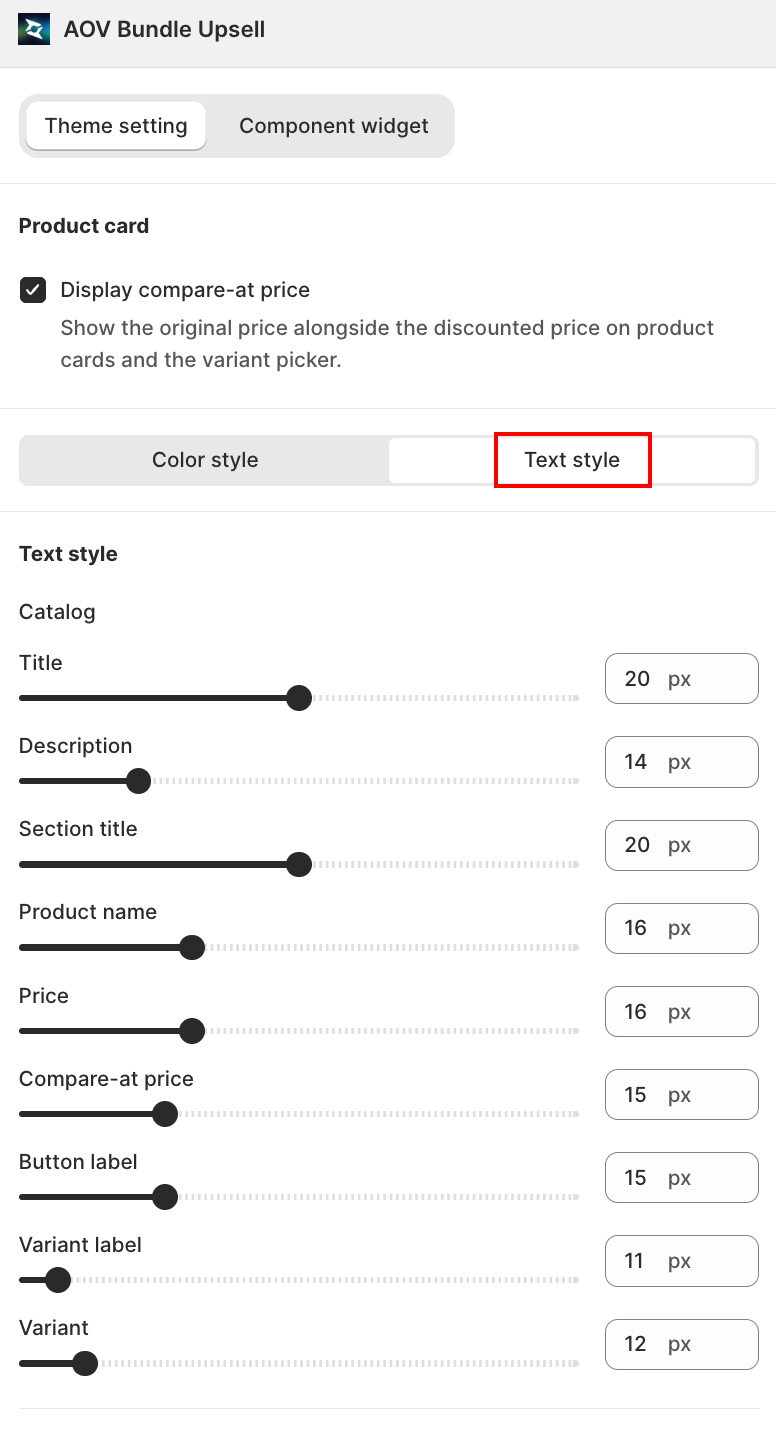
A slider + number field (10px to 30px) for each text element, grouped by where it appears:
| Group | Field | Controls |
|---|---|---|
| Catalog | Title | The widget's main heading |
| Catalog | Description | Supporting text under the title |
| Catalog | Section title | Heading above the product grid |
| Catalog | Product name | Each product card's name |
| Catalog | Price | Each product card's price |
| Catalog | Compare-at price | Each product card's struck-through original price |
| Catalog | Button label | The Add to Bundle button text |
| Catalog | Variant label | Label above the variant picker |
| Catalog | Variant | The variant option text itself |
| Summary | Title | The bundle summary panel's heading |
| Summary | Tier labels | The discount tier ladder text |
| Summary | Line item | Each product line in the summary |
| Summary | Totals | Subtotal, discount, and total rows |
| Summary | Button label | The Add Bundle to cart button text |
Product card
Controls how each selectable product card looks in the bundle grid:
- Display compare-at price: toggle on to show the original price alongside the discounted price on product cards and the variant picker. Customers see the savings at a glance, which is half the reason they bundle in the first place.
Content (Right Column)
The Bundle builder widget has many customer-facing labels. Several fields support the {{total_price}} template variable.
| Field | Default | Where it appears |
|---|---|---|
'Add to Bundle' label | Add to Bundle | Button on each selectable product card |
'Out of stock' label | Out of stock | Replaces the Add to Bundle button when inventory = 0 |
'Add Bundle to cart' label | Add Bundle to cart {{total_price}} | Main CTA button below the bundle |
Selected | Selected | State label on a product card after the customer picks it |
'See details' label | See details | Link in the bundle summary panel |
'Hide details' label | Hide details | Toggle when bundle summary is expanded |
Search placeholder | Search products... | Placeholder in the in-widget product search |
No Available Product Label | No products available in this category. | Empty state when filters return nothing |
Click Add variable next to a field to insert {{total_price}} (the running bundle total).
Live Preview
The center column shows a complete Bundle Builder widget rendered on a mock product page:
- Build Your Perfect Bundle header
- A search field
- A grid of selectable products with prices and Add to Bundle buttons
- A Bundle summary panel on the right showing the tier ladder (e.g., "1 item 0% off / 3 items 5% off / 5 items 10% off")
- Subtotal, Bundle discount, and Total breakdown
Toggle Desktop / Mobile to verify both screen sizes.
Save
Changes save automatically. Close the modal with the X in the top-right when you're finished.
Related
- Bundle Builder how to set up: for the offer-level data (products, tiers, schedule)
- Sync theme color: how auto-match works
- App Embed and Theme Integration: if the widget isn't rendering