How to Set Up Volume Discount
What Is Volume Discount?
Volume Discount runs tier-based discounts that grow as customers buy more units of a product. The customer sees a tier table on the product page, for example:
- Buy 2, save 10%
- Buy 3, save 20%
The discount applies automatically the moment they hit a tier's quantity.
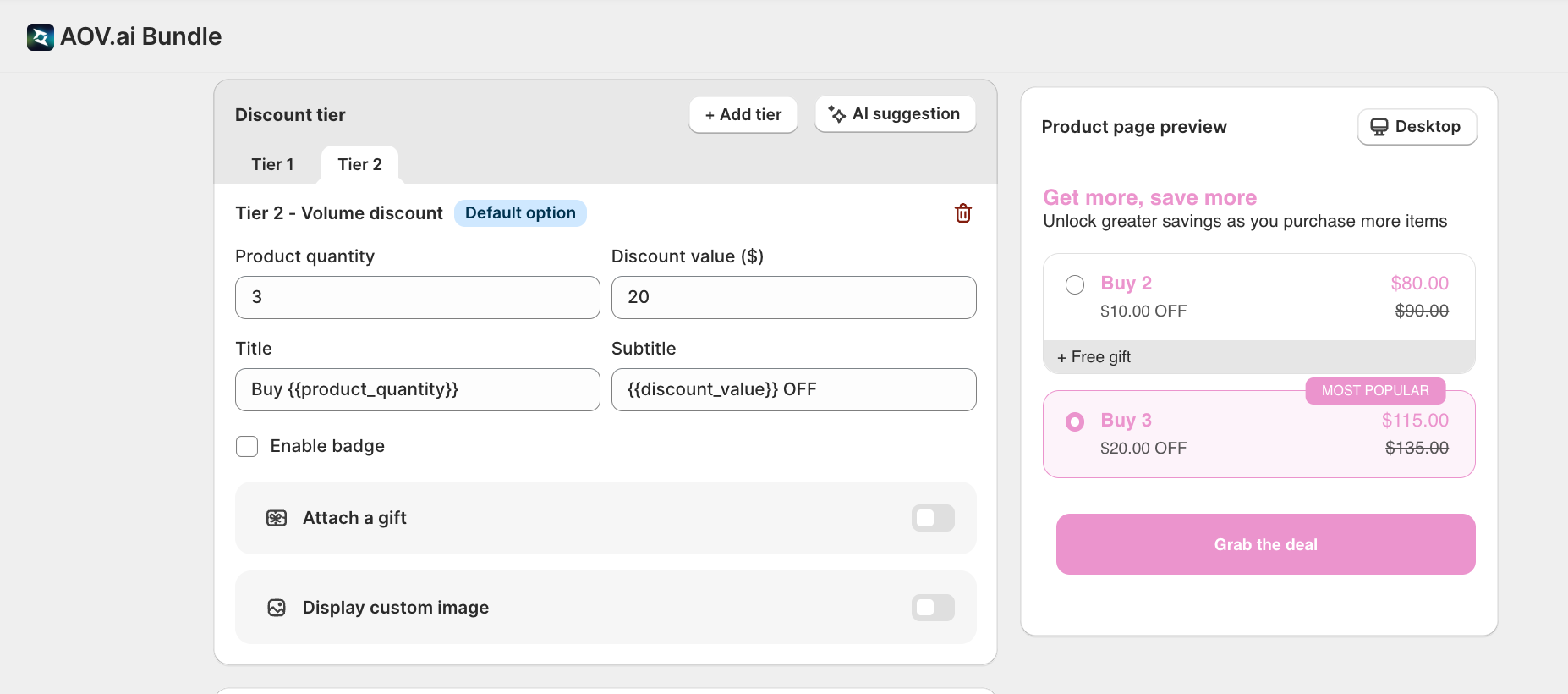
It's the most flexible offer type in the app. It has its own template gallery, supports gifts attached to tiers, custom tier images, badges, countdown timers, and subscription-app awareness.
When to Use It
- You want to reward customers for buying more units of the same product
- You sell consumables, refills, multi-packs, or anything where buying in bulk makes sense
- You want a tier table on the product page that visually nudges customers to the next tier
Before You Start
If you want to launch fast, follow the Quick setup walkthrough below. The Advance Settings section that follows covers optional features (Discount combinations, Pricing options, Usage limit, Redirect after Add to cart, Customer eligibility, Schedule and countdown, Subscriptions integration) you can layer in later.
Quick Setup Walkthrough
Step 1: Create Offer
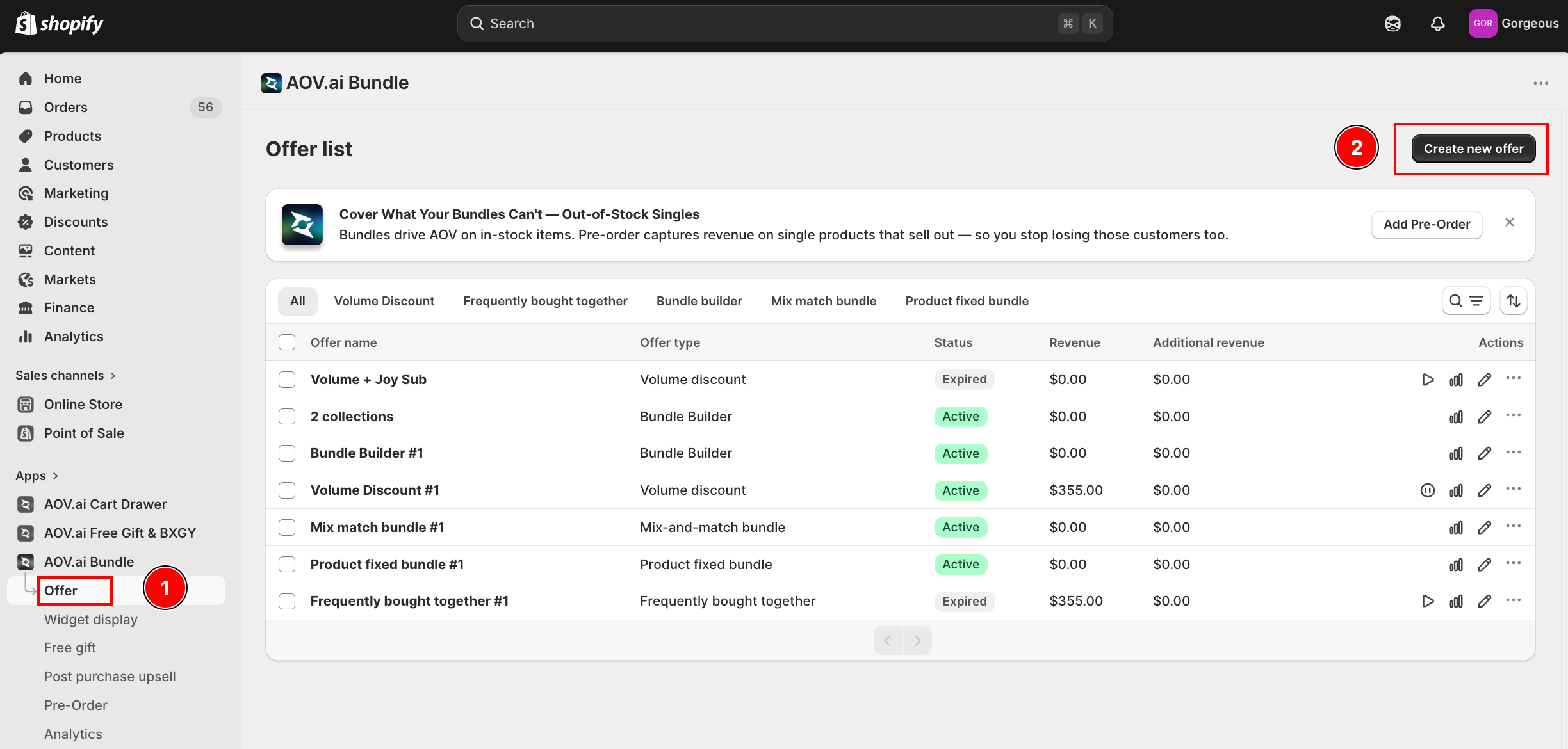
From the Shopify admin, open AOV.ai Bundle Upsell in the left sidebar. Click Offer, then click Create new offer in the top-right.
Step 2: Pick the Volume Discount Card
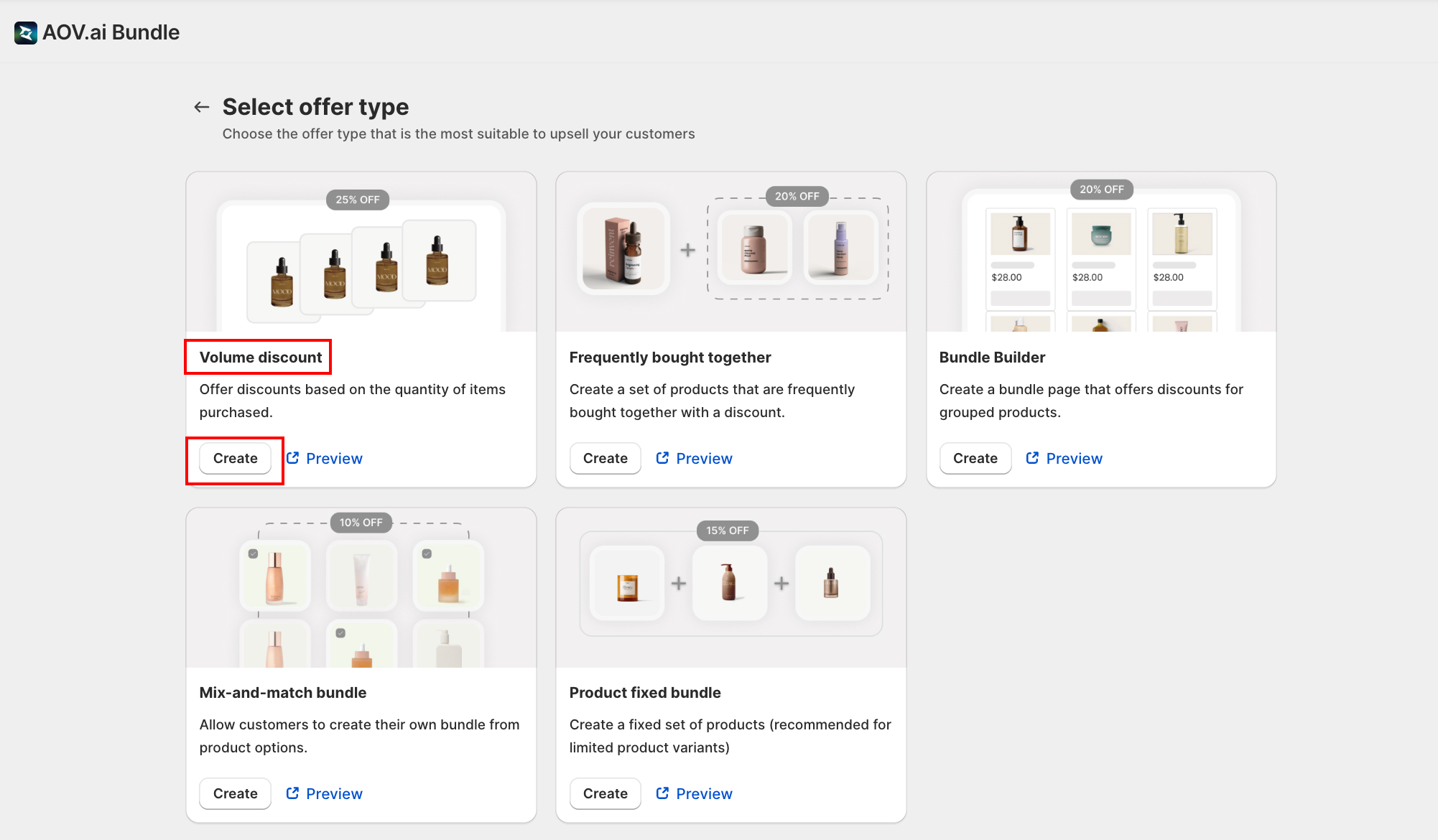
On the Select offer type screen, find the Volume discount card and click Create.
The card description reads: "Offer discounts based on the quantity of items purchased."
Step 3: Pick a Template
The Select template modal opens with 6 prebuilt layouts and a color scheme picker.
Recommended for first-time setup: pick the Classic Volume Discount template (it's pre-selected as the default). This is the layout most stores use, the one customers recognize, and the one this guide assumes from here on.
Pick a color scheme that matches your theme, then click Select. The configuration form loads pre-filled with the Classic layout's defaults.
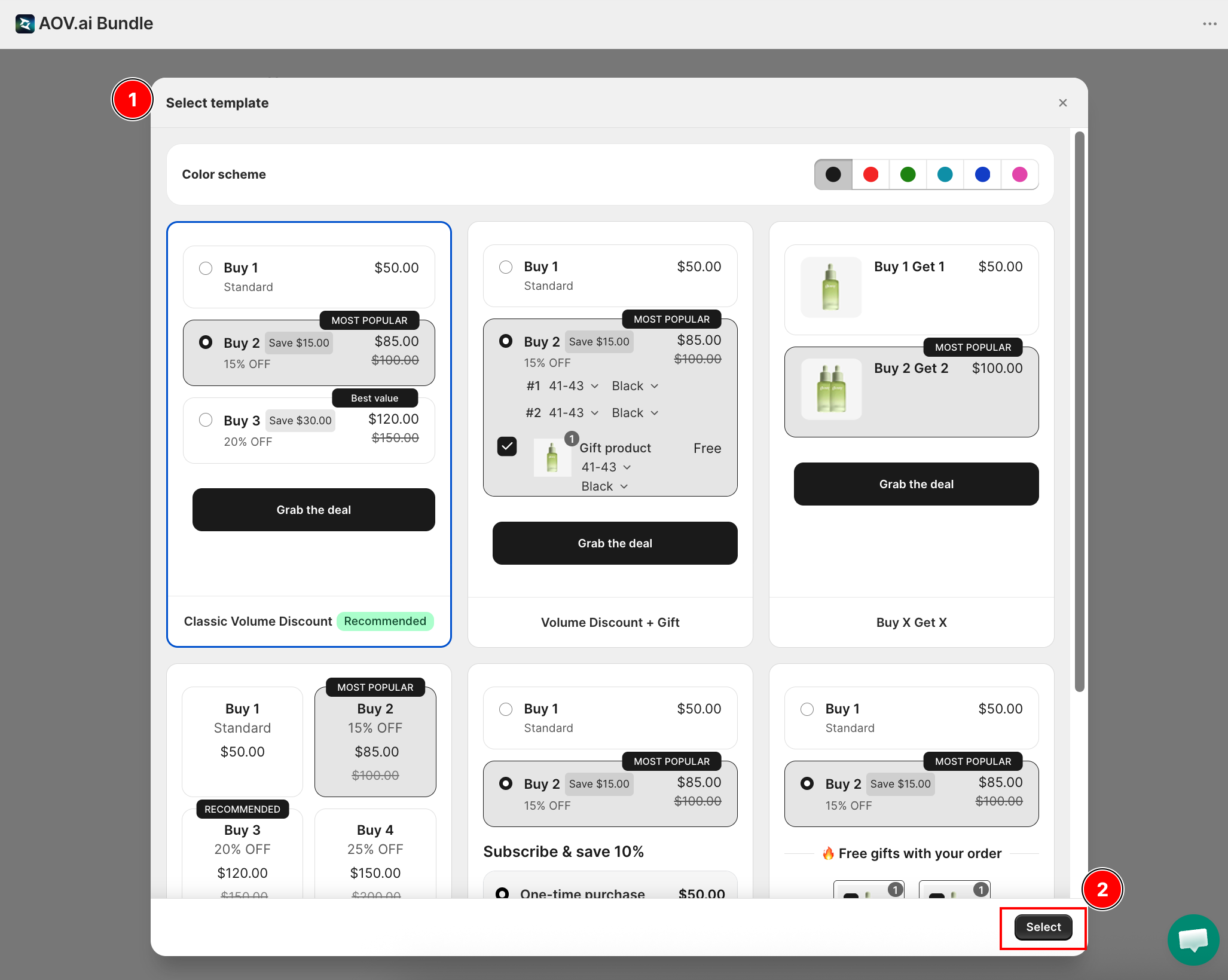
If you want a different look (Buy X Get X, Subscribe Volume, Progressive Gifts, etc.), see Volume Discount templates for the full breakdown of all 6 options.
Step 4: Fill in Deal Info and Trigger Conditions
The form opens at Step 1: Offer setting. The first card is 1. Deal name & select products, which covers both the offer's name and which products trigger it.
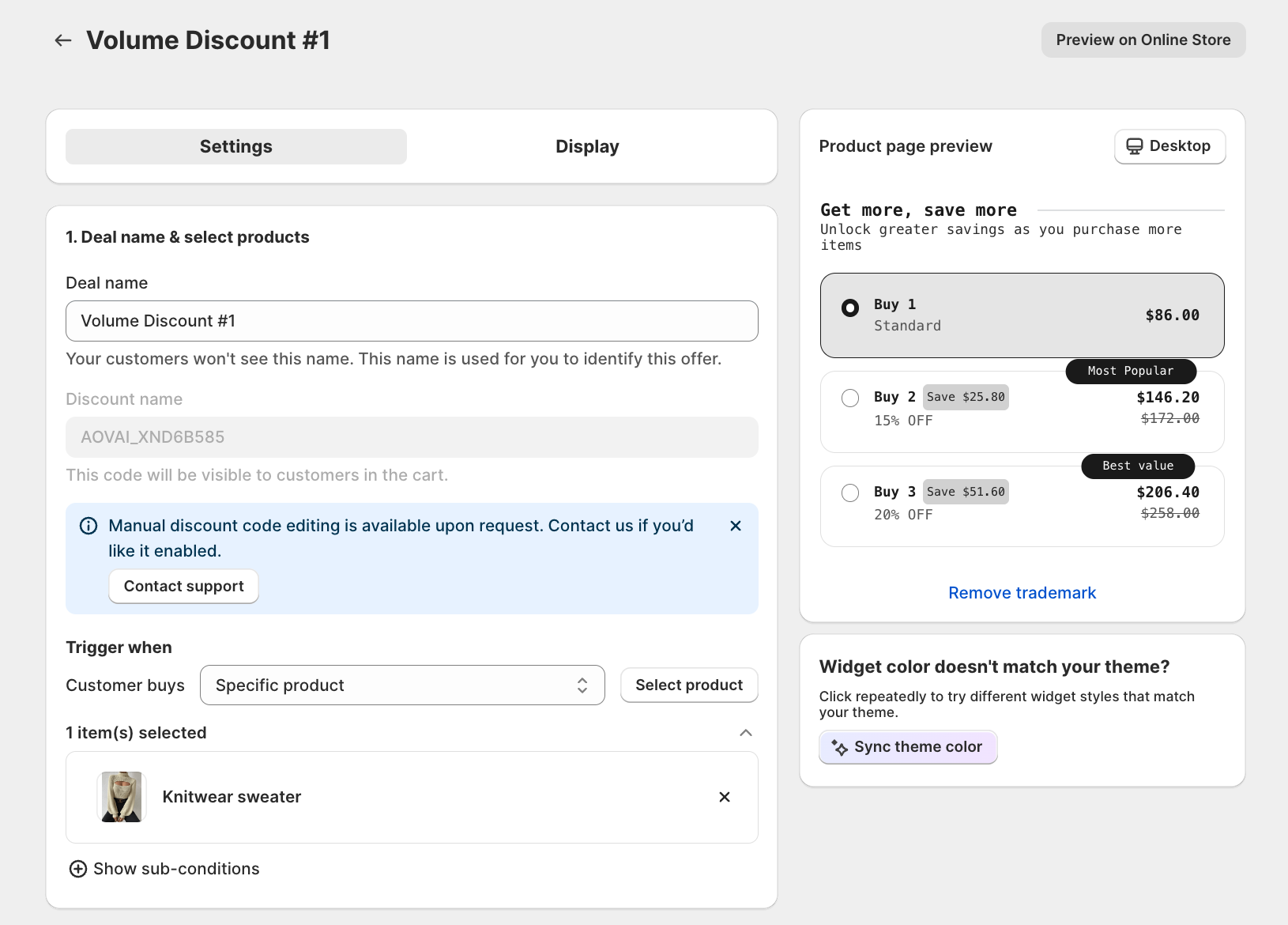
- Deal name: internal label only. Customers won't see it. A clear name helps you manage and identify campaigns in the Offer list, especially when you're running multiple offers at once (for example Spring 3-pack discount).
- Discount name: visible to customers in the cart. The app generates a code automatically.
Trigger when Customer buys: choose which products the discount applies to:
- All products: applies storewide
- Specific product: select individual products
- Specific collection: select one or more collections
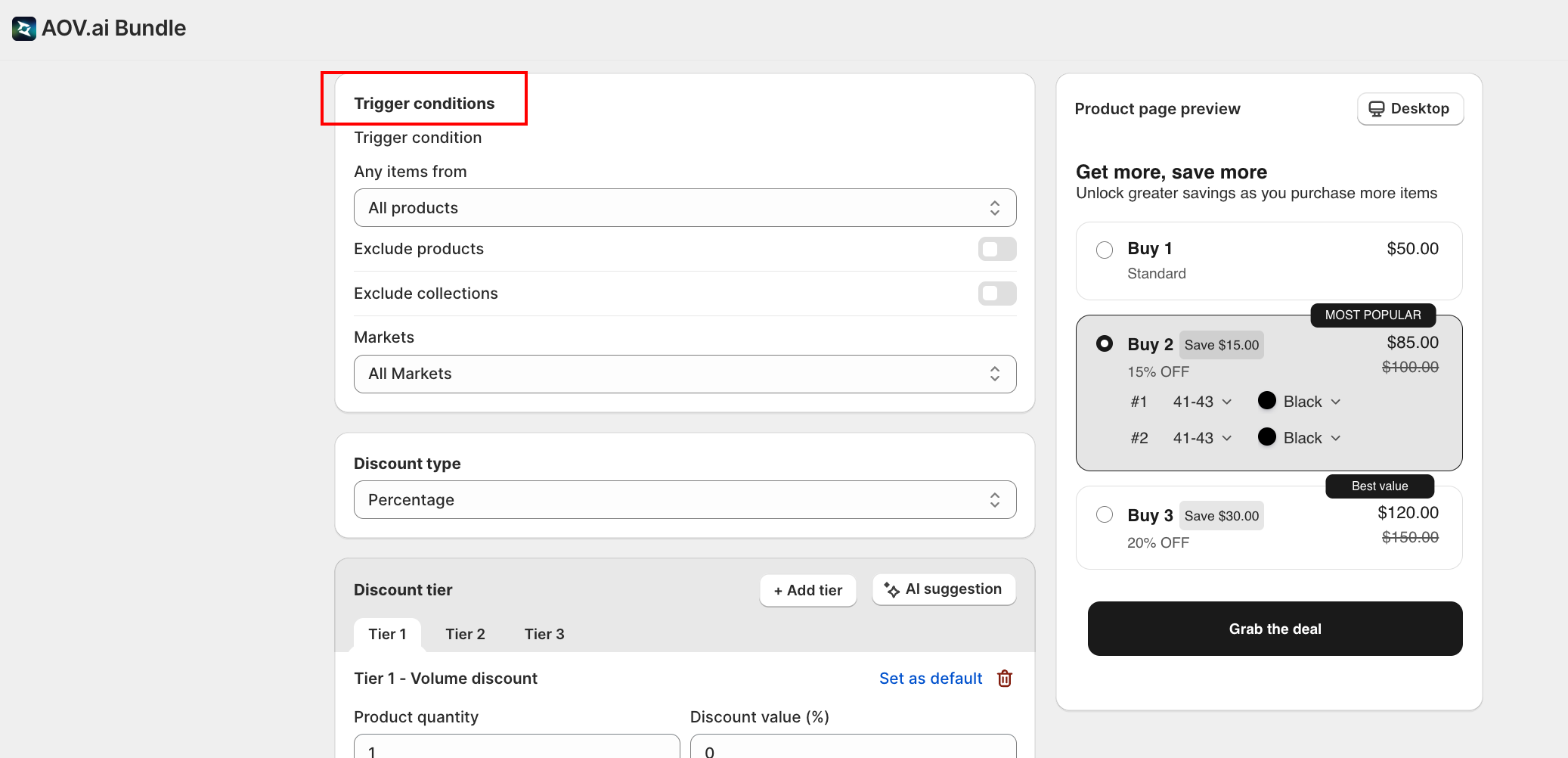
Click Show sub-conditions to reveal two more optional settings:
- Exclude products / Exclude collections (optional): block specific products or collections from triggering the discount, even if they fall under your scope.
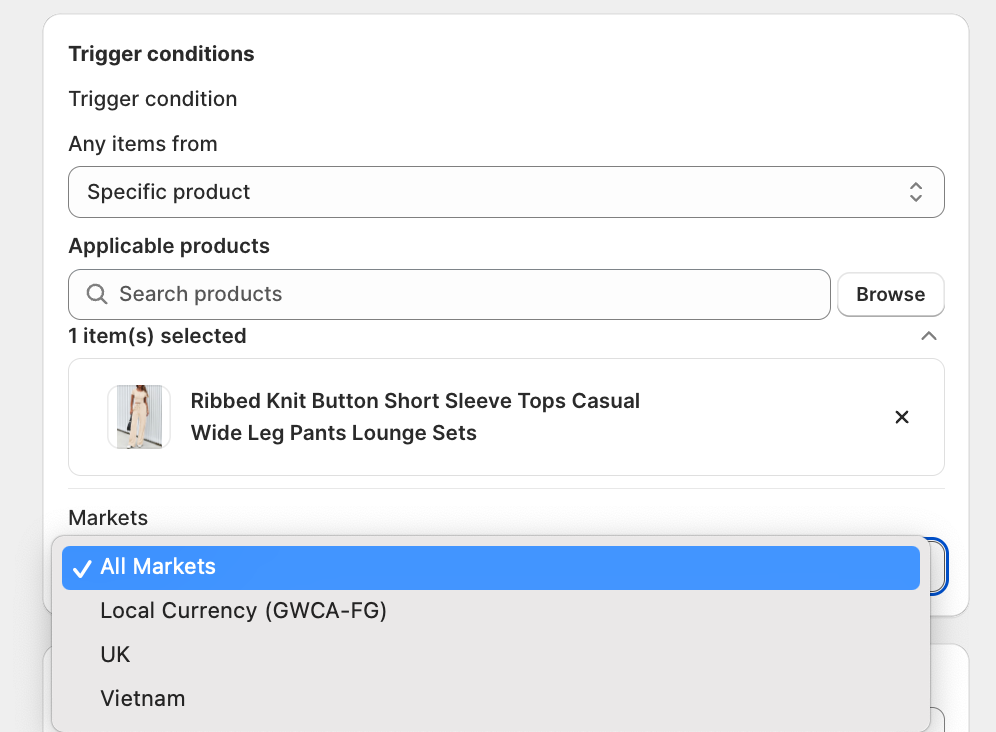
- Markets (optional): restrict the discount to specific Shopify markets. Default is All Markets.
Step 5: Choose the Discount Type and Build the First Tier
The 2. Discount tier card is where you pick the discount type and build the actual tier ladder.
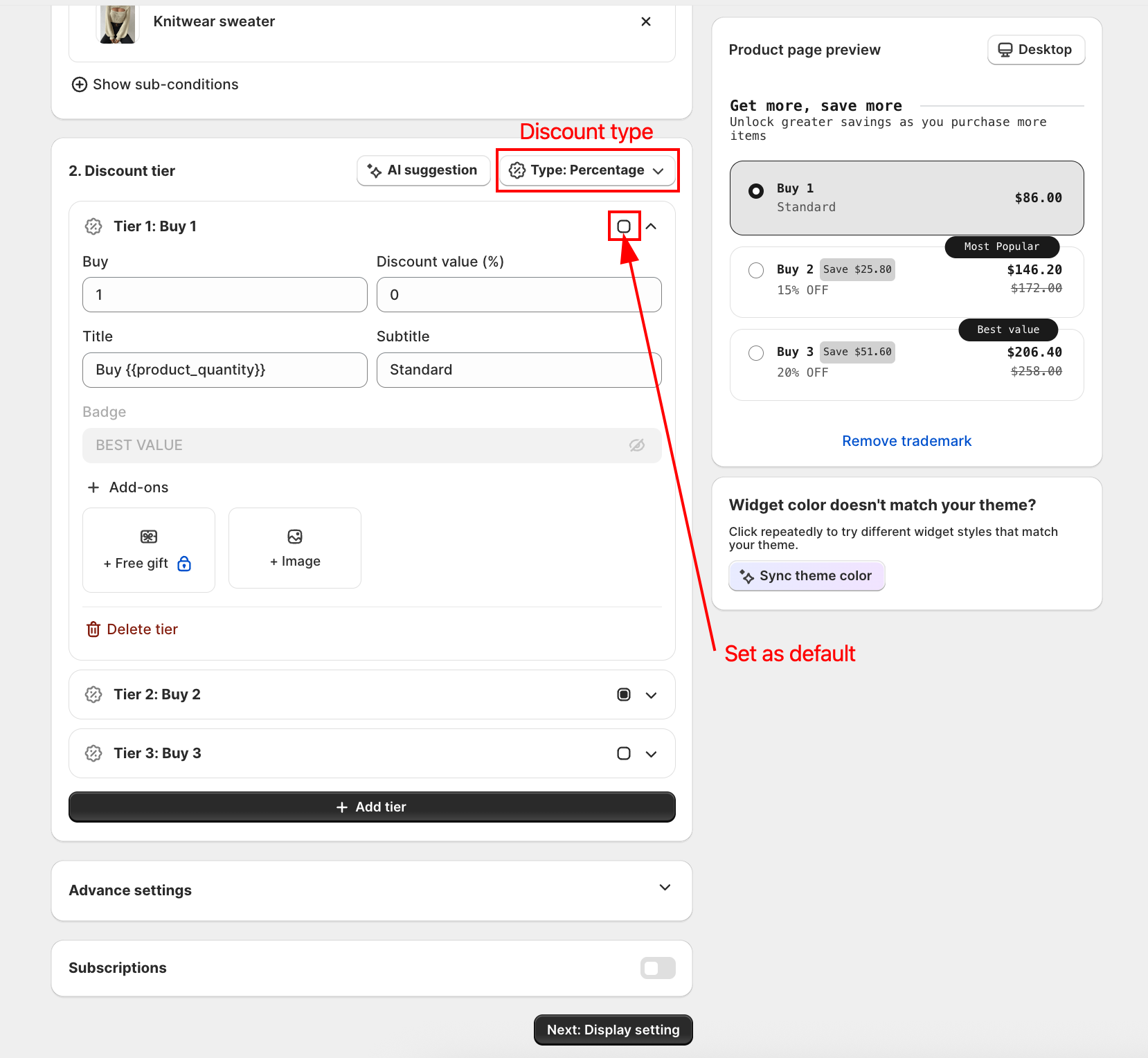
- Type (top-right dropdown): Percentage (discount expressed as a % off, for example 20% off) or Fixed amount (a flat amount off, for example $5 off).
- AI suggestion: not sure what values to use? Click it and the app proposes tier values based on your scope and discount type.
- + Add tier: add another rung to the ladder. Each tier sets a quantity threshold and the discount earned at that threshold.
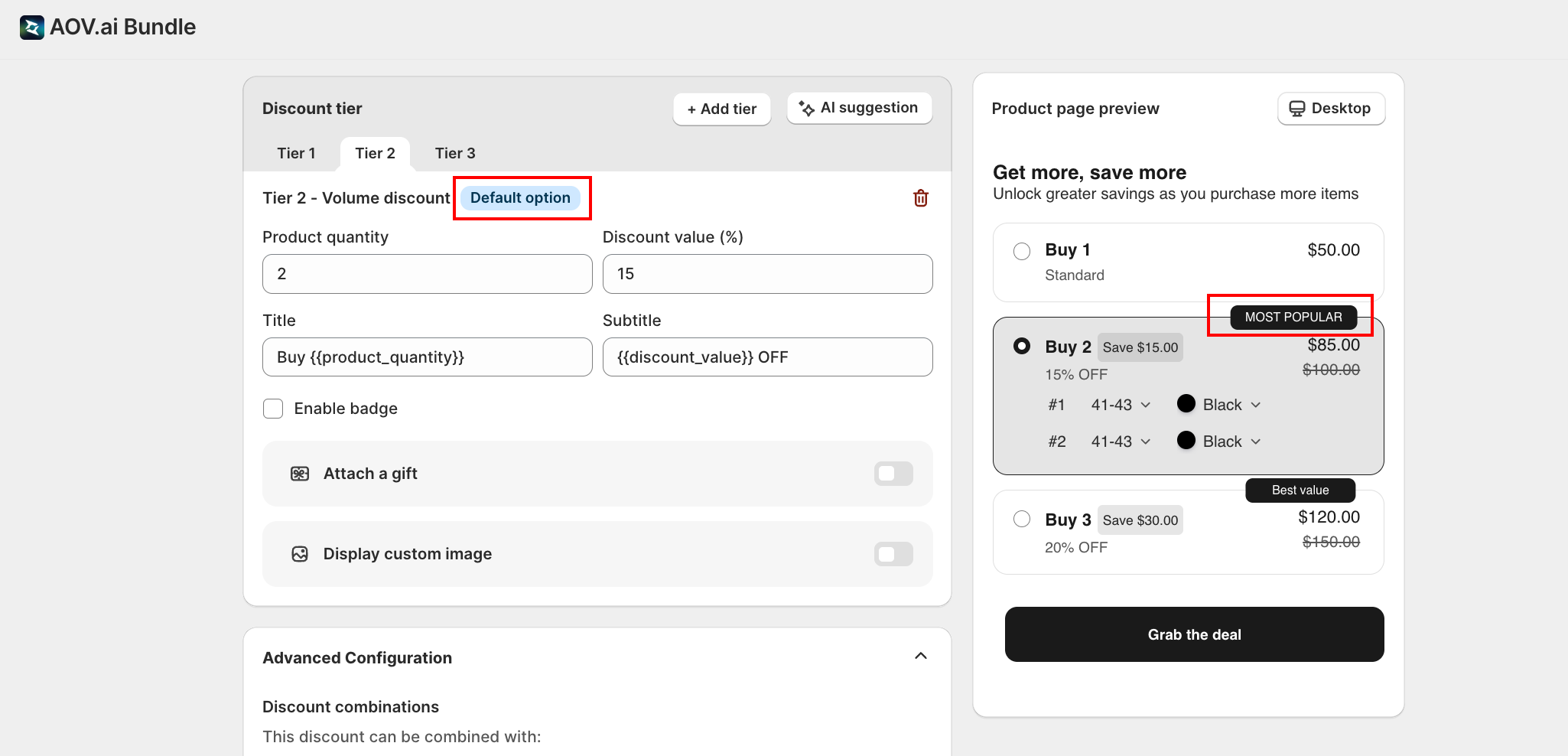
- Tier 1 / Tier 2 / Tier 3: click a tier row to expand it and edit its fields.
For each tier:
| Field | What it does |
|---|---|
Buy | Minimum units the customer must add to unlock this tier |
Discount value (%) | The discount they earn at this tier (% or fixed amount, matching the type above) |
Title | Customer-facing tier headline (for example Buy 2) |
Subtitle | Helper line under the title (for example Save $15.00) |
Badge | Toggle a badge on this tier (for example MOST POPULAR, Best value); the badge label is editable |
+ Free gift (Add-ons) | Add a free or discounted product to this tier; when the customer hits the quantity, the gift is added automatically |
+ Image (Add-ons) | Upload an image (.gif, .jpg, .jpeg, .png; up to 5MB) shown next to the tier |
The gift stays in sync with quantity automatically. As the customer changes quantity in the cart (or reopens the cart page/drawer), the app compares the gift they currently have against the gift their current tier earns, and adjusts:
- Raising quantity into a tier with a gift: the gift is added automatically.
- Dropping quantity below that tier: the gift is removed (or reduced) to match.
- If the customer manually removes the gift themselves, the app won't re-add it, unless they raise the quantity further afterward.
This runs automatically for every shop with Volume Discount gifts, there's no setting to turn it on or off.
Two limitations to know:
- It only auto-syncs when the trigger product was added to cart through the app's widget. Adding the same product from a collection page, the homepage, or elsewhere on the storefront doesn't trigger the auto-sync.
- If the gift product is the same product and variant as the trigger itself, Shopify doesn't allow the auto-add (a product variant can't be nested under a cart line of that same variant). Pick a different gift product or variant to avoid this.
Example tier ladder:
| Tier | Quantity | Discount |
|---|---|---|
| Tier 1 | 1 (Standard) | 0% |
| Tier 2 | 2 | 15% |
| Tier 3 | 3 | 20% |
Set as default tier: the small circle toggle next to a tier's row (top-right, beside the expand arrow) sets that tier as the one pre-selected in the storefront widget so it loads highlighted. Use it to nudge customers toward the tier you want them on. Only one tier can be set as default at a time, and it automatically carries the Most Popular badge on the storefront widget.
Step 6: Switch to Display Setting
Click Step 2: Display setting to choose how the widget looks on the product page.
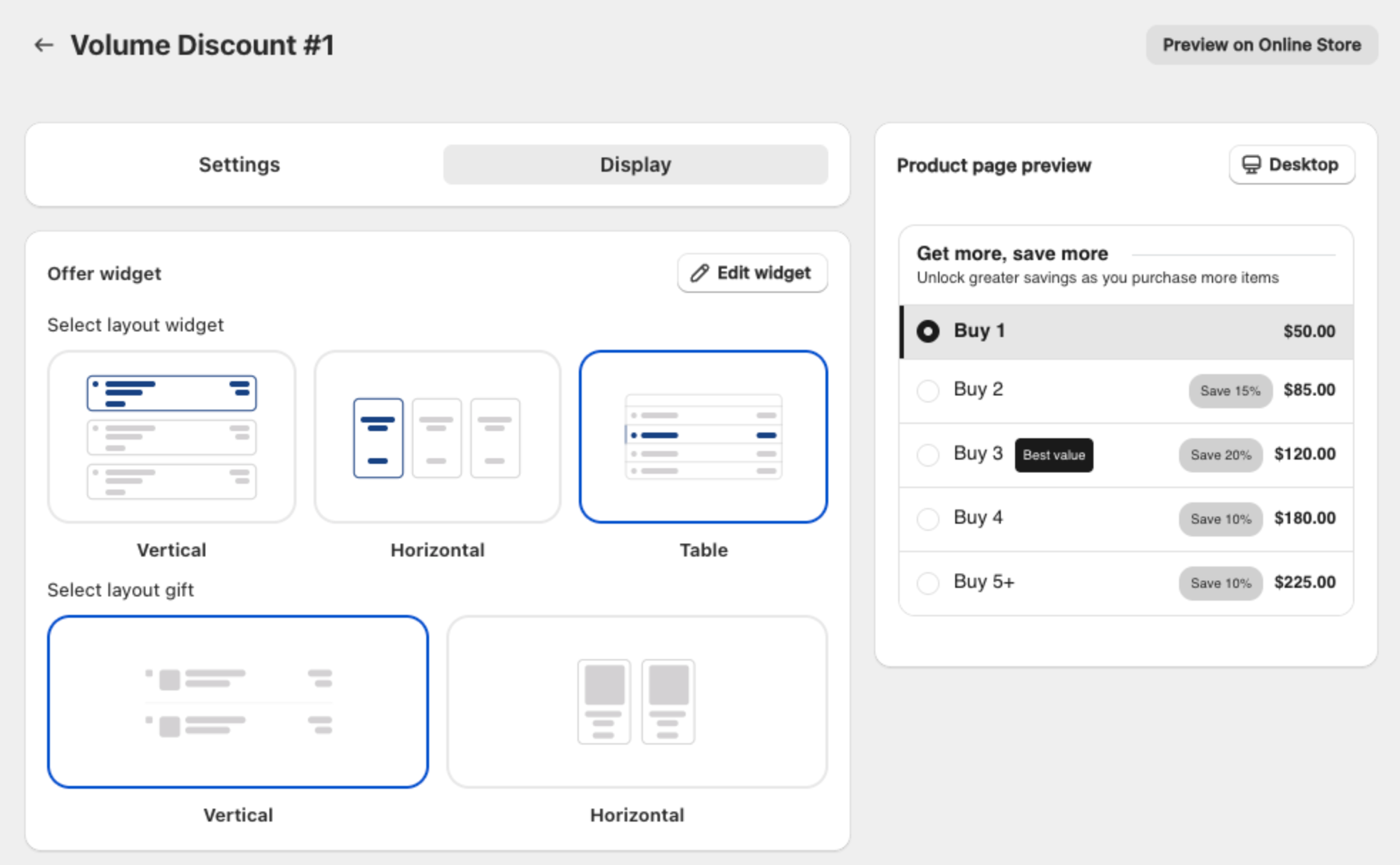
The display tab covers four things:
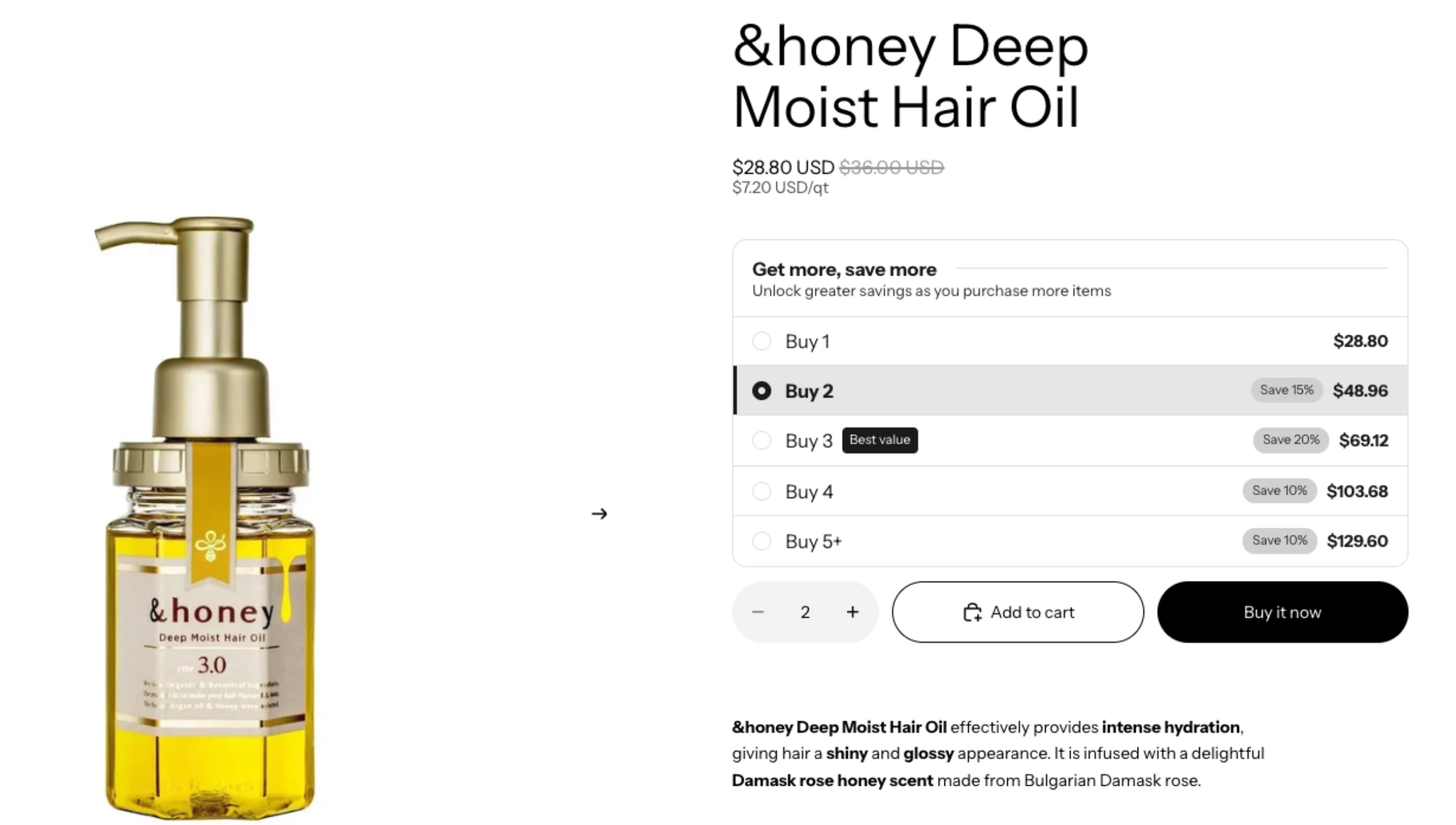
- Offer-level layout choice: Vertical, Horizontal, or Table arrangement of the tier rows. This is per-offer (each Volume Discount campaign can pick its own). Table renders each tier as one row (quantity, save, price columns), which keeps a long tier ladder (8 to 10 tiers or more, common for wholesale) scannable in one screen instead of running down the page. The default stays Vertical; existing offers are unaffected until you explicitly switch one to Table.
- Widget-level styling: colors, badges, fonts, save labels, etc.
- These settings live under Widget display → Volume table widget and apply to every Volume Discount on the store
- Click Edit widget in the Offer widget card to jump straight there
- See Volume table widget for the full styling guide
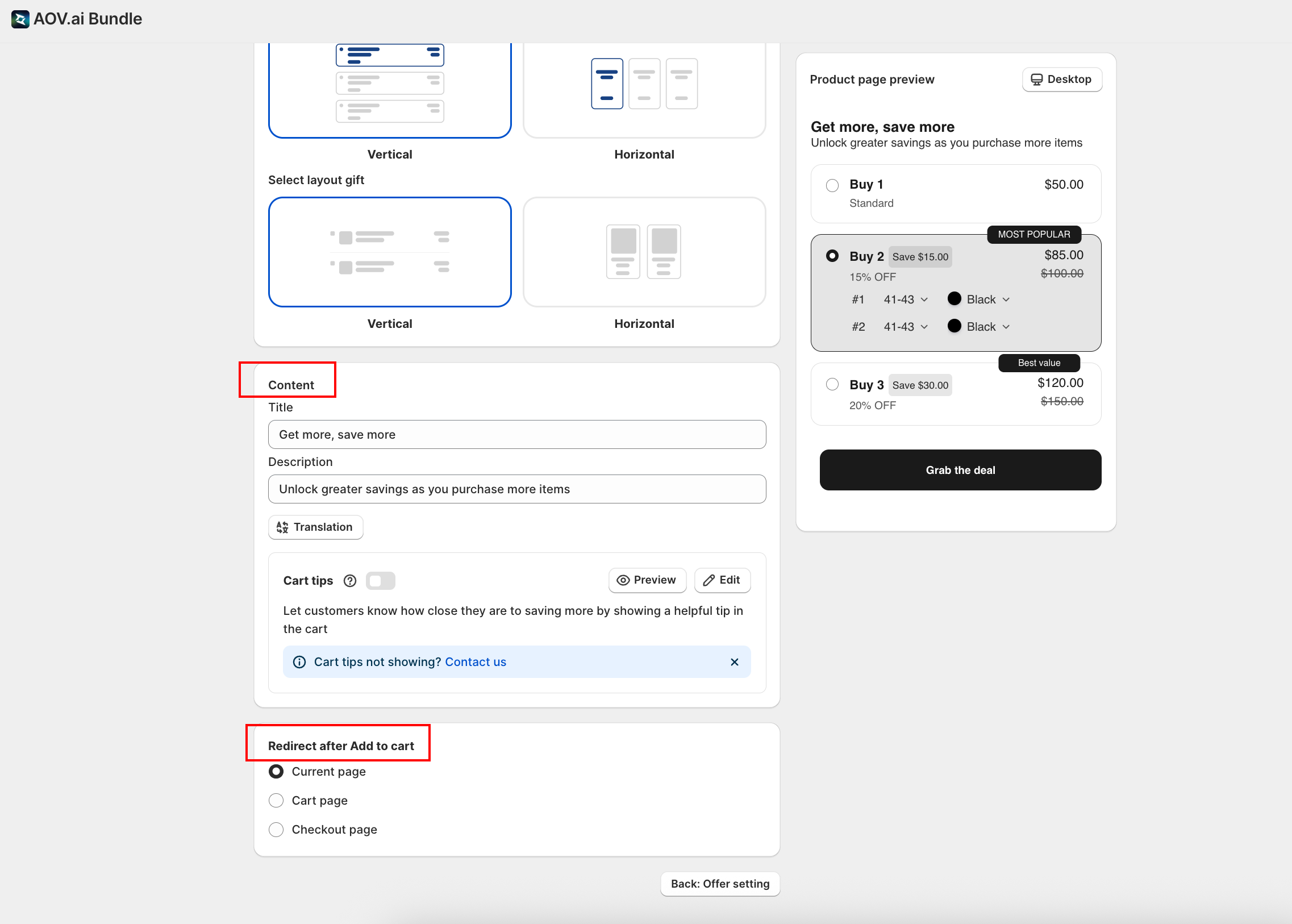
- Content:
- Title and Description: text shown above the tier table (for example "Get more, save more" / "Unlock greater savings as you purchase more items")
- Translation: click to add translations for the languages active in your Shopify Admin → Markets. This applies to all translation fields across the app.
- Cart tips (toggle): shows customers how close they are to the next tier while in the cart. Click Preview or Edit to configure the tip message
Mix & Match Volume Discount (Optional)
Below the tier ladder on the same Step 1 form, the Mix & Match volume discount card lets customers reach a tier by combining several different products, instead of buying multiples of the same one (for example, "buy any 3 items from this collection, save 10%"). It's off by default, this is opt-in, and existing offers keep working exactly as before until you turn it on.
Turn on the toggle at the top of the card to reveal its settings:
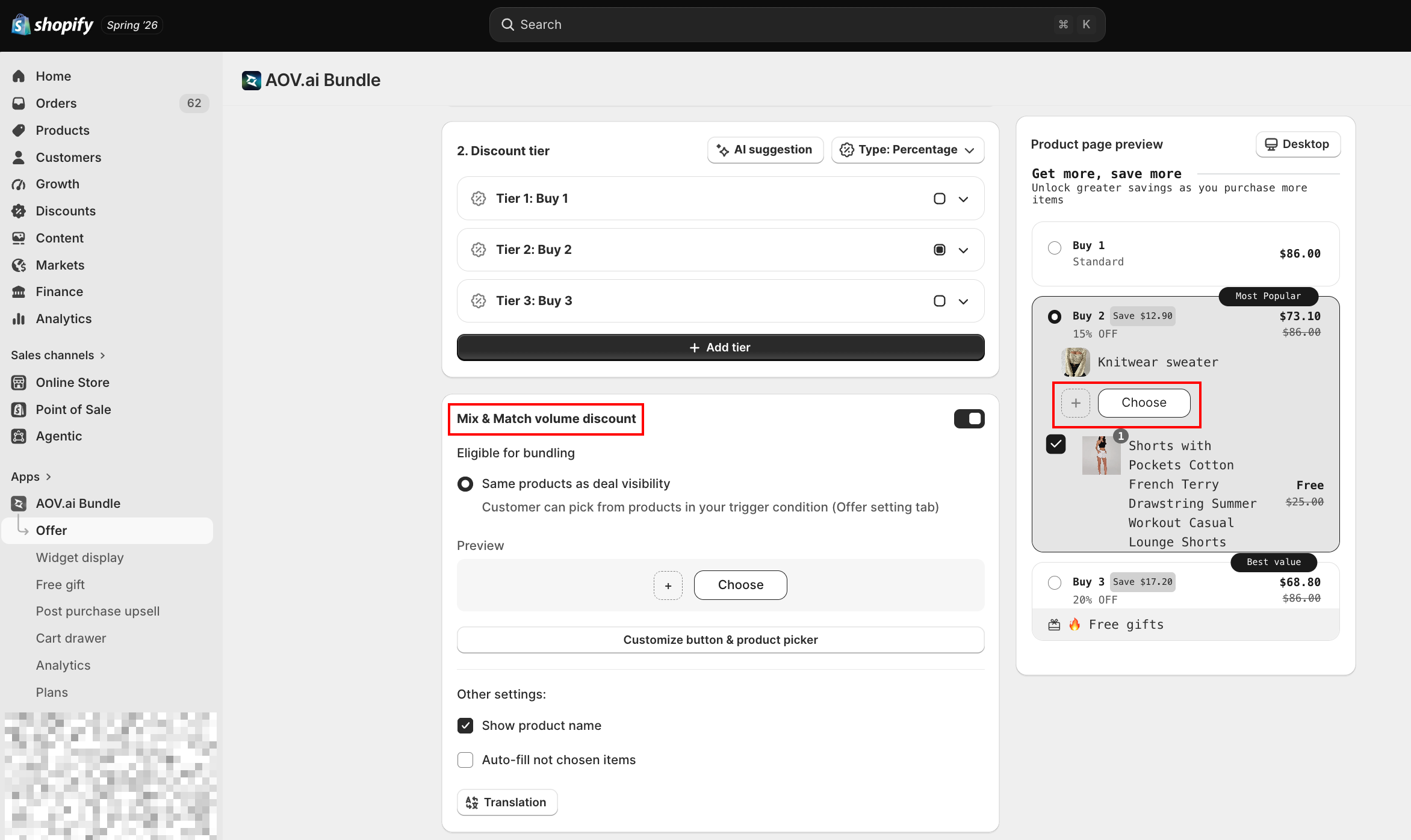
- Eligible for bundling: currently one option, Same products as deal visibility (pre-selected). Customers can pick from whichever products your offer's Trigger condition (Step 1, Deal info) already covers.
- Other settings:
| Setting | What it does |
|---|---|
Show product name | Show each chosen product's name under its thumbnail in the widget (default: on) |
Auto-fill not chosen items | Pre-fill any slot the customer hasn't picked with the product they're currently viewing, so the tier is met automatically, they can still change or remove it (default: off) |
Click Customize button & product picker to open a 2-tab modal:
| Tab | Fields |
|---|---|
| Button | Button label (default "Choose"), title color, border color, background color, corner radius, and an optional placeholder image + size (shown on empty slots) |
| Product picker | Modal title (default "Choose product"), add-button label, out-of-stock label, "no products" message, show/hide the search box, and colors for text, card border, price, and compare-at price |
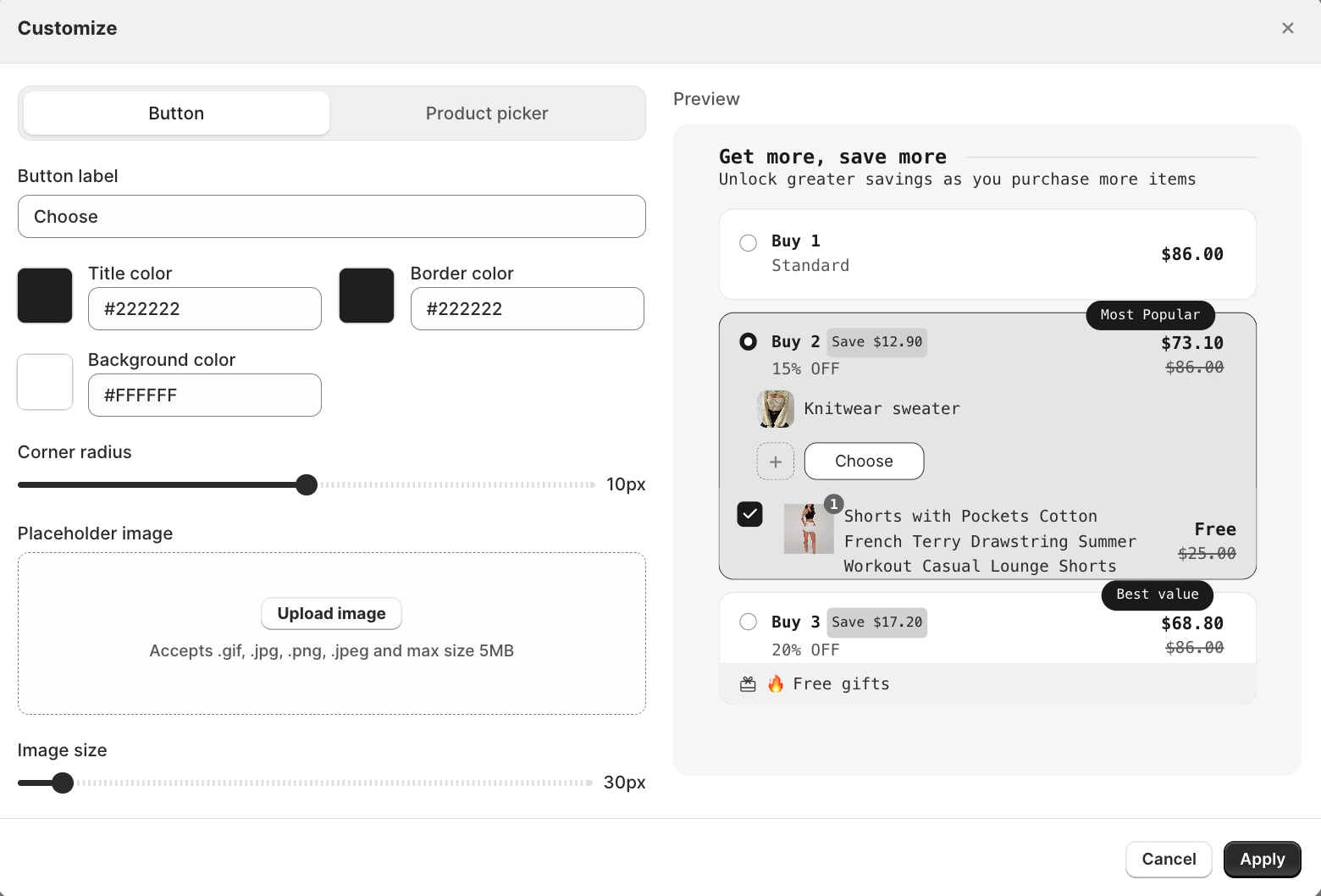
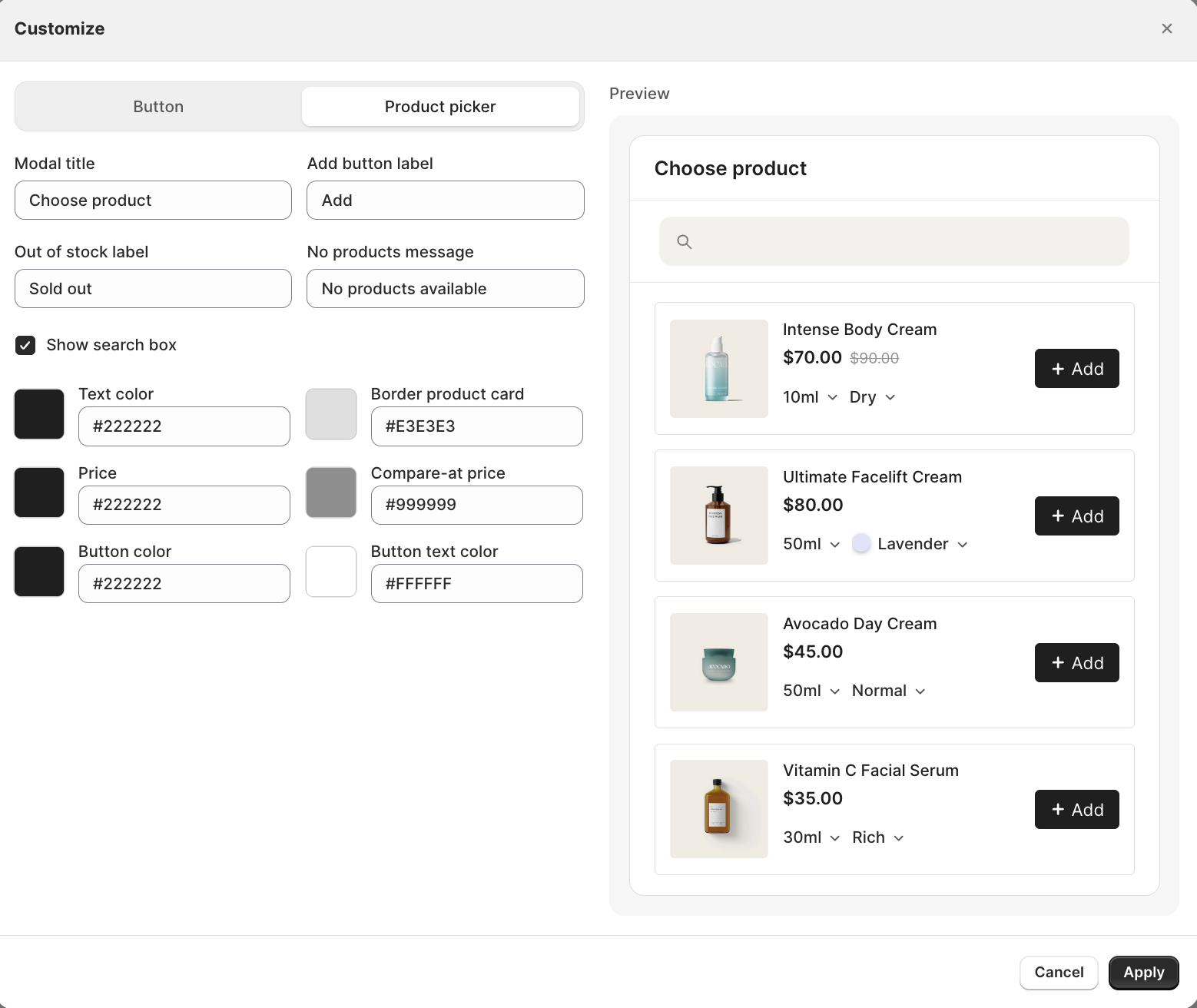
Click Apply to save the customization or Cancel to discard it, either way, nothing takes effect on the storefront until you click Save on the offer itself.
How It Works on the Storefront
This is the key difference from a normal Volume Discount tier. Without Mix & Match, a customer can only unlock a tier by buying more units of the same single product (for example, 2× the same dress). With Mix & Match on, they can unlock the exact same tier by picking 2 or more different products, for example 1 Long Dress + 1 Oversized Hoodie together count as "Buy 2", they don't need to buy 2 of the same item.
Only tiers with a Buy quantity of 2 or more turn into mix & match, a "Buy 1" tier is unaffected and keeps the regular single-product selector.
For a mix & match tier, the widget shows:
- Row 1: the product the customer is currently viewing, locked in place (with its variant picker if it has variants)
- Rows 2 onward: one Choose slot per remaining unit the tier needs, each slot can hold a different product
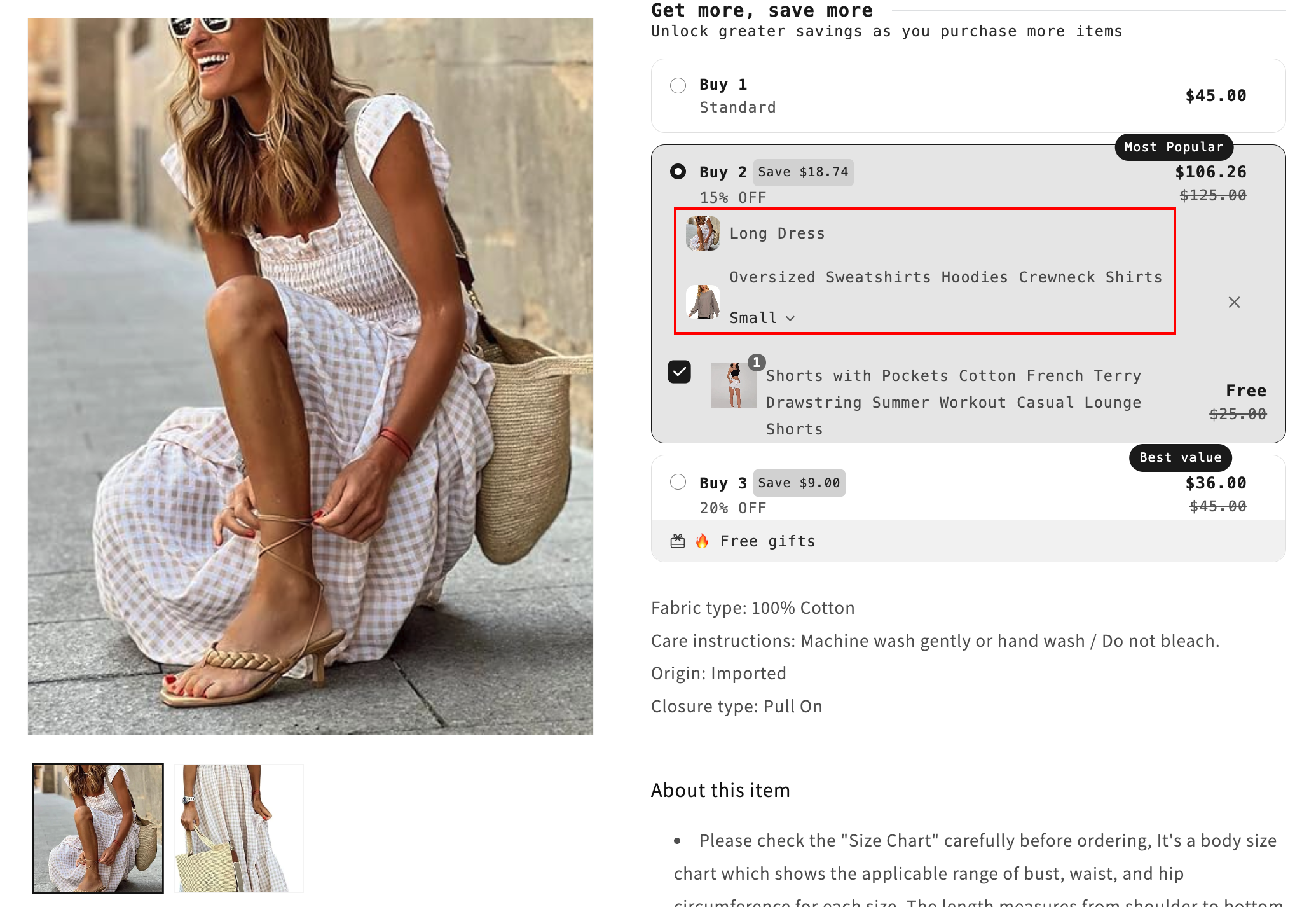
Clicking Choose opens a single-pick modal. Once the customer picks a product (and variant, if applicable), the modal closes automatically, there's no separate "Done" step. The same product can be picked into more than one slot.
- If Auto-fill is on, any slot left empty is automatically filled with the product the customer is currently viewing; they can still swap or remove it.
- If Auto-fill is off and the customer doesn't fill every slot, adding to cart still works, the discount simply falls back to whichever tier matches the quantity they actually picked. No error message is shown.
Advance Settings (Optional)
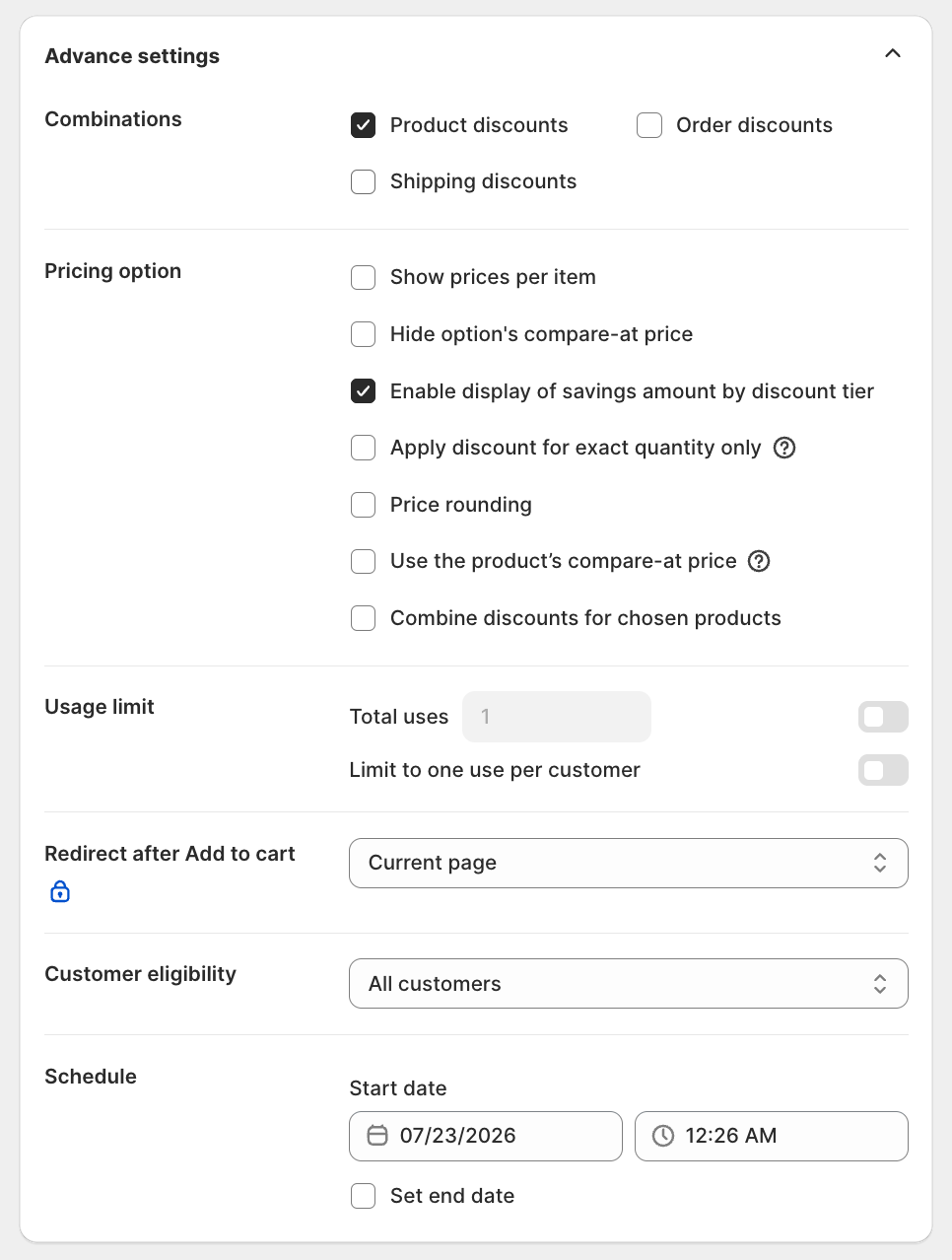
Below the tier ladder on the same Step 1 form, click Advance settings to expand a collapsed panel (closed by default). It bundles discount combinations, pricing display options, usage limits, redirect behavior, customer eligibility, and scheduling in one place. Skip it on a first launch and come back later when you want to layer in promotional rules, eligibility scoping, or a schedule.
Discount Combinations
Combinations decides whether this discount can stack with other Shopify discounts:
- Product discounts: stack with product-specific discounts
- Order discounts: stack with order-wide discounts (for example 10% off entire cart)
- Shipping discounts: stack with free or reduced shipping
Pricing Options
Pricing option controls how the discount and prices appear in the widget.
| Toggle | What it does |
|---|---|
Show prices per item | Display the adjusted per-unit price (for example $9.00 each when you buy 5) |
Hide option's compare-at price | Remove the crossed-out original price from the tier rows |
Enable display of savings amount by discount tier | Show the savings number next to each tier (for example Save $15.00) |
Apply discount for exact quantity only | Discount only applies if the customer's quantity exactly matches a tier (not "this tier or above") |
Price rounding | Round discounted prices to cleaner numbers (for example $9.97 → $10.00); hidden when the discount type is Fixed amount |
Use the product's compare-at price | Use the product's existing Shopify compare-at price as the original price instead of recomputing |
Usage Limit
Usage limit caps how often the discount can be redeemed:
- Total uses (toggle): global cap across all customers (for example only the first 100 redemptions)
- Limit to one use per customer (toggle): each customer can redeem only once
Redirect After Add to Cart
Choose where customers go after clicking the tier CTA: Current page (default), Cart page, or Checkout page.
Customer Eligibility
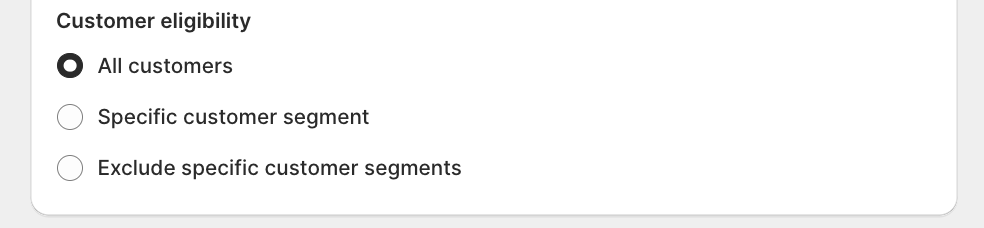
Customer eligibility decides who can use the discount:
- All customers: everyone can redeem
- Specific customer segment: only customers in a chosen Shopify segment (for example VIP customers, Wholesale)
- Exclude specific customer segments: everyone except the chosen segments
Schedule
- Start date / time: when the offer goes live
- End date (optional): tick Set end date to make this a limited-time campaign and reveal the Countdown timer toggle, which adds a live countdown next to the tier table
Times use your store's timezone.
Avada Joy Subscriptions (optional)
This card sits outside the Advance settings panel, always visible below it.
Next Steps
Troubleshooting
Q1: The volume table doesn't show on my product page
The most common cause: the theme app embed isn't enabled. Open App Embed and Theme Integration and follow the 2-minute setup. Also confirm the offer Status is Active and the schedule covers the current date.
Q2: The discount doesn't apply at checkout
Check that the customer's basket meets the Tier 1 quantity threshold and the product is in your trigger scope (not on the exclusion list). If you have a subscription app, remember those discounts apply first and may change the final price.
Q3: My tier shows the wrong price
Check Pricing option. If Apply discount for exact quantity only is on, the discount only applies at exact-match quantities, not "this tier or above". Toggle it off if you want the standard tier-or-above behavior.
Q4: I want a custom discount code (for example SUMMER25)
Manual code editing is gated. Click Contact support in the Discount name field and the team can enable it for your store.
Q5: My subscription app and Volume Discount give a weird final price
Subscription discounts apply first, then your Volume Discount. To get consistent pricing, use only discounts created in AOV.ai Bundle Upsell (skip the subscription app's built-in discount).
Q6: I don't see a "Choose" slot on my tier
Mix & match slots only appear on tiers with a Buy quantity of 2 or more, and only when the Mix & Match volume discount toggle is on. A "Buy 1" tier always uses the regular single-product selector.