Dashboard and Overview
What This Page Is About
The home dashboard is the first screen you see when you open AOV.ai Bundle Upsell from the Shopify admin sidebar. It's a single scrollable page with 5 sections, each playing a specific role: onboarding, status, performance, education, and support.
This page walks through every section, top to bottom.
How to Open It
Open AOV.ai Bundle Upsell in the Shopify admin sidebar. You land on the home dashboard by default.
1. Welcome Banner
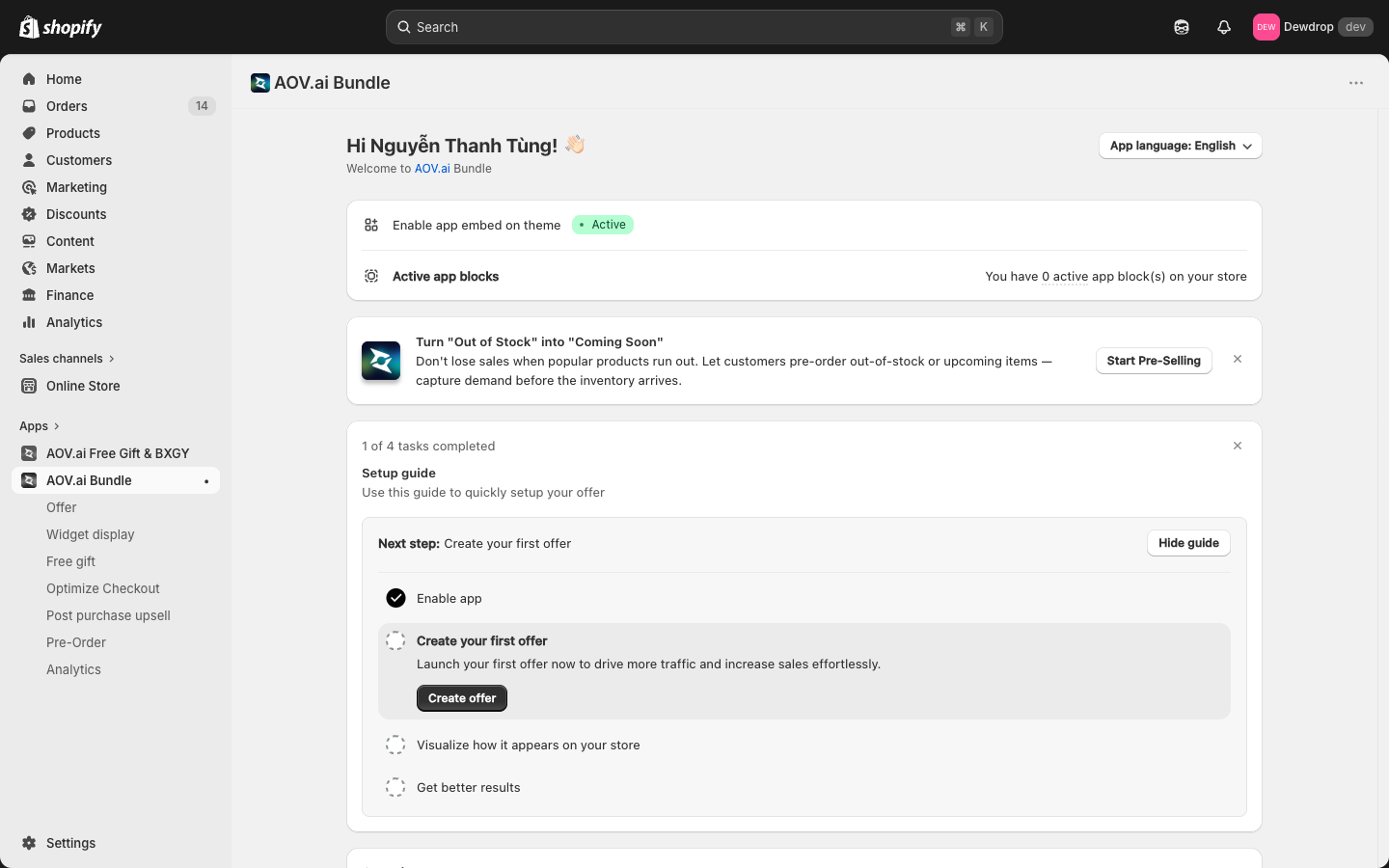
- App language selector: switches the app UI language (currently English)
- Status badges: two pieces of state:
- Enable app embed on theme with an Active badge (or a prompt to enable, if you haven't yet)
- Active app blocks counter (e.g., "You have 0 app block(s) on your store") showing how many widget blocks are wired into your theme
The status badges are quick health-checks. If either reads as inactive or zero, your widgets won't render. See App Embed and Theme Integration.
2. Setup Guide
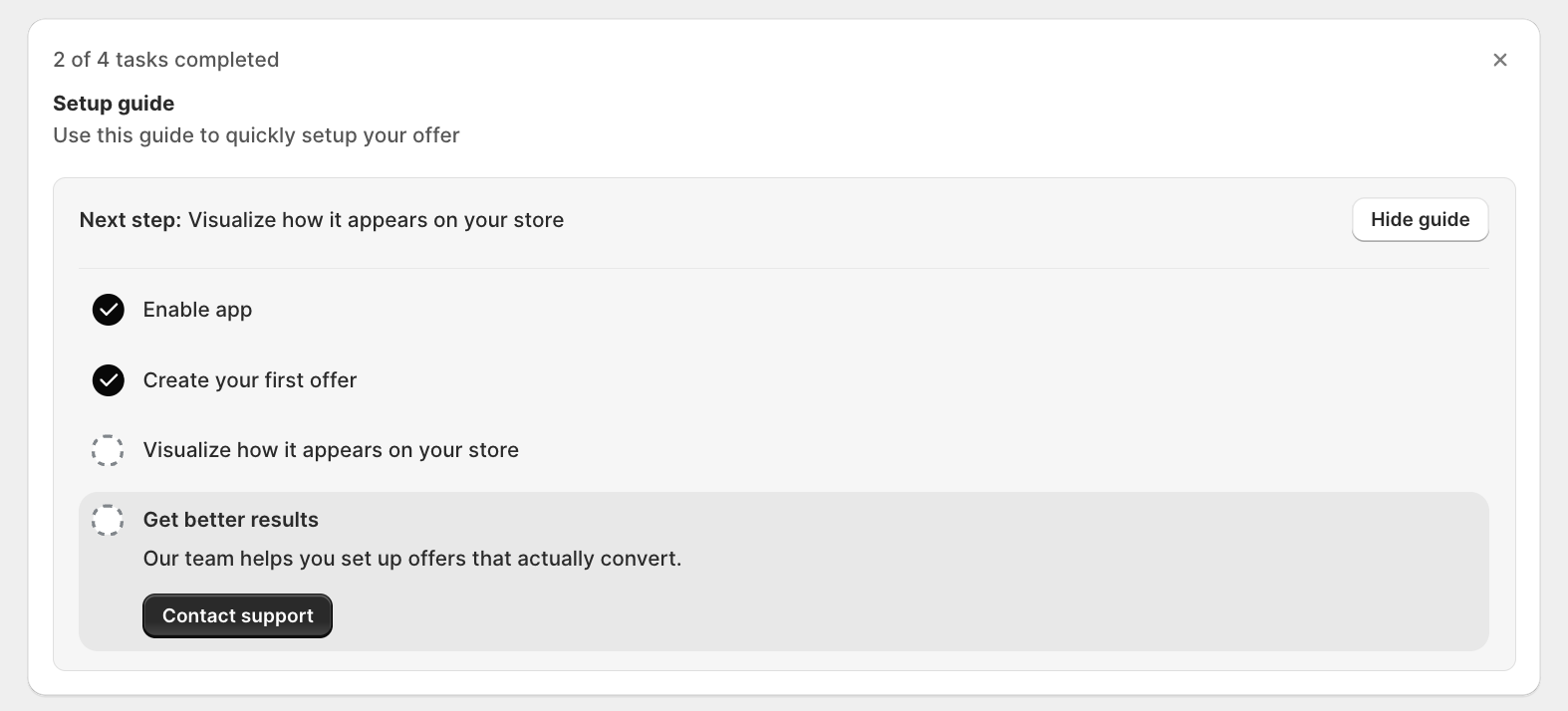
A 4-task checklist that walks new merchants through getting Bundle live:
- Enable app
- Create your first offer
- Visualize how it appears on your store
- Get better results
A progress bar shows how many tasks are complete (e.g., "1 of 4 tasks completed"). You can dismiss it with Hide guide. For details on each task, see Quick Start.
3. Overview Metrics

The Overview card sits below the Setup guide. It has 4 metrics that update as your offers generate revenue:
| Metric | What it means |
|---|---|
| Additional revenue | Extra revenue attributable to Bundle offers (the lift compared to baseline) |
| Revenue generated by AOV | Total revenue from orders that included a Bundle offer |
| Orders generated by AOV | Order count for those same orders |
| AOV increase | How much each Bundle order grew on average |
All 4 read $0.00 or 0 until you have live offers and orders.
Note: these metrics are scoped to AOV.ai Bundle Upsell only. Your Shopify admin's overall AOV will look different because it includes orders without a Bundle offer.
4. See How Top Merchants Boost AOV
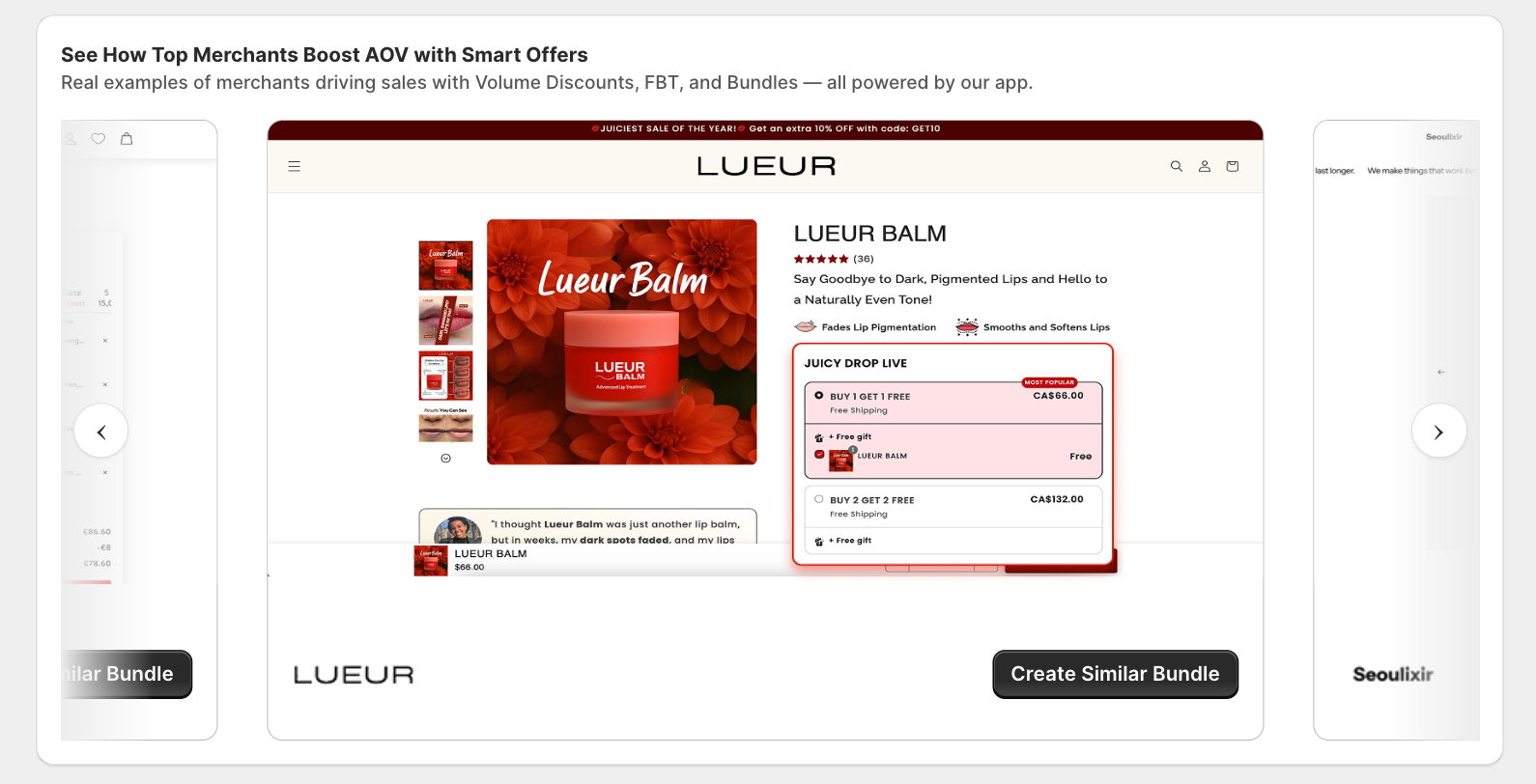
A horizontal carousel of real merchant examples using Volume Discounts, FBT, and Bundles. Each card has a Create Similar Bundle button that opens the offer builder pre-filled with that example's setup.
Use this for inspiration when you're not sure what to build. Click Previous and Next to scroll through the gallery.
5. Help Center
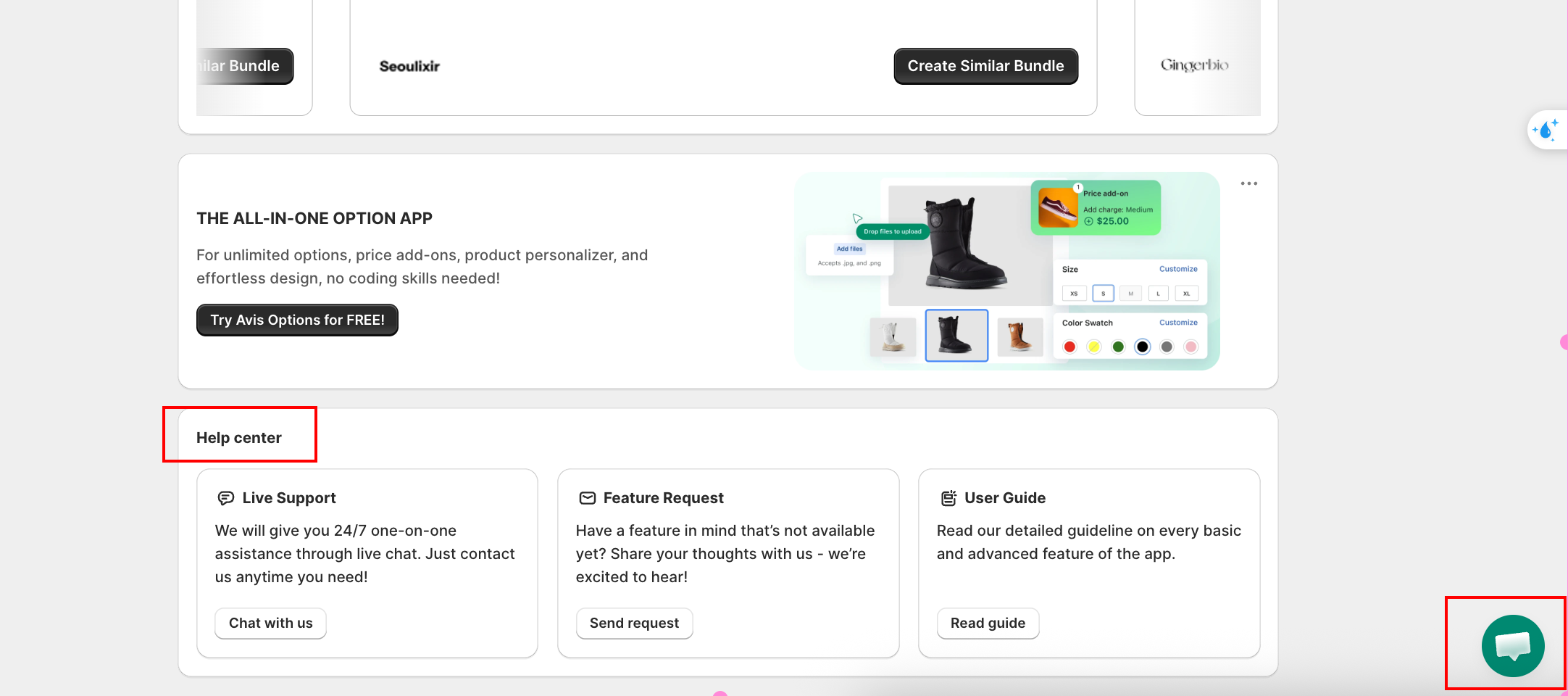
Three tiles for getting help:
| Tile | What it does |
|---|---|
| Live Support | 24/7 one-on-one live chat with the AOV.ai support team. Click Chat with us to open the widget. |
| Feature Request | Submit a feature idea. Click Send request to open the form. |
| User Guide | The detailed help center (these pages). Click Read guide to open. |
Next Steps
- Quick Start: walk through the 4 setup tasks
- Choosing an offer type: decide which offer type to create first
- App Embed and Theme Integration: required before any widget renders
- Widget display Overview: style the widgets across every offer