How to Set Up Product Recommendation
What Is Product Recommendation?
Product Recommendation shows a "you might also like" widget on a product page, suggesting related or higher-value products with an optional discount. It is the upsell pattern for nudging customers from a basic item toward a premium one, or toward complementary products, right at the moment they are deciding.
You pick the trigger product (where the widget shows), then choose the products to recommend and, if you want, a discount that applies to them.
The offer-type card describes it as: "Suggest higher-value alternatives or complementary bundles to boost AOV."
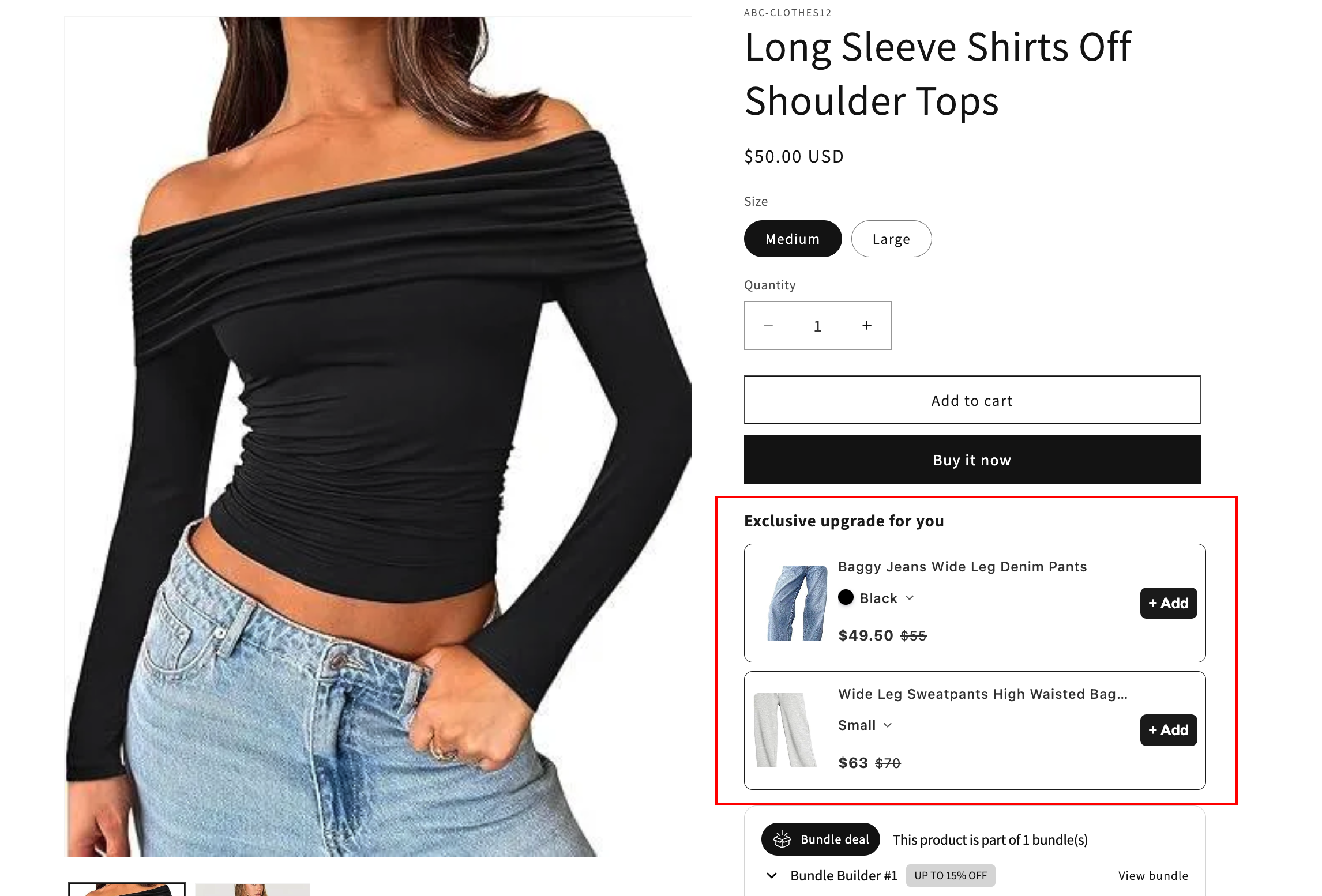
When to Use It
- You want to point customers at a premium version of the product they are viewing (good for tiered models, upgrades).
- You want to suggest complementary products on the product page.
- You want a low-friction upsell that renders right next to the product, with an optional discount to seal the deal.
Before You Start
You'll need:
- The trigger product or collection already in your Shopify catalog (the product page where the widget appears).
- The products you want to recommend, also in the catalog.
- The AOV.ai Bundle Upsell app installed.
- Theme app embed enabled, plus the AOV Product Recommend block added to the product page so the widget can render. See App Embed and Theme Integration.
Setup Walkthrough
Step 1: Open the Offer Chooser
From the Shopify admin, open AOV.ai Bundle Upsell in the left sidebar. Click Offer, then click Create new offer in the top-right.
Step 2: Pick the Product Recommendation Card
On the Select offer type screen, find the Product recommendation card and click Create.
The card example reads: "Viewing a basic model? Suggest the premium version at 10% off."
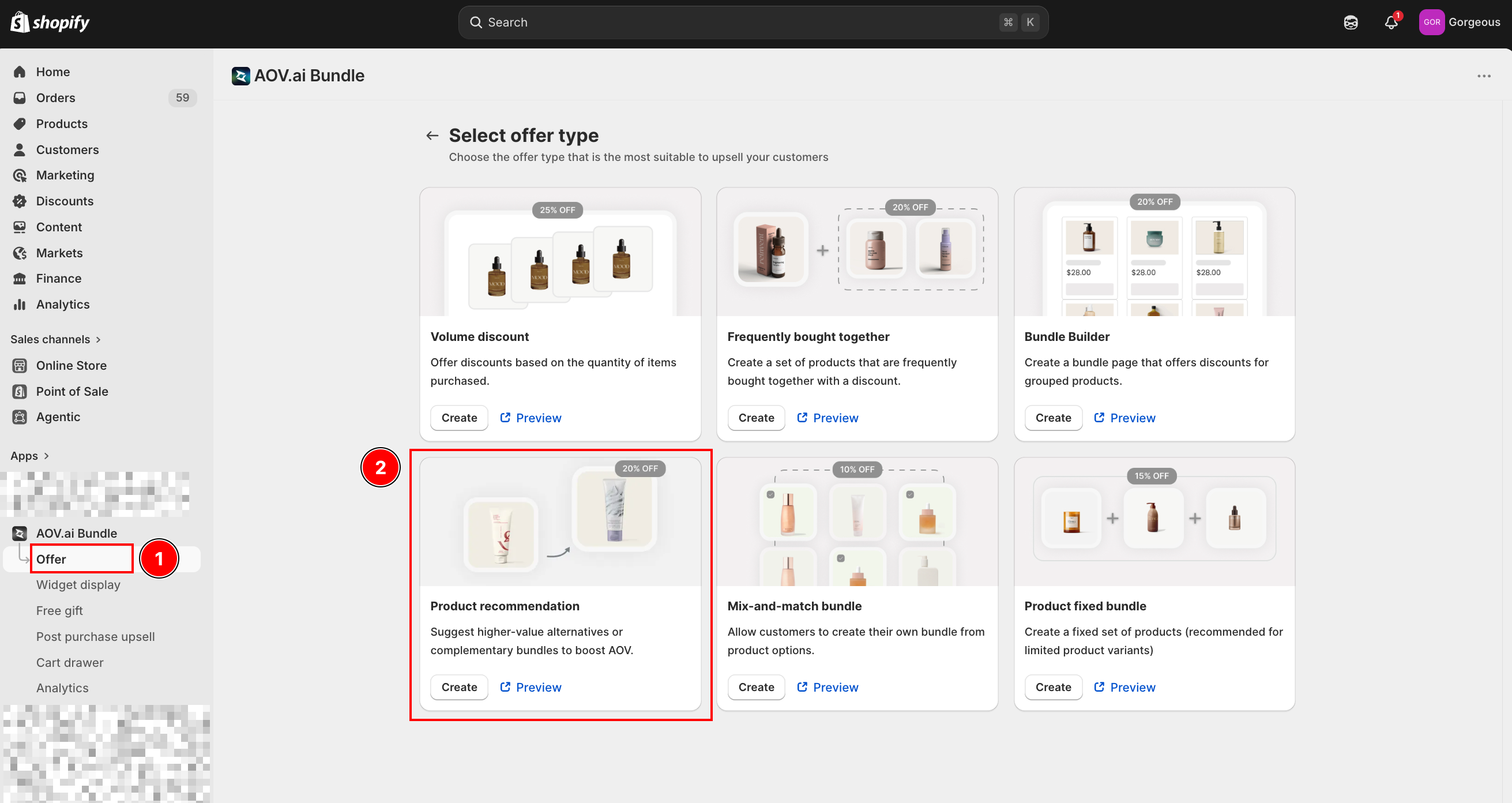
Step 3: Fill in Offer Information
The form opens at Step 1: Offer setting. The first card is Offer information.
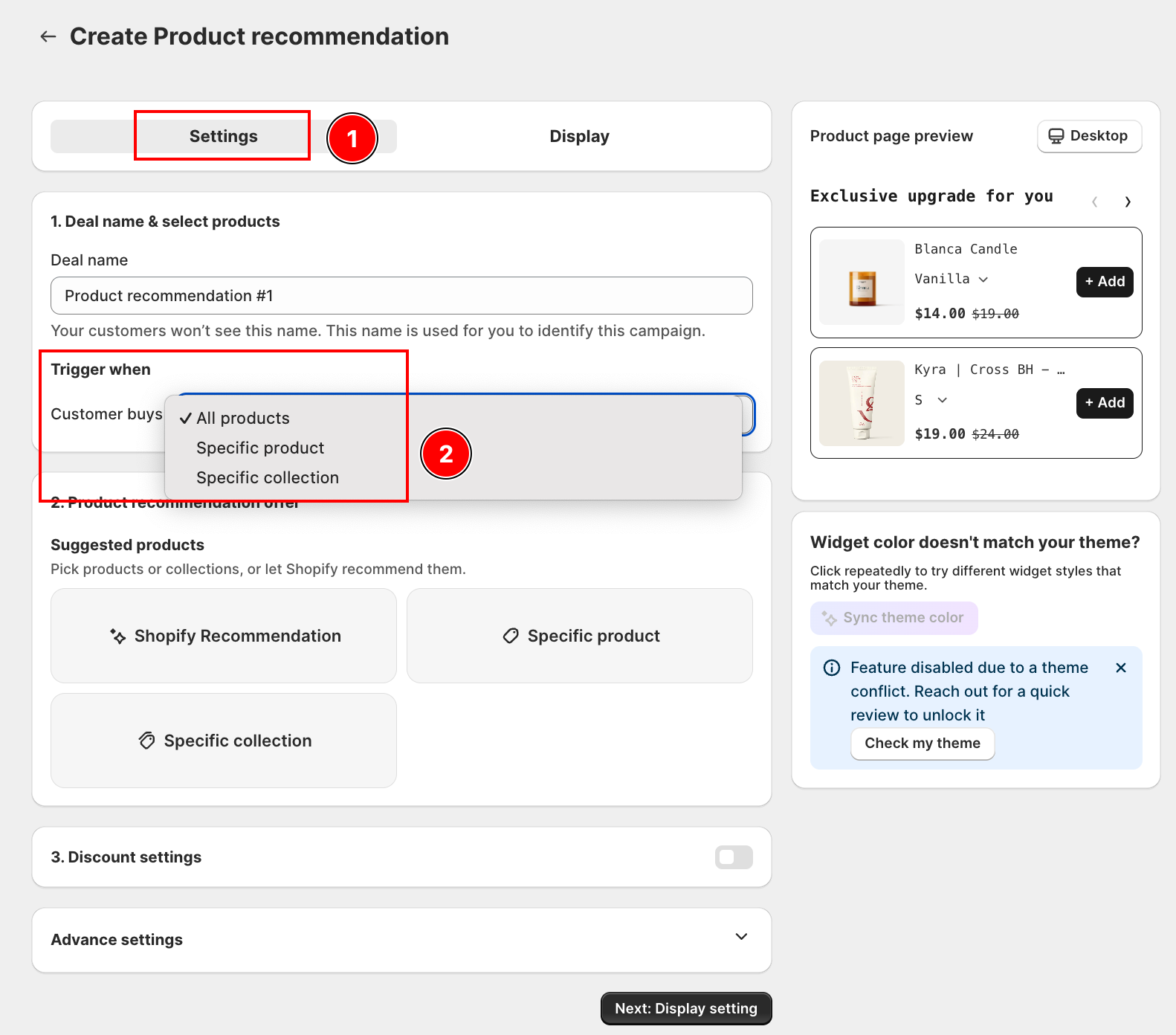
- Offer name: internal label only. Customers won't see it. Use it to find the offer in your Offer list (for example Premium upgrade on product page).
Step 4: Set the Trigger Condition
The Customer meets condition card decides which product page the widget appears on.
- Customer buys: this offer is applicable to the products you choose here. Click to open the picker and select the trigger products (or a collection). The widget shows on those product pages.
Step 5: Choose the Recommended Products
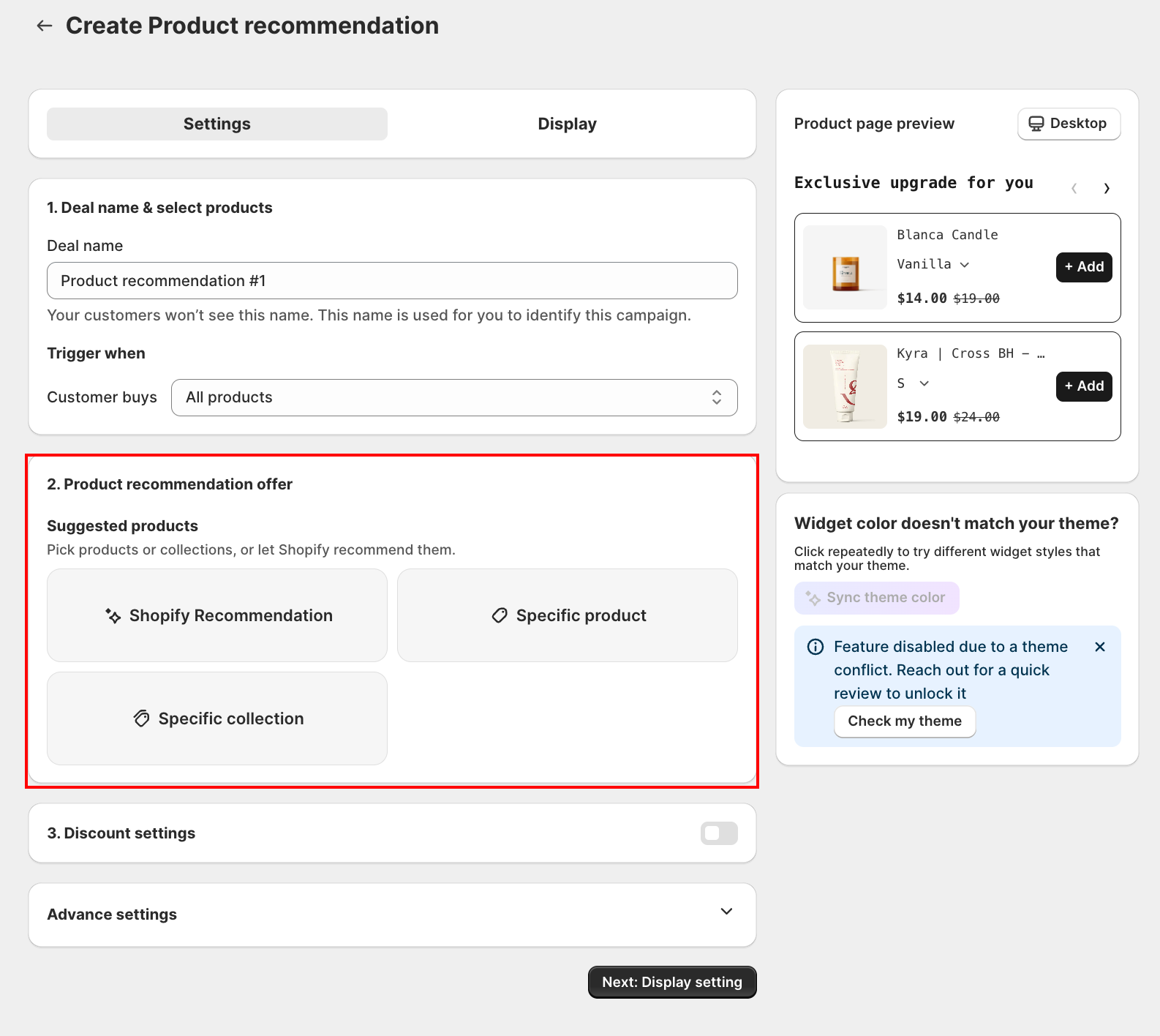
The Product recommendation offer card sets what the widget suggests. Under Suggested products, click any of the 3 source tiles to add suggestions of that type. You are not limited to one source: you can mix them in the same offer, for example two Shopify Recommendation slots plus one hand-picked product is a valid setup.
| Source tile | What it does |
|---|---|
| Shopify Recommendation | Pulls the suggested products from Shopify's own related-product recommendations for the trigger product. Shows a different random set of products on every product page load. Up to 10 recommendation slots per offer. |
| Specific product | Hand-pick the individual products to recommend. Click the tile to open the product picker. |
| Specific collection | Recommend products from one or more collections. Click the tile to open the collection picker. |
Out-of-stock items show an Out of stock badge. Use the remove icon to drop any entry, of any source, from the list.
If you set this offer up before this update, it was limited to a single source (either Specific product or Specific collection). Nothing changes for you: the existing setup keeps working exactly as before, with no action needed. The next time you open and save the offer, it upgrades automatically to the new mixed-source list, and you can then add Shopify Recommendation or additional sources if you want.
Step 6: Set the Discount (Optional)
Scroll to Discount settings.
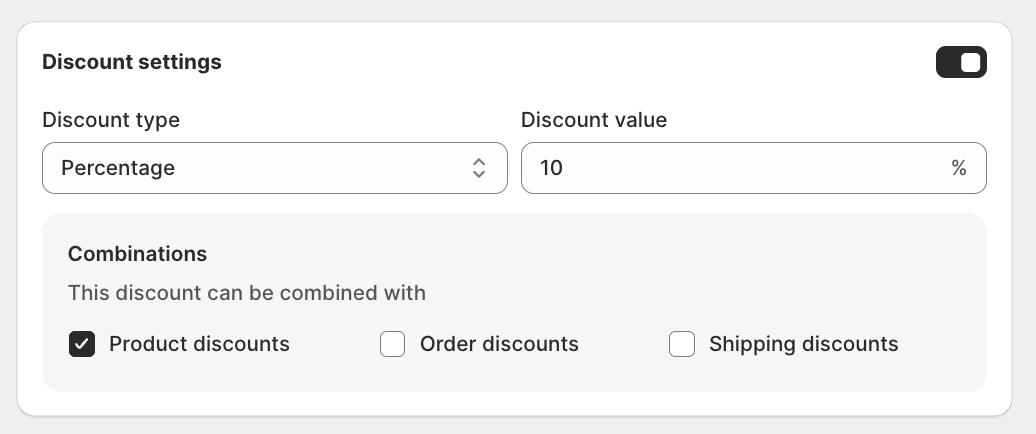
- Enable discount for upsell products: off by default. Toggle it on to attach a discount to the recommended products.
- Discount type: choose Percentage (a % off, defaults to 10%) or Fixed amount (a flat amount off).
- Discount value: enter the percentage or amount.
- Combinations: under This discount can be combined with, choose whether it can stack with Product discounts, Order discounts, or Shipping discounts.
Step 7: Set the Schedule (Optional)
Open the Schedule card to control when the offer runs. Times use your store's timezone, shown as "Based on your timezone: ...".
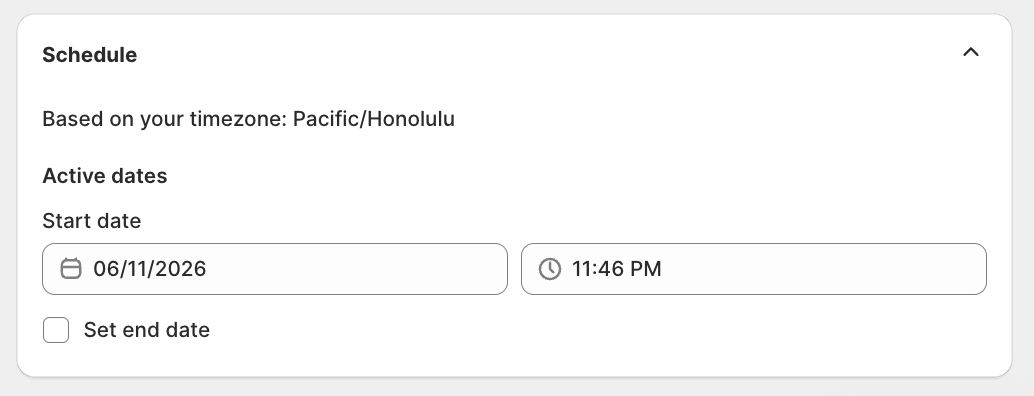
- Active dates: set a Start date and time for the offer to go live.
- Set end date: tick this to add an End date and time. Leave it unticked to run the offer until you pause it.
Step 8: Switch to Display Settings
Click Next: Display settings at the bottom of the form (or the Step 2 tab at the top).
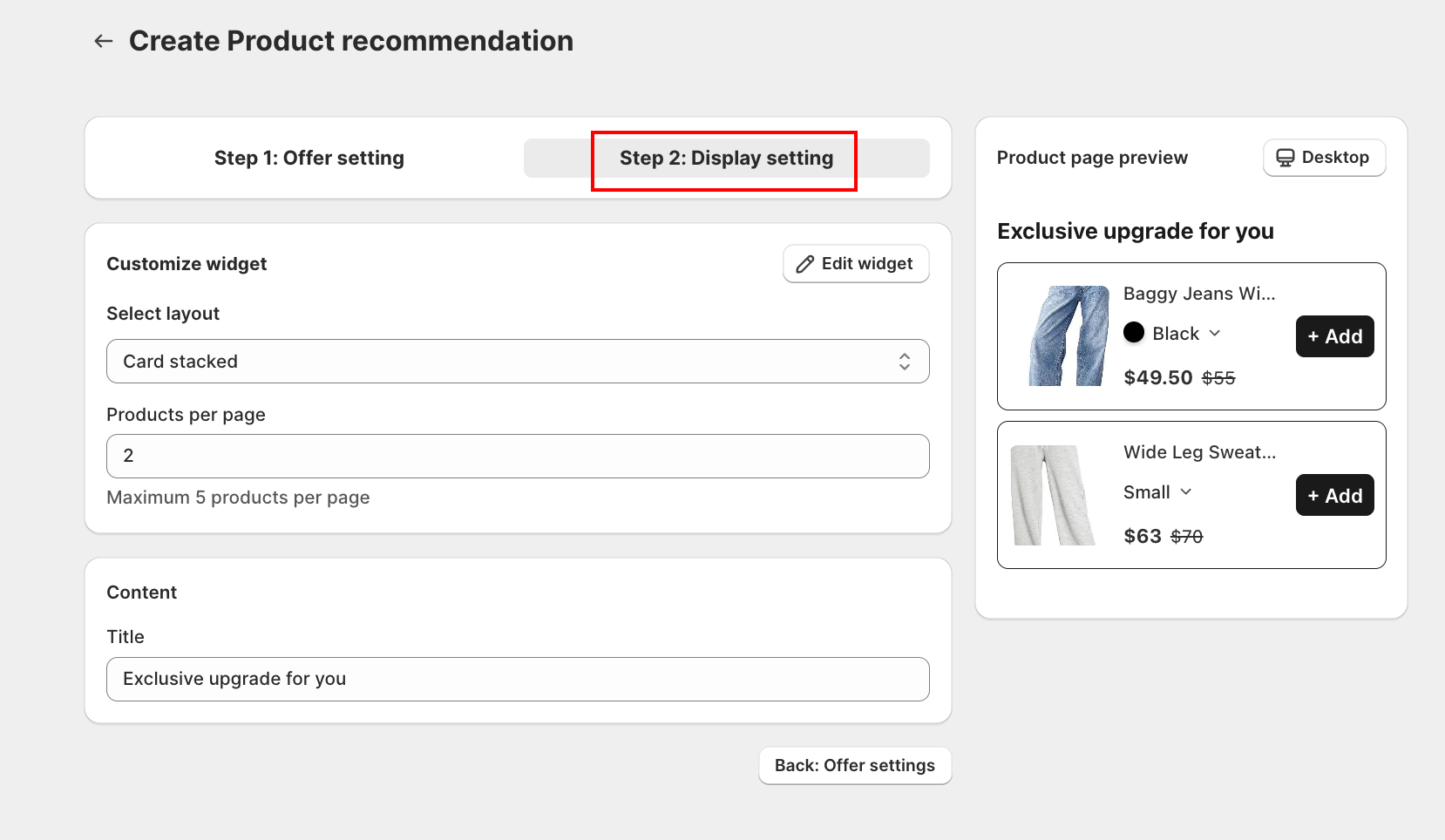
This tab controls the widget look:
- Select layout: choose how the recommendations are arranged:
- Card stacked: a vertical list. Set Products per page to control how many show at once (up to the maximum in the help text).
- Card carousel: a horizontal slider.
- Content → Title: set the heading customers see above the recommendations.
- Edit widget: open the full design editor for layout and colors. See Product Recommendation widget.
Use Back: Offer settings to return to Step 1 if you need to change anything.
Step 9: Activate and Add the Block
Set the offer Status to Active, then make sure the storefront can render it. The preview help spells out the three requirements:
"Activate the offer, enable the app embed, and add the Product Recommendation block to preview on your storefront."
In the Shopify theme editor, add the AOV Product Recommend block to your product page. See App Embed and Theme Integration.
Next Steps
- App Embed and Theme Integration: enable the embed and add the AOV Product Recommend block
- Choosing an offer type: compare Product Recommendation with the other offer types
- Discounts: how discount codes and combinations work across offer types
Troubleshooting
Q1: The recommendation widget doesn't show on my product page
Confirm the theme app embed is enabled and the AOV Product Recommend block is added to the product template. Check that the current product matches your trigger condition, and that the offer Status is Active. See App Embed and Theme Integration.
Q2: The widget shows but there is no discount
Open the offer and check Discount settings. The Enable discount for upsell products toggle must be on, with a discount type and value set.
Q3: I want the recommendation on different products than it shows now
Edit the Customer meets condition card. The trigger products (or collection) decide which product pages display the widget.
Q4: Shopify Recommendation shows no products, or too few
Shopify Recommendation pulls from Shopify's own related-products engine, which needs enough order history on your store to return results. New stores often see fewer suggestions, or none, until they have at least a few dozen orders. Add a Specific product or Specific collection source alongside it as a fallback.