How to Set Up Product Fixed Bundle
What Is Product Fixed Bundle?
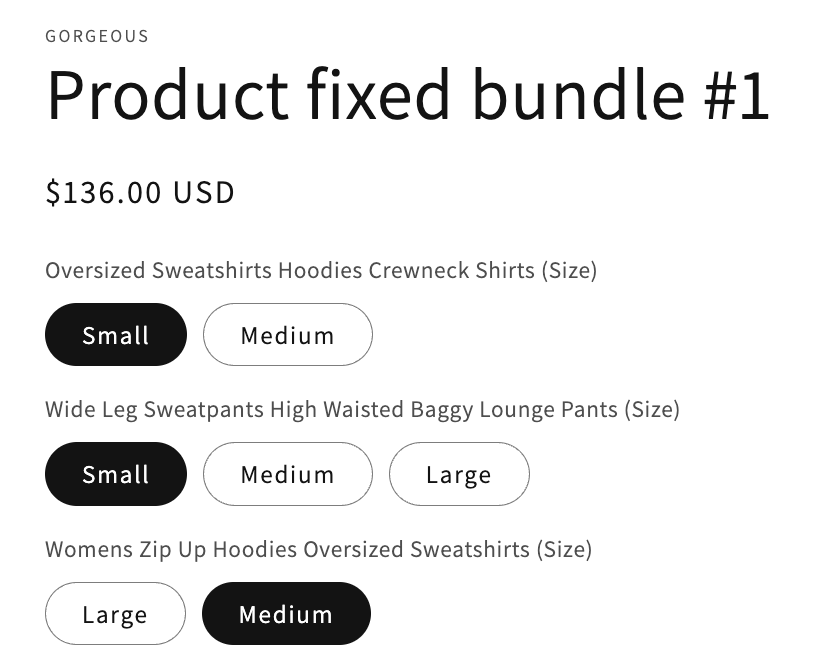
Product Fixed Bundle is a curated set of products customers buy together as a single package, at a discounted price. Unlike Bundle Builder (where customers mix and match), a Fixed Bundle is a predefined kit. Think workout essentials, skincare starter set, or 3-pack subscription box.
The bundle shows up on your storefront as its own product, with its own product page, price, and add-to-cart flow.
When to Use It
- You sell items that naturally go together (a starter kit, a multipack, a curated set)
- You want to merchandise a specific combination at a discount
- You want one product page per bundle so it can be marketed independently
Before You Start
You'll need:
- The component products already created in your Shopify catalog
- Theme app embed enabled so the optional "products included in bundle" widget can render. See App Embed and Theme Integration
Setup Walkthrough
Step 1: Open the Offer Chooser
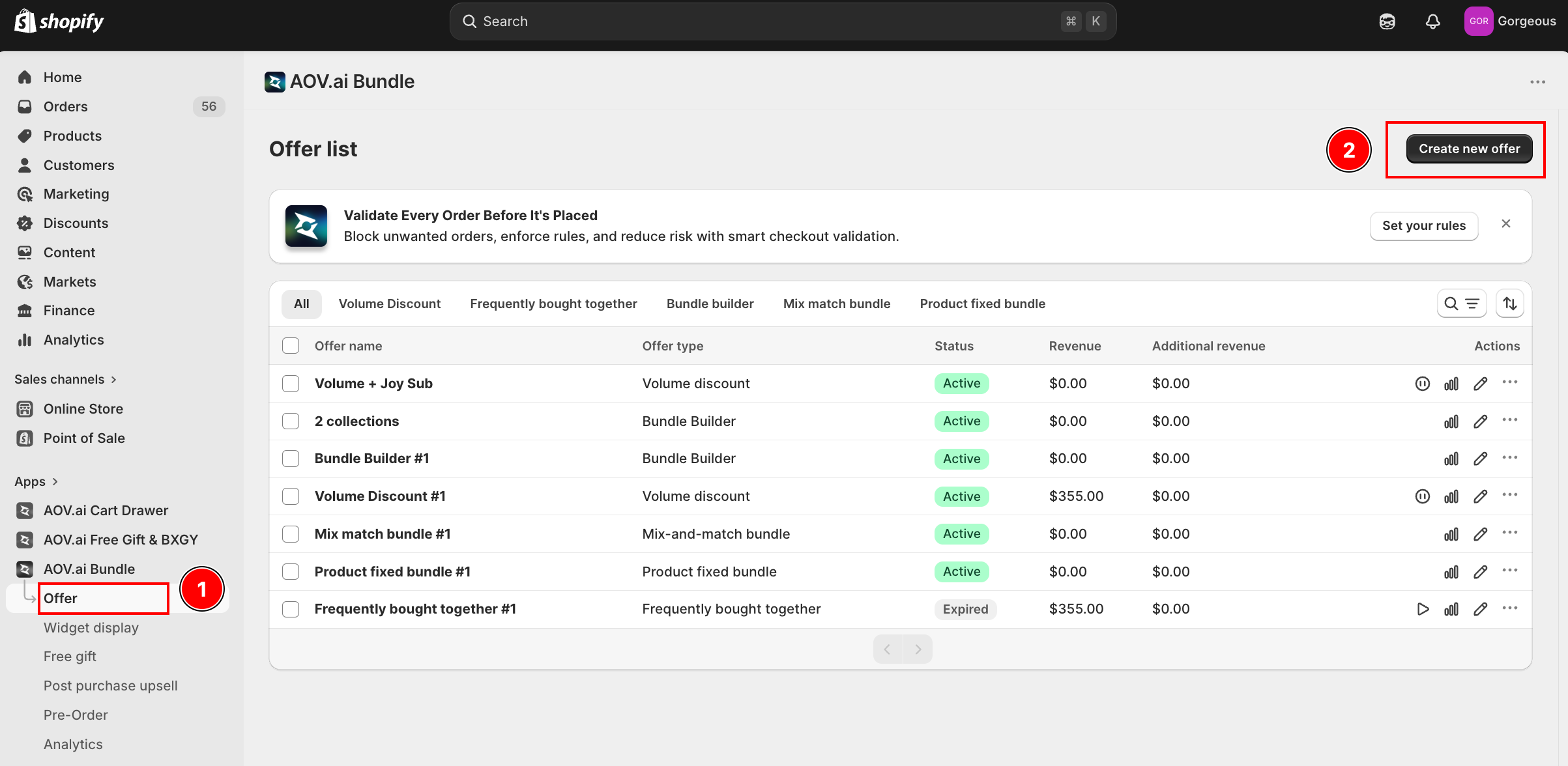
From the Shopify admin, open AOV.ai Bundle Upsell in the left sidebar. Click Offer, then click Create new offer in the top-right.
Step 2: Pick the Product Fixed Bundle Card
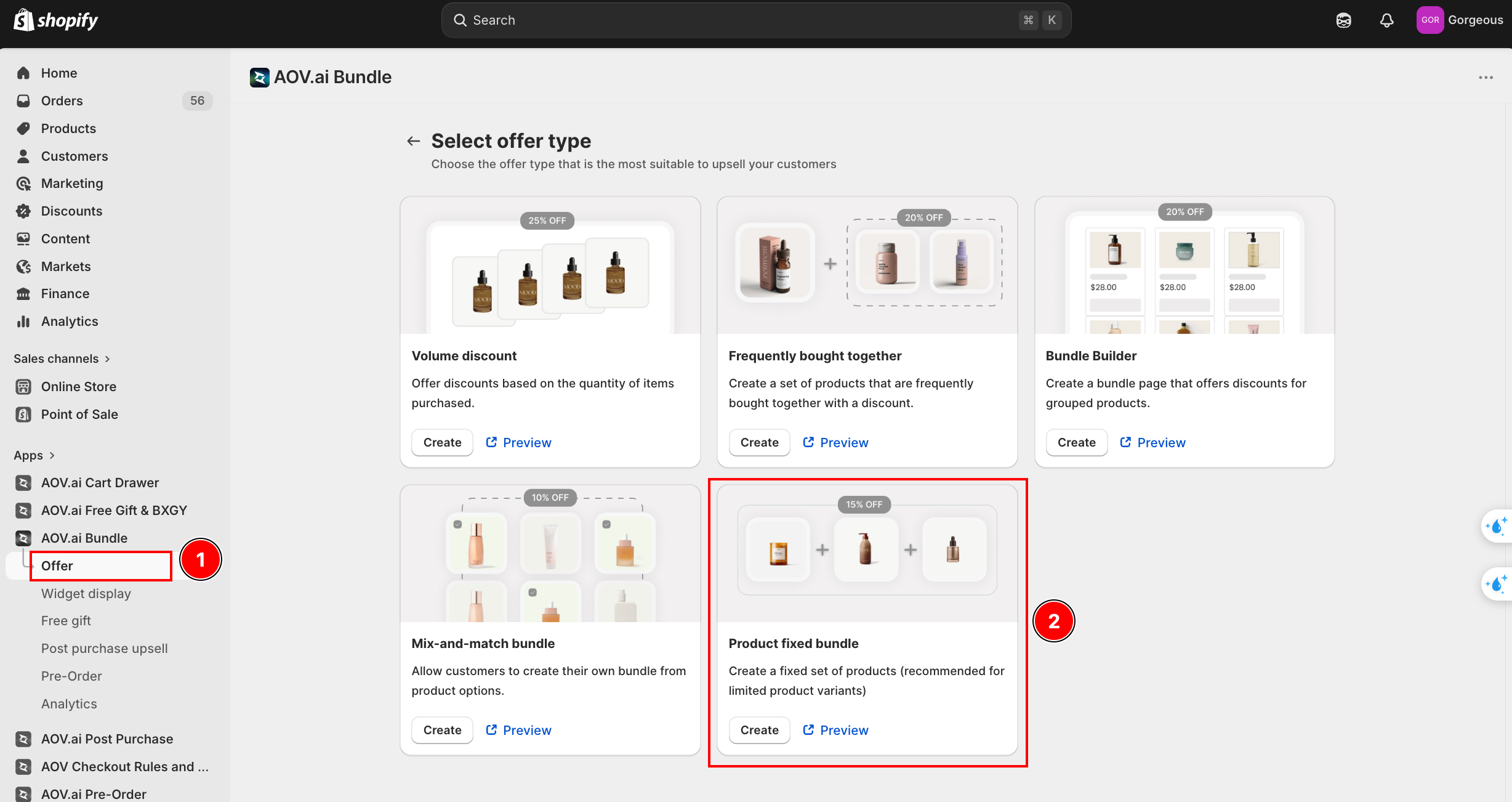
On the Select offer type screen, find the Product fixed bundle card and click Create.
Step 3: Enter Offer Information
The form opens with the Offer information card at the top.
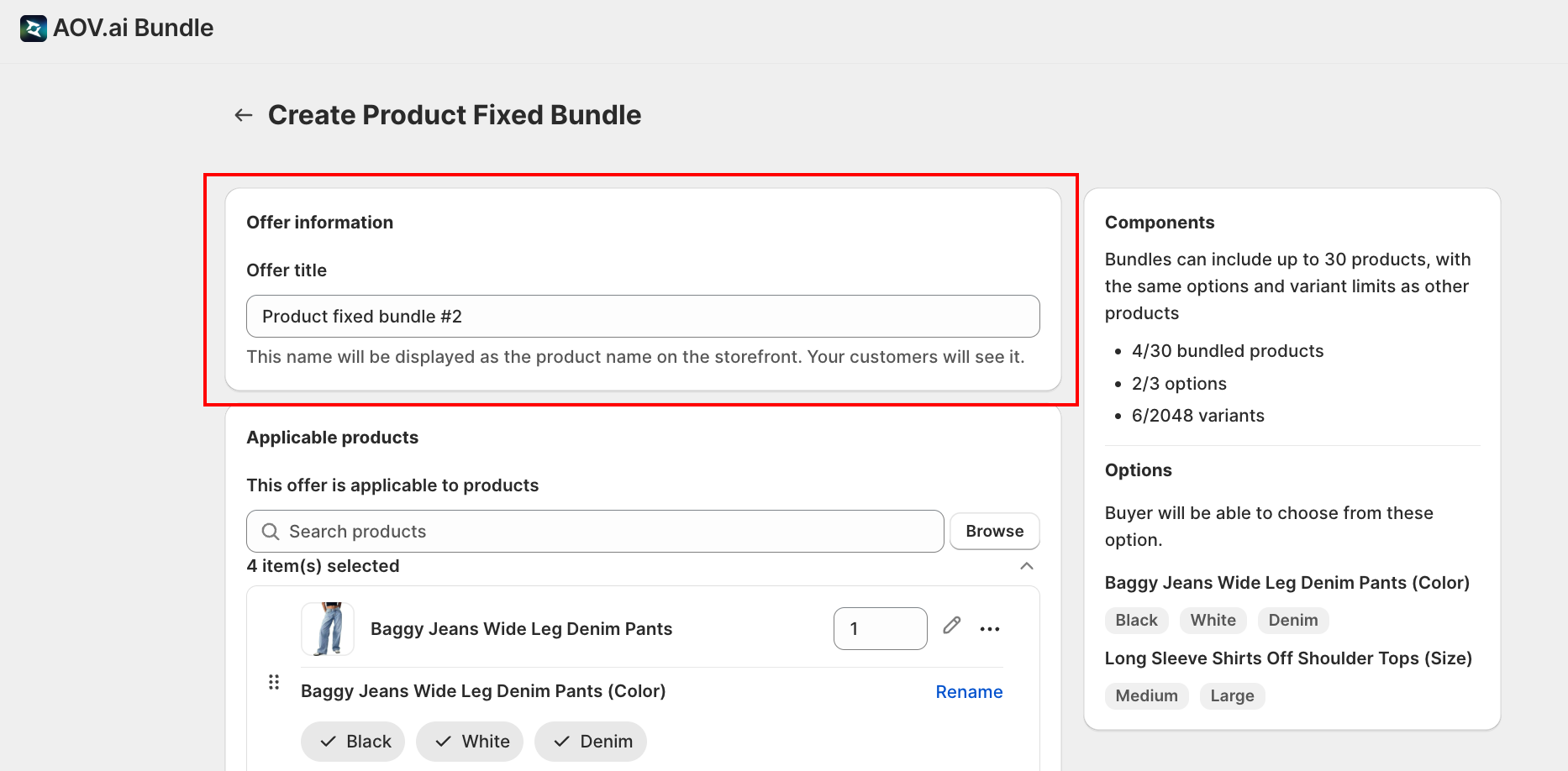
- Offer title: this is the customer-facing product name that appears on the storefront. Choose something clear and descriptive (for example, Workout Essentials Bundle). Note that this is different from the other bundle types, which use an internal-only "Offer name."
Step 4: Pick the Products in the Bundle
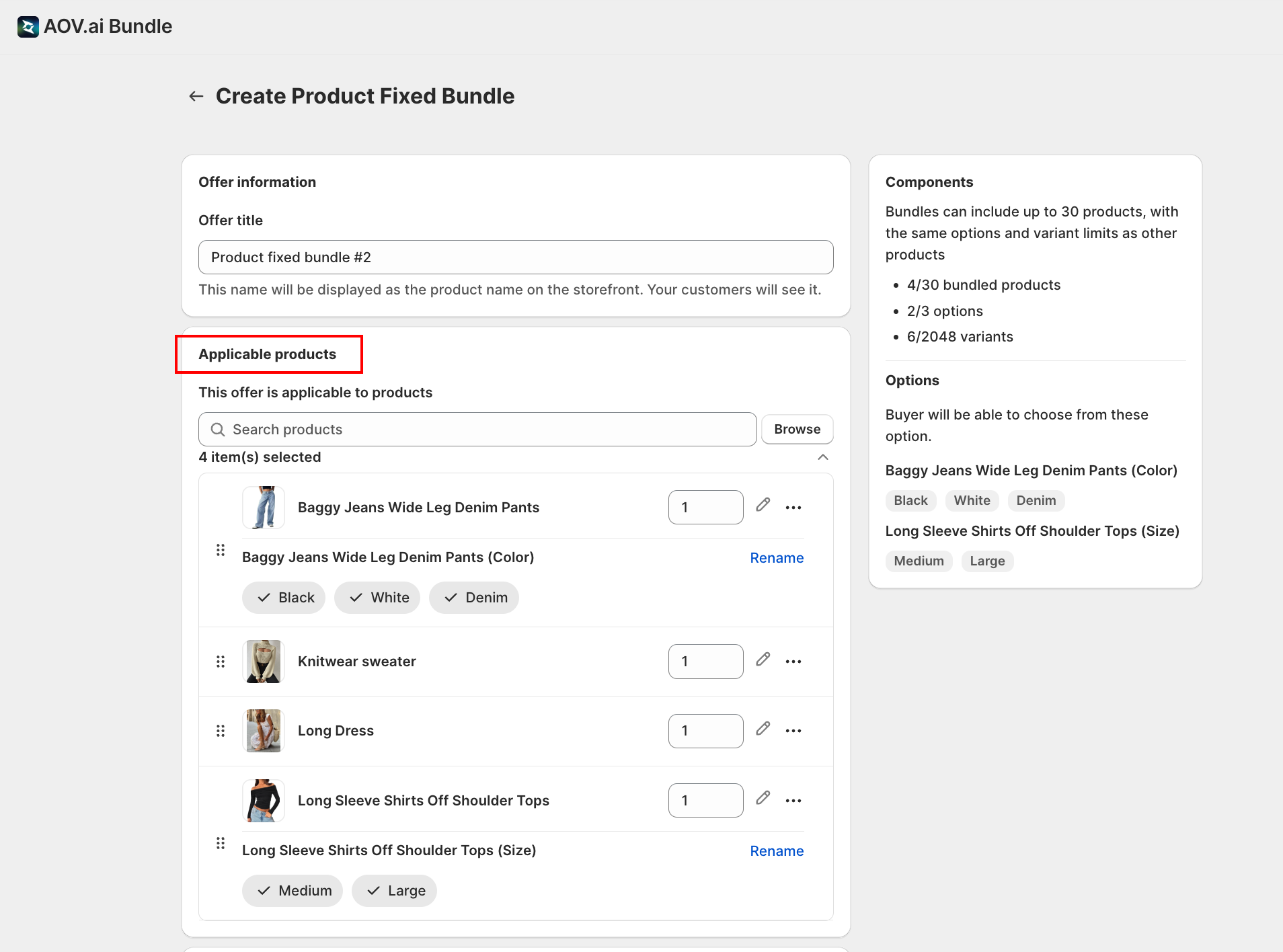
In the Applicable products card:
- Click Browse (or use the search field) to add the products that go into the bundle
- Customers must purchase the full set. That's what makes it a "fixed" bundle.
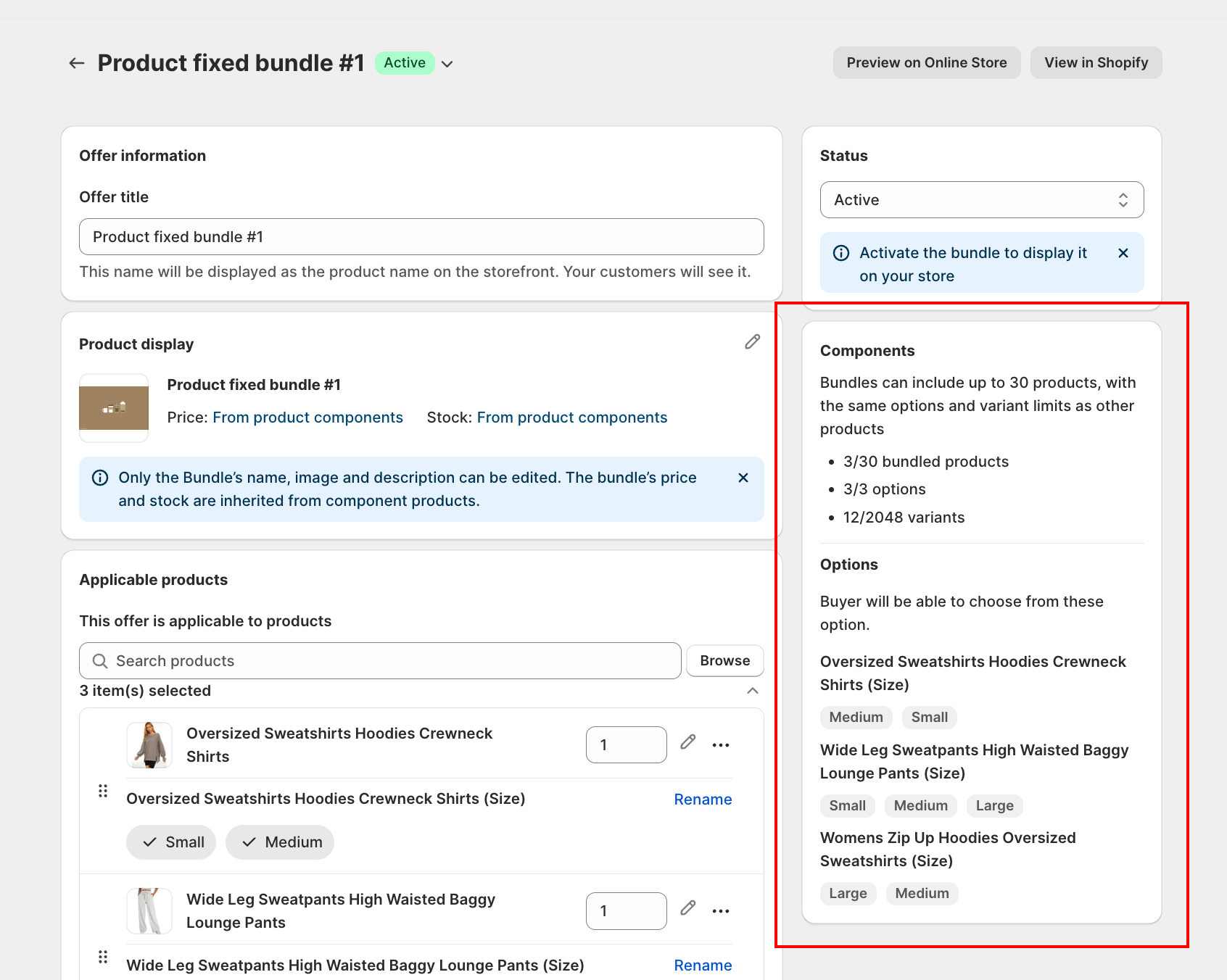
The right-side Components panel updates as you add products and shows the current limits:
- Up to 30 bundled products
- Up to 3 product options
- Up to 2,048 variants total
Step 5: Configure the Discount
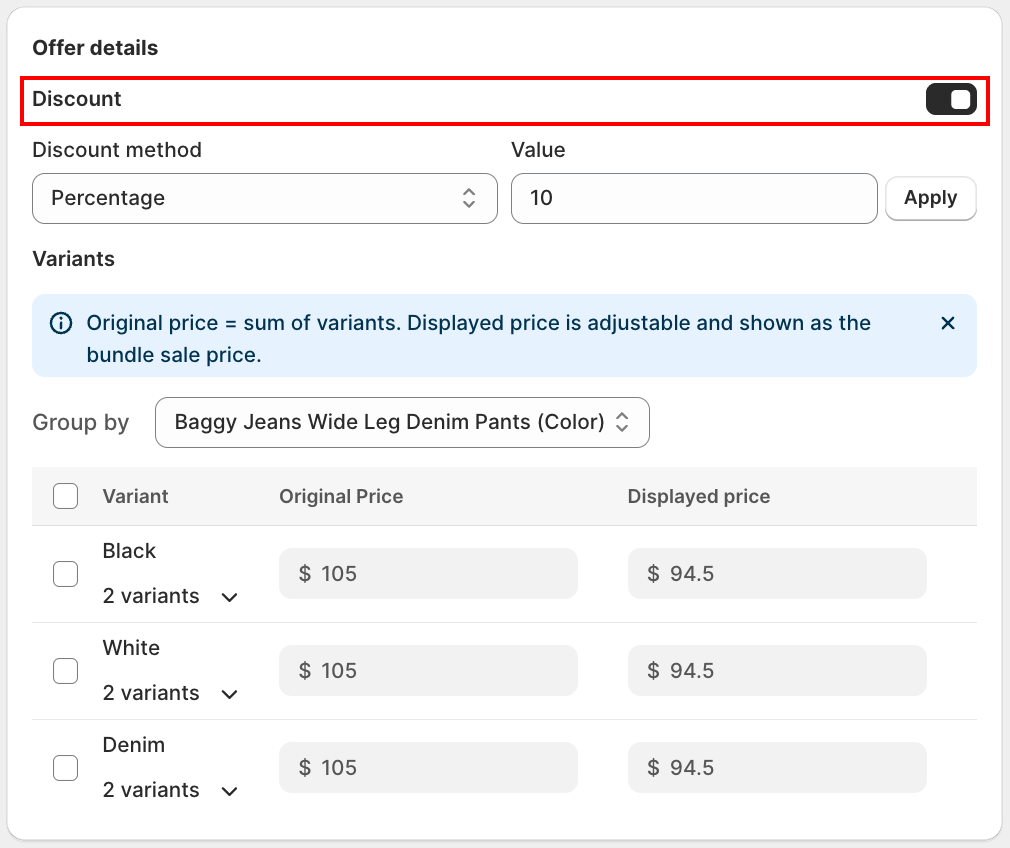
In the Offer details card:
- Discount toggle on (default): shows the discount fields below and applies the discount right away.
- Discount toggle off: hides the discount fields and resets the bundle's price back to the original component total, no discount shows on the storefront. Useful when you just want to package products together at their normal combined price, without setting a discount value to 0.
- Turning the toggle back on auto-fills a default discount for you.
- Discount method: choose Percentage or Fixed amount
- Value: enter the discount value
- Click Apply to lock it in
Group by
When your bundle contains products with multiple variants, a Group by dropdown appears above the variant table. It lets you pick one product option to use as the grouping dimension, for example Baggy Jeans Wide Leg Denim Pants (Color) or Long Sleeve Shirts Off Shoulder Tops (Size).
- The dropdown lists every product-option pair in the bundle that has more than one value
- After you select a grouping, the variant table reorganizes into collapsible parent rows, one per option value (for example Black, White, Denim when grouped by Color)
- Expanding a parent row shows all the variant combinations that share that option value, with their individual prices
- You can select multiple child rows at once to bulk-edit their prices
Step 6: Set the Displayed Price
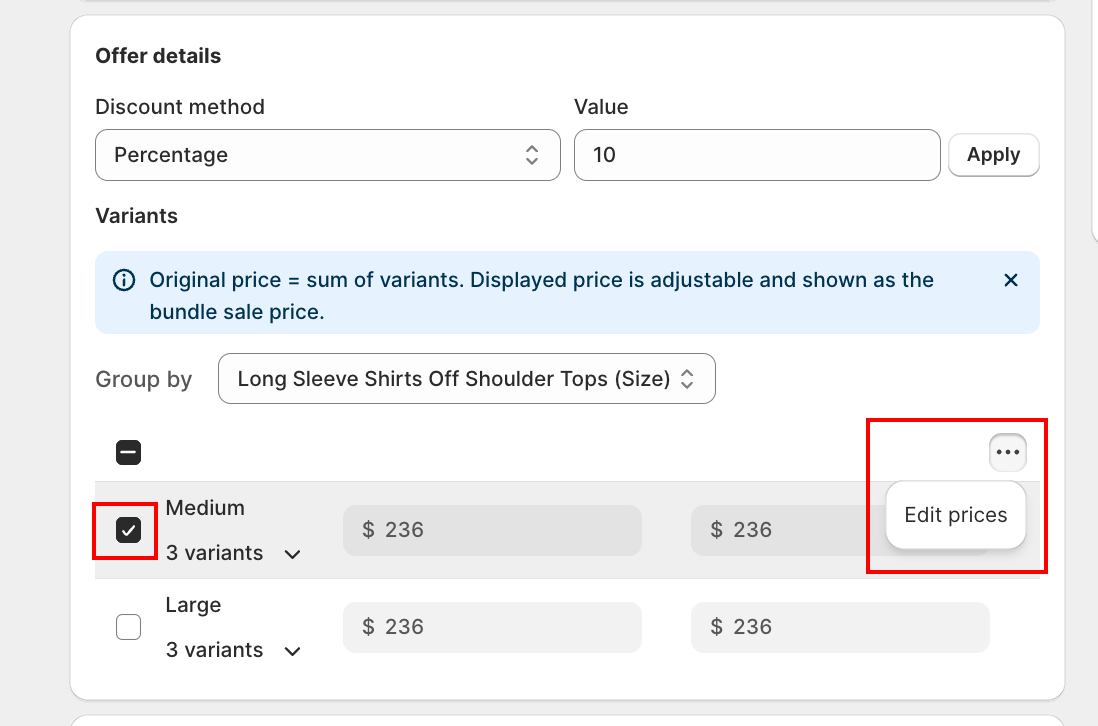
The Variants section controls how the bundle's price is calculated and shown.
- Original price: calculated automatically as the sum of every variant's price
- Displayed price: the actual sale price shown to customers; adjustable
Click Edit prices to fine-tune the displayed price for each variant individually. Useful if you want different variants of the bundle (different sizes, colors, etc.) to carry different discount levels.
Step 7: Optionally Show What's in the Bundle
Two toggles let you promote the bundle's contents:
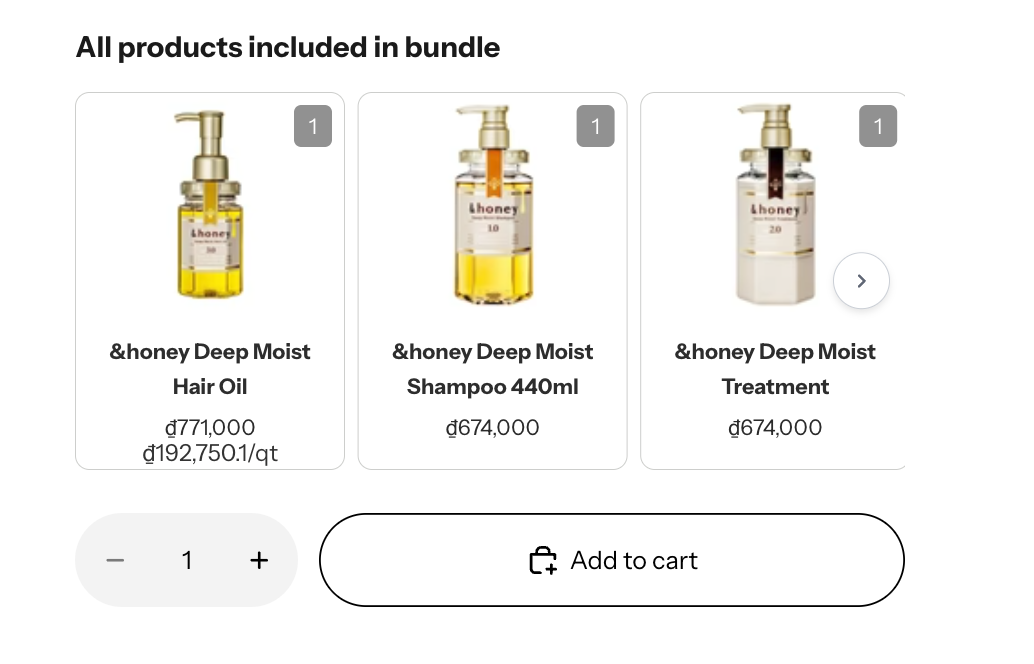
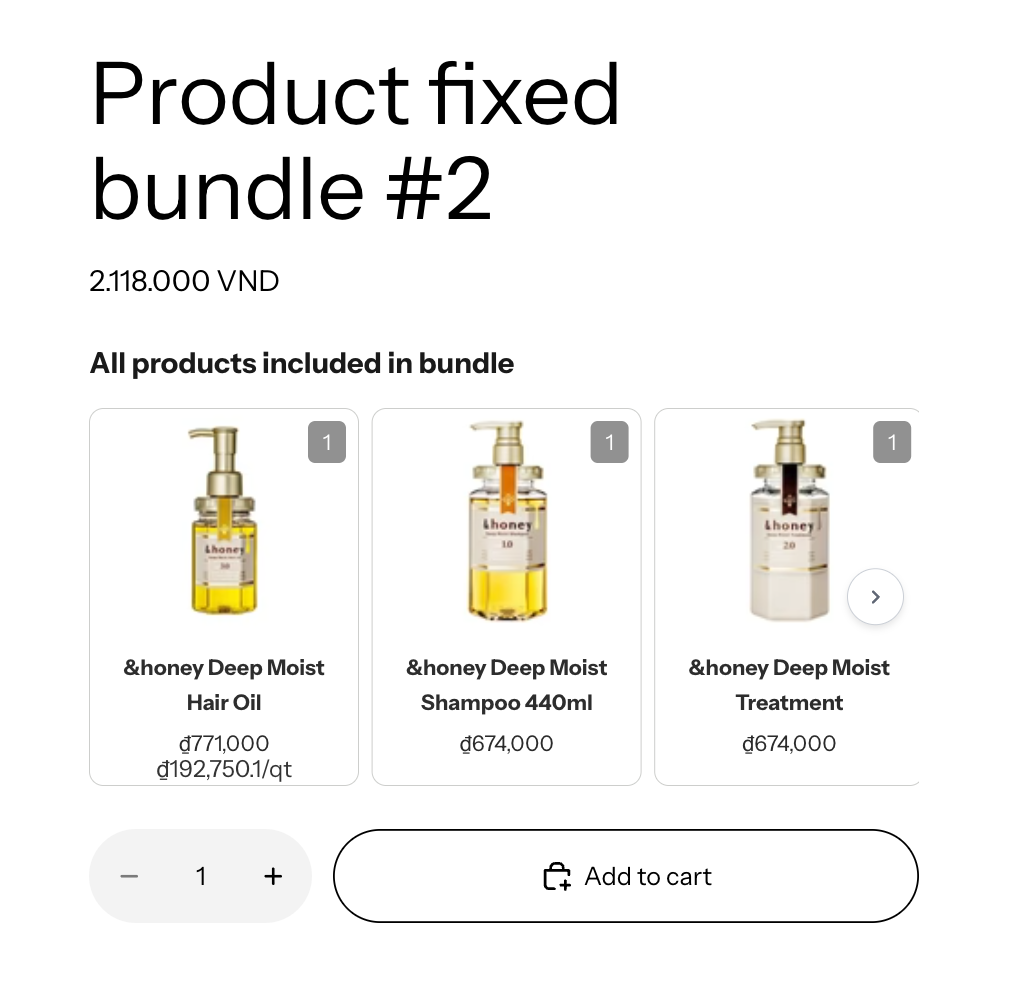
- Show products included in bundle: adds a short list of the component products on the bundle's product page itself. Click Preview to see how it looks. If your theme isn't yet integrated, the app shows a callout: "Please integrate the widget into your theme to display it on your store" with an Add widget shortcut.
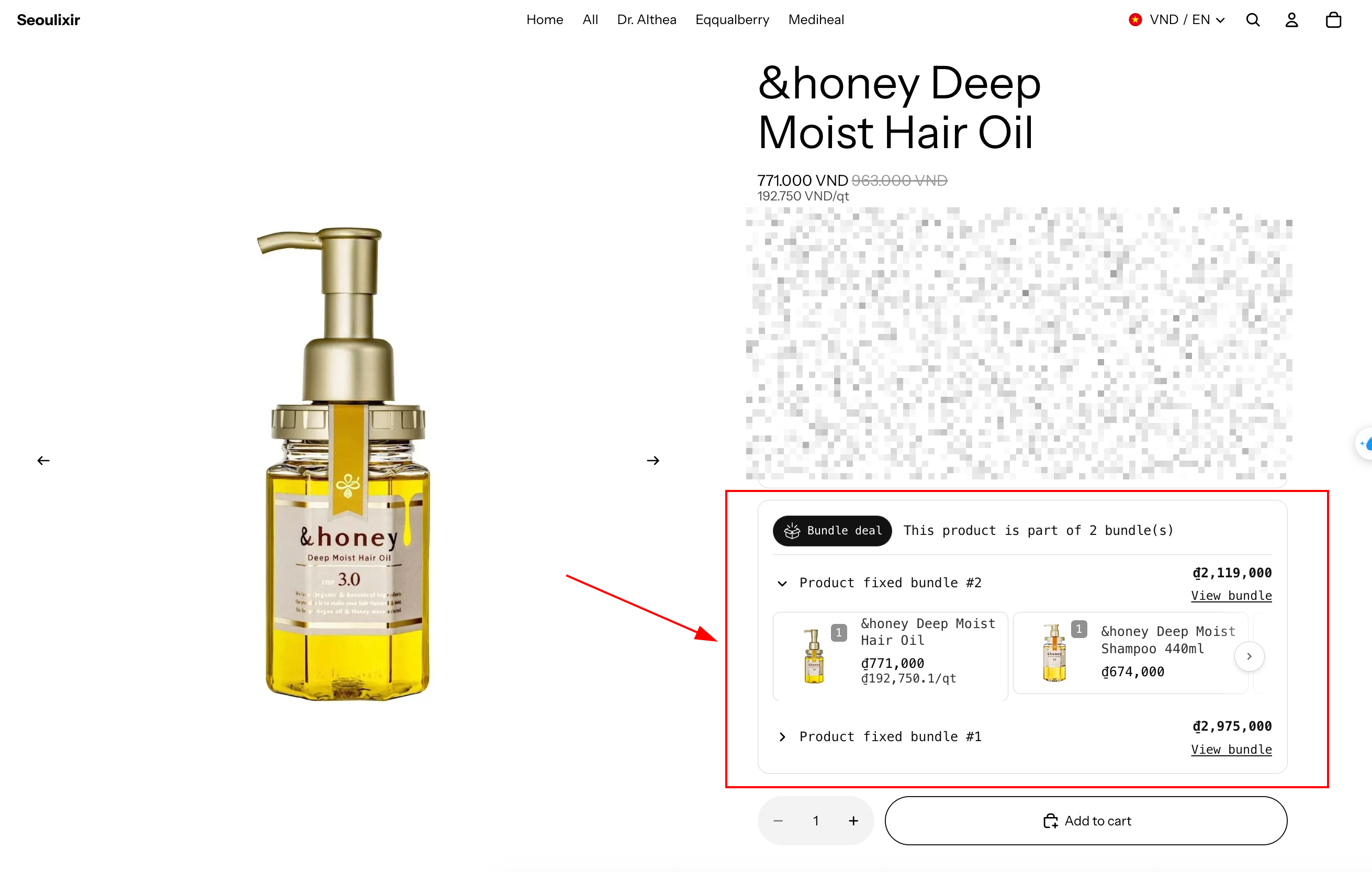
- Show on included products page: adds a small widget on each component product's own product page, promoting the bundle. Useful for cross-selling: a customer browsing one of the component products sees that they could buy the whole bundle and save.
You can also customize the Content label that appears with the included-products list (default: "All products included in bundle").
Offer Timeline
At the bottom of an existing bundle's edit page (not shown when creating a new offer), the Timeline card lists a history of what happened to this offer, grouped by day:
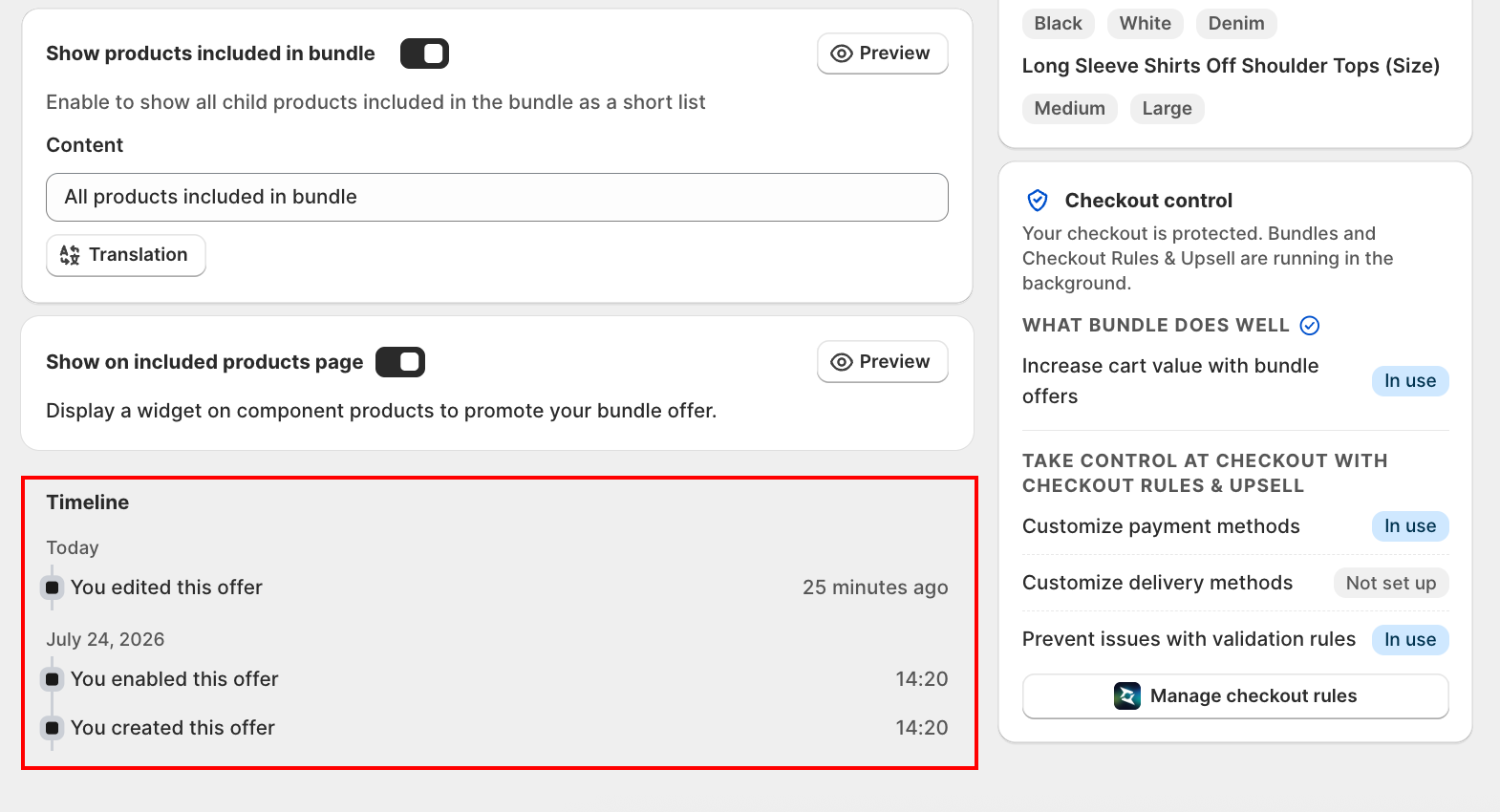
| Event | Shown as |
|---|---|
| Offer created | "You created this offer" |
| Offer enabled | "You enabled this offer" |
| Offer disabled | "You disabled this offer" |
| Any other edit saved | "You edited this offer" |
| Auto-paused (Free plan revenue limit reached) | "Automatically paused because you reached your Free plan's additional revenue limit" |
| A component product changed in Shopify | "Synced due to change in [product name]", linking to that product |
Recent events show a relative time ("Just now", "5 minutes ago", "2 hours ago"), older ones show the exact time. Click Load more to see earlier history.
Limits to Keep in Mind
| Limit | Cap |
|---|---|
| Bundled products per bundle | 30 |
| Product options per bundle | 3 |
| Variants per bundle | 2,048 |
For a worked example of how options × values produces variants, see How to calculate options and variants of the bundle.
Next Steps
- How to calculate options and variants: the math behind the 2,048 cap
- How to sell multipack: selling tiered packs (3-pack, 5-pack) of the same fixed bundle
- Child Product List Widget: customize the look of the "products included in bundle" list
Troubleshooting
Q1: The bundle doesn't appear on my storefront
Check that the bundle's Status is set to publish (not Draft) and all component products are in stock.
Q2: The "products included" list isn't showing on the product page
You need to enable the theme app block. Click Add widget in the callout that appears next to the Show products included in bundle toggle, or follow App Embed and Theme Integration.
Q3: I hit the 2,048 variant cap
The cap is a Shopify product limit, not an app limit. Reduce the number of options per component product, or split the bundle into smaller bundles. See How to calculate options and variants for the math.
Q4: Edit prices is greyed out
You need to add at least one applicable product first. Once a product is added, the variants section becomes editable.
Q5: I don't see a Discount toggle in Offer details
The toggle only appears on bundles created on or after July 22, 2026. Bundles created before that date keep the older behavior, discount fields are always shown, with no toggle.
Q6: I don't see a Timeline card
Timeline only appears on the edit page of an existing bundle, it's not shown while creating a new offer. Save your offer first, then reopen it to see the Timeline.