Discounts: Codes, Combinations, Limits, and Eligibility
What This Page Is About
Most native offer types in AOV.ai Bundle Upsell share the same discount control fields. Rather than repeat them on every offer-type page, this page covers them once. The exact set of fields on any one offer's configuration form depends on the offer type (see Which offer types have which controls at the bottom).
The shared fields are:
- Discount code
- Discount combinations
- Maximum discount uses
- Customer eligibility
Discount Code
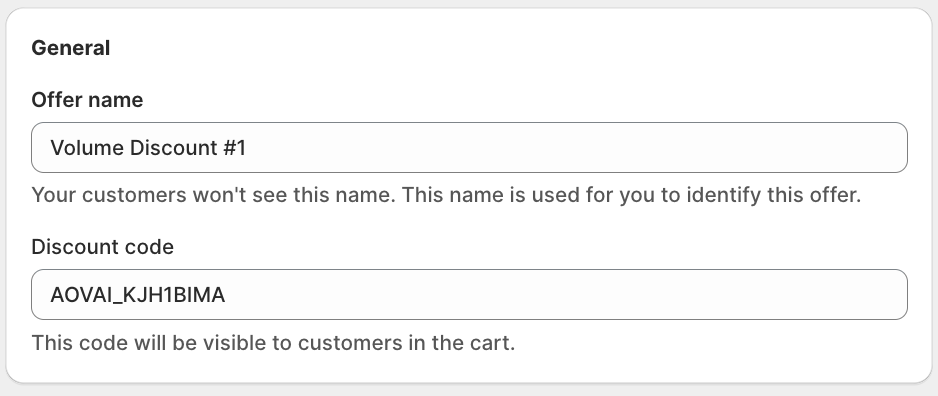
Volume Discount, Frequently Bought Together, and new (v2) Bundle Builder / Mix & Match offers create a Shopify discount code behind the scenes. The code is auto-generated by AOV.ai Bundle Upsell and shown on the offer form.
The help text under the field varies slightly by offer type:
"This code will be visible to customers in the cart." (Volume Discount, Bundle Builder, Mix & Match)
"This code will be visible to your customers in the cart and at checkout." (Frequently Bought Together)
"Manual discount code editing is available upon request. Contact us if you'd like it enabled."
If you need a custom or branded code (say, SUMMER25 instead of the auto-generated string), click Contact support on the field. The team can enable manual code editing for your store.
Note: the discount code is what customers see when they reach checkout. They don't need to type it in. The code applies automatically through the AOV.ai Bundle Upsell widget logic when the offer's conditions are met.
Discount Combinations

Controls whether your offer's discount can stack with other Shopify discount codes the customer might already have.
The form shows three checkboxes under the Combinations heading:
| Combination | Effect |
|---|---|
| Product discounts | Allow customers using a product-level Shopify discount (e.g., 10% off all skincare) to also use this offer |
| Order discounts | Allow customers using an order-level Shopify discount (e.g., 10% off orders over $100) to also use this offer |
| Shipping discounts | Allow customers with a free-shipping or shipping-percentage Shopify discount to also use this offer |
Tick the combinations you want to allow. Untick to make this offer mutually exclusive with that category.
Note: discount combination is a Shopify-platform concept. The setting here mirrors what you'd set on a native Shopify discount in Discounts → Combinations. If a competing app's discount isn't a native Shopify discount, combinability doesn't apply.
Maximum Discount Uses
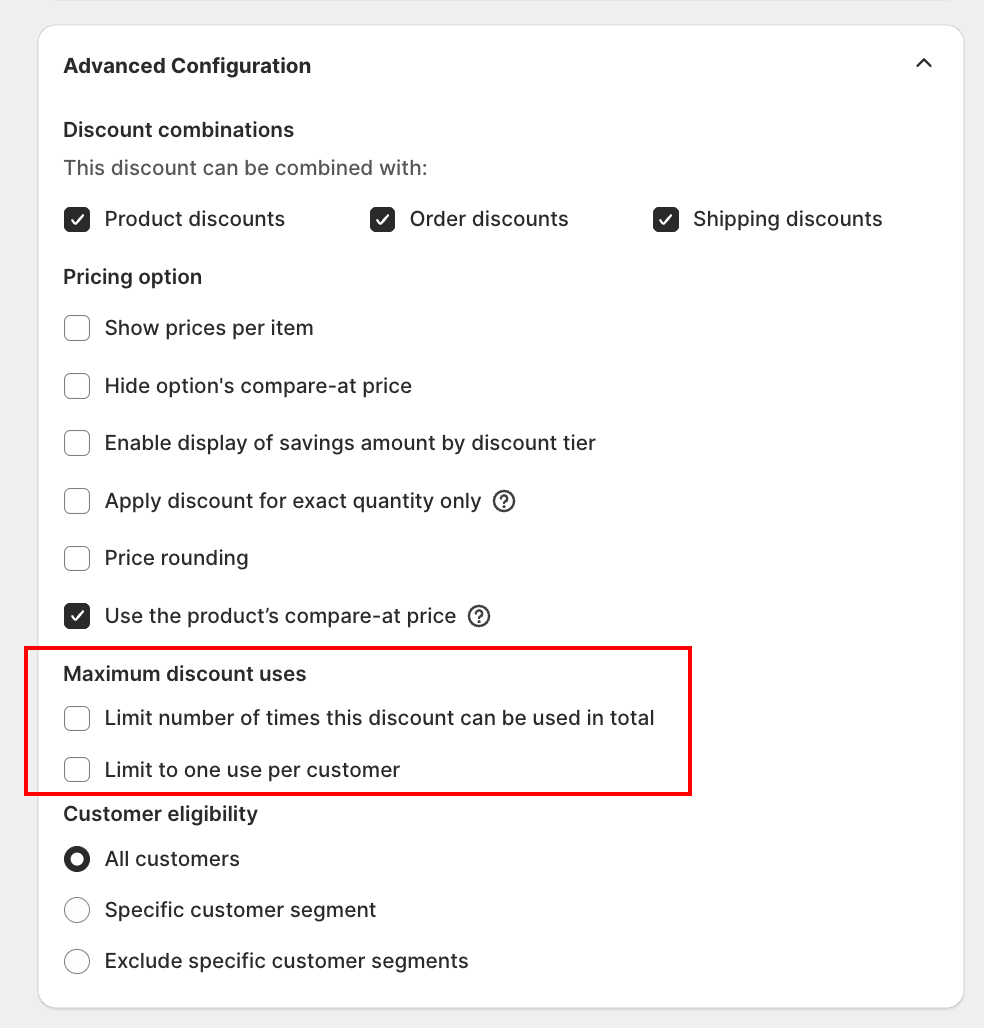
Limits how many times the offer's discount can be redeemed. There are two checkboxes:
| Limit | Effect |
|---|---|
| Limit number of times this discount can be used in total | Caps total redemptions across all customers (enter a number) |
| Limit to one use per customer | Caps each customer to a single redemption of this offer |
Use a total cap for time-boxed promotions (a 100-unit campaign, for instance). Use the per-customer cap for new-customer or one-time-only offers.
You can tick both at once. The first cap that's reached blocks further redemptions.
Customer Eligibility
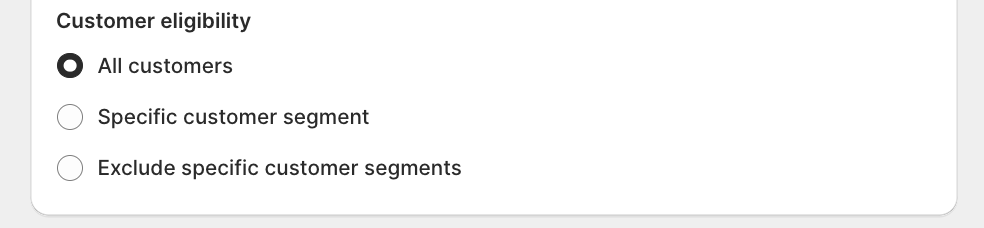
Scopes who can redeem the offer based on Shopify customer segments.
| Option | Effect |
|---|---|
| All customers | The offer is available to anyone, including guests at checkout |
| Specific customer segment | Only customers in the selected Shopify segment can redeem (e.g., Loyalty members, VIPs) |
| Exclude specific customer segments | Everyone except customers in the selected segments can redeem (e.g., exclude Wholesale from a public promo) |
Customer segments live in Shopify admin under Customers → Segments. They sync automatically into this dropdown.
Note: Specific customer segment requires the customer to be logged in at checkout for the segment to be evaluated. Guests won't match, even if they'd qualify based on their email's history.
Bundle Builder v2 and Mix & Match v2
Since September 24, 2026, new Bundle Builder and Mix & Match offers apply their discount through a dedicated Shopify Discount Function, the same mechanism Frequently Bought Together and Volume Discount already use, instead of baking the discount directly into the bundle's line-item price.
What changes for a new offer:
- A real Shopify discount code is created. It shows up in the offer form's Discount code field (see Discount Code above) and, once the customer adds the bundle to their cart, applies automatically, no code entry needed.
- The Combinations section appears on the offer form (see Discount Combinations above), so you can control whether the bundle discount stacks with other product, order, or shipping discounts.
- Checkout shows the savings. Because Shopify now recognizes the discount as a real discount rather than a lower product price, the discount line and code are visible to the customer at checkout, and tax calculates against the discounted amount instead of the full product price.
What stays the same:
- Offers created before September 24, 2026 keep the previous mechanism: the discount is baked into the bundle's price directly, there's no separate discount code, and the Discount code / Combinations fields don't appear on the form.
- There's no automatic migration. An older offer stays on the previous mechanism even if you edit and re-save it. To get the new mechanism, create a new Bundle Builder or Mix & Match offer.
- Bundle Builder and Mix & Match still don't have Maximum discount uses or Customer eligibility controls, on either mechanism.
For the setup steps, see Bundle Builder and Mix & Match Bundle.
Which Offer Types Have Which Controls
| Field | Volume Discount | FBT | Bundle Builder | Mix & Match | Product Fixed |
|---|---|---|---|---|---|
| Discount code | Yes | Yes | New offers only* | New offers only* | Limited |
| Discount combinations | Yes | Yes | New offers only* | New offers only* | Limited |
| Maximum discount uses | Yes | Yes | No | No | Limited |
| Customer eligibility | Yes | Yes | No | No | Limited |
* Offers created on or after September 24, 2026. Older offers keep the previous mechanism and don't show these fields.
Note: Volume Discount and Frequently Bought Together expose the full set of discount controls. New Bundle Builder and Mix & Match offers expose the discount code and combinations only; neither offer type has a maximum-uses or customer-eligibility control on any mechanism. Product Fixed Bundle has a slimmer form because the bundle sells as a standalone product, so discount mechanics are simpler.
Tips
- Set Maximum discount uses on every promotional offer that supports it. Without a cap, a viral or off-target uptick can blow your margin. (Volume Discount and Frequently Bought Together only, see the table above.)
- Keep "Limit to one use per customer" ticked for first-order offers. Keeps the campaign honest and avoids duplicate redemptions.
- Use customer-segment exclusions when the offer would conflict with a wholesale or B2B price list.
- Tick all 3 combinations only if you genuinely want stacking. Stacking can compound discounts in ways that'll surprise your margins later.
Next Steps
- Markets: geographic scoping for the same offer
- Status, Schedule, and activation: when the offer is allowed to run
- Sync theme color: match widget colors to your theme
- Choosing an offer type: pick which offer type to set these controls on