Test mode
Test mode lets you preview an offer or widget on your real checkout without other shoppers seeing it. The offer only appears when the checkout email is a test email, so you can confirm everything works before going live.
It is available for the Checkout upsell, Volume savings, and Add-on product offers, plus the seven Extra widgets (Cart editor, Custom banner, Custom button, Discount list, Image carousel, Testimonials, Trust badges).
New offers and widgets start in Test mode. Anything you create from now on defaults to Test mode, so it is never live to shoppers until you switch it to Active. Existing offers and widgets keep their current status.
Turn on Test mode
- Open the offer or widget:
- Offer: go to Offers, open a Checkout upsell, Volume savings, or Add-on product offer, then use the status control at the top right.
- Extra widget: go to Extra widgets, open any of the seven widgets, then use the Status block at the top.
- Open the status dropdown, choose Test mode, and click Save.
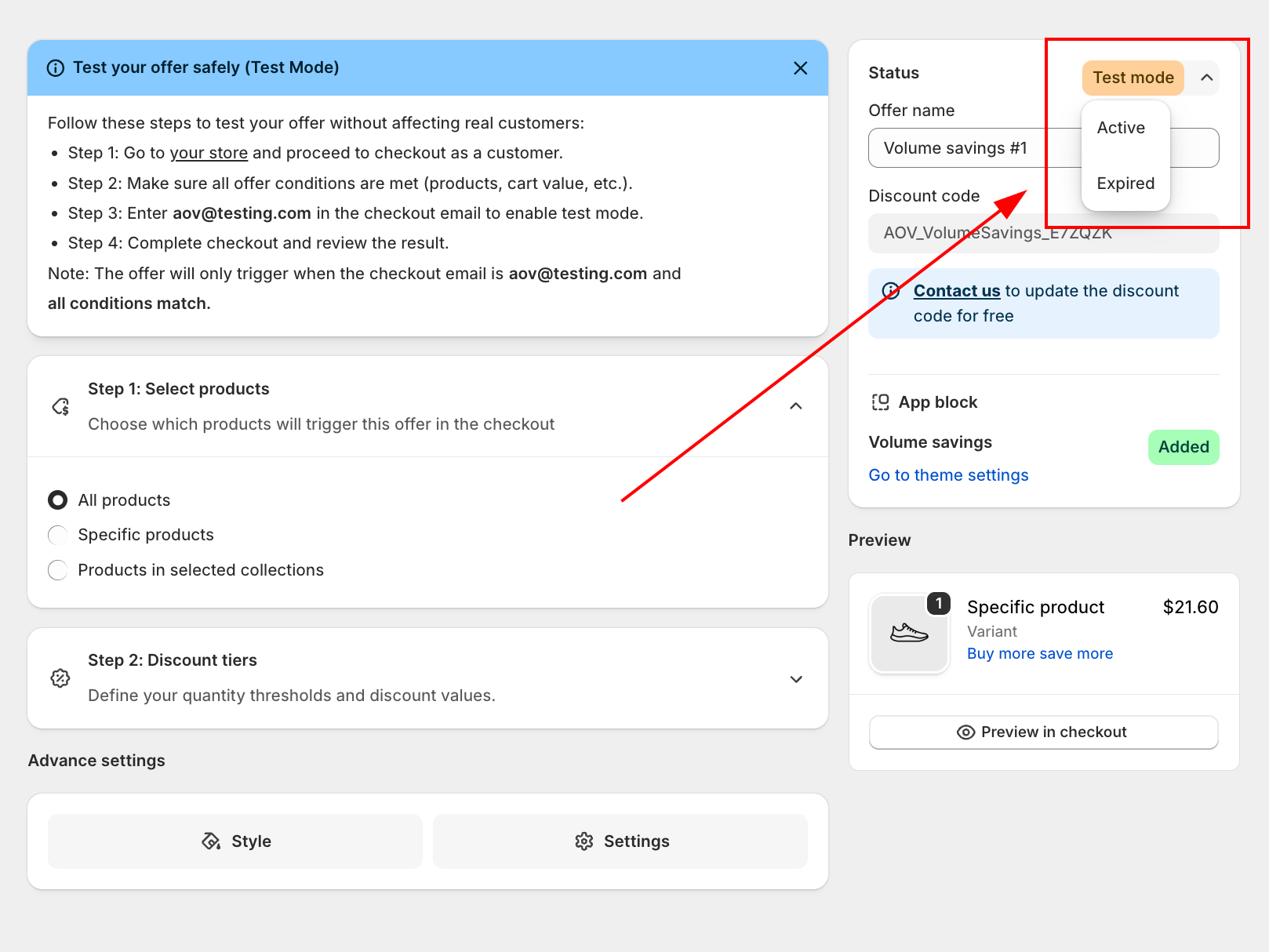
A Test mode badge appears on the list page so you can tell it apart from Active and Expired, and a guidance banner at the top of the editor explains how to test.
Test it on your checkout
When an offer or widget is in Test mode, a banner titled "Test your offer safely (Test Mode)" (or "Test your rule safely (Test Mode)" for an Extra widget) shows these steps:
- Go to your store and proceed to checkout as a customer.
- Make sure all offer conditions are met (products, cart value, etc.).
- Enter
[email protected]in the checkout email to enable test mode. - Complete checkout and review the result.
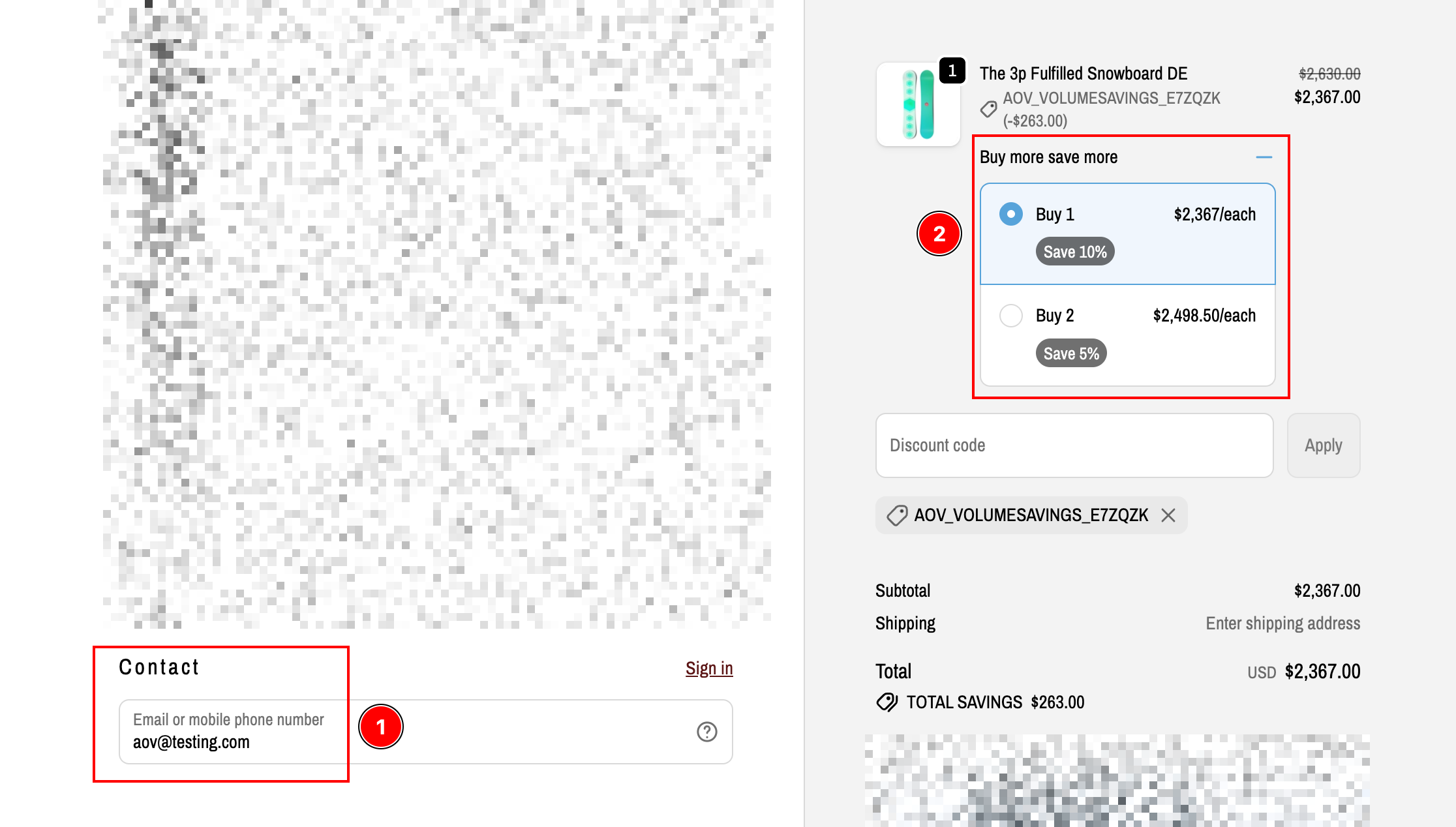
The offer or widget only triggers when the checkout email is [email protected] and all conditions match. Other shoppers never see it.
The example below tests a Volume Savings campaign (a volume discount): with [email protected] entered as the checkout email, the "Buy more save more" tiers and the applied discount appear on the real checkout.
Go live
When you are happy with the result, open the offer or widget, switch the status from Test mode to Active, then Save. It is now live for all shoppers.
If a newly created offer or widget is not showing at checkout, check its status first. It is most likely still in Test mode, so it only appears for the [email protected] test email until you set it to Active.