Order Limits
Set minimum and maximum order rules at checkout — by order value, total cart quantity, per-product quantity, or per-product value. Block checkout when a cart falls below your minimum or above your maximum, and show a clear error message that tells buyers exactly what to fix.
Available on all Shopify plans. Order Limits uses Shopify Functions — no Shopify Plus required. (Only VAT Validation requires Shopify Plus.)
What it does
Order Limits lets you create a validation rule that blocks checkout when the cart does not fall inside the range you set. You pick one limit type per rule:
- Order value — minimum/maximum total order subtotal
- Cart quantity — minimum/maximum total items in the cart
- Per-product quantity — minimum/maximum quantity for each product
- Per-product value — minimum/maximum value (qty × price) for each product
Each rule shows a custom error message at a position you choose — either as a banner at the top of the page or inline next to a specific field. Order value and per-product value messages can use {{min}} / {{max}} placeholders that are replaced with the actual amounts at checkout.
Order Limits vs. Custom Rules. Use Order Limits for cart-quantity, per-product quantity, and per-product value caps. Custom Rules also supports a subtotal threshold, but quantity limits and per-product limits live here in Order Limits.
When to use
- Minimum order value — require a minimum subtotal before customers can check out (e.g., to cover shipping costs)
- Wholesale minimums — enforce a minimum cart quantity for bulk buyers
- Purchase caps — cap quantity per product to prevent scalping or stock-outs on limited items
- Per-product value limits — keep a single line item within a value range
Step 1: Go to Checkout Validations
In the app sidebar, click Checkout Validations, then open the Order limits list.
List page overview
| Column / control | Description |
|---|---|
| Status | Shows the rule's status badge (Active, Test mode, Expired) |
| Summary | Auto-generated summary of the limit (e.g., "Order value: $1 – $1,000") |
| Created | The date the rule was created |
| Actions | Activate/Deactivate, Edit, Delete for each rule |
| Bulk actions | Select multiple rules to activate, deactivate, or delete |
Step 2: Create a new rule
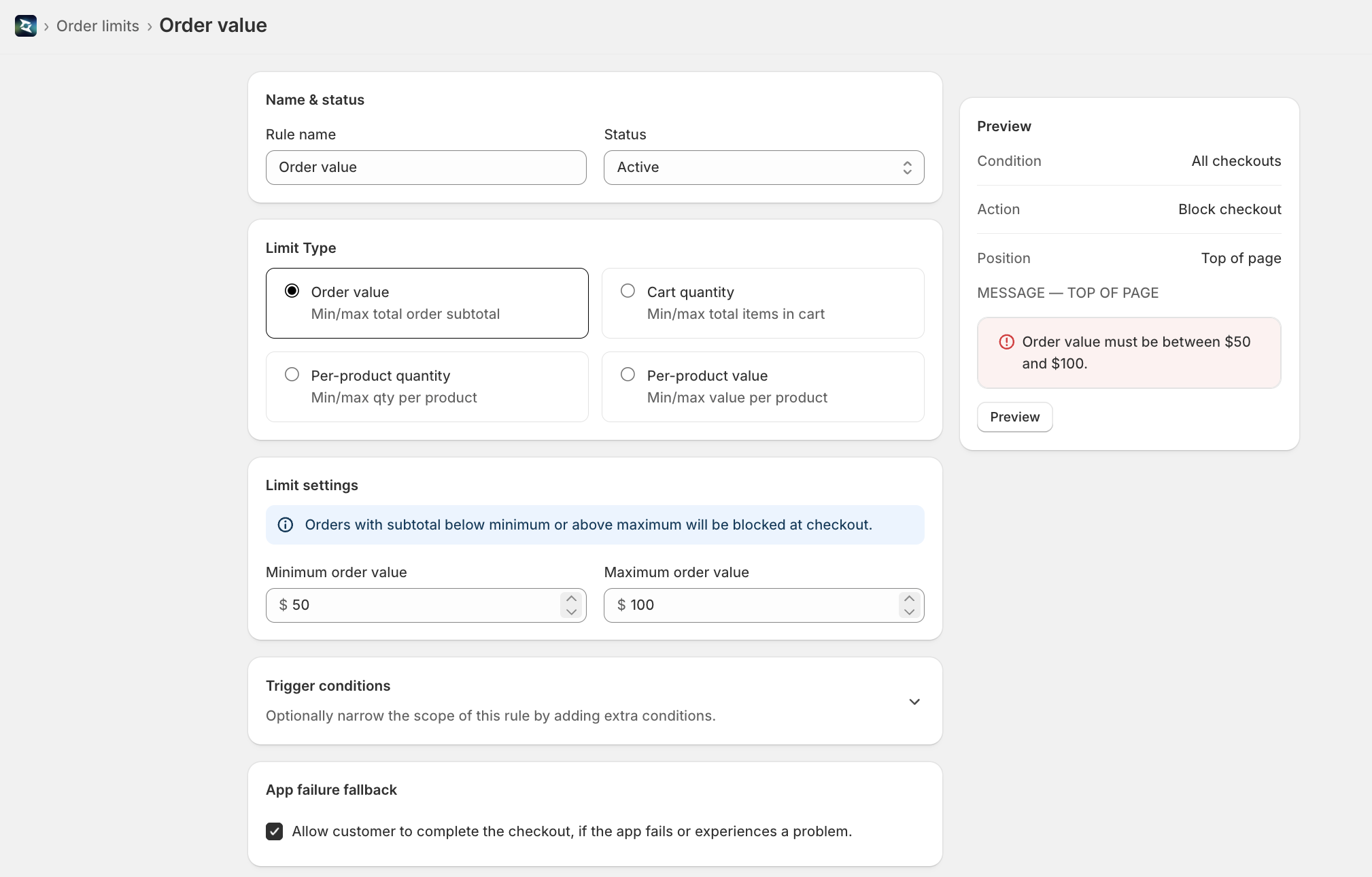
Click Create rule (top right). The editor opens with these sections: Name & status, Limit Type, Limit settings, Trigger conditions (collapsible), App failure fallback, and Error message — with a live checkout preview alongside.
Step 3: Set name and status
| Setting | Description |
|---|---|
| Rule name | A descriptive name for your reference. A default name ("Order limits") is pre-filled, with a number appended for each new rule. |
| Status | Active — rule applies at checkout. Test mode — only triggers when checkout email is [email protected]. Expired — rule is saved but not applied. (You can also pause a rule from the list page to stop it without deleting it.) |
Tip: Start with Test mode to verify the rule works correctly before activating it for all customers. When Test mode is selected, the editor shows a step-by-step banner explaining how to test safely.
Step 4: Choose a limit type
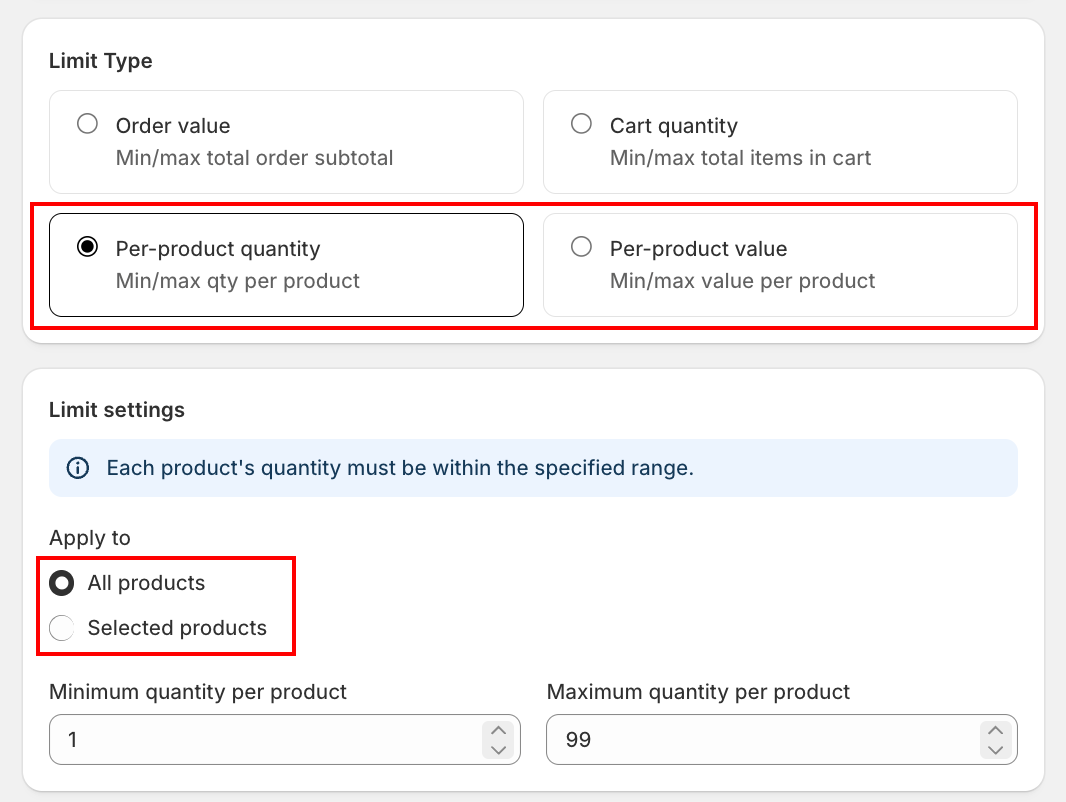
In the Limit Type section, pick one of the four types. Each rule uses one type — create separate rules if you need more than one.
| Limit type | What it limits | Description (shown in the app) |
|---|---|---|
| Order value | Total order subtotal | Min/max total order subtotal |
| Cart quantity | Total items in the cart | Min/max total items in cart |
| Per-product quantity | Quantity of each product | Min/max qty per product |
| Per-product value | Value of each product (qty × price) | Min/max value per product |
Step 5: Configure limit settings
The Limit settings section changes depending on the limit type. An info banner at the top explains how the limit is applied:
| Limit type | Info banner |
|---|---|
| Order value | "Orders with subtotal below minimum or above maximum will be blocked at checkout." |
| Cart quantity | "Carts with total items below minimum or above maximum will be blocked at checkout." |
| Per-product quantity | "Each product's quantity must be within the specified range." |
| Per-product value | "Each product's total value (qty × price) must be within the specified range." |
Minimum and maximum fields
Each type provides two numeric fields:
| Limit type | Minimum field label | Maximum field label | Units |
|---|---|---|---|
| Order value | Minimum order value | Maximum order value | Store currency |
| Cart quantity | Minimum cart quantity | Maximum cart quantity | Item count |
| Per-product quantity | Minimum quantity per product | Maximum quantity per product | Item count |
| Per-product value | Minimum value per product | Maximum value per product | Store currency |
At least one of minimum or maximum is required. If you set both, the maximum must be greater than the minimum. Currency-based types (Order value, Per-product value) show your store's currency symbol as a prefix; quantity types accept whole numbers.
Set only one bound if you want a one-sided limit. Leave the maximum empty for a "minimum only" rule (e.g., minimum order value) or leave the minimum empty for a "maximum only" rule (e.g., purchase cap).
Apply to (per-product types only)
For Per-product quantity and Per-product value, an Apply to option appears:
| Option | Behavior |
|---|---|
| All products | The limit applies to every product in the cart |
| Selected products | Browse and select specific products (or variants); the limit applies only to those |
When Selected products is chosen, you must select at least one product, otherwise the rule cannot be saved. Order value and Cart quantity always apply to the whole cart and have no Apply-to option.
Step 6: Add conditions (optional)
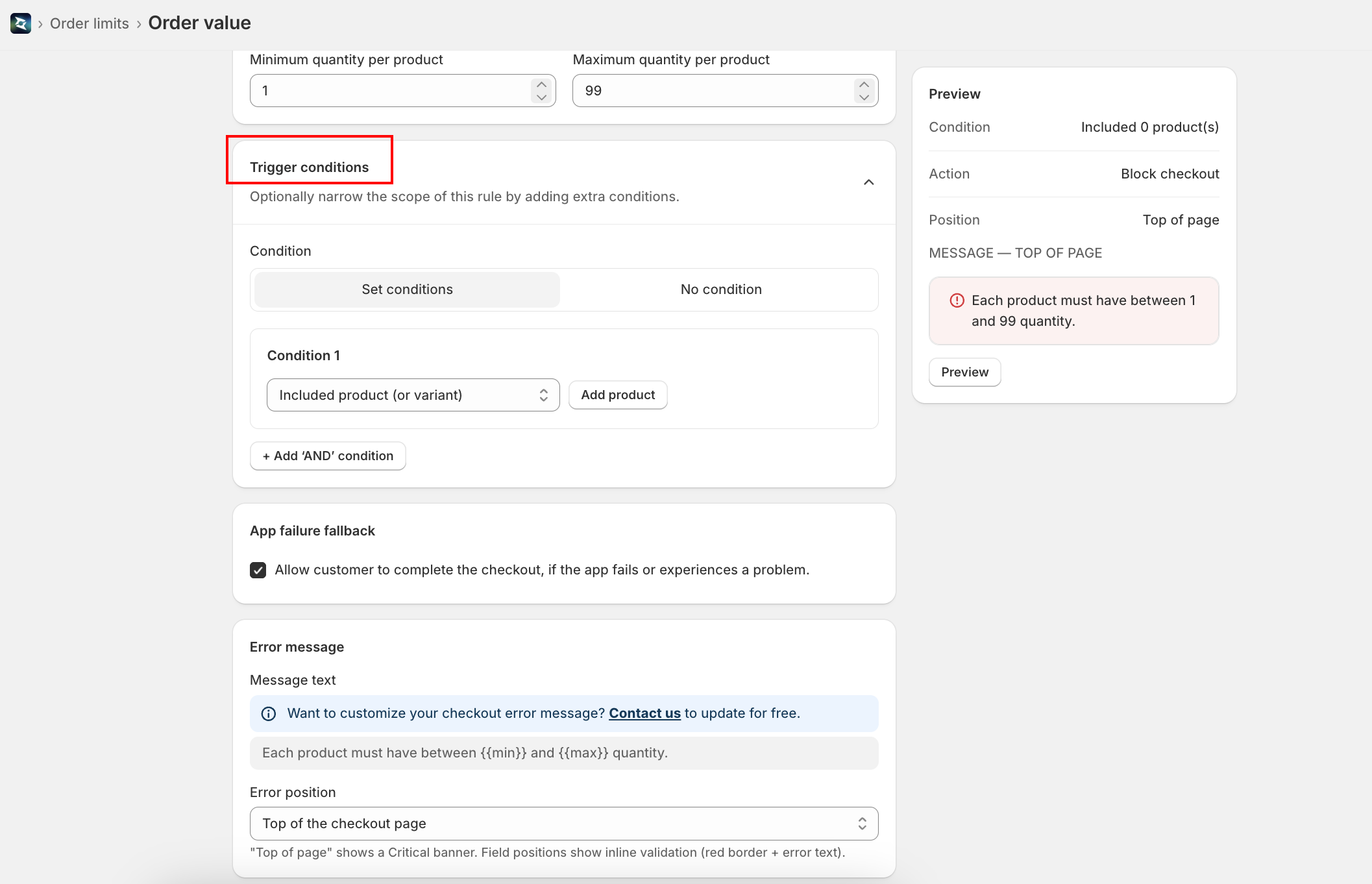
By default, the rule applies to all checkouts. Expand the collapsible Trigger conditions section to narrow down when the rule triggers.
Two modes
| Mode | Behavior |
|---|---|
| No condition | Rule always applies to all checkouts |
| Set conditions | Rule only applies when all conditions are satisfied (AND logic) |
When you choose No condition, the editor reminds you: "Rule applies to all checkouts — All checkouts will be blocked. Use 'Set conditions' to narrow the scope."
Available condition types
| Condition | Description |
|---|---|
| Included product | Rule only applies when the cart contains this product |
| Excluded product | Rule does NOT apply when the cart contains this product |
| Subtotal value | Rule only applies when the order value meets the threshold |
| Customer tag | Rule only applies when the customer has (or doesn't have) a specific tag |
| Shipping country | Rule only applies for specific countries |
All conditions use AND logic — every condition must be true for the rule to trigger. For example: "Minimum order value $50" + "Customer tag = wholesale" means the minimum is only enforced for wholesale customers.
Step 7: Set the app failure fallback
| Setting | Default | Description |
|---|---|---|
| Allow customer to complete the checkout, if the app fails or experiences a problem | Checked | When enabled, if the app encounters an error or times out, checkout proceeds normally — buyers are not blocked by a technical issue. |
We recommend keeping this checked. Unchecking it means a temporary app issue could block all checkouts.
Step 8: Configure error message and position
Error message
Enter the message buyers will see at checkout. A default message is pre-filled based on the limit type and which bounds you set. For a "between" rule (both min and max), the defaults are:
| Limit type | Default error message (both min and max set) |
|---|---|
| Order value | "Order value must be between {{min}} and {{max}}." |
| Cart quantity | "Cart must contain between {{min}} and {{max}} items." |
| Per-product quantity | "Each product must have between {{min}} and {{max}} quantity." |
| Per-product value | "Each product value must be between {{min}} and {{max}}." |
If you set only a minimum or only a maximum, the message switches to the matching one-sided default — for example, Order value uses "Minimum order value is {{min}}. Please add more items to proceed" (min only) or "Maximum order value is {{max}}. Please reduce your cart to proceed" (max only). Cart quantity uses "Minimum {{min}} items required to checkout." / "Maximum {{max}} items allowed per order."
Placeholders. Include {{min}} and {{max}} in your message — they are replaced with the actual limit values at checkout (with the currency symbol for value-based types). For example, "Order value must be between {{min}} and {{max}}." displays as "Order value must be between $1 and $1,000." The default messages already include these placeholders.
Editing the message: By default the message field may be read-only and show a banner: "Want to customize your checkout error message? Contact us to update for free." Click Contact us to have the team enable custom messages for your store. Once enabled, you can edit the message to anything you prefer — keep the {{min}} / {{max}} placeholders if you want the live values to appear.
Error position
Choose where the error message appears on the checkout page:
| Position | Display |
|---|---|
| Top of the checkout page | Critical (red) banner at the top — most visible |
| First name | Inline error below the First name field |
| Last name | Inline error below the Last name field |
| Company | Inline error below the Company field |
| Address line 1 | Inline error below Address line 1 |
| Address line 2 (Apartment, suite, etc) | Inline error below Address line 2 |
| City | Inline error below the City field |
| Email or phone number | Inline error below the Email/Phone field |
| Delivery phone | Inline error below the Delivery phone field |
| ZIP/Postal code | Inline error below the ZIP code field |
| Country | Inline error below the Country dropdown |
| Province/State | Inline error below the Province/State dropdown |
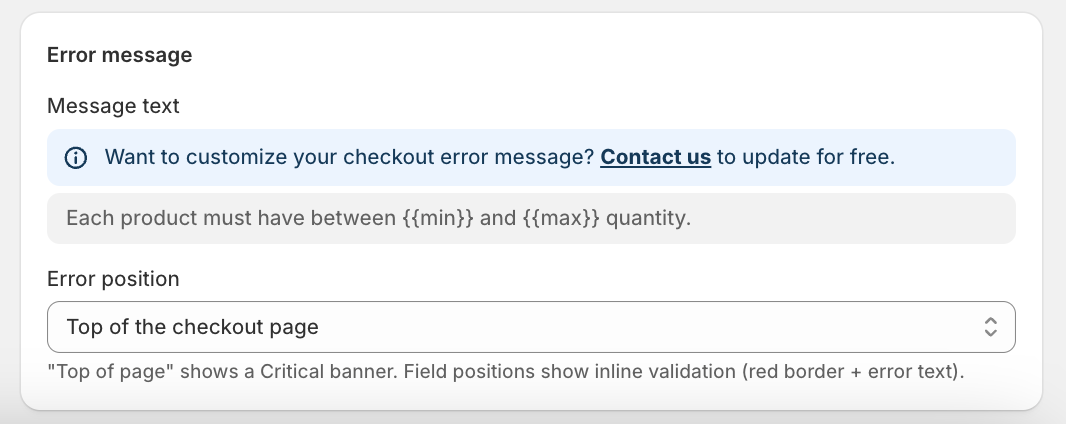
"Top of the checkout page" is recommended for Order Limits — the limit relates to the whole cart, not a single checkout field, so a top banner avoids confusing buyers into thinking a specific field is wrong.
Step 9: Preview and save
The right sidebar shows a live preview of how your error message will appear, with {{min}} / {{max}} already replaced by your configured values. The preview updates in real time as you change the message, position, or limit settings.
When everything looks good:
- Set the Status to your preferred option
- Click Save in the top bar
The rule takes effect at checkout immediately. After the first save, you are taken to the rule's edit page.
Test your rule with Test Mode
Before activating a rule for all customers, test it first:
- Set the rule Status to Test mode and save
- Go to your store and add products to the cart
- Proceed to checkout
- Enter [email protected] as the checkout email
- Make sure the cart breaks the limit (e.g., subtotal below your minimum), and all trigger conditions (if any) are met
- Verify the error message appears at the correct position with the right values
- Once verified, change the status to Active
Test mode only works with the email [email protected]. All trigger conditions must also be satisfied for the rule to take effect.
Manage existing rules
Toggle status
Use the Pause / Start action on any rule to quickly toggle its status without opening the editor.
Edit a rule
Click the edit icon (pencil) in the Actions column, or click the rule name to open the editor.
Delete rules
- Single rule: Click the delete icon (trash) in the Actions column
- Bulk delete: Select multiple rules with checkboxes → click Delete rules
Other bulk actions: Activate rules, Deactivate rules.
Deletion is permanent. The rule cannot be recovered.
Tips
- Start with Test mode — verify the rule works correctly before activating for all customers
- Use "Top of the checkout page" for most limit rules — it's the most visible and avoids field-level confusion
- Keep
{{min}}/{{max}}in the message — buyers see the exact threshold they need to meet - One-sided limits — leave one bound empty for a minimum-only or maximum-only rule
- Scope per-product limits — use Selected products to cap only specific items rather than every product
- Combine with conditions — e.g., "Minimum cart quantity 10" + "Customer tag = wholesale" enforces a wholesale minimum only for tagged customers
- Need more rules? — the free plan includes 1 validation rule (shared across all checkout-validation types). To add more, use the Contact us link in the app and the team can unlock additional rules for you
FAQs
General
Q: Do I need Shopify Plus for Order Limits? A: No. Order Limits uses Shopify Functions, which are available on all Shopify plans. (Only VAT Validation requires Shopify Plus.)
Q: How many rules can I have? A: The free plan includes 1 validation rule, counted across all checkout-validation types (Custom Rules, Geo Restriction, Address Validation, Regex, VAT, and Order Limits combined — active, paused, and test-mode rules all count). To create more, use the Contact us link in the app and the team can unlock additional rules.
Q: Can I combine multiple limit types in one rule? A: No. Each rule uses one limit type. Create separate rules if you need, for example, both a minimum order value and a per-product quantity cap — both will be enforced independently.
Q: Do rules take effect immediately after saving? A: Yes. Once a rule is set to Active and saved, it applies to all new checkouts immediately.
Limit types
Q: What's the difference between Cart quantity and Per-product quantity? A: Cart quantity limits the total number of items across the whole cart. Per-product quantity limits the quantity of each individual product (or each selected product).
Q: How is Per-product value calculated? A: It's the line value of each product — quantity × price — and each product's value must fall within the range you set.
Q: Can I limit only certain products? A: Yes, for per-product types. Set Apply to → Selected products and choose the products (or variants) the limit should apply to. Order value and Cart quantity always apply to the entire cart.
Q: Do I have to set both a minimum and a maximum? A: No. At least one is required. Set only the minimum for a floor, only the maximum for a cap, or both for a range. When both are set, the maximum must be greater than the minimum.
Error message
Q: How do the {{min}} and {{max}} placeholders work? A: When the error message displays at checkout, {{min}} is replaced with the minimum value and {{max}} with the maximum value you set. For value-based limits the store currency symbol is included automatically (e.g., "$1,000").
Q: Can I use different languages in the error message? A: Yes. Once message editing is enabled for your store, enter the message in any language — it displays exactly as typed, with the placeholders substituted.
Q: Why is the message field read-only? A: Custom error messages are gated by default. Click Contact us in the message banner to have the team enable editing for free; until then, the default message for your limit type is used.
Q: Does the error block checkout or just show a warning? A: The error blocks checkout — buyers cannot complete their purchase until the cart meets the limit.