Add-on product
Let buyers add extras like gift wrap, a warranty, or accessories to their order in one click at checkout, with an optional discount per product. Add-on product shows a "Recommended for you" checklist on the checkout page: buyers tick the extras they want and the items (and any discount) are added automatically, with no page reload.
Shopify Plus required. Add-on product renders through a Checkout UI Extension placed on the checkout page, which is available only on Shopify Plus.
Where it lives: Add-on product is an offer type (marked New), created from the Offers section alongside Checkout upsell and Volume savings. It is not an Extra Widget.
What it does
Add-on product displays a checkbox list of extra products at checkout. You control:
- Which buyers see it (trigger conditions, or always show)
- Which products appear, each with its own optional discount
- The heading shown above the list, and how the discount stacks
When a buyer ticks an add-on, the item is added to the order. If that product has a discount, checkout shows the original price with a strikethrough next to the discounted price, and the discount code is applied automatically. Unticking the add-on removes the item, and the discount code is removed when no discounted add-ons remain.
Create an Add-on product offer
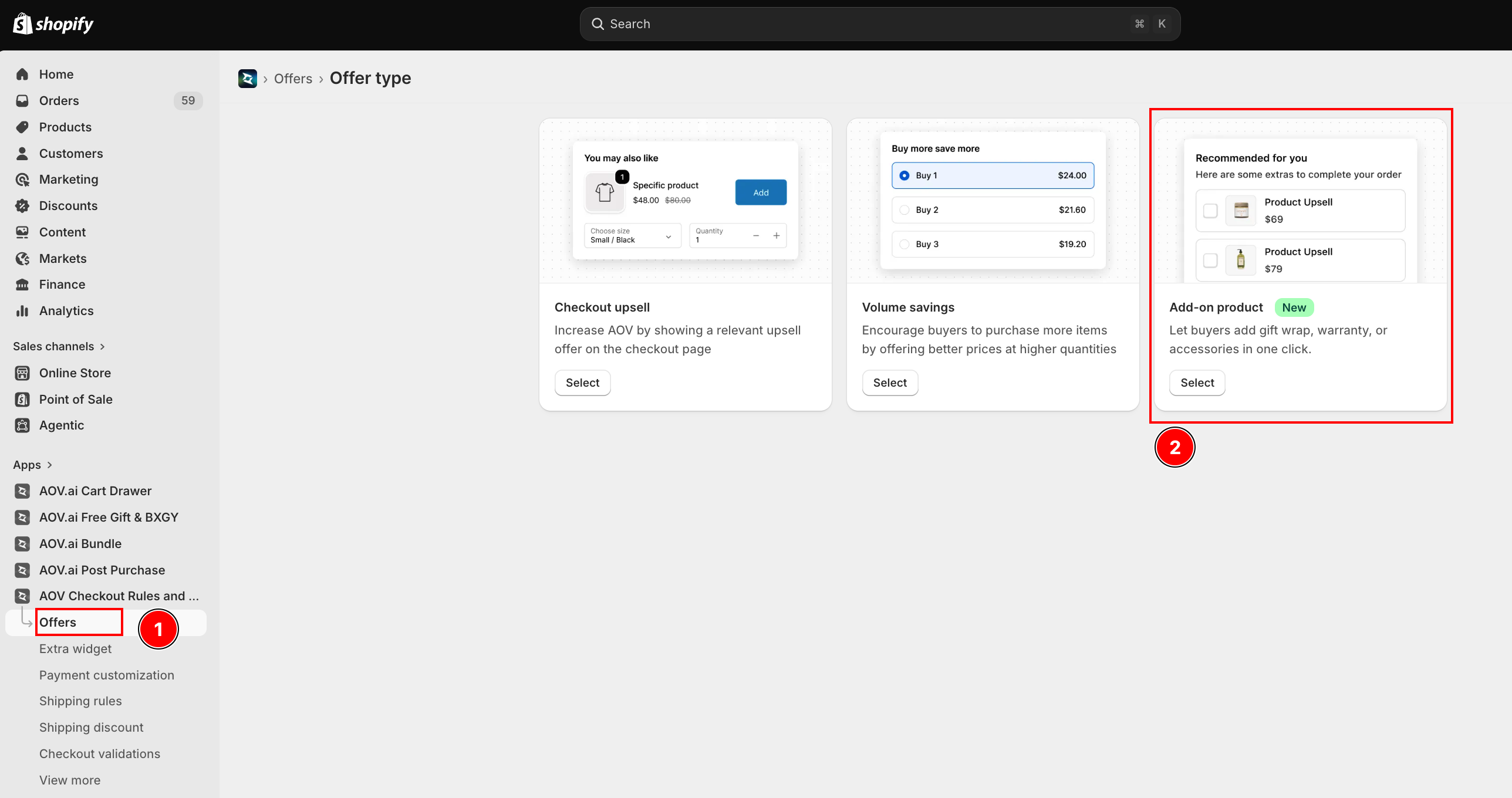
In the app sidebar, open Offers, create a new offer, and choose the Add-on product card.
| Offer type | Description |
|---|---|
| Checkout upsell | Increase AOV by showing a relevant upsell offer on the checkout page |
| Volume savings | Encourage buyers to purchase more items by offering better prices at higher quantities |
| Add-on product | Let buyers add gift wrap, warranty, or accessories in one click |
Click Select on the Add-on product card. The editor opens with the settings on the left and a live Preview on the right.
Step 1: Trigger conditions
Decide when the offer shows. Pick one:
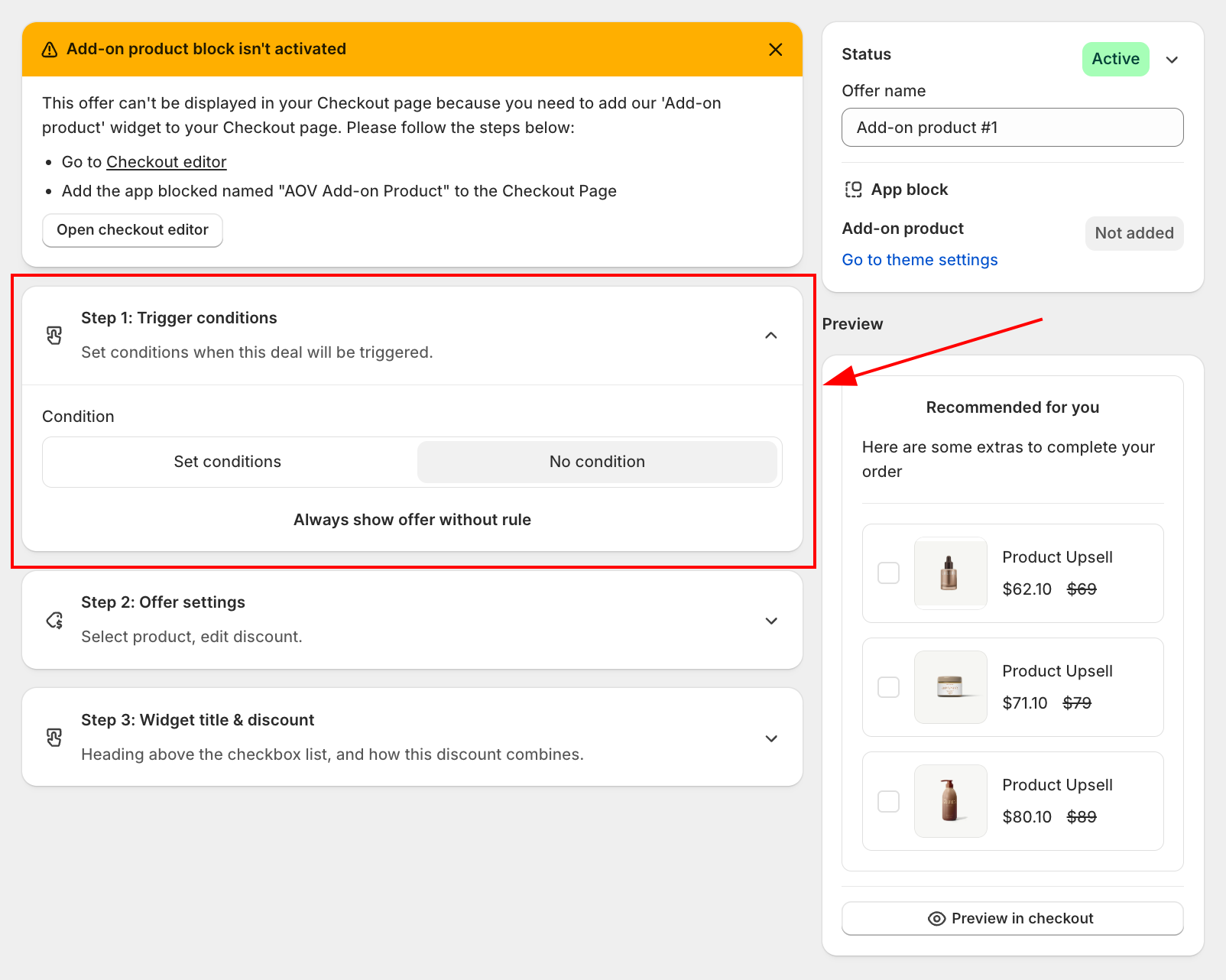
- No condition: the offer is Always shown without rule.
- Set conditions: show only when the cart matches your rules. Available conditions include included product, excluded product, subtotal value, customer tag, and shipping country.
Step 2: Offer settings
This is where you pick the add-on products and set each one's discount.
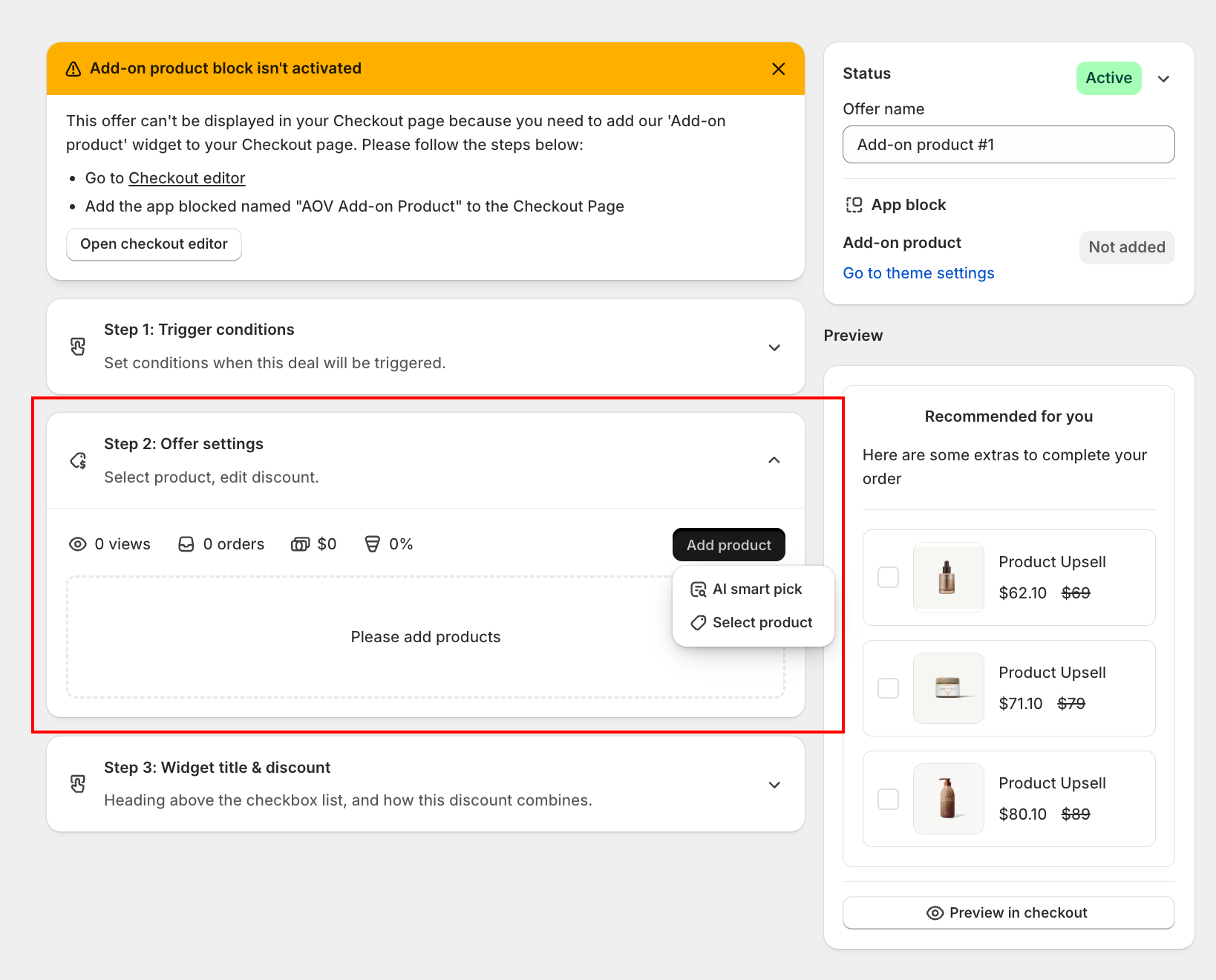
- Click Add product, then choose AI smart pick (extras suggested automatically) or Select product (pick them manually).
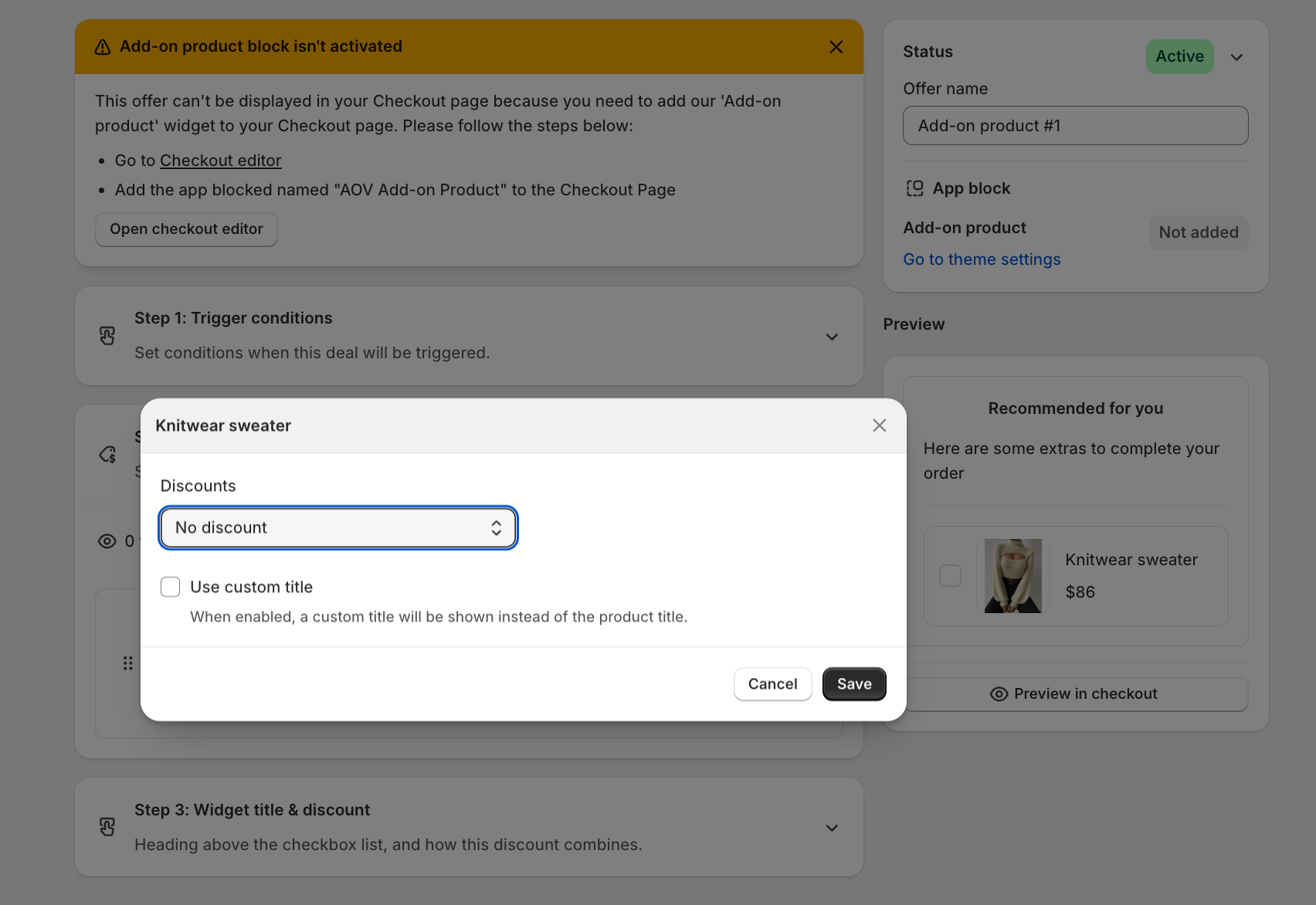
- For each product, open its edit icon to open the Discounts dialog and choose a Discount type:
| Discount type | What it does |
|---|---|
| No discount | Offer the add-on at full price (the default) |
| Percentage discount | Take a percentage off, then enter the value |
| Fixed amount discount | Take a flat amount off, then enter the value |
The discount is set per product, so different add-ons can have different discounts (or none). In the same dialog, tick Use custom title to show a custom label instead of the product's name.
Step 3: Widget title & discount
Set the heading buyers see above the checklist, and how the discount combines.
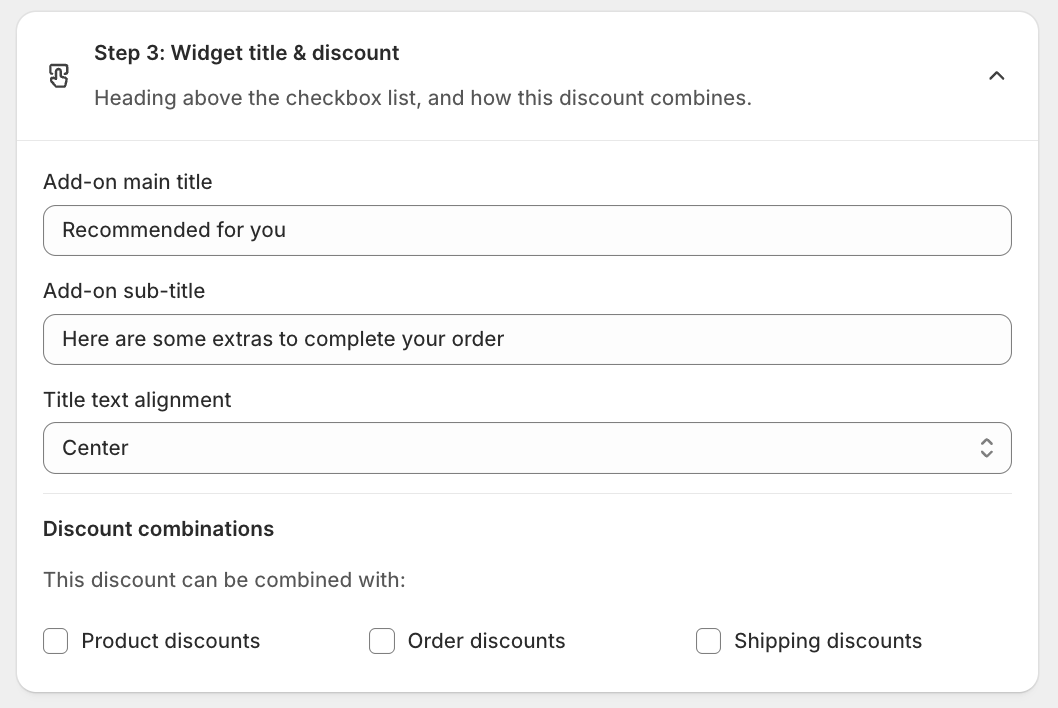
| Setting | Default |
|---|---|
| Add-on main title | "Recommended for you" |
| Add-on sub-title | "Here are some extras to complete your order" |
| Title text alignment | Center |
Under Discount combinations, choose whether this discount can be combined with Product discounts, Order discounts, or Shipping discounts.
Add the checkout block and activate
The offer only appears once its checkout block is on your checkout page. If it is missing, the editor shows a banner: "Add-on product block isn't activated."
- Click Open checkout editor (or Go to theme settings).
- Add the app block named AOV Add-on product to the checkout page.
- Save the checkout editor.
- Back in the offer, set Status to Active.
Use Preview in checkout to confirm the add-on list shows as expected.