Geo Restriction
Block or allow checkout based on shipping country and province/state. Create geo restriction rules to control which regions can complete orders at your store.
Available on all Shopify plans. Geo Restriction uses Shopify Functions — no Shopify Plus required.
What it does
Geo Restriction lets you create rules that block or allow checkout based on the buyer's shipping address:
- Block specific countries/regions — prevent checkout for orders shipping to restricted locations
- Allow only specific countries/regions — only permit checkout for orders shipping to approved locations
- Province/state-level control — restrict specific provinces or states within a country (e.g., block Alaska and Hawaii only)
- Additional conditions — combine geo rules with product, subtotal, or customer tag conditions for precise targeting
Each rule shows a custom error message at a position you choose — either as a banner at the top of the page or inline next to a specific field.
Step 1: Go to Checkout Validations
In the app sidebar, click Checkout Validations. You'll see the list of all validation rules.
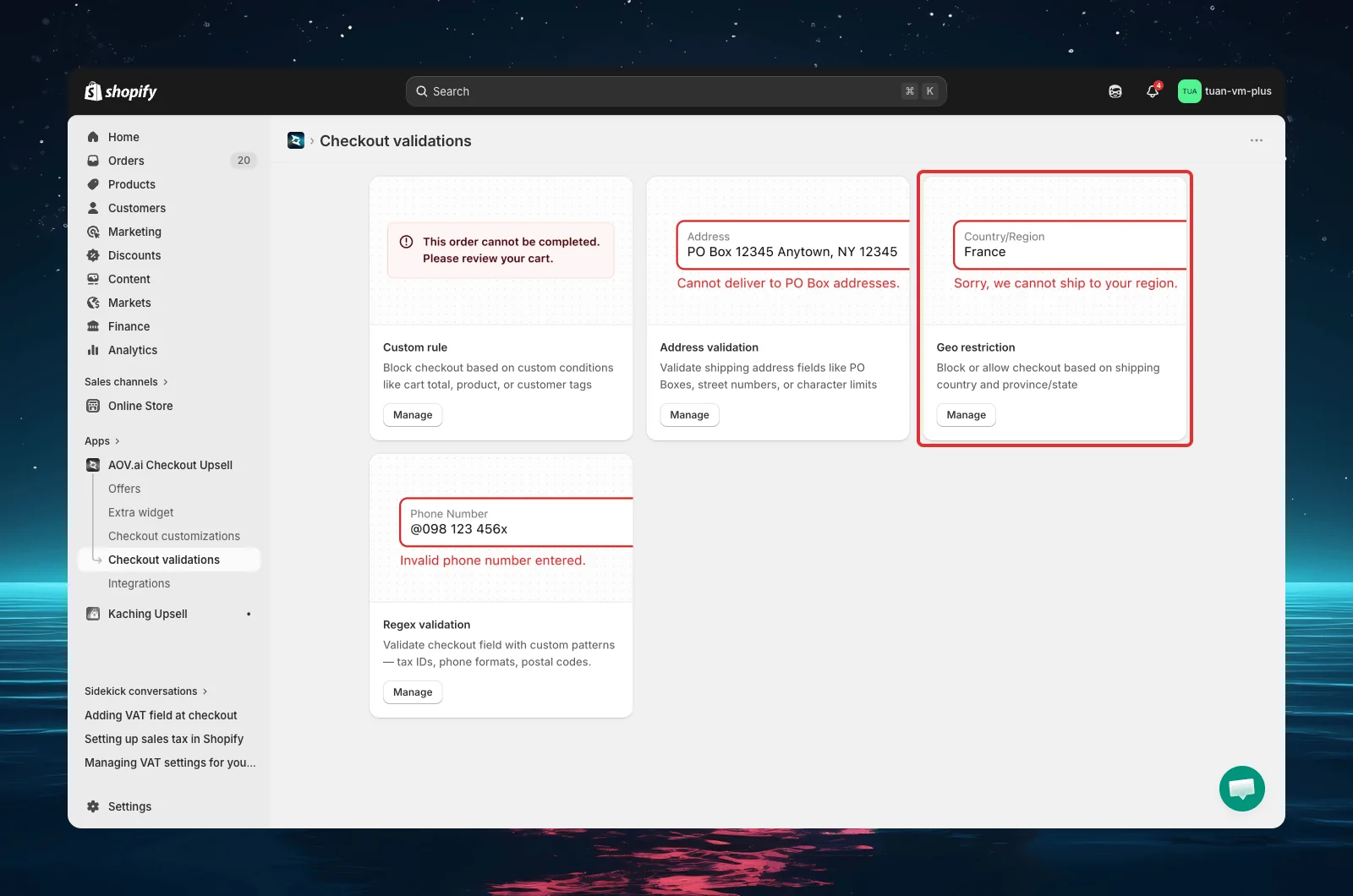
List page overview
| Feature | Description |
|---|---|
| Search | Find rules by name |
| Status filter | Filter by status (Active, Test mode, etc.) |
| Table | Shows rule name, type, status, countries summary, and actions |
| Actions | Activate/Deactivate, Edit, Delete for each rule |
| Bulk actions | Select multiple rules to activate, deactivate, or delete |
Step 2: Create a new rule
Click Create validation (top right), then select Geo Restriction. The editor opens with four sections: Name & Status, Geo Restriction Rule, Additional Conditions, and Error Message & Position.
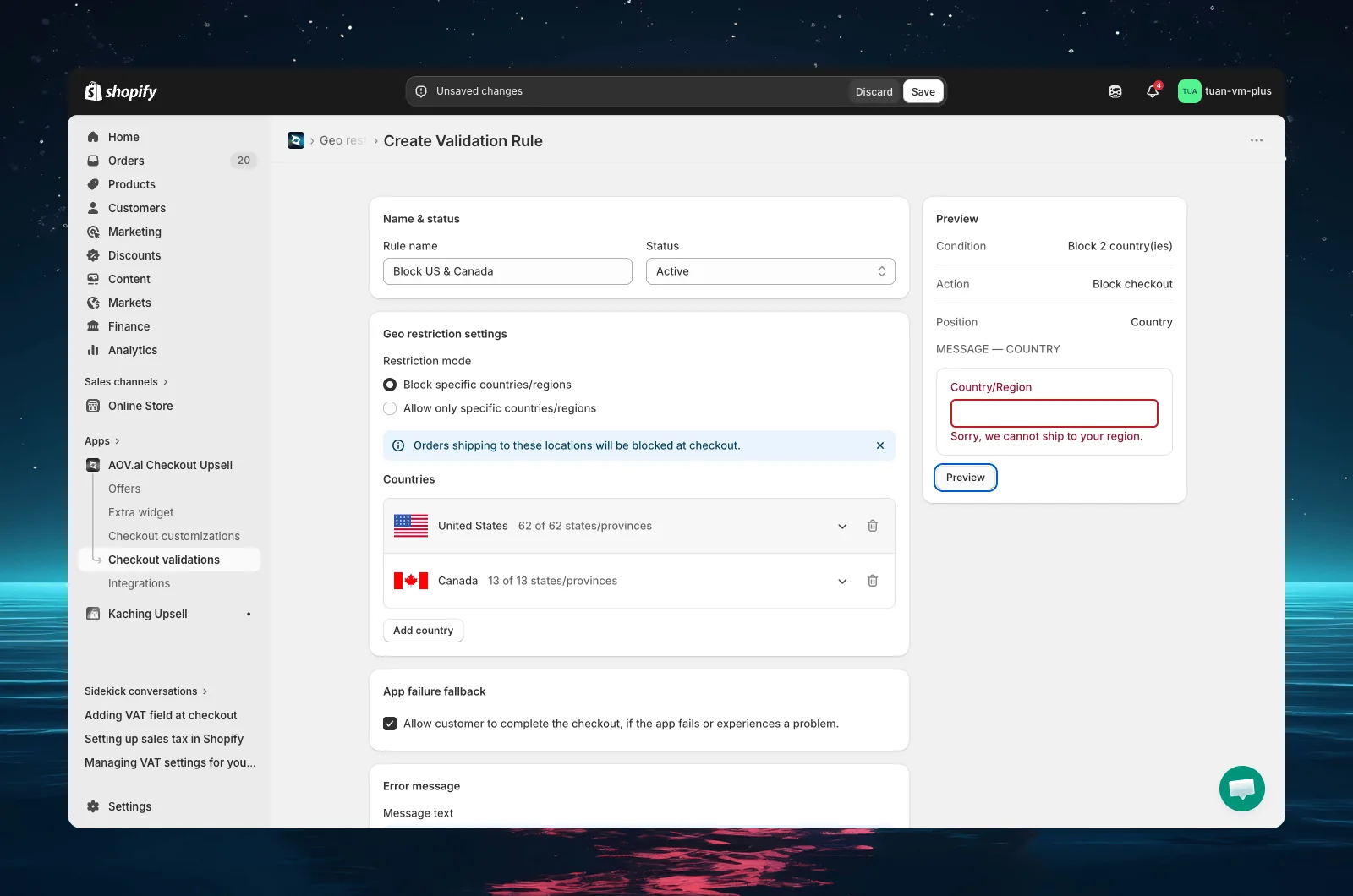
Step 3: Set name and status
| Setting | Description |
|---|---|
| Rule name | A descriptive name for your reference (e.g., "Block Alaska & Hawaii") |
| Status | Active — rule applies at checkout. Test mode — only triggers when checkout email is [email protected]. Expired — rule is saved but not applied. (You can also pause a rule from the list page to stop it without deleting it.) |
Tip: Start with Test mode to verify the rule works correctly before activating it for all customers.
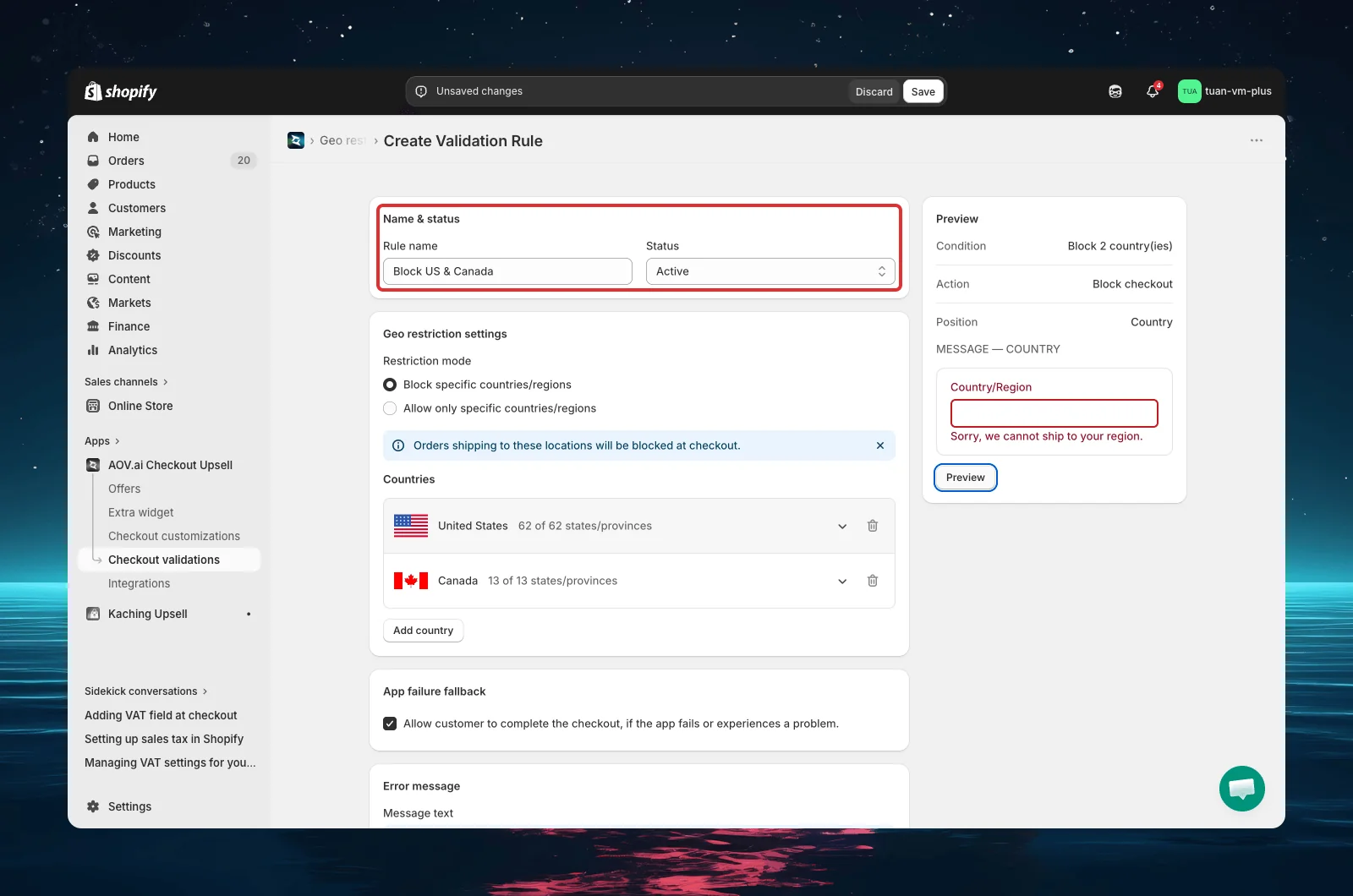
Step 4: Configure the geo restriction rule
This section defines which locations are blocked or allowed at checkout.
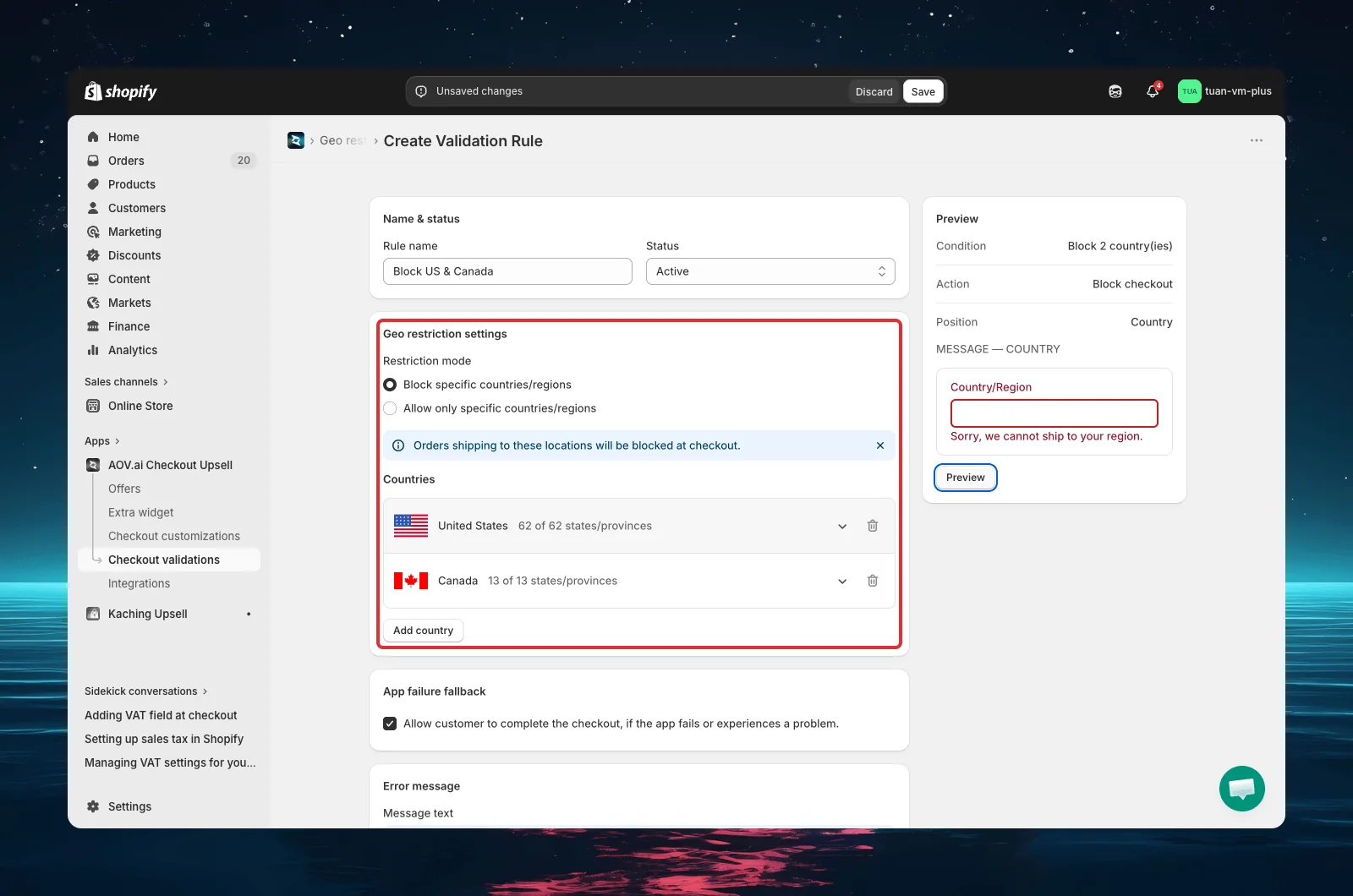
Restriction mode
Choose how the rule applies:
| Mode | Behavior |
|---|---|
| Block specific countries/regions | Orders shipping to selected locations are blocked at checkout |
| Allow only specific countries/regions | Only orders shipping to selected locations are allowed through checkout |
Block mode is best when you want to restrict a few specific regions. Allow mode is best when you only ship to a limited number of countries.
Select countries
Use the searchable dropdown to find and select countries. Each option shows a flag emoji and country name (e.g., "US United States"). Selected countries appear as tags below the search input — click the X on any tag to remove it.
Select provinces/states (optional)
After selecting a country that has provinces or states, a collapsible section appears below the country tags:
- Collapsed by default — helper text reads: "All provinces/states are blocked" (or "allowed")
- Expand to see a checkbox list of provinces/states with search
- Select specific provinces to restrict only those areas within the country
- Leave all unchecked to apply the rule to the entire country
Province/state selection is optional. If you don't select any specific provinces, the rule applies to the entire country.
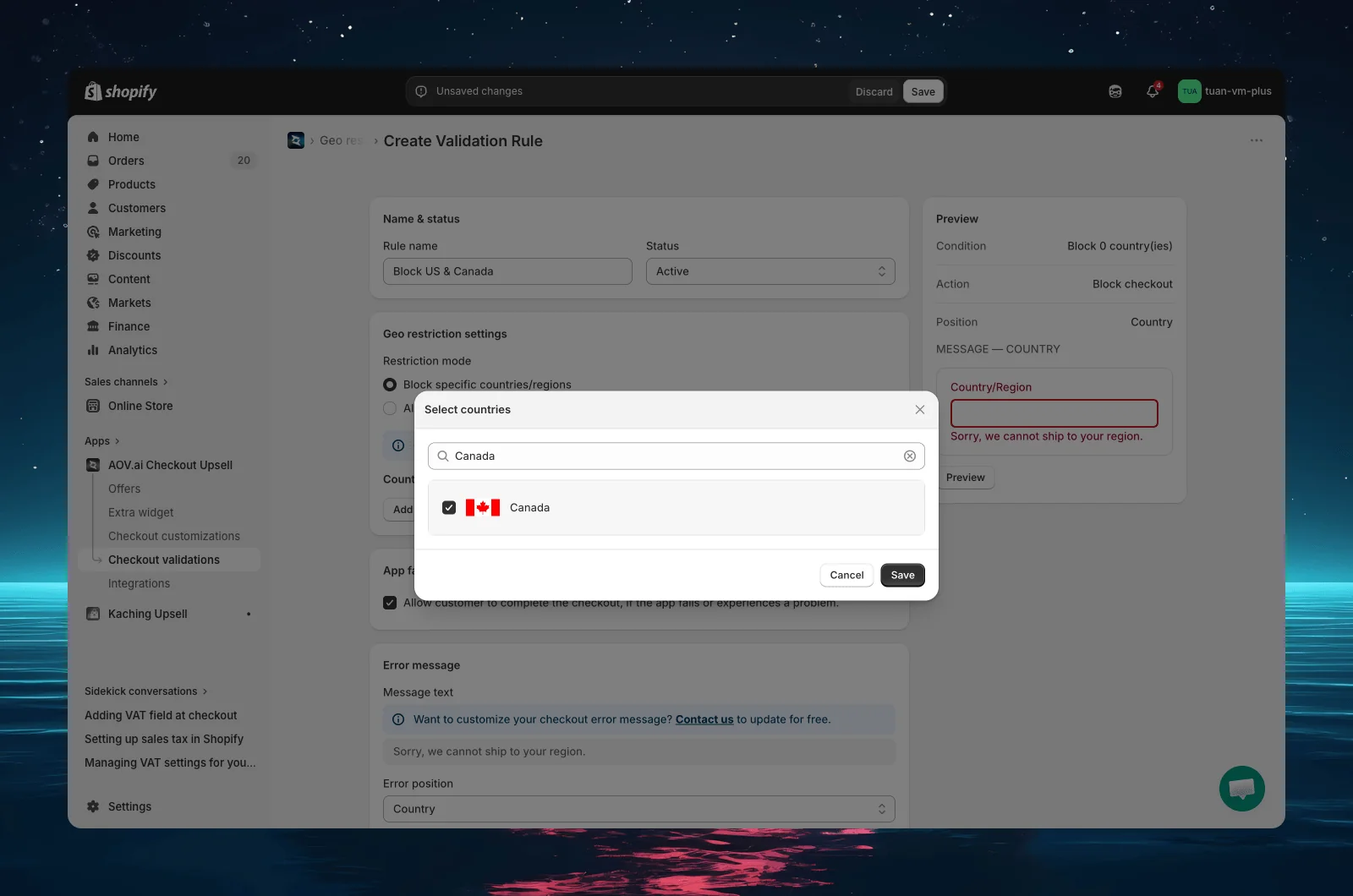
Step 5: Add additional conditions (optional)
By default, the rule applies to all checkouts that match the geo restriction. You can optionally add extra conditions to narrow the scope.
This section is collapsed by default. Click to expand and switch from "No condition" to "Set conditions".
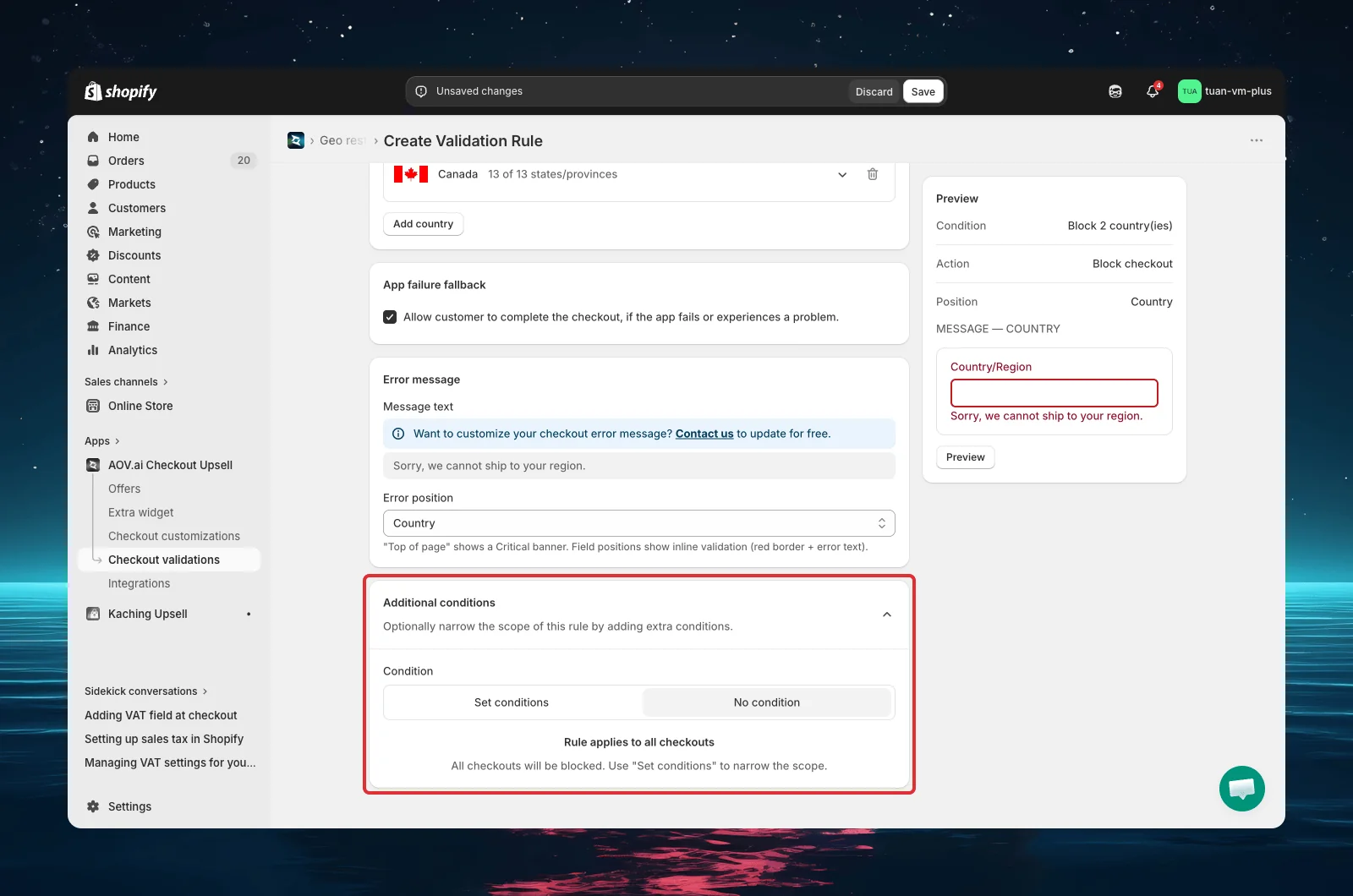
Available condition types
| Condition | Description | Example |
|---|---|---|
| Included product (or variant) | Rule only applies when the cart contains this product or variant | Block US only when cart has "Oversized Item" |
| Excluded product (or variant) | Rule does NOT apply when the cart contains this product or variant | Don't block US when cart has "Digital Download" |
| Subtotal value | Rule only applies when the order subtotal meets the threshold (>, ≥, <, ≤, =, or a range) | Block international orders over $1,000 |
| Customer tag | Rule only applies when the customer has (or doesn't have) a specific tag | Allow international checkout for customers tagged "wholesale" |
| Shipping country | Rule only applies for orders shipping to specific countries (Include / Exclude) | Apply the rule only to orders shipping to selected countries |
All conditions use AND logic — the geo condition AND every additional condition must be true for the rule to trigger. For example: "Block US" AND "Subtotal > $1,000" means both must be satisfied.
Step 6: Configure error message and position
This section controls what buyers see when the rule triggers.
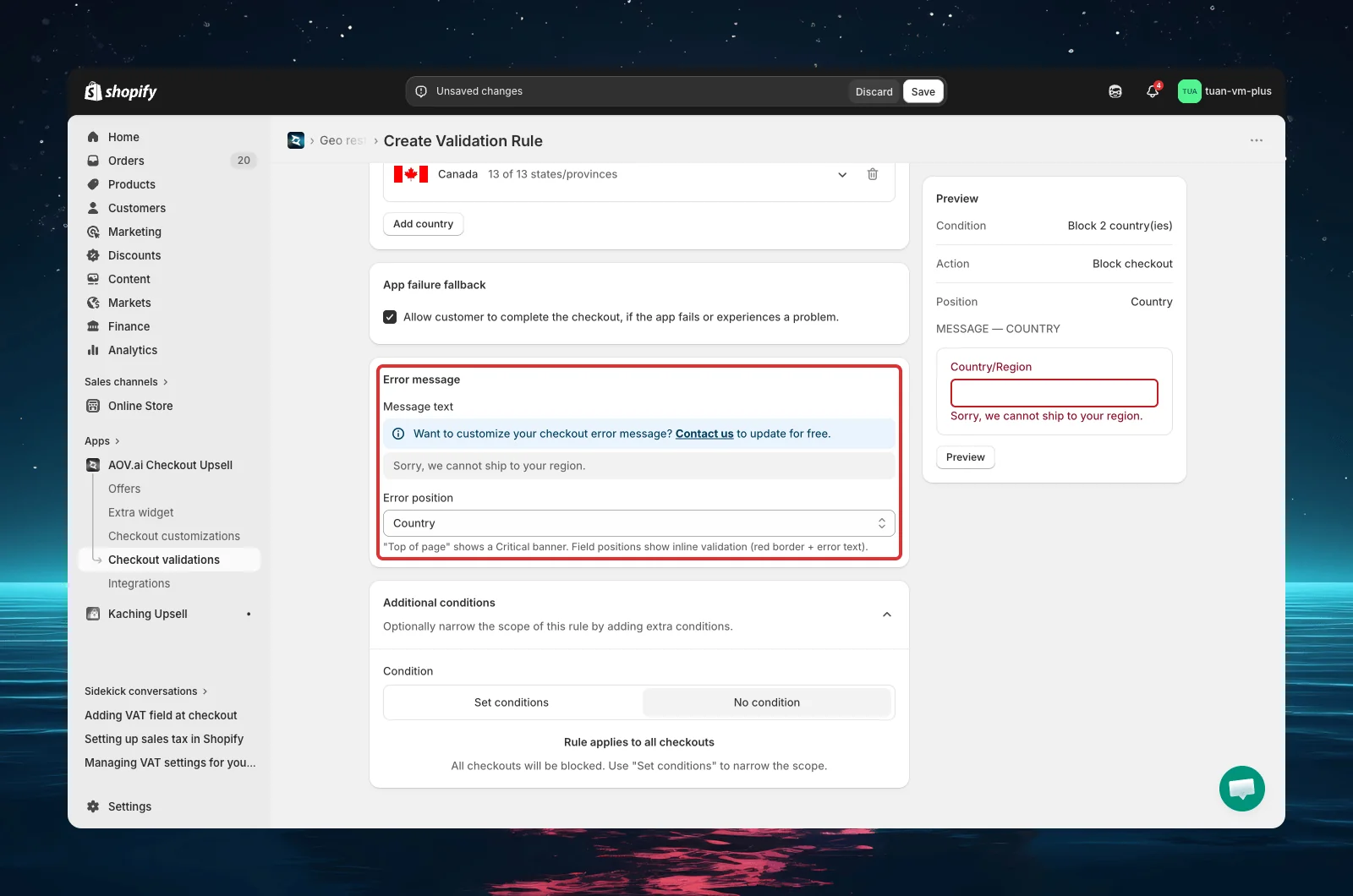
Error message
Enter the message buyers will see at checkout. The default message is: "Sorry, we cannot ship to your region."
Keep it clear and helpful — explain what went wrong and what the buyer can do (e.g., "We currently don't ship to this region. Please use a different shipping address.").
Editing the message: By default the message field may be read-only and show a banner: "Want to customize your checkout error message? Contact us to update for free." Click Contact us to have the team enable custom messages for your store.
Error position
Choose where the error message appears on the checkout page:
| Position | Display |
|---|---|
| Top of the checkout page | Red banner at the top of the page — most visible |
| First name | Inline error below the First name field |
| Last name | Inline error below the Last name field |
| Company | Inline error below the Company field |
| Address line 1 | Inline error below Address line 1 |
| Address line 2 | Inline error below Address line 2 |
| City | Inline error below the City field |
| Email or phone number | Inline error below the Email/Phone field |
| Delivery phone | Inline error below the Delivery phone field |
| ZIP / Postal code | Inline error below the ZIP code field |
| Country | Inline error below the Country dropdown |
| Province / State | Inline error below the Province/State dropdown |
For geo restriction rules, "Country" or "Top of the checkout page" are recommended positions — they clearly indicate the issue is related to the shipping location.
Step 7: Preview and save
The right sidebar shows a live preview of how your error message will appear based on the selected position. The preview updates in real time as you change the error message or position.
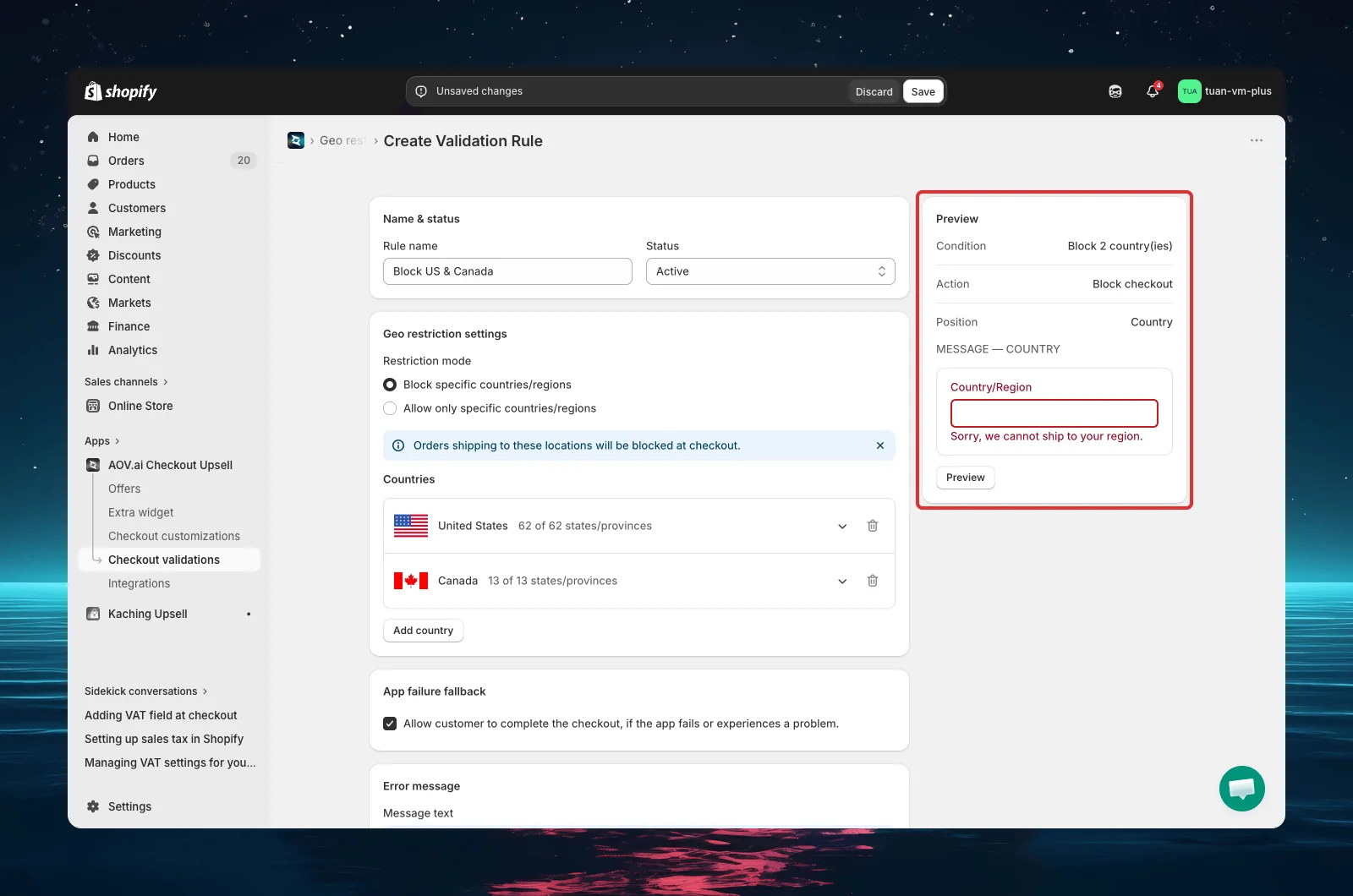
Full checkout preview
Click "Preview" (below the preview thumbnail) to open a full-screen modal showing the complete checkout layout with your error message rendered at the correct position.
When everything looks good:
- Set the Status to your preferred option
- Click Save in the top bar
The rule takes effect at checkout immediately.
Test your rule with Test Mode
Before activating a rule for all customers, test it first:
- Set the rule Status to Test mode and save
- Go to your store and add products to the cart
- Proceed to checkout
- Enter [email protected] as the checkout email
- Enter a shipping address in a country/region targeted by your rule
- Verify the error message appears at the correct position
- Change the shipping address to an allowed region and verify the error disappears
- Once verified, change the status to Active
Test mode only works with the email [email protected]. The shipping address must also match the geo restriction rule (and any additional conditions) for the error to appear.
Manage existing rules
Toggle status
Use the Pause / Start action on any rule to quickly toggle its status without opening the editor.
Edit a rule
Click the edit icon (pencil) in the Actions column, or click the rule name to open the editor.
Delete rules
- Single rule: Click the delete icon (trash) in the Actions column
- Bulk delete: Select multiple rules with checkboxes → click Delete rules
Other bulk actions: Activate rules, Deactivate rules.
Deletion is permanent. The rule cannot be recovered.
Tips
- Start with Test mode — verify the rule works correctly before activating for all customers
- Use "Country" or "Top of the checkout page" for error position — these clearly communicate that the issue is location-related
- Be specific with provinces — if you only need to block Alaska and Hawaii, select those states instead of blocking all of the US
- Use Allow mode for limited shipping — if you only ship to 3-5 countries, "Allow only" is simpler than blocking every other country
- Combine with additional conditions — use product or subtotal conditions to create targeted rules (e.g., block oversized items to remote areas)
- Keep messages actionable — tell buyers what to do, not just what went wrong (e.g., "We don't ship to this region. Please use a different shipping address." instead of "Region blocked.")
- Keep rule names descriptive — "Block Alaska & Hawaii for oversized" is better than "Geo Rule #1"
- Need more rules? — the free plan includes 1 validation rule (shared across all checkout-validation types). Use the Contact us link in the app to have more rules unlocked
FAQs
General
Q: Do I need Shopify Plus for Geo Restriction? A: No. Geo Restriction uses Shopify Functions, which are available on all Shopify plans.
Q: How many rules can I have? A: The free plan includes 1 validation rule, counted across all checkout-validation types (Custom Rules, Geo Restriction, Address Validation, Regex, VAT, and Order Limits combined — active, paused, and test-mode rules all count). To create more, use the Contact us link in the app to have additional rules unlocked.
Q: Do rules take effect immediately after saving? A: Yes. Once a rule is set to Active and saved, it applies to all new checkouts immediately.
Q: What's the difference between Block mode and Allow mode? A: Block mode prevents checkout for selected countries/regions — all other locations are allowed. Allow mode only permits checkout for selected countries/regions — all other locations are blocked.
Countries and provinces
Q: What happens if I select a country but don't select any provinces? A: The rule applies to the entire country — all provinces and states within that country are affected.
Q: Can I mix countries with and without province selections? A: Yes. For example, you can block all of Canada while only blocking Alaska and Hawaii in the United States.
Q: Does the rule check the shipping address or the billing address? A: The rule checks the shipping address only. Billing address is not evaluated.
Q: What happens if the buyer hasn't entered a shipping address yet? A: The rule does not trigger. It only evaluates when a shipping country is provided.
Q: Does the rule trigger for digital products with no shipping? A: No. If the order has no shipping (digital products only), the rule does not trigger because there are no delivery groups to evaluate.
Conditions and behavior
Q: Can I use additional conditions with geo restriction? A: Yes. You can add product (or variant), subtotal value, customer tag, or shipping country conditions. All conditions use AND logic — the geo match AND every additional condition must be true.
Q: What happens if multiple geo restriction rules match at the same time? A: All matching rules display their error messages. Buyers must resolve all errors (by changing their shipping address) before completing checkout.
Q: Does the error block checkout or just show a warning? A: The error blocks checkout — buyers cannot complete their purchase until they change their shipping address to an allowed region.
Q: Can I use different languages in the error message? A: Yes. Enter the message in any language you prefer — it will display exactly as typed.